Integrating Invicti Enterprise with Mend
The Invicti partnership with Mend allows you to retrieve Mend SAST, SCA, and Container Security scan results and view them in Invicti Enterprise alongside the DAST scan results for your targets. To achieve this, you need to integrate Invicti Enterprise and Mend by mapping targets to Mend projects, then configure the scan settings/scan profile in Invicti Enterprise for each connected target to retrieve Mend SAST, SCA, and Container Security scan results.
The integration between Invicti Enterprise and Mend does NOT initiate a Mend scan. Invicti Enterprise will pull the latest SAST, SCA, and Container Security scan results from Mend for a mapped target and display the information in Invicti Enterprise alongside the DAST scan results.
This document explains how to set up an integration between Invicti Enterprise and Mend.
How to integrate Invicti Enterprise with Mend SAST, SCA, and Container Security
To integrate Invicti Enterprise with Mend, first, ensure you have established the prerequisites listed below. Then, follow the steps in this section to obtain the activation key and configure the integration in Invicti Enterprise.
- A Mend account with read access to your organization's Mend projects and findings
- Know which of your targets in Invicti Enterprise map with your Mend projects
Step 1: Obtain the activation key
- Log in to your Mend account.
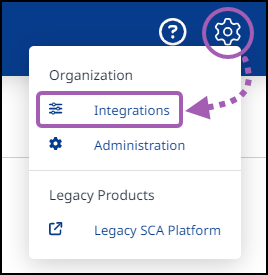
- Select Settings > Integrations.
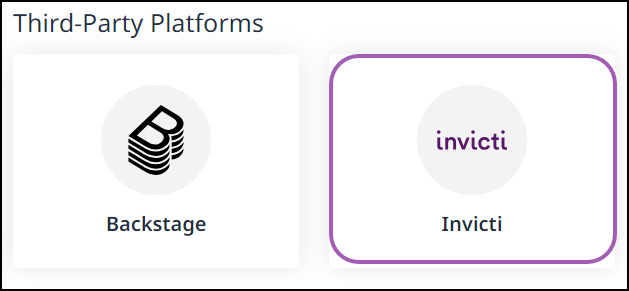
- Select Invicti from the Third-Party Platforms section.
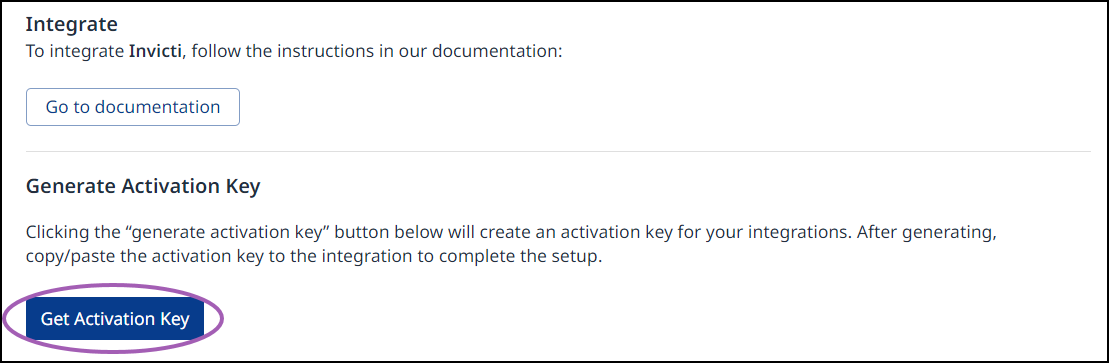
- Click Get Activation Key.
- Click the copy icon next to the Activation key.
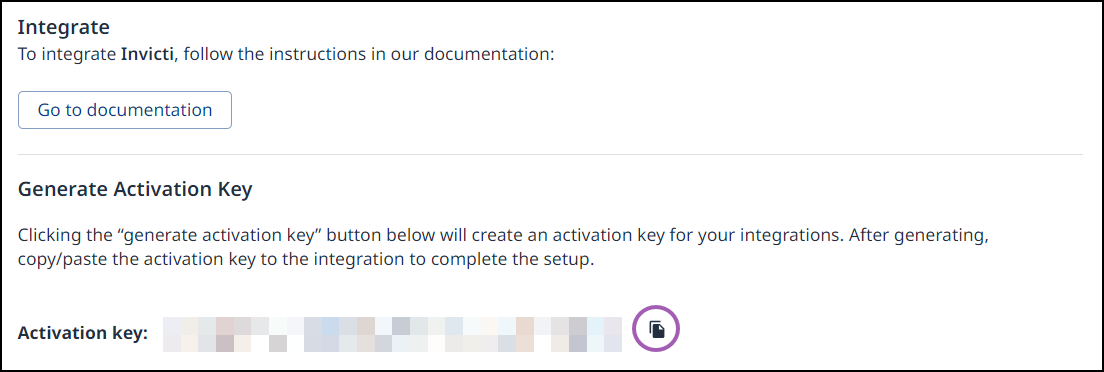
You now have the activation key necessary to configure the integration in Invicti Enterprise. Continue with the instructions in step 2 below.
Step 2: Configure the integration in Invicti Enterprise
- Log in to Invicti Enterprise.
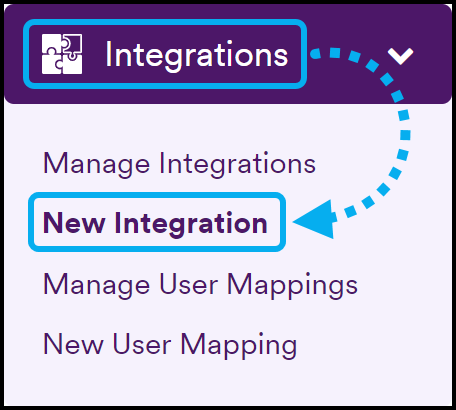
- Select Integrations > New Integration from the left-side menu.
- Scroll down to the Connections section and select Mend.

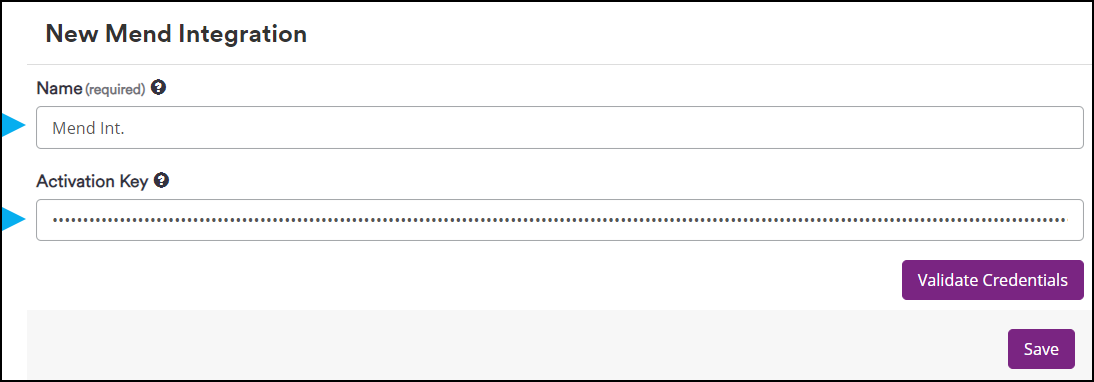
- On the New Mend Integration page, fill in the following required fields:
- Enter a Name for the Mend connection. The name you provide will appear on the Manage Integrations page. If you intend to configure multiple Mend integrations, then the name will be important to help identify your different Mend connections.
- Paste the Activation Key you copied from Mend.
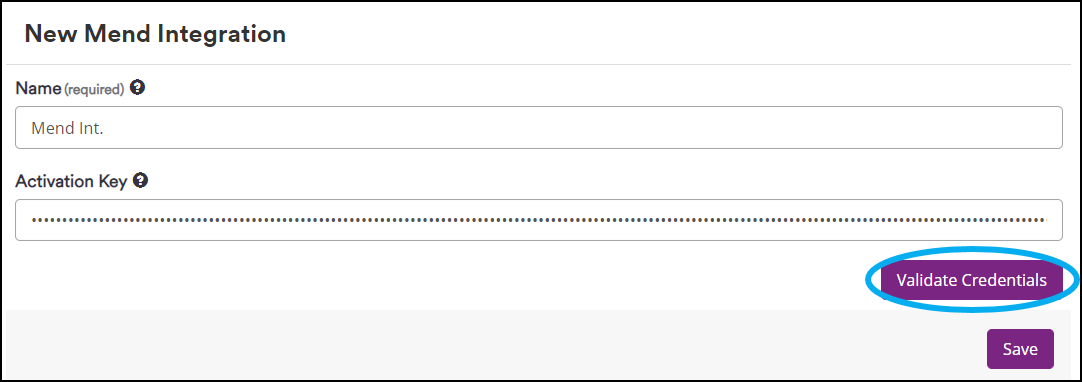
- Click Validate Credentials.
-
A 'Connection successful!' message appears at the top of the page. If you see an error message, this means there was a problem with the configuration. Ensure you have provided the correct activation key.
-
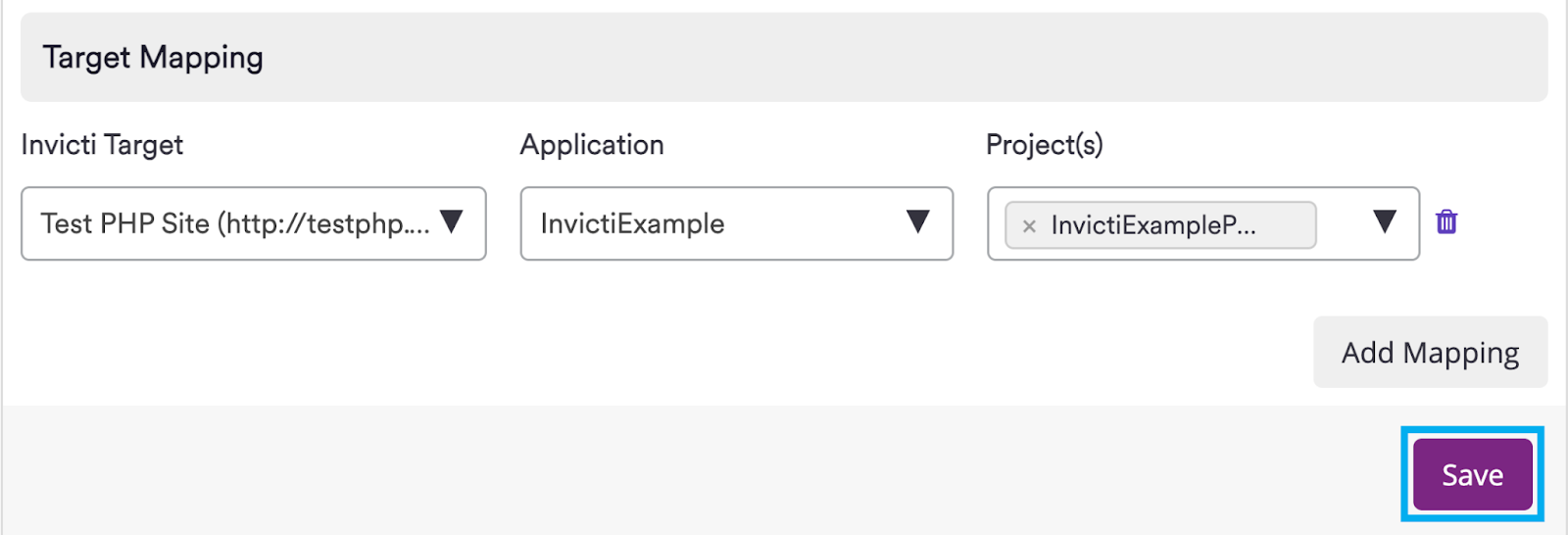
In the Target Mapping section that appears, map your Invicti Enterprise targets to your Mend projects:
- Click the Invicti Target drop-down and select a target to map to your Mend projects
- Click the Application drop-down and select an application from your Mend application inventory
- Click the Project(s) drop-down and select your Mend project(s) to map to the target you selected
- Click Add Mapping to add a new row to map another target to Mend projects. You can add as many target mappings as you need.
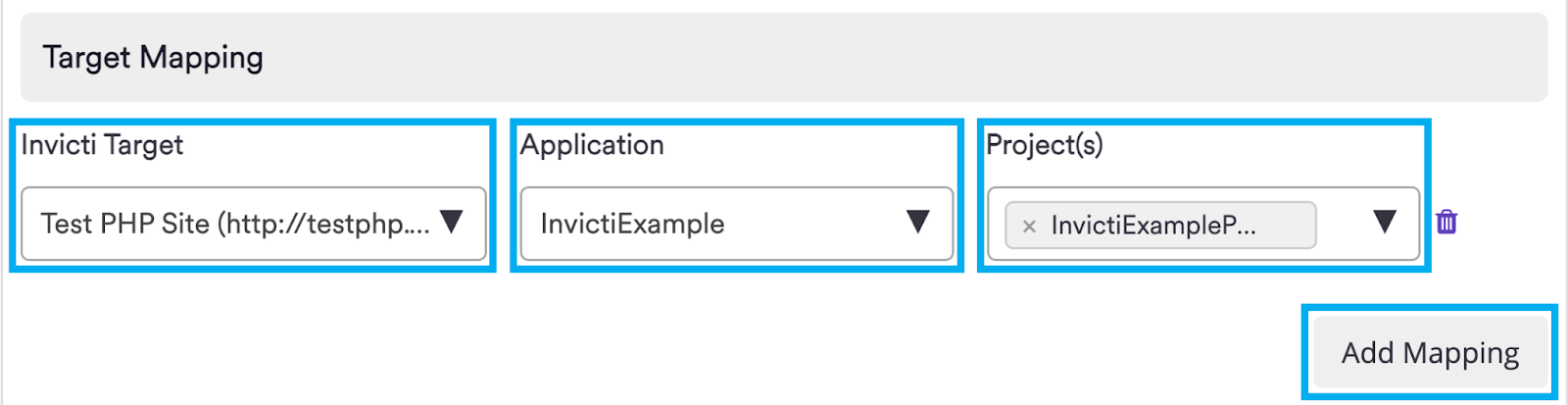
Invicti Enterprise does not verify the mapping between targets and Mend projects. Ensure you are mapping your Mend projects to the correct target. Accurate mapping will ensure that SAST results are related to the right target.
- When you have finished mapping targets, click Save.
Your Invicti Enterprise and Mend accounts are now integrated. The newly created integration is now listed on the Integrations page.
Before running a DAST scan, you need to configure the scan settings/scan profile to enable retrieval of Mend SAST, SCA, and Container Security scan results. Without this configuration, you won't be able to view the Mend scan results alongside your DAST scan results in Invicti Enterprise.
For information about how to configure the scan settings/scan profile, refer to Retrieving Mend SAST and SCA scan results.
Need help?
Invicti Support team is ready to provide you with technical help. Go to Help Center