Integrating Invicti Standard with Jenkins
Jenkins provides an open source automation server that supplies plugins that support the development of software projects. If you already use Jenkins to automate tasks, you can integrate the Invicti web application security scanner with Jenkins. This enables you to automate Invicti Standard scans and export Invicti reports. These automated Invicti tasks are then displayed in the Jenkins UI.
This article explains how to run scans automatically and export reports from Invicti via Jenkins.
As Jenkins is a Windows service, none of the GUIs of any applications triggered by Jenkins will open. They will be launched in a background process.
How to Integrate Invicti Standard with Jenkins
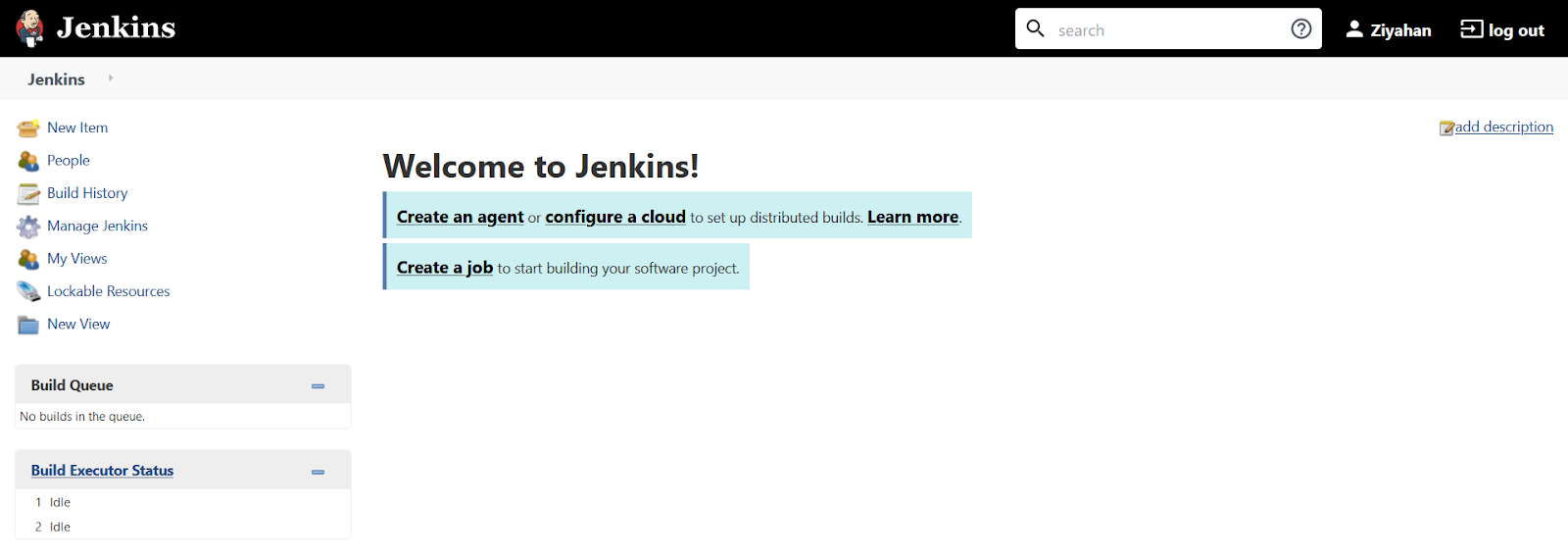
- Once you have installed Jenkins on your local machine, open the Jenkins web user interface. The Jenkins web interface can be reached at: http://127.0.0.1:8080/. This window is displayed: Click the Create a Job link.
- In the Enter an item name field, type your project name.
- Select Freestyle project as the type.
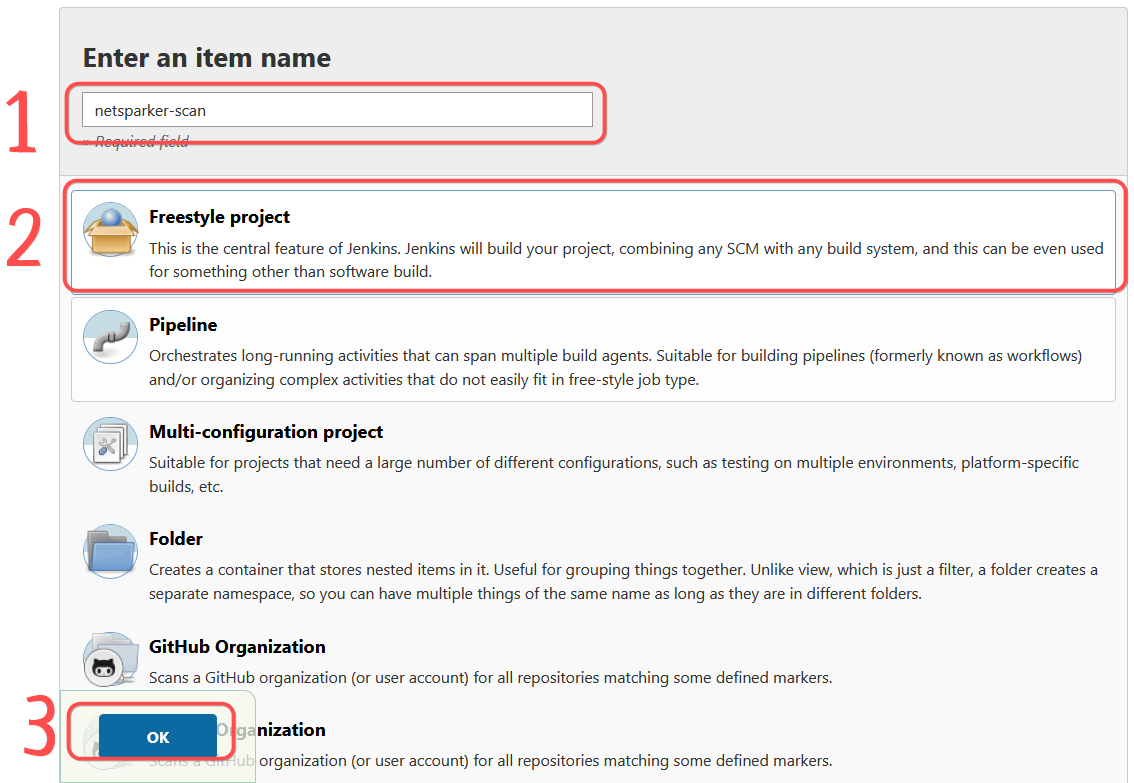
- Click OK. The Config window is displayed.

-
Click the Build Environment tab.
-
From the Add build step dropdown, select Execute Windows batch command. The Execute Windows batch command panel is displayed.
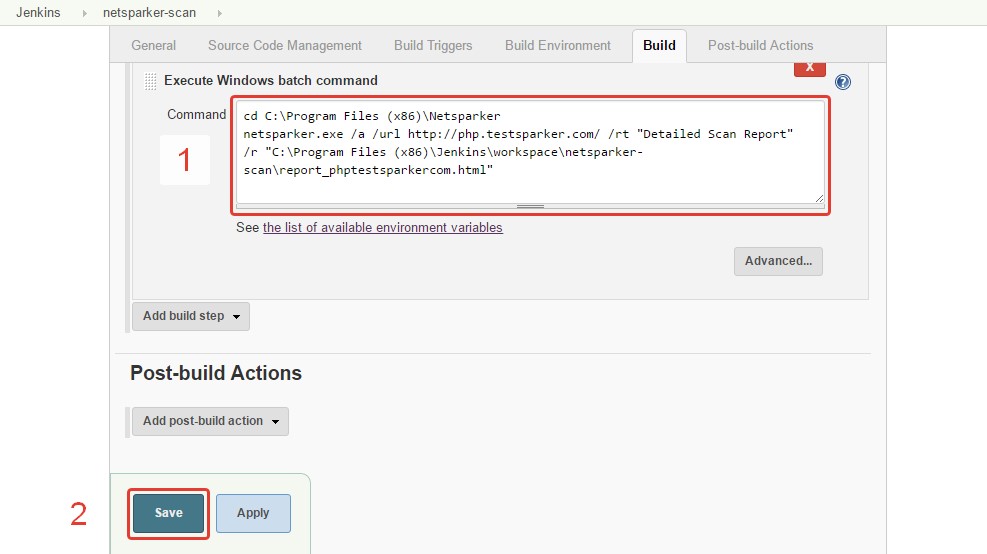
- In the Command field, enter the following command:
cd C:\Program Files (x86)\Invicti
invicti.exe /a /url http://php.testsparker.com/ /rt "Detailed Scan Report" /r "C:\Users\CURRENT_USER\Documents\Invicti\Reports\report_phptestsparkercom.html"
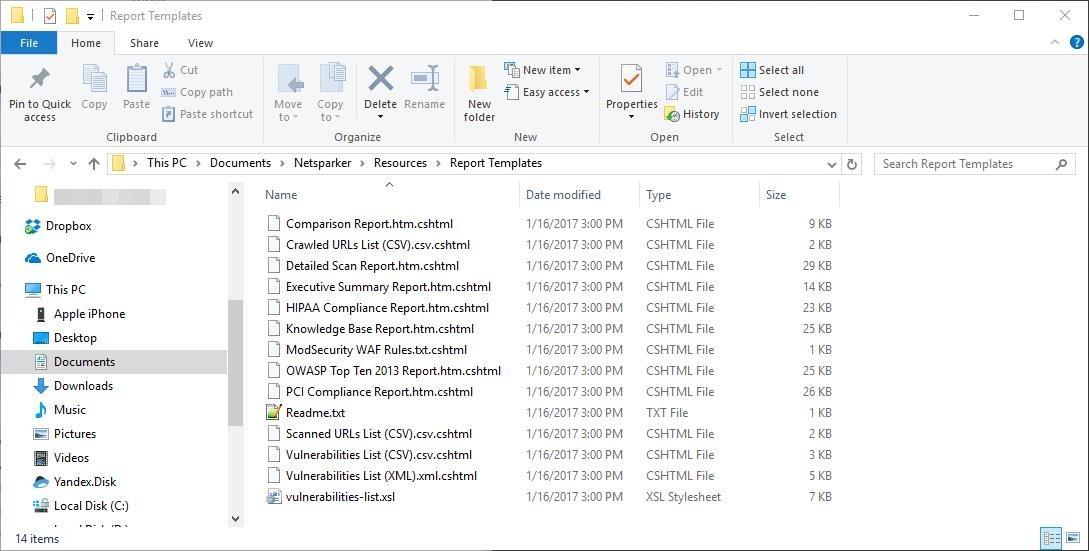
In this command, the value 'Detailed Scan Report' given to the rt parameter on the command line, is taken from the template names contained in the C:\Users{USERNAME}\Documents\Invicti\Resources\Report Templates directory.
If any of the template names from this screenshot were included in the command, instead of 'Detailed Scan Report', a report will be generated according that template instead.
For further information about the parameters you can use when running Invicti Standard via the command line, see Invicti Standard Command Line Interface and Arguments.
- Click Save to save the project.
- This screenshot shows a Console Output window after the created task runs.
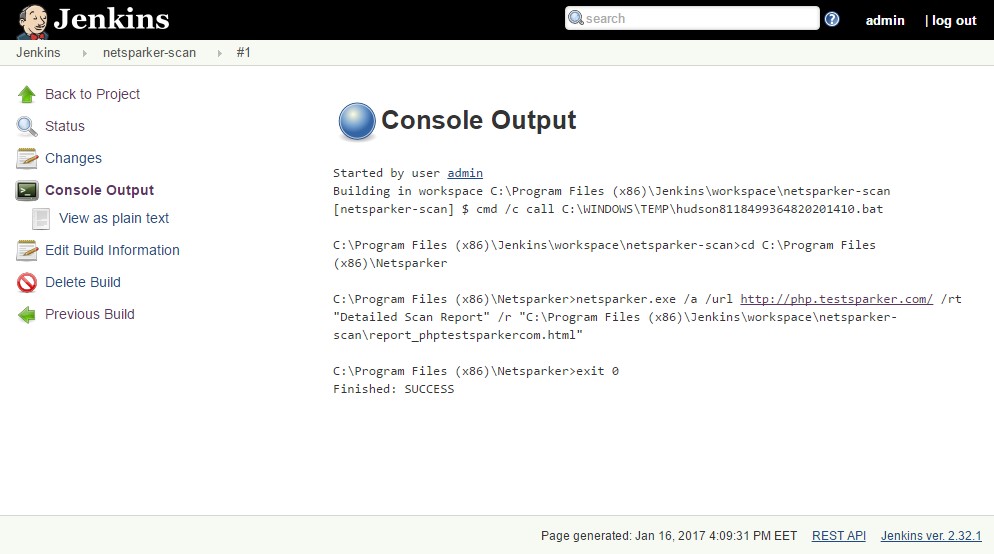
This screenshot shows a Workspace that is created after the task runs.
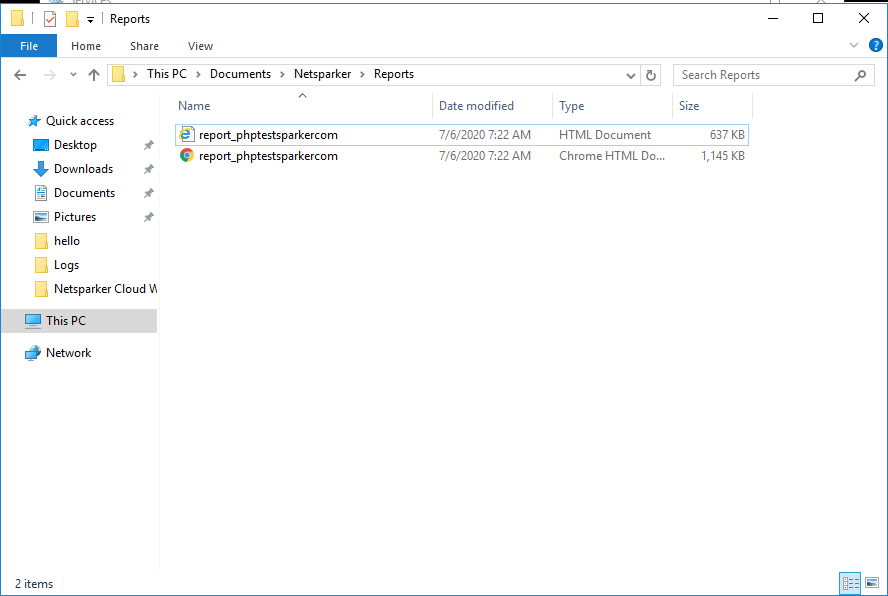
If you run Jenkins as a Local System Account, Invicti saves files in the C:\Invicti folder. This will prohibit the Jenkins service from running properly. Instead, you need to run the Jenkins service as a User Account. This will enable Invicti to save the files under the C:\Documents\USER\Invicti folder.
How to Run Jenkins as a User Account
- Click Windows and select Run. The Run dialog is displayed.
- Type 'services.msc' into the textbox and press Enter. The Services window is displayed.
- Select Jenkins from the list, right-click on the service name, and select Properties. The Jenkins Properties dialog is displayed.
- Select the Log On tab and select This Account.
- Enter your Windows account name and password.
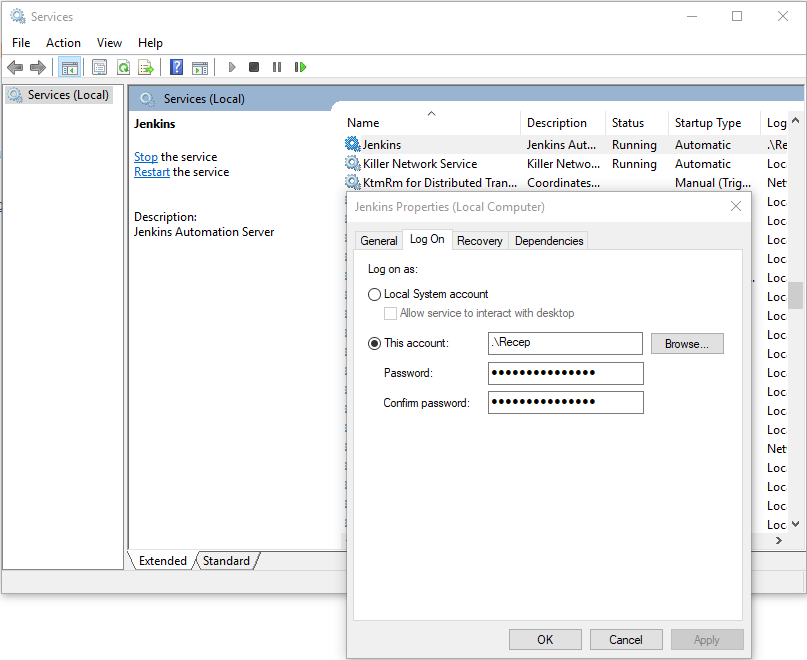
- Restart Jenkins service to make changes take effect.
- Re-build the Jenkins project.
- Check in Task Manager (Shift+Control+Esc) to see if the scan has started.
Need help?
Invicti Support team is ready to provide you with technical help. Go to Help Center