Invicti licenses
There are three licenses, giving you access to one or both editions:
- Standard License: Invicti Standard
- Team License: Invicti Standard and Invicti Enterprise (on-demand)
- Enterprise: Invicti Standard and Invicti Enterprise (Hosted or on-premises)
This document explains how to get and manage Invicti licenses.
- Each Invicti license comes with a designated quota of websites that can be scanned.
- Multiple licenses are available.
- Invicti syncs the License Store with the License Servers daily. If a license update occurs, you can either deactivate and reactivate the license to apply the changes immediately or wait until the next day for the update to take effect.
Trial evaluations
- The trial evaluation period is 2 weeks. You can scan 5 target URLs at most.
- If you add purchased licenses to your License Store, your trial evaluation disappears.
How to get a trial evaluation
- Go to https://www.invicti.com/get-demo/.
- Enter your work email and select the Next button.
- Now, enter your first name, last name, and company and select the Next button.
- Optionally, add your phone number and register to receive product and industry updates. Select Get a Demo to open a calendar.
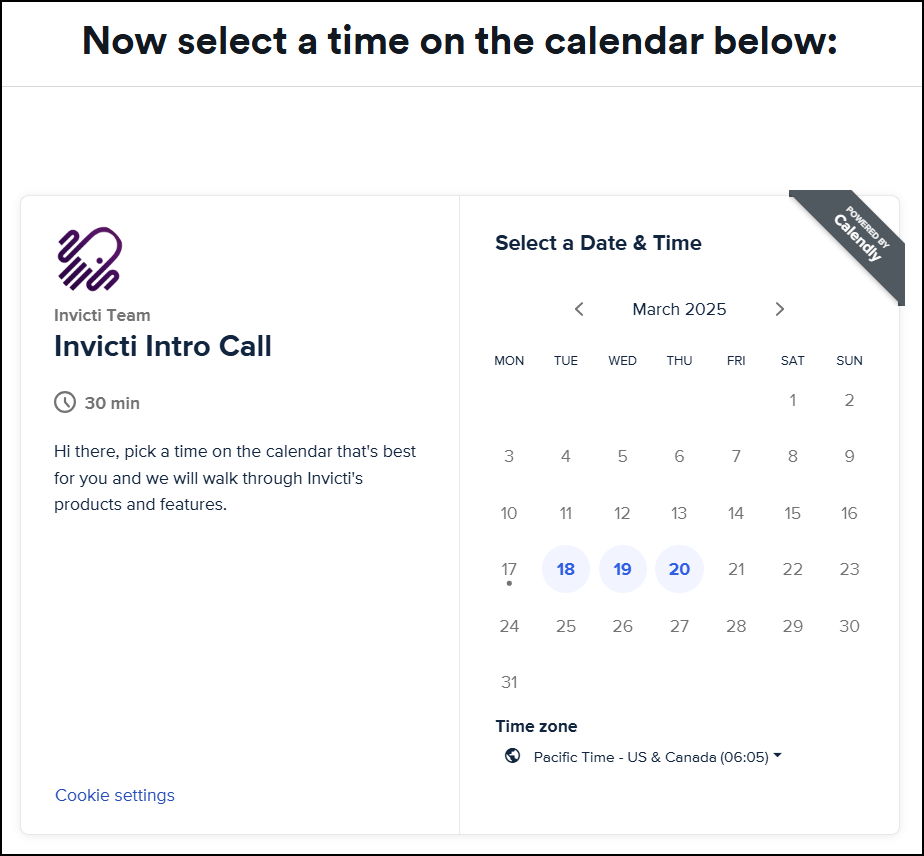
- Choose a convenient time for you on the calendar. If needed, change the time zone in the following section.
- Select Next to open a summary page.
- Select Schedule Event to confirm your appointment.
For more information on licensing, refer to the following documents: Invicti Licensing FAQs, Invicti Editions, and Licensing Settings.
Your information is kept private. For more information, refer to the Privacy Policy.
Activate your licenses
This section explains how to get and activate Invicti Licenses.
How to get and activate a license
- Contact us at sales@invicti.com.
- The Sales team helps you with the purchase.
- For Invicti Enterprise, register your new account using the Invitation link you were emailed. You can then set up roles and add individual users).
- For Invicti Standard, install it using the link you were emailed (refer to Installing Invicti Standard). This email also includes the License Key to activate the license.
- To activate Invicti Standard, trustlist services.invicti.com
If you need additional licenses, contact sales@invicti.com.
Manage your licenses
This section explains how to manage Invicti licenses, including how to deactivate an active license and reactivate a deactivated one.
Manage licenses in Invicti Enterprise
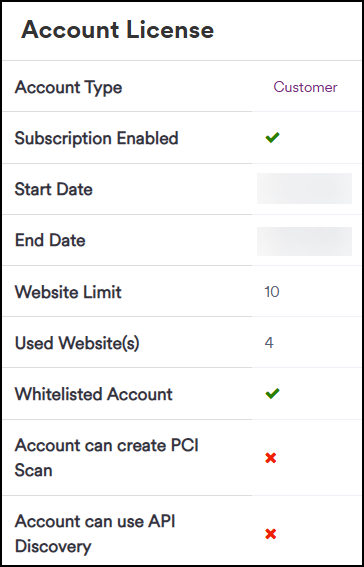
From the [Your Name] (top right) drop-down, select License. The Account License window is displayed, showing the Start and End Date and Website Limit.
Manage licenses in Invicti Standard
- From the Help tab on the ribbon, select Subscriptions.
- The Subscriptions dialog is displayed, listing all purchased licenses. The status of each license is displayed.
This table lists and explains the fields in the Subscriptions dialog.
| Field | Description |
|---|---|
| License key | This is the unique identifier of this license. |
| Total websites | This is the total number of websites that can be added to Invicti via this license. |
| Allocated websites | This is the number of websites that have been added to Invicti. |
| Status | This indicates whether the license can be used or not. The setting is either Active or Inactive. |
| Issue date | This is the date the license was issued. |
| Expiration date | This is the date the license expires. |
Activate a license in Invicti Standard
- With the Subscriptions dialog open, select Add New License. The Activation dialog is displayed. Alternatively, select the relevant license, and select Activate. The License Required dialog is displayed.
- Enter the License Key you were issued by Invicti and select Activate.
- The license can now be used. A brief success message is shown if the activation succeeds.
Activate a license in Invicti Standard using Invicti Enterprise information
- With the Subscriptions dialog open, select Add New License. The Activation dialog is displayed. Alternatively, select the relevant license, and select Activate. The License Required dialog is displayed.
- Select Sign In with Enterprise Account. The Invicti Enterprise Information dialog is displayed. (See Enterprise Integration for information on how to complete the fields.)
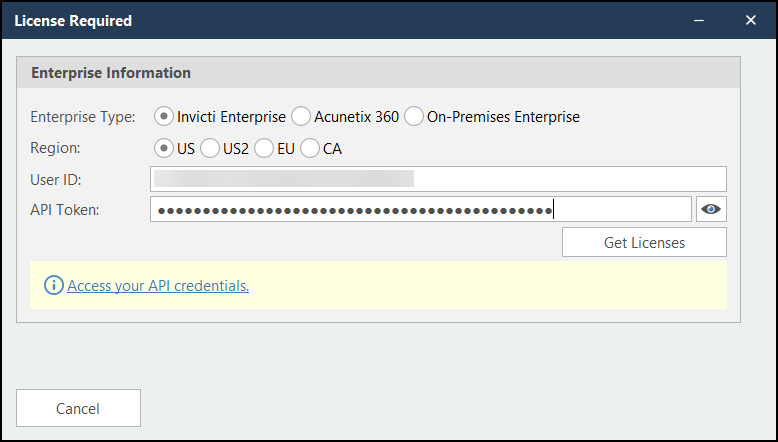
- Select Get Licenses to authenticate the account. Additional information on licenses is shown with one or multiple licenses. Select the one you want to activate, and select Activate Selected License.
Deactivate a license in Invicti Standard
With the Subscriptions dialog opens, select the relevant license, and select Deactivate. A brief success message is displayed if the deactivation succeeds.
Website allocation
Websites are automatically added to your licenses before starting scans.
If you deactivate a license, you are prompted to reallocate websites to licenses if there is space left on the remaining licenses.
Allocate websites to licenses
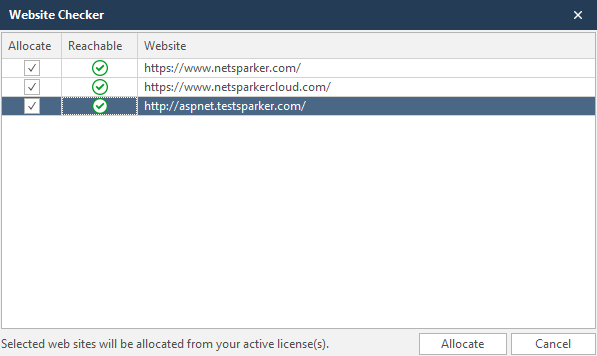
When you try to start a scan, you are prompted with the Website Checker dialog which checks the accessibility of the websites you want to scan. After you have decided which hosts to be allocated, the selected hosts are allocated on your available licenses. If you don't have enough website allocation slots available on your licenses, the allocation process fails. After you have allocated a website to a license, when you try to scan that website, you are not prompted with the allocation dialog again.
Expiring Licenses
For more information regarding data retention and expiration in Invicti Enterprise and Invicti Standard, refer to the linked documents.
- License Keys must be activated before Invicti Standard can be launched.
- For Invicti Standard, it is not possible to copy a license from one PC to another. If you want to do this, you must deactivate the license first. Then you can activate the license on your new PC from your License Store. If you have run out of licenses completely, contact sales@invicti.com to purchase more.
- It is possible to have a license remotely deactivated.
Move and back up Invicti Standard settings
When moving the Invicti Standard web application security scanner from one computer to another, you need to move both the license key and the settings.
- First, locate the scanner's settings, which are stored in a directory called 'Netsparker', located in your user profile's Documents directory: C:\Users[user]\Documents'Netsparker
- This directory contains several subdirectories, for example:
- The Policies subdirectory is where Scan Policies are stored
- The Profiles subdirectory is where Scan Profiles are stored
- The Scans subdirectory is where Scans are stored
- To backup or move the settings of your Invicti Standard simply copy the Netsparker directory to your backup drive, or move it to the new computer where you have the new installation of Invicti Standard.
Need help?
Invicti Support team is ready to provide you with technical help. Go to Help Center