Team Administrator Capabilities and Assigning the Role
In Invicti, you have access to both the built-in Team Administrator role and the option to create custom Team Administrator roles. This document focuses on detailing the functionalities and capabilities of the built-in Team Administrator role.
For information on configuring more restricted roles tailored to your specific needs, refer to the Custom Team Administrator roles with setup examples document.
Built-in Team Administrator role and its capabilities
The Team Administrator Role is a Role-Based Access Control (RBAC) feature that can manage access to Invicti through the assignment of roles to team members. This is useful for customers who want to stop users in one group from seeing vulnerability data in another group under the same account.
As a System Administrator, you can give the Team Administrator role to any of your users. This lets them choose which roles and target groups are given to any team they're part of. Team Administrators can also assign roles and target groups to specific members within their teams.
Team Administrators can assign roles to team members only if they already hold those roles themselves.
Here is a breakdown of what Team Administrators can and cannot do.
Team Administrators can:
- Assign Roles and Target Groups to a Team. These permissions then apply to all its members.
- Assign Roles and Target Groups to specific Team members to grant them additional permissions.
Team Administrators cannot:
- Rename a Team
- Add or remove members from a Team
- Modify direct roles for other Team Administrators
The table below provides an example of how you can exert different levels of control using the Team Administrator role
| User Scope | Roles | Member Of Teams | Target Group |
|---|---|---|---|
| John Smith | Team Administrator | DevOps WebDevs | Group1 Group2 Group3 Group4 |
| Jane Doe | Manage Issues Start Scans | WebDevs | Group1 Group3 |
| Jane Doe | Start Scans | DevOps | Group2 Group4 |
| Joe Bloggs | Manage Issues Start Scans View Reports | DevOps WebDevs | Group2 Group3 |
| Team Scope | Role | Members | Target Group |
| DevOps | Manage Issues Account Owner Account Administrator View Reports Start Scans Manage Targets | Group1 Group2 Group3 Group4 | |
| WebDevs | Manage Issues View Reports Start Scans Manage Targets | Group1 Group2 Group3 |
How to assign the Team Administrator role
- Log in to Invicti Enterprise as a System Administrator.
- Select Team > Manage Members from the left-side menu.
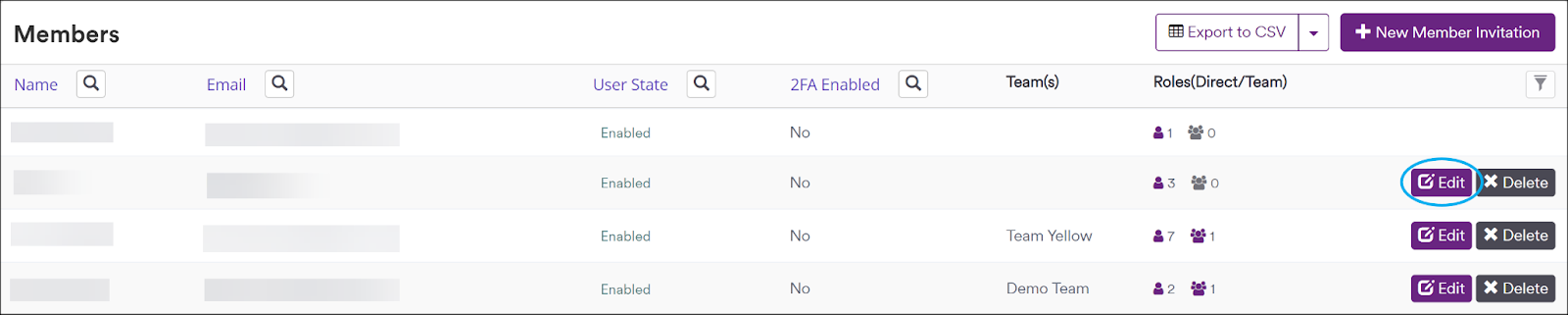
- Locate the Member you want to modify and click Edit.
- Scroll down to the Direct Roles section and click +Assign Role.

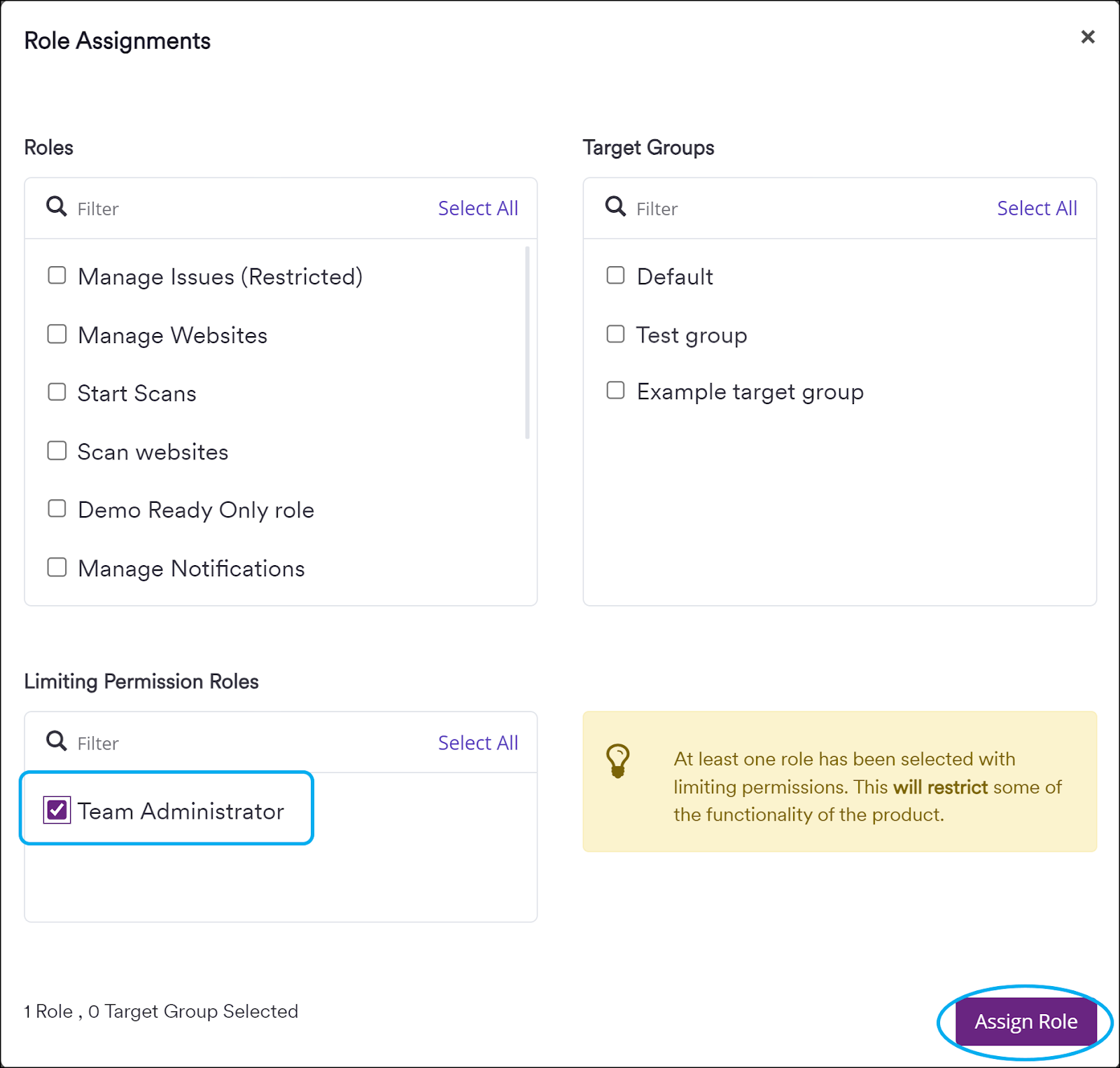
- Select the Team Administrator role in the Limiting Permission Roles section. Specify the Target Groups for which your user will serve as the Team Administrator, then click Assign Role.
Without the Team Administrator role for a specific Target Group, you won't have the ability to:
- Allocate permissions to your team
- Allocate permissions to any members of your team
- Manage access to the Target Group for your team
- Manage access to the Target Group for members of your team
- Scroll down to the Teams section and click +Assign Team.

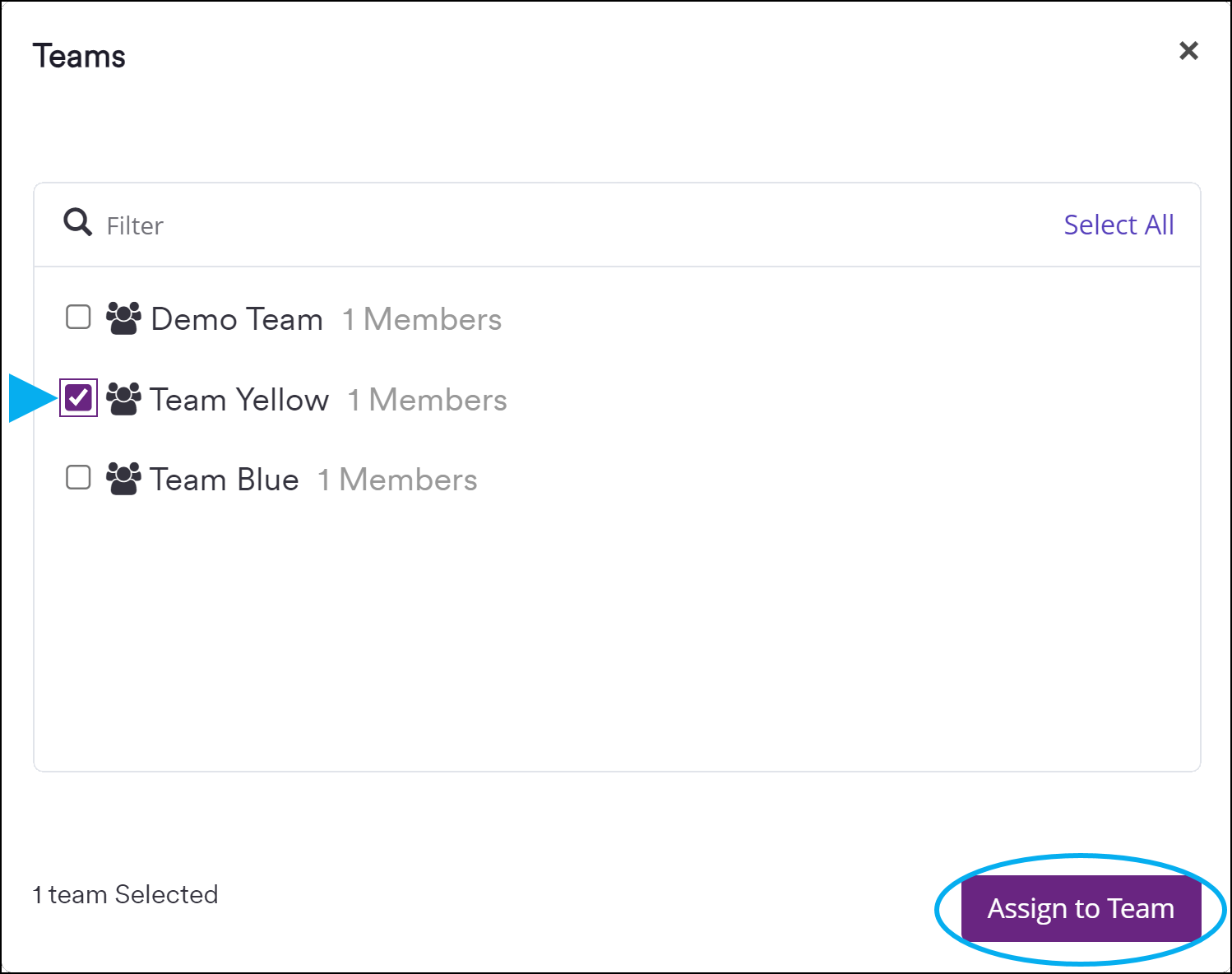
- In the Teams dialog, select the Teams that your Team Administrator will manage, then click Assign to Team.
- Click Save.
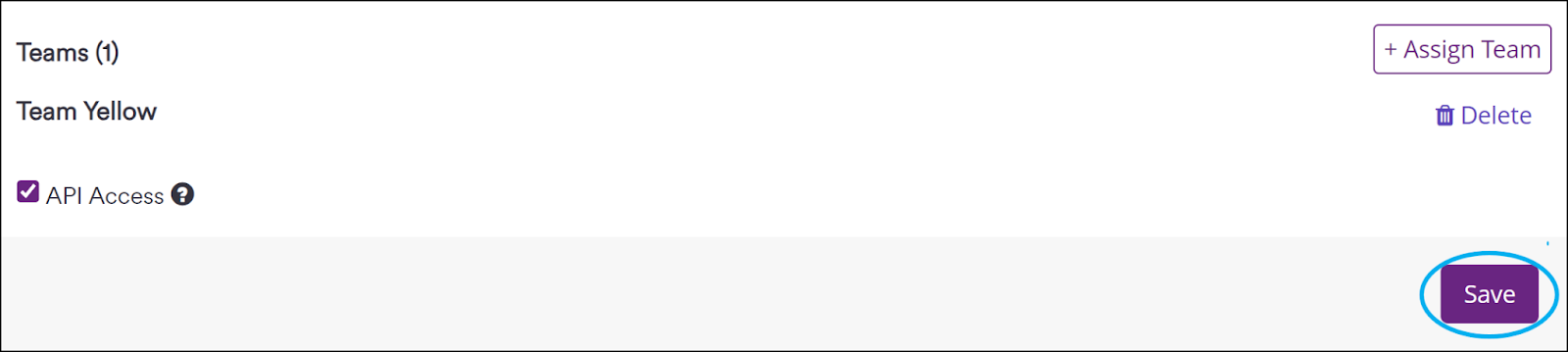
The selected member has now been assigned the Team Administrator role.
Need help?
Invicti Support team is ready to provide you with technical help. Go to Help Center