Troubleshoot Vulnerability Database not updating
After updating Invicti Enterprise On-Premises and/or its agents, the Vulnerability Database (VDB) version may not appear correctly. In some cases, it may show the wrong version or not be shown at all in the username → About dialog. For example:
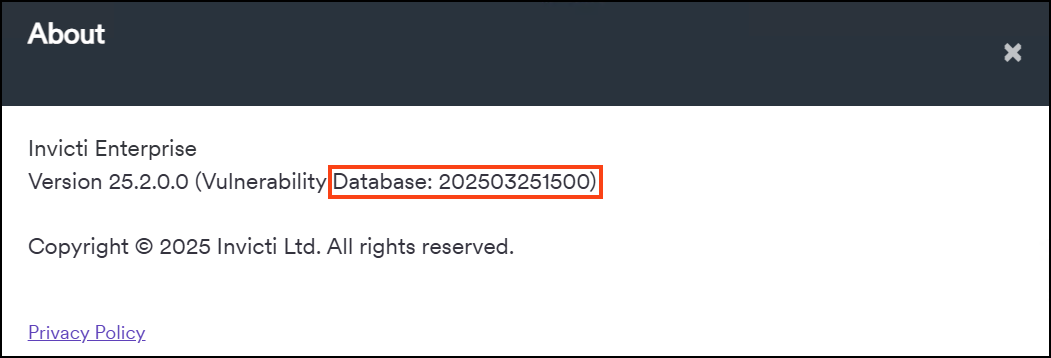
This document explains troubleshooting steps for Vulnerability Database updates to resolve this issue.
There are two options:
- Option A: Automatic VDB updates
- Option B: Manual VDB updates
Option A: Automatic VDB updates
Review the following information to ensure that all conditions are met:
Version updates:
- Update Invicti Enterprise On-Premises to the latest version.
- Update agents to the latest version.
Trustlist - trustlist appropriate Invicti Enterprise installation and ancillary components.
URL accessibility - use a web browser to verify that Invicti Enterprise can reach the following URL:
https://service.invicti.com/vdb/version/?cloud=true
Verify configuration under Settings > General
- Enable the Force agents to use Invicti web application VDB file URL checkbox if agents should download the database from the web application machine.
- Clear the Force agents to use Invicti web application VDB file URL checkbox if agents should download the database from
https://service.invicti.com.

Option B: Manual VDB updates
To manually update the VDB, download the latest VDB archive (in .tar.gz format) from the following URL: https://service.invicti.com/vdb/download-tar-file/?cloud=true. Then, use 7-Zip to extract its contents.
As part of the manual update you need to update the following components:
Authentication Verifier Agent (Windows)
Copy all extracted files into the following directory:
C:\Program Files (x86)\Invicti Enterprise Authentication Verifier Agent\Version Tables
This location is part of the main installation.
Scanning Agent (Windows)
Copy all extracted files into:
C:\Program Files (x86)\Invicti Enterprise Agent\Version Tables
(This location is part of the main installation.)
Authentication Verifier Agent (Linux)
Copy all extracted files into:
<your authentication verifier agent path>/Version\ Tables/
Scanning Agent (Linux)
Copy all extracted files into:
<your scanner agent path>/Version\ Tables/
Update the Web Application component
In C:\Program Files (x86)\Invicti Enterprise Web Application\App_Data\Vdb
- Delete all files except
readme.txt. - From the extracted VDB archive, copy
Vulnerabilities.dbinto the same folder:C:\Program Files (x86)\Invicti Enterprise Web Application\App_Data\Vdb
Restart Services
After completing the steps above, restart the following services (if present):
- World Wide Web Publishing Service (IIS)
- All Netsparker services
- All Invicti Enterprise Scanner Services
Additional troubleshooting
If the version number is still missing or incorrect, use these steps to verify and correct it:
Check for the VdbVersion.txt file
- Navigate to the VDB folder on the server where the agents are installed. (Typically found under the WebApp folder.)
- If the file
VdbVersion.txtis missing, create a new text file with that name. - Inside the file, enter the correct VDB version number that should be displayed by the system.
Update the user.config file
-
Locate the
user.configfile in one of the following directories (depending on your Windows OS version):C:\Windows\SysWOW64\config\systemprofile\AppData\Local\Invicti_Securityor
C:\Windows\System32\config\systemprofile\AppData\Local\Invicti_Security -
Open the
user.configfile in a text editor. -
Find the line that starts with
<setting name="vdbUpdateversion" ... -
Update the value to reflect the current VDB version you just installed.
Here is an example of how it should look in the file:
<?xml version="1.0" encoding="utf-8"?>
<configuration>
    <configSections>
        <sectionGroup name="userSettings" type="System.Configuration.UserSettingsGroup, System.Configuration.ConfigurationManager, Version=6.0.0.0, Culture=neutral, PublicKeyToken=cc7b13ffcd2ddd51" >
            <section name="MSL.Core.Configuration.Settings" type="System.Configuration.ClientSettingsSection, System.Configuration.ConfigurationManager, Version=6.0.0.0, Culture=neutral, PublicKeyToken=cc7b13ffcd2ddd51" allowExeDefinition="MachineToLocalUser" requirePermission="false" />
        </sectionGroup>
    </configSections>
    <userSettings>
        <MSL.Core.Configuration.Settings>
            <setting name="PptrHeadless" serializeAs="String">
                <value>False</value>
            </setting>
            <setting name="SingleBrowser " serializeAs="String">
                <value>True</value>
            </setting>
            <setting name="MaxDomParserCount " serializeAs="String">
                <value>1</value>
            </setting>
            <setting name="InternalProxyPort" serializeAs="String">
                <value>10010</value>
            </setting>
            <setting name="ProxyMode" serializeAs="String">
                <value>1</value>
            </setting>
            <setting name="ProxyDomain" serializeAs="String">
                <value />
            </setting>
            <setting name="ProxyUserName" serializeAs="String">
                <value />
            </setting>
            <setting name="ClientCertificateStoreLocation" serializeAs="String">
                <value>CurrentUser</value>
            </setting>
            <setting name="ProxyByPassList" serializeAs="String">
                <value />
            </setting>
            <setting name="SystemProxyUserName" serializeAs="String">
                <value />
            </setting>
            <setting name="BuiltInPoliciesSuggestionStatus" serializeAs="String">
                <value>Always</value>
            </setting>
            <setting name="ProxyAddress" serializeAs="String">
                <value>127.0.0.1</value>
            </setting>
            <setting name="ProxyByPassOnLocal" serializeAs="String">
                <value>False</value>
            </setting>
            <setting name="RegisterAsSystemProxy" serializeAs="String">
                <value>True</value>
            </setting>
            <setting name="DomainBasedCookieCheck" serializeAs="String">
                <value>False</value>
            </setting>
            <setting name="ProxyPassword" serializeAs="String">
                <value />
            </setting>
            <setting name="SystemProxyPassword" serializeAs="String">
                <value />
            </setting>
            <setting name="SystemProxyDomain" serializeAs="String">
                <value />
            </setting>
            <setting name="InternalProxyAllowRemote" serializeAs="String">
                <value>False</value>
            </setting>
            <setting name="ProxyAuthenticationEnabled" serializeAs="String">
                <value>False</value>
            </setting>
            <setting name="ProxyPort" serializeAs="String">
                <value>8080</value>
            </setting>
            <setting name="VdbUpdateVersion" serializeAs="String">
                <value>202504081500</value>
            </setting>
            <setting name="ProxyUseDefaultCredentials" serializeAs="String">
                <value>False</value>
            </setting>
        </MSL.Core.Configuration.Settings>
    </userSettings>
</configuration>
- Save all changes and restart the machines where you applied all updatesto ensure all components load the latest VDB correctly.
Need help?
Invicti Support team is ready to provide you with technical help. Go to Help Center