How to update Invicti Standard
Invicti Standard is frequently updated with new security checks to ensure that all users can scan their websites for the latest threats to the security of their website applications. By default, Invicti Standard connects to the update server and checks for updates daily.
This document explains how to update Invicti Standard when prompted, how to turn off automatic updates, and how to manually search for updates, including vulnerability database updates.
Some antivirus or anti-malware software may prevent Invicti Standard from working or cause it to run very slowly. To ensure you can use Invicti Standard effectively, it's recommended to add Invicti files and folders to your antivirus (or other protection scanning software) exception list (also known as a 'trustlist').
For more information about the Invicti files and folders to exclude from antivirus scans, refer to the Excluding Invicti files from antivirus scans document.
Automatic updates
When an update is available, you are prompted to download it. There are two alternative options:
- Remind Later postpones the update by one week
- Cancel closes the dialog
During updates, Invicti checks only licensing information.
How to update Invicti Standard
- At the prompt, click Download & Install.
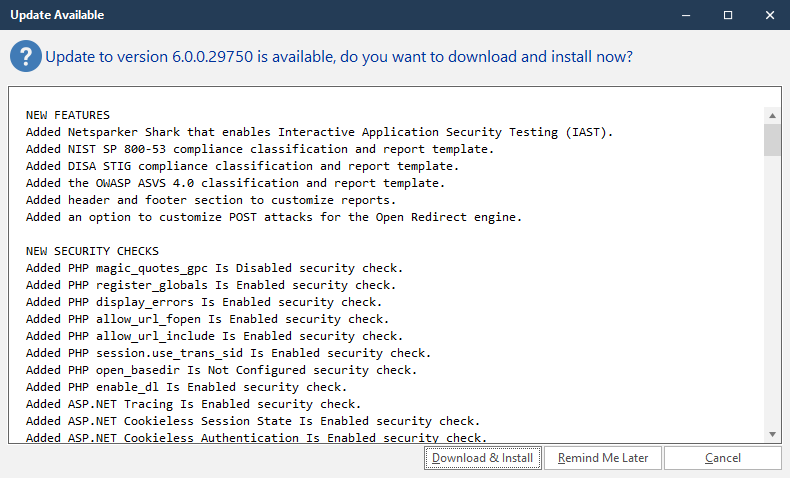
- The scanner downloads the update and applies it when it restarts Invicti Standard.
How to turn off automatic updates
Disabling automatic updates isn't recommended because the list of security threats becomes out of date very quickly.
To turn off automatic updates:
- From the Home tab, click Options. The Options dialog box is displayed.
- Click Auto Update.
- Turn off the Enable Daily Auto Updates option. (Alternatively, you can click download our offline installer to download and install Invicti Standard.)
- Click Save.
How to search for updates
If automatic updates are turned off, you can manually search for further updates instead.
- From the Help tab, click Check for Updates.
This action checks whether a new version of Invicti Standard has been released. Alternatively, click CTRL+U.
How to search for vulnerability database (VDB) updates
- From the Help tab, click Check for VDB Updates.
Depending on whether there are updates or not, a Check for VDB Updates dialog is displayed with one of the following messages:
- No vulnerability database updates were found.
- Successfully updated vulnerability database to v[2018.02.01.1925].
Need help?
Invicti Support team is ready to provide you with technical help. Go to Help Center