Deployment: Invicti Platform on-demand
Agentic pentests
Octo is Invicti's AI-powered penetration testing feature. It uses specialized agents to probe your application for vulnerabilities, reasons about what it finds, and generates a report that reads like a traditional manual pentest report.
This document covers the prerequisites, the Pentests list, and organization-level settings for agentic pentests in Invicti Platform. For step-by-step instructions, refer to the Create an agentic pentest, Review agentic pentest results, and Manage agentic pentests documents.
Prerequisites
- License: Your account needs the AI Pentesting (Octo) license. To confirm it's active, select Settings > License from the left-side menu and check the features list.
- Permission: Your account needs the Agentic Pentests permission. If you don't have it, contact your account owner or administrator to request access.
If both are in place and Pentests still doesn't appear in the left-side menu, see Troubleshooting.
Why this matters
Manual penetration testing is thorough but slow and expensive - it can take days to complete and requires specialist availability. Octo lets you run an AI-assisted assessment against a target in a fraction of the time, without waiting for a manual tester. The agents work through the attack surface systematically and show you their reasoning, so you can review evidence, not just verdicts.
Agentic pentests overview
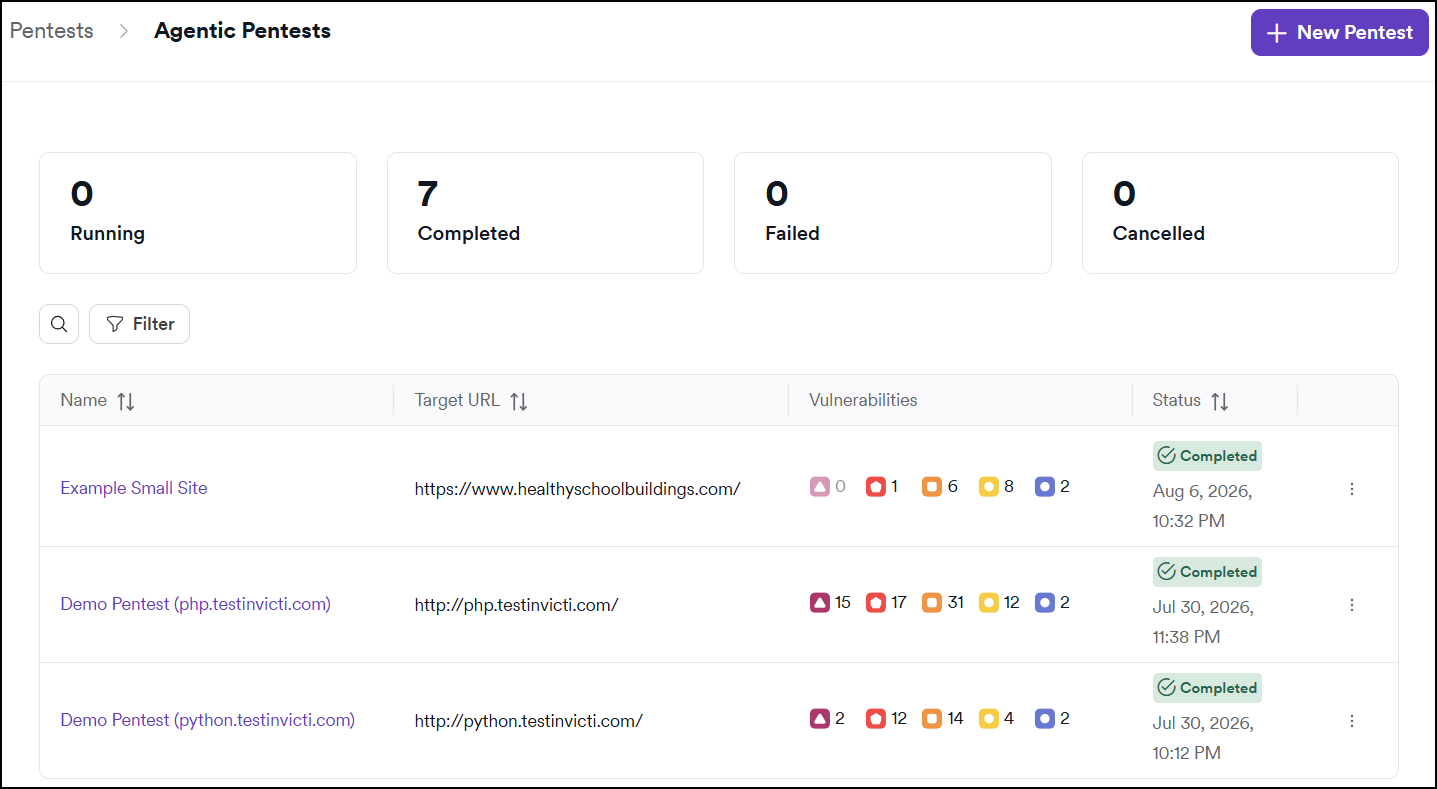
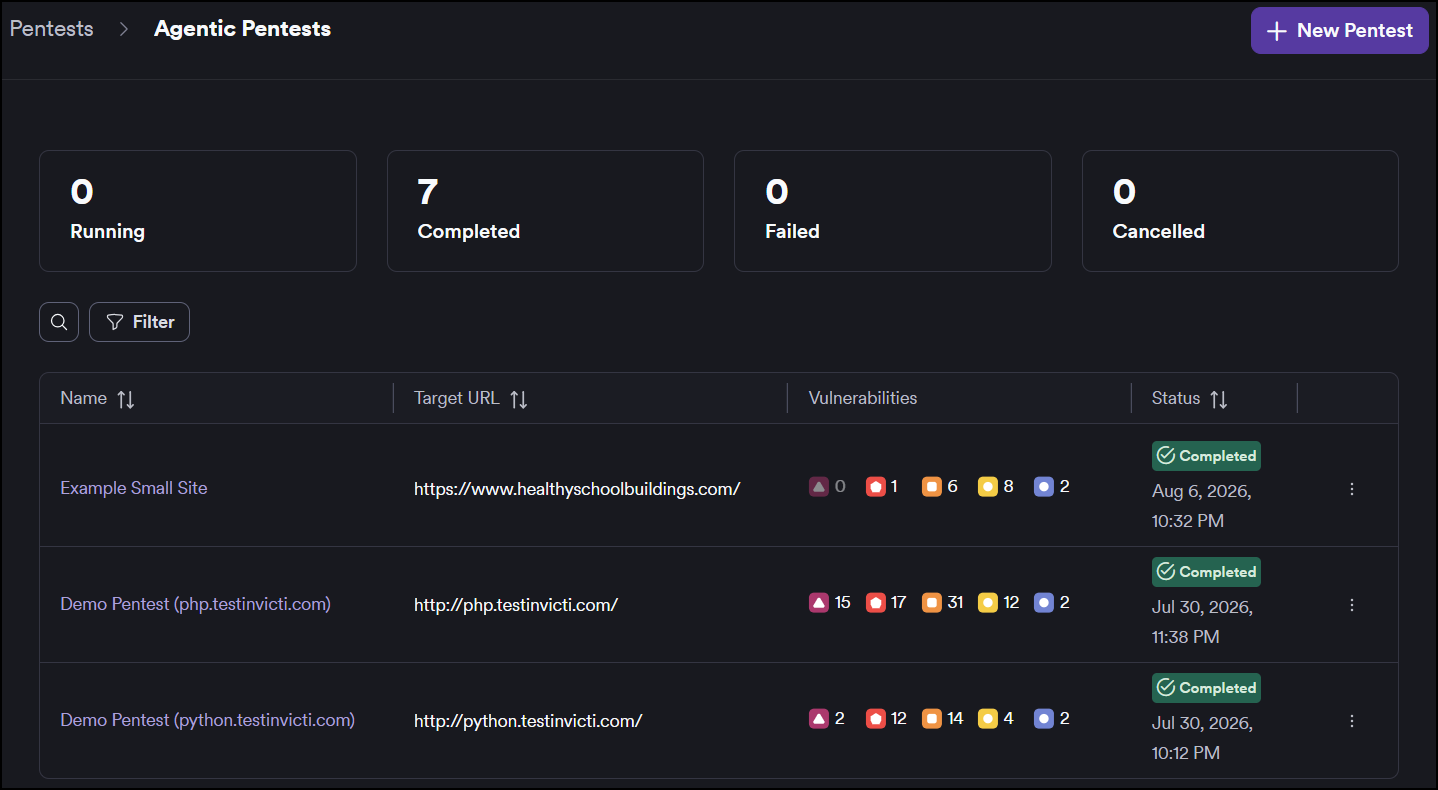
Select Pentests from the left-side menu. Tiles at the top show a count of your pentests by status: Running, Completed, Failed, and Cancelled.
The list shows each pentest with its status, vulnerability counts excluding false positives, and last-run time. Each row reflects the most recent assessment's results - if you've run multiple assessments for a pentest, the list always shows the latest one. Open the pentest to view results from previous versions.
Pentest settings
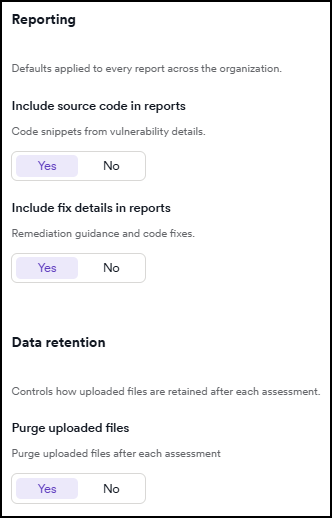
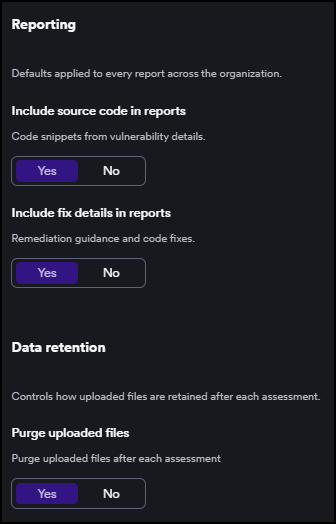
Go to Pentests > Settings to configure these settings. All users with access to Pentests can view them, but only Owners can change them. All settings are enabled by default.
Reporting
- Include source code in reports - shows source code snippets in the vulnerability details section of the PDF report.
- Include fix details in reports - shows remediation guidance and code fixes in the PDF report.
Data retention
- Purge uploaded files - automatically deletes uploaded source code and reference documents when the assessment finishes. If you run a new assessment on a pentest that had uploaded files, you need to re-upload them.
Select Save changes at the bottom of the page to apply your changes. Settings changes apply to future assessments - completed assessment reports aren't affected.
Troubleshooting
A pentest shows Failed status
A failed assessment didn't complete successfully. Common causes include the target being unreachable during the assessment, authentication failing at runtime, or the assessment timing out. Select the pentest to open it and check the agent traces for details. If the cause isn't clear, contact Invicti Support.
The Pentests category doesn't appear in the left-side menu
Confirm the prerequisites:
-
License: Go to Settings > License and confirm AI Pentesting (Octo) appears in the features list. If it doesn't, the feature isn't enabled on your account.
-
Permission: Your account needs the Agentic Pentests permission. If you don't have it, contact your account owner to update your permissions.
If both look correct and the item still doesn't appear, contact Invicti Support.
Pentest settings are greyed out and you can't save changes
Only Owners can change pentest settings. If your account has a different role, you can view the settings but the fields are read-only and the Save button isn't available. Contact your organization Owner to update the settings.
Next steps
→ Continue to Create an agentic pentest
Agentic pentests series
- Agentic pentests ← You are here
- Create an agentic pentest
- Review agentic pentest results
- Manage agentic pentests
Need help?
Invicti Support team is ready to provide you with technical help. Go to Help Center