Deployment: Invicti Platform on-demand
Manage agentic pentests
Previous: Review agentic pentest results
This document explains how to rename and delete agentic pentests, start new assessments from an existing pentest, edit the configuration for a new run, and understand how assessment versions work.
Why this matters
Running assessments repeatedly - with the same configuration or an updated one - is how you track your security posture over time. Starting a new assessment with an edited configuration creates a new version, giving you a clear history of how findings change as your application evolves.
Rename a pentest
- Select Pentests from the left-side menu.
- Click the actions menu (⋮) on the pentest row.
- Select Rename pentest.
- Enter the new name and click Save.
Names must be unique. If the name is already in use, an error appears inline: "A pentest with this name already exists." Choose a different name to continue.
Delete a pentest
Deleting a pentest removes it and all its assessment history permanently. Invicti cancels any running assessment. This can't be undone.
- Select Pentests from the left-side menu.
- Click the actions menu (⋮) on the pentest row.
- Select Delete pentest.
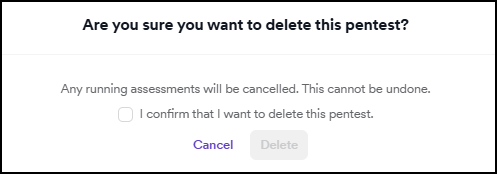
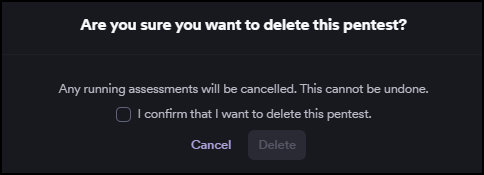
- In the Are you sure you want to delete this pentest? dialog, select the I confirm that I want to delete this pentest checkbox.
- Click Delete.
Start a new assessment
After an assessment completes, you can run another one from the same pentest. Open the pentest, then click + Start new assessment in the top right and choose one of the two options below.
- Start with current configuration
- Edit configuration and start new assessment
Reruns the assessment with the exact same settings - same target URL, authentication, source code, and agent selection. The results update in place and the assessment stays at its current version.
If you uploaded source code or reference documents for the previous assessment, you need to re-upload them - uploaded files aren't carried over between assessments. If the Purge uploaded files setting is enabled, they're deleted automatically when the assessment finishes. For details, see Pentest settings.
When to use: Nothing about the target or your test requirements has changed and you want to confirm or refresh the results.
Example: You ran staging-api last week (v1) and the deployment hasn't changed. You want to check whether the findings are still present - rerun with the current configuration.
- Select Pentests from the left-side menu.
- Open the pentest from the list.
- Click + Start new assessment in the top right.
- Select Start with current configuration.
- In the confirmation dialog, select the I authorize this assessment and any actions that may be taken checkbox.
- Click Start Assessment. The assessment starts immediately using the saved configuration.
For details on the original pentest configuration, refer to the Create an agentic pentest document.
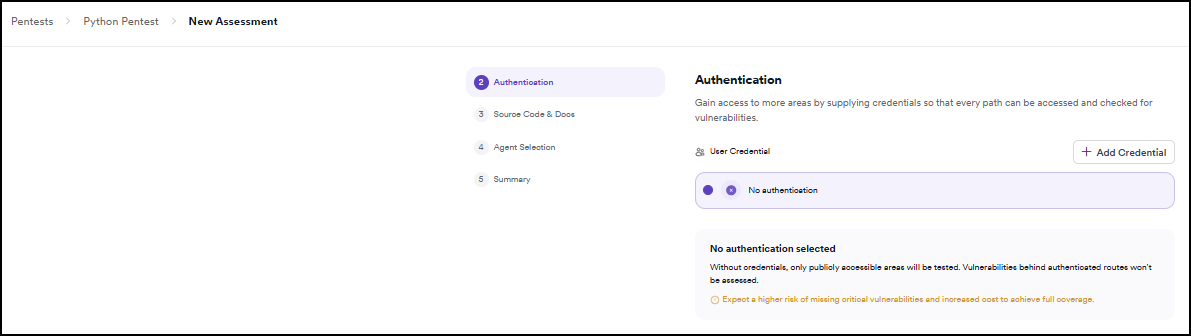
Opens a three-step wizard (Authentication, Source Code & Docs, Agent Selection) where you can update the settings before launching. The target URL is locked - only authentication, source code, and agent selection are editable. Starting the assessment creates a new version (v2, v3, and so on).
When to use: The target has changed, you have new credentials, you want to add source code, or you want to add or remove agents.
Example: Your staging-api v1 assessment missed pages behind a login because you skipped authentication. You now have a test user account — add credentials here to create v2 with authenticated coverage.
- Select Pentests from the left-side menu.
- Open the pentest from the list.
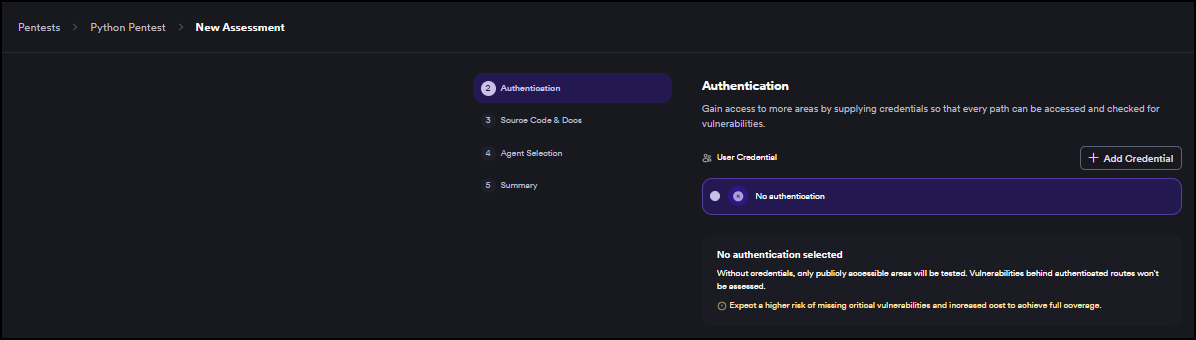
- Click + Start new assessment, then select Edit configuration and start new assessment. The wizard opens at Step 2: Authentication.
For a full walkthrough of each step, refer to the Create an agentic pentest document.
If the previous assessment used authentication imported from a DAST target and that target no longer exists, Start with current configuration is unavailable. Use Edit configuration and start new assessment to switch to a different authentication method.
Each time you start a new assessment with an edited configuration, Octo creates a new version (v2, v3, and so on). Starting with the current configuration reruns without creating a new version - results update in place.
- v1 - First assessment of
staging-api. No authentication, public areas only. - v2 - Added test credentials. Octo can now reach pages behind a login.
- v3 - Uploaded source code. Octo reasons about application internals.
Use the version dropdown in the breadcrumb to switch between versions and compare results. The Agentic pentests list always shows the latest version.
Troubleshooting
The rename dialog shows "A pentest with this name already exists"
Pentest names must be unique within your organization. Choose a different name - for example, include the target environment or date to distinguish it from the existing pentest.
"Start with current configuration" is unavailable
This option doesn't appear when the previous assessment used authentication imported from a DAST target and that target no longer exists. Select Edit configuration and start new assessment and choose a different authentication method (add credentials manually or select No authentication).
You deleted a pentest by mistake
Deletion is permanent and can't be undone. If the pentest had a completed assessment with a generated report, verify whether the PDF was already downloaded - reports save to your device when you click Download Report. If not, the data no longer exists and you need to create a new pentest and run a fresh assessment.
The delete action failed
If the deletion fails, a notification appears. Wait a moment and try again. If the problem persists, contact Invicti Support and share the pentest name.
Agentic pentests series
- Agentic pentests
- Create an agentic pentest
- Review agentic pentest results
- Manage agentic pentests ← You are here
Need help?
Invicti Support team is ready to provide you with technical help. Go to Help Center