Deployment: Invicti Platform on-demand, Invicti Platform on-premises
Install internal agent on Docker
Invicti Platform lets you use internal agents to scan targets in your internal environment that aren't publicly accessible from the internet or when you don't want to trustlist Invicti cloud agents.
This document explains how to install the Invicti internal agent using Docker, and how to configure it with either command-line flags or environment variables. Use environment variables when you deploy agents with Docker Compose, scripts, or a secrets store. For other installation methods, refer to:
- Install an internal agent with proxy settings - Use this if your internal agents require a proxy to connect to platform.invicti.com, platform-ca.invicti.com or platform-eu.invicti.com, these parameters must be specified when installing the internal agent.
- Install an internal agent on Windows
- Install an autoscaling agent using Kubernetes
- When the site is internal and you prefer using internal agents for the scan, you can create and import Login Sequence Records (LSRs) through the Docker agent. However, Business Logic Records can only be imported - you can't record them through an internal agent. For more information, refer to the Standalone login sequence recorder overview.
- Docker on Mac is not supported. Installing the agent via Docker on Mac (including Apple Silicon/M-series machines) is not supported and will not function correctly. Scans may appear queued but will not start. Use a supported platform such as Windows or Linux instead.
- Windows containers are not supported. The published internal agent image is a Linux container image. Running the agent in a Windows container, including images based on
mcr.microsoft.com/windows/servercore, is not supported. If your environment requires Windows for authentication reasons such as Kerberos, install the agent directly on a Windows host with the Desktop Experience installation option. Refer to Install an internal agent on Windows.
Why this matters
An internal agent is the only way Invicti Platform can scan targets that sit behind your firewall. Configuring the agent with environment variables lets you keep the registration token out of shell history and command lines, store settings in version control or a secrets manager, and deploy the same agent the same way every time.
Prerequisites
System requirements
To run scans successfully, the agent requires sufficient system resources. The agent only initiates a new scan if the following minimum resources are available:
- CPU: 2 free cores on a 64-bit processor
- Memory (RAM): 6 GB available
- Disk space: 50 GB free
Access requirements
- Docker is installed on a Linux or Windows host. You can use Docker Engine or Docker Desktop. On Windows, you can also run Docker Engine inside Windows Subsystem for Linux (WSL 2). Installing on Mac is not supported. To check that Docker is installed, run
docker --versionin a terminal. If the terminal shows version information, you're all set. Otherwise, refer to the Docker installation guide for installation guidance. - Permission to run Docker commands: administrator privileges, or membership of the
dockergroup on Linux. - Invicti Platform Administrator role.
- Outbound access from the Docker host to Invicti Platform. When the agent starts for the first time, it also downloads the scan engine, which can take a minute or more.
Trustlisting requirements
- Trustlist requirements for the CA region
- Trustlist requirements for the EU region
- Trustlist requirements for the US region
- Consequences of scanning without trustlisting
Resource allocation behavior
When the agent starts, it checks the available CPU, RAM, and disk space and calculates how many scans it can run in parallel, running the lowest number those resources allow. You can adjust the per-slot thresholds or set a fixed limit. For the calculation details and override options (agent.yaml thresholds, jobs_override, and the --max-jobs flag), refer to Concurrent scans and resource allocation in the internal scanning introduction.
Steps to install an agent using Docker
- Select Scans > DAST agents from the left-side menu.
- Click Add new agent.
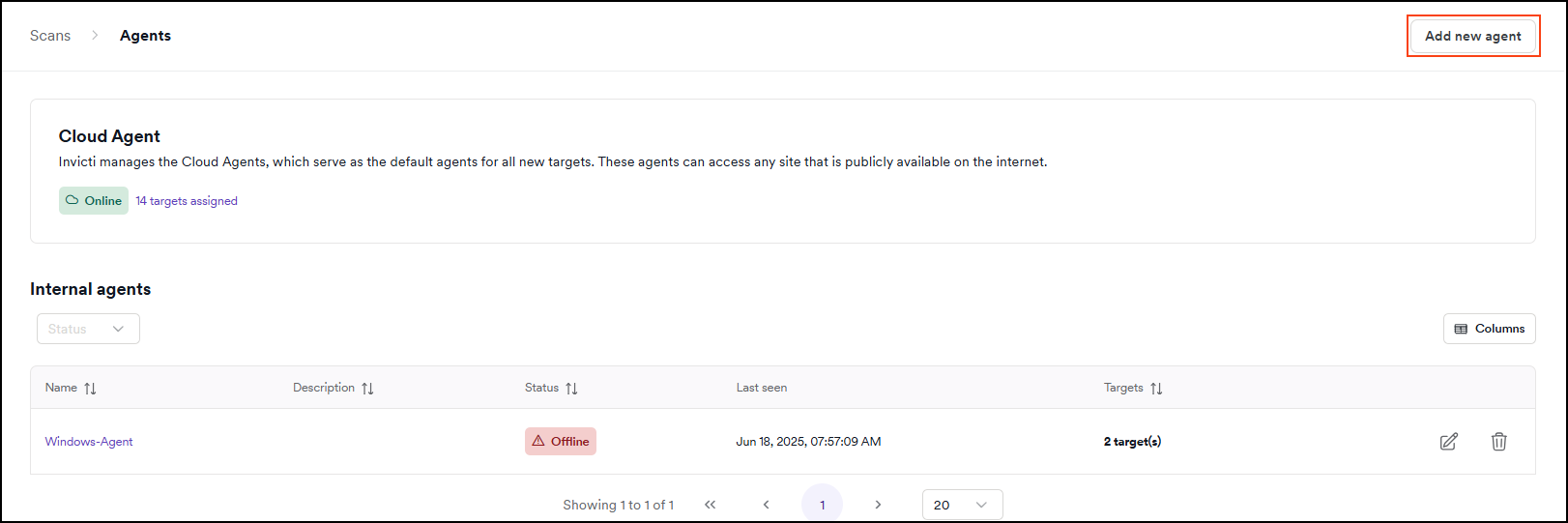
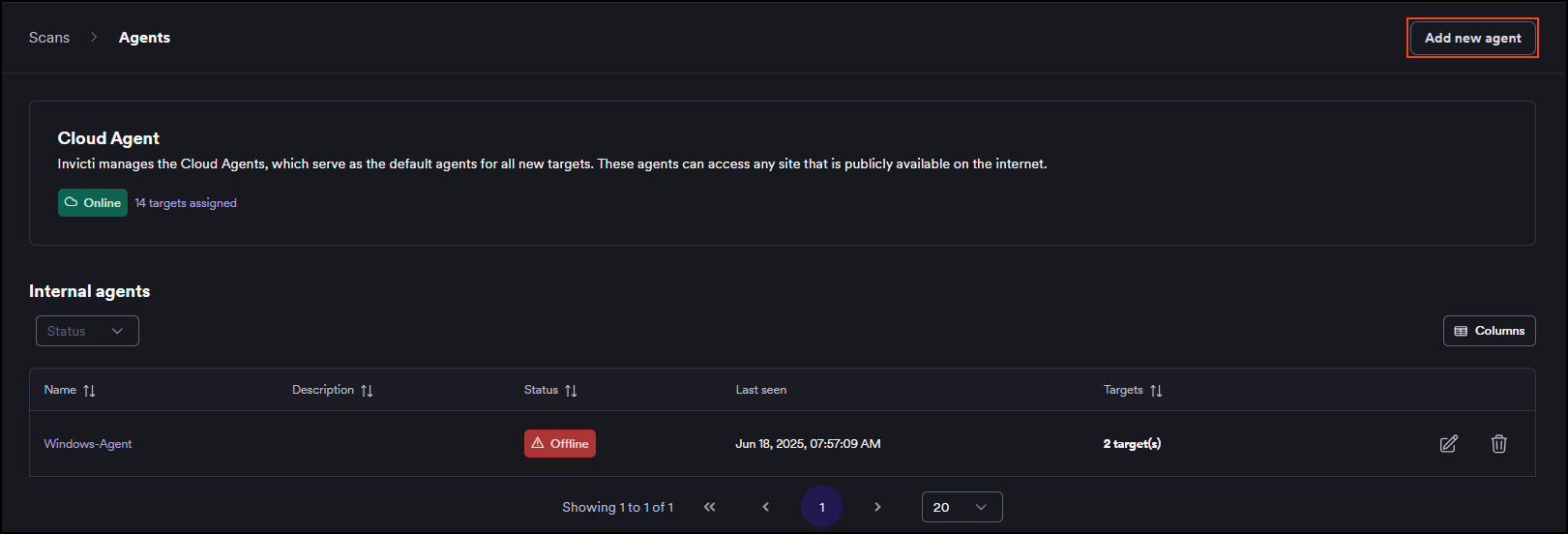
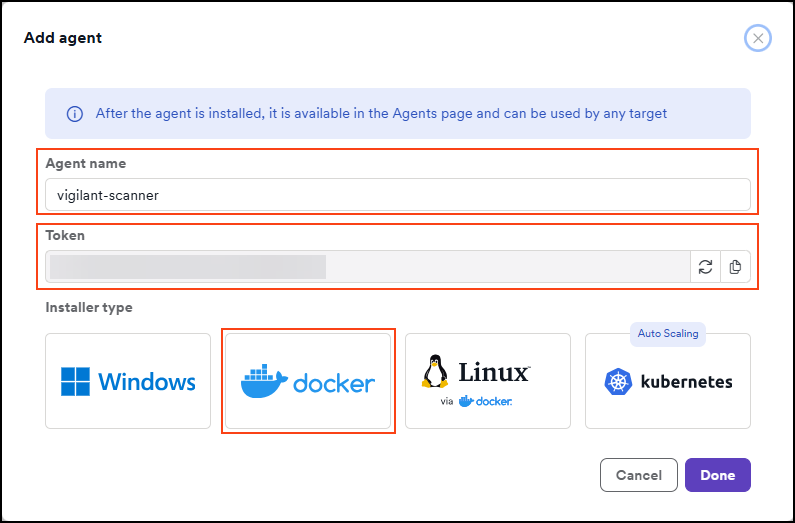
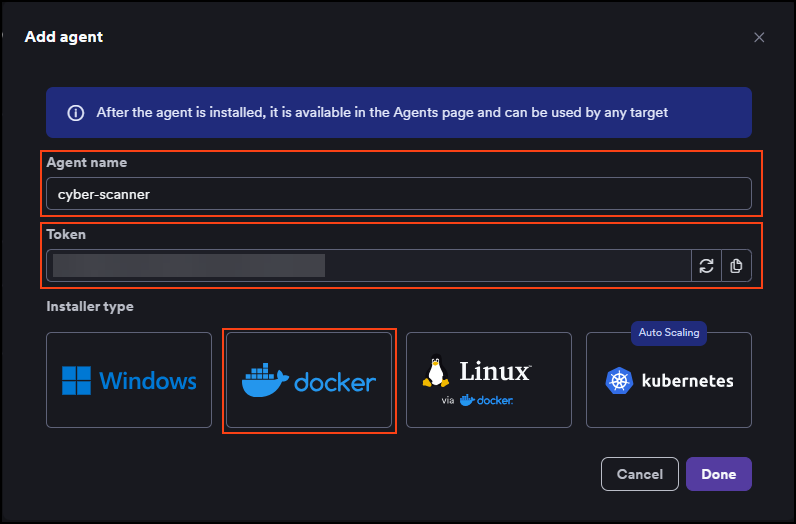
- Enter a name for the agent. Invicti suggests a name that you can change. The name can have up to 50 characters, and can contain only letters, numbers, hyphens, and underscores. Don't use spaces or other special characters.
- Under Installer type, click the Docker tile. The Linux tile shows the same Docker instructions. The dialog displays the registration token and the Docker command that contains it.
-
Click Copy to clipboard to copy the command.
-
On your Docker host, open a terminal, paste the command, and press Enter. The first run downloads the agent image, so it can take a moment.
In this table you can see the parameters necessary to configure a Docker container for installing the agent.
| Parameter | Description |
|---|---|
-d | This indicates detached mode, allowing the container to operate in the background. |
--name | Assigns a name to the container. |
--url | Specifies the Invicti URL. |
--agentname | Defines the agent name in the Invicti UI, changeable later. If installing multiple agent instances, assign a unique agent name for each instance. (Max 50 characters) |
--registration-token | The registration token of your account. If you run the command from the UI, the token is prefilled for you. For more information, refer to Registration token. |
- Click Done. This closes the dialog, but doesn't install anything. The agent appears on the page only after the container starts.
- On the DAST agents page, check that the new agent shows as Online. The agent registers within a few seconds. On the first start, it then downloads the scan engine and can't run scans until the download finishes, which takes about a minute. To follow the progress, run
docker logs <container name>.
Your agent is now installed. You can now assign targets to the installed agent and start scanning your targets.
Registration token
The registration token authorizes agents to register with your Invicti Platform account. Keep these points in mind:
- One token for the whole account. Every internal agent you install uses the same token. The agent name tells agents apart, so each agent needs its own unique name. If you register an agent with the same name and the same token as an existing agent, Invicti uses the existing agent instead of creating a duplicate.
- The token doesn't expire. It stays valid until you generate a new one.
- Treat the token as a secret. Anyone who has it can register agents with your account.
To copy the token, click the clipboard icon next to it in the Add new agent dialog. To replace it, click the circular arrow icon (Generate new token). Invicti replaces the token immediately and doesn't ask for confirmation.
When you generate a new token:
- The old token stops working for new agents. Any new container that uses it fails to register.
- Agents that are already registered keep running. You don't need to reinstall them or change their configuration, and restarting an existing container is safe.
- Update the token everywhere you store it, such as your Compose files, scripts, or secrets store, before you deploy the next agent.
Don't share the registration token or commit it to a repository. Pass it to the container with an environment variable, an environment file, or a secrets store.
Configure the agent with environment variables
You can set every installation option with an environment variable, instead of a command-line flag. This is useful when your deployment standards require configuration through the environment, or when you don't want the registration token in your command line.
To set a variable, add -e VARIABLE=value to the docker run command, or use the environment section in a Docker Compose file.
| Variable | Equivalent flag | Required | Description |
|---|---|---|---|
INVICTI_AGENT_URL | --url | Yes | The Invicti Platform address that the agent registers with, for example platform.invicti.com. The command copied from the Add new agent dialog contains the correct value for your account. |
INVICTI_AGENT_NAME | --agentname | Yes | The name of the agent in Invicti Platform. Must be unique for each agent, up to 50 characters, and contain only letters, numbers, hyphens, and underscores. |
INVICTI_AGENT_TOKEN | --registration-token | Yes | The registration token of your account. |
INVICTI_AGENT_HTTP_PROXY | --http-proxy, -p | No | The proxy the agent uses to connect to Invicti Platform, in the format scheme://user:pass@server:port. Omit user:pass@ if the proxy doesn't require authentication. For more information, refer to Install an internal agent with proxy settings. |
INVICTI_AGENT_CA_CERT_PATH | --ca-cert | No | The path, inside the container, to a PEM file with the CA certificates that the agent trusts for TLS verification. Mount the file into the container with -v. |
INVICTI_AGENT_LOG_LEVEL | --log-level, -l | No | The level of detail in the agent log: error, warn, info, or debug. The default is info. |
If you set both a command-line flag and its variable, the flag takes precedence. Environment variable names are case-sensitive, and the agent ignores variables it doesn't support.
Install an agent using only environment variables
Create the agent in the Add new agent dialog as described in Steps to install an agent using Docker, but instead of copying the command, copy only the registration token. Then run the following command on your Docker host. Replace <registration-token> with your token:
docker run -d --name "my-agent" \
  -e INVICTI_AGENT_URL=platform.invicti.com \
  -e INVICTI_AGENT_NAME=my-agent \
  -e INVICTI_AGENT_TOKEN=<registration-token> \
  invicti/internal-agent
To keep the token out of your shell history, store the variables in an environment file and pass it to Docker.
-
Create a file named
agent.envwith the following content:INVICTI_AGENT_URL=platform.invicti.com
INVICTI_AGENT_NAME=my-agent
INVICTI_AGENT_TOKEN=<registration-token> -
Restrict access to the file, so that only you can read it:
chmod 600 agent.env -
Start the agent with the file:
docker run -d --name "my-agent" --env-file ./agent.env invicti/internal-agent
Install an agent using Docker Compose
The following compose.yml file configures the agent with environment variables. The token is read from your shell, so it isn't stored in the file.
services:
  internal-agent:
    image: invicti/internal-agent
    container_name: my-agent
    restart: unless-stopped
    environment:
      INVICTI_AGENT_URL: platform.invicti.com
      INVICTI_AGENT_NAME: my-agent
      INVICTI_AGENT_TOKEN: ${INVICTI_AGENT_TOKEN}
Start the agent from the folder that contains the file. Replace <registration-token> with your token:
INVICTI_AGENT_TOKEN=<registration-token> docker compose up -d
Use a custom CA certificate or a proxy
To make the agent trust your own certificate authority, mount the folder with the PEM file into the container and point INVICTI_AGENT_CA_CERT_PATH to the file inside the container:
docker run -d --name "my-agent" \
  -v /etc/pki/agent-certs:/certs:ro \
  -e INVICTI_AGENT_URL=platform.invicti.com \
  -e INVICTI_AGENT_NAME=my-agent \
  -e INVICTI_AGENT_TOKEN=<registration-token> \
  -e INVICTI_AGENT_CA_CERT_PATH=/certs/company-ca.pem \
  invicti/internal-agent
To route the agent's connection through a proxy, add -e INVICTI_AGENT_HTTP_PROXY=http://<proxy>:<port> to the command. For more information, refer to Install an internal agent with proxy settings.
View the agent logs
To check what the agent is doing, run the following command. Replace <container name> with the name you gave the container, for example my-agent:
docker logs <container name>
To find the exact name, run docker ps, or docker ps -a if the agent isn't running. To see more detail, set INVICTI_AGENT_LOG_LEVEL to debug and start the container again.
Remove an agent
To remove an agent for good, first remove the container from your Docker host, then delete the agent in Invicti Platform.
-
On your Docker host, stop and remove the container. Replace
<container name>with the name of your container:docker stop <container name>
docker rm <container name>If you installed the agent with Docker Compose, run
docker compose downin the folder that contains yourcompose.ymlfile. -
In Invicti Platform, select Scans > DAST agents from the left-side menu, and delete the agent. For the full steps, refer to Delete an internal agent.
Invicti asks you to stop and uninstall the agent from your system before you delete it. If the container is still running, it keeps trying to connect to Invicti Platform.
After you stop or remove a container, the agent can still show as Online for about 10 minutes, until Invicti stops receiving signals from it.
Troubleshooting
The agent doesn't appear on the DAST agents page after I click Done
Clicking Done only closes the dialog. The agent appears after a container started from the command registers with Invicti Platform. Run docker ps to check that the container is running. If it isn't listed, run docker ps -a and docker logs <container name> to see why it stopped.
An agent that fails to register doesn't appear on the page at all, so the logs are the place to look for the reason.
The container stops right after it starts, and the log shows a long list of flags
The agent prints its usage text when it can't register, after the line that describes the problem. Scroll up in the output of docker logs <container name> and look at the error just before the list of flags. The following entries describe the most common errors.
The log shows "proxyconnect tcp ... connection refused"
The agent can't reach the proxy that you set in INVICTI_AGENT_HTTP_PROXY. Check that the address and port in INVICTI_AGENT_HTTP_PROXY are correct and that the proxy is reachable from inside the container. A proxy that listens only on localhost of the Docker host isn't reachable from the container. For more information, refer to Install an internal agent with proxy settings.
The log shows "ca_cert_path: cannot read ... no such file or directory"
The agent can't find the certificate file at the path you set in INVICTI_AGENT_CA_CERT_PATH. The path is a path inside the container, not on your Docker host. Check that you mounted the folder with the -v option and that the file name in the path matches the file in that folder.
The agent can't register because the registration token isn't accepted
The token you use might not be the current one. Someone might have generated a new token, which replaces the old one immediately. Copy the current token from the Add new agent dialog and update it in your command, environment file, or Compose setup. Registration is also rejected if the license of your Invicti Platform account isn't active.
Containers that are already registered keep running when the token changes, so you only need the new token for agents that you install from now on.
I set an environment variable but the agent doesn't use it
Check the following:
- The name matches exactly one of the supported variables, including the
INVICTI_AGENT_prefix and capital letters. The agent ignores variables it doesn't support. - You didn't also set the matching flag in the command. When both are set, the flag takes precedence.
- The variable is passed to the container with
-e,--env-file, or theenvironmentsection of your Compose file. A variable set only in your shell isn't visible inside the container.
The agent shows as Online after I stopped the container
Invicti marks an agent as inactive only when it hasn't received a signal from it for about 10 minutes. Wait a few minutes and refresh the page.
Need help?
Invicti Support team is ready to provide you with technical help. Go to Help Center