Invicti IAST for ASP.NET
The IAST sensor must be able to reach your Invicti platform to transmit data to the DAST scanning engine.
This document explains how to deploy the Invicti IAST sensor for ASP.NET, how to remove it, and how to deploy it manually.
How to deploy Invicti IAST for ASP.NET websites
This section describes how to deploy Invicti IAST to an ASP.NET (including .NET core) web application.
- Download Invicti IAST sensor for your Target.
- Install Prerequisites on the server hosting the website. (The Invicti IAST Injector.exe application requires Microsoft .NET Framework 3.5 or higher).
- Copy the Invicti IAST installation file
dotnet-iastsensor.zipto the server hosting the .NET website. - Extract the
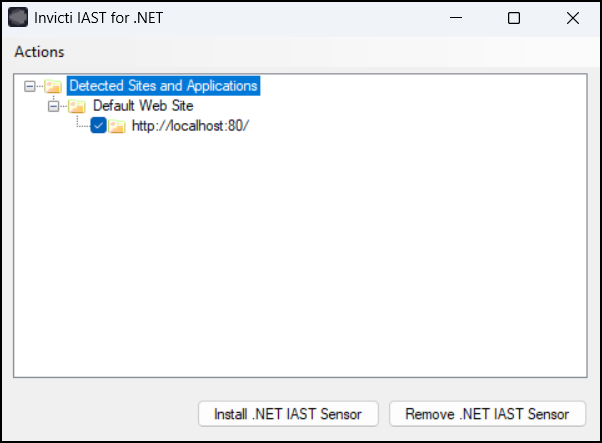
dotnet-iastsensor.zipfile, navigate to the.NET Frameworksubfolder, and launch the Injector.exe file.
-
On start-up, the Injector retrieves a list of .NET applications installed on your server. Select which applications you would like to enhance with the Invicti IAST Technology and click Install .NET IAST Sensor to install the Invicti IAST sensor in the selected .NET applications.
-
Once the sensor has been installed, close the confirmation window and also the Invicti IAST manager.
How to turn off and remove Invicti IAST for ASP.NET websites
To turn off and remove Invicti IAST from your website:
- Launch Injector.exe.
- Select the website where the Invicti IAST is deployed and click Remove .NET IAST Sensor.
- Close the Injector.exe application.
How to deploy and remove Invicti IAST using the command line
After copying and extracting the dotnet-iastsensor.zip file to the server hosting the .NET website, you can deploy and remove Invicti IAST to your web application, and also list available web applications, as follows:
C:\Users\Administrator\Desktop\dotnet-iastsensor>injector -m inject -t http://localhost:80/

C:\Users\Administrator\Desktop\dotnet-iastsensor>injector -m uninject -t http://localhost:80/

C:\Users\Administrator\Desktop\dotnet-iastsensor>injector -m list
http://localhost:80/
- The
-mswitch can be:inject- to inject Invicti IAST into a web applicationuninject- to remove Invicti IAST from a web applicationlist- to list the web application on the web server
- The
-tswitch should specify the URL for which you wish to inject or remove the Invicti IAST sensor.
- If the web application is at the root of a URL path, you MUST include a forward slash at the end of the URL (in this example,
http://localhost:80/). - If the web application is in a subfolder, you MUST NOT include a forward slash at the end of the URL (in this example,
http://localhost:80/yaf_forums). - Although the Invicti IAST sensor is secured with a strong password, you should uninstall and remove its files from the web application when it's no longer needed.
How to deploy Invicti .NET IAST Sensor manually
- Download Invicti IAST sensor for your Target.
- Extract the downloaded ZIP file to any directory. For this illustration, we used the following folder:
C:\ProgramData\InvictiPlatform\iastsensor - Open Powershell or CMD with administrator privileges.
- Navigate to the
.NET Frameworkfolder. - Run the following command:
.\Injector.exe -m extract
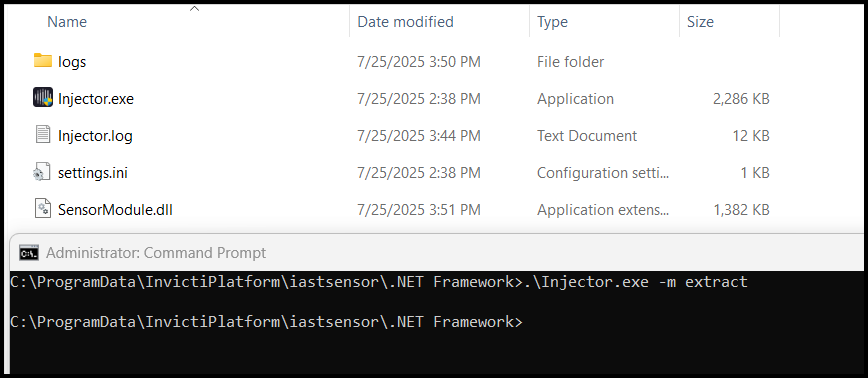
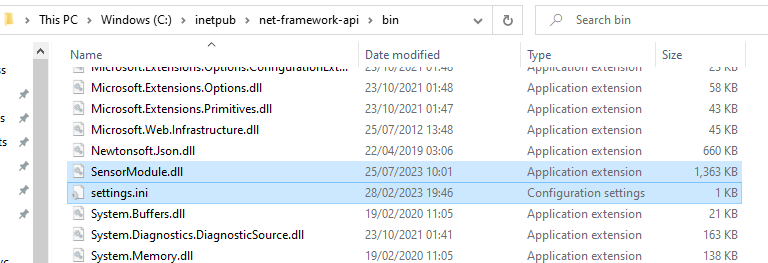
- Copy the newly created DLLs and
settings.inito the target application’sbinfolder similar to the following:
- Open
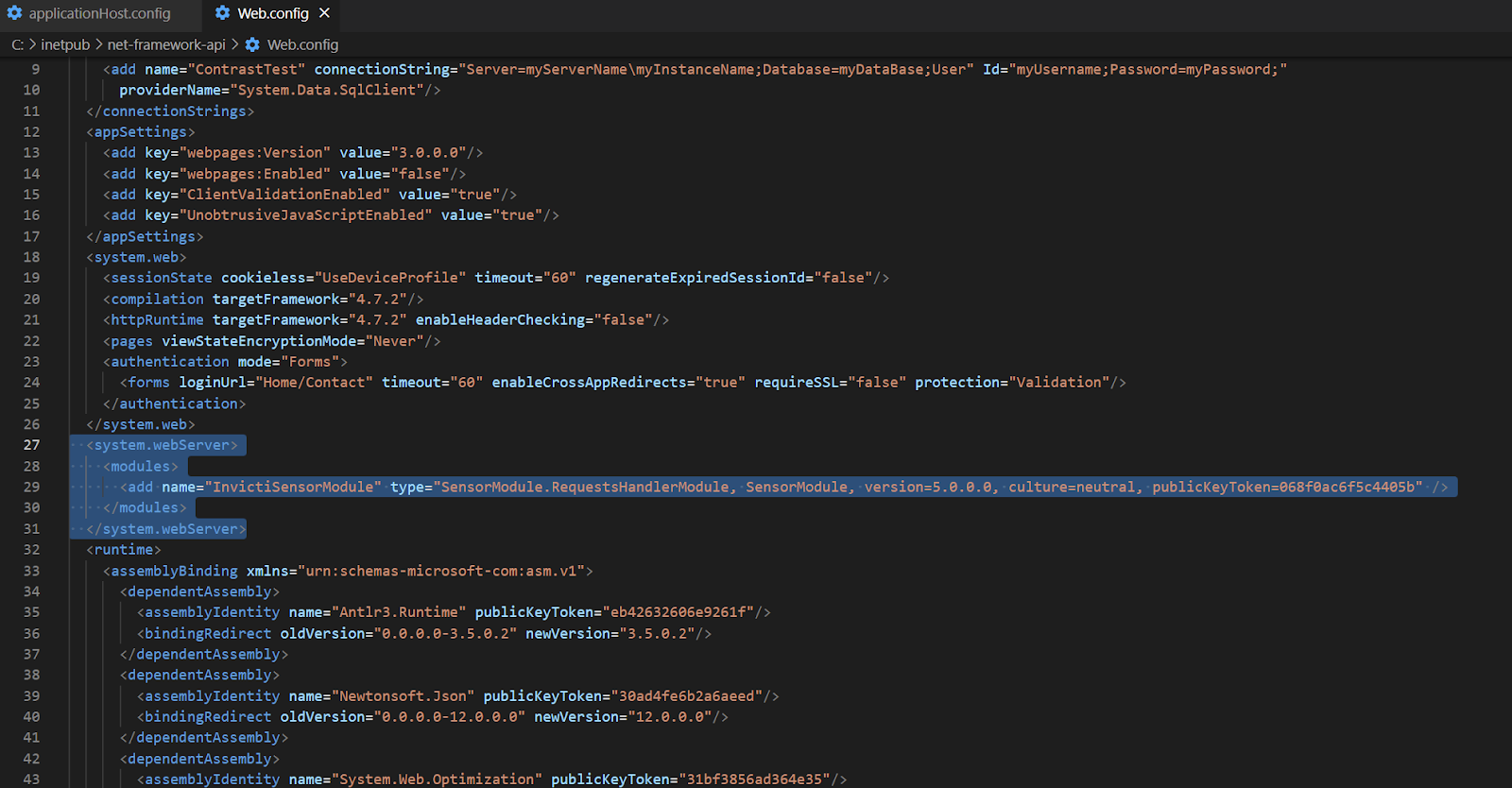
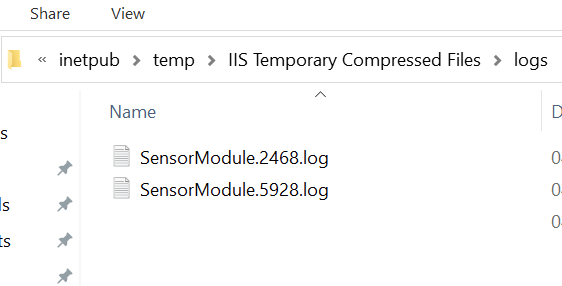
settings.iniand edit the entrylog.pathto reflectlog.path=C:\inetpub\temp\IIS Temporary Compressed Files\logs - To install the IIS HTTP Module, add the following to the web application’s
web.config:
<configuration>
  <system.webServer>
    <modules>
      <add name="InvictiSensorModule" type="SensorModule.RequestsHandlerModule, SensorModule, version=5.0.0.0, culture=neutral, publicKeyToken=068f0ac6f5c4405b" />
    </modules>
  </system.webServer>
</configuration>
-
To load the
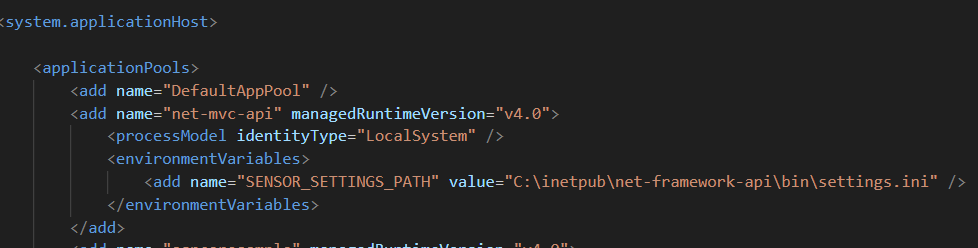
SensorModule.dll.NET profiler, you need to add the following environment variable; do this by changing the IIS application-host config file:“%windir%\System32\inetsrv\config\applicationHost.config”SENSOR_SETTINGS_PATH=<SensorRoot>/settings.ini
-
Restart the test application in IIS. You might need to restart W3SVC service for the changes to take effect.
-
Run a scan on your Target. The Vulnerability detail confirms that Invicti IAST was detected and used for the scan.
Invicti IAST should generate logs inside the directory you entered in the settings.ini file.
Need help?
Invicti Support team is ready to provide you with technical help. Go to Help Center