Invicti IAST for .NET - AWS Elastic Beanstalk
The IAST sensor must be able to reach your Invicti platform to transmit data to the DAST scanning engine.
This document shows how to run a .NET application in AWS Elastic Beanstalk and then use Invicti IAST to run an interactive application security testing (IAST) scan for that application. There are 5 steps to this process.
Step 1: Create your Target in Invicti Platform
For this example, we assume that the URL for your Target is http://eb.invictiexample.com.
- Create a Target in Invicti Platform with your URL.
- Configure your Target settings to enable Invicti IAST. For more information, refer to the Introduction to Invicti IAST document.
- Download Invicti IAST sensor file
dotnet-iastsensor.zipand save this file for use later on.
Step 2: Create your web application using Visual Studio
- Select File > New > Project from the menu.
- Search for "web application", then select ASP.NET Web Application (.NET Framework), and click Next.
- Set your Project name (in this example we're using axexample-dotnet), then click Create.
- Select the Empty template, clear the Configure for HTTPS option, then click Create.
- Right-click on your project name and select Add > HTML Page from the context menu.
- Set the Item name field to
indexand click OK. - Edit your
index.htmlfile to read as follows:
<!DOCTYPE html>
<html>
<head>
    <meta charset="utf-8" />
    <title></title>
</head>
<body>
    <h1>Test dotNET Site Example for AWS Elastic Beanstalk</h1>
    <br>
    Hello World! - Main Page
    <br>
    <a href="/page1.html">Goto Page 1</a>
</body>
</html>
- Repeat the process to create a
page1.htmlfile. Edit yourpage1.htmlfile to read as follows:
<!DOCTYPE html>
<html>
<head>
    <meta charset="utf-8" />
    <title></title>
</head>
<body>
    <h1>Test dotNET Site Example for AWS Elastic Beanstalk</h1>
    <br>
    Hello World! - Page 1
    <br>
    <a href="/">Goto Main Page</a>
</body>
</html>
- Save your changes to your
index.htmlandpage1.htmlfiles. - Right-click on your project name and select Publish from the context menu.
- Select the Web Server (IIS) target, then click Next.
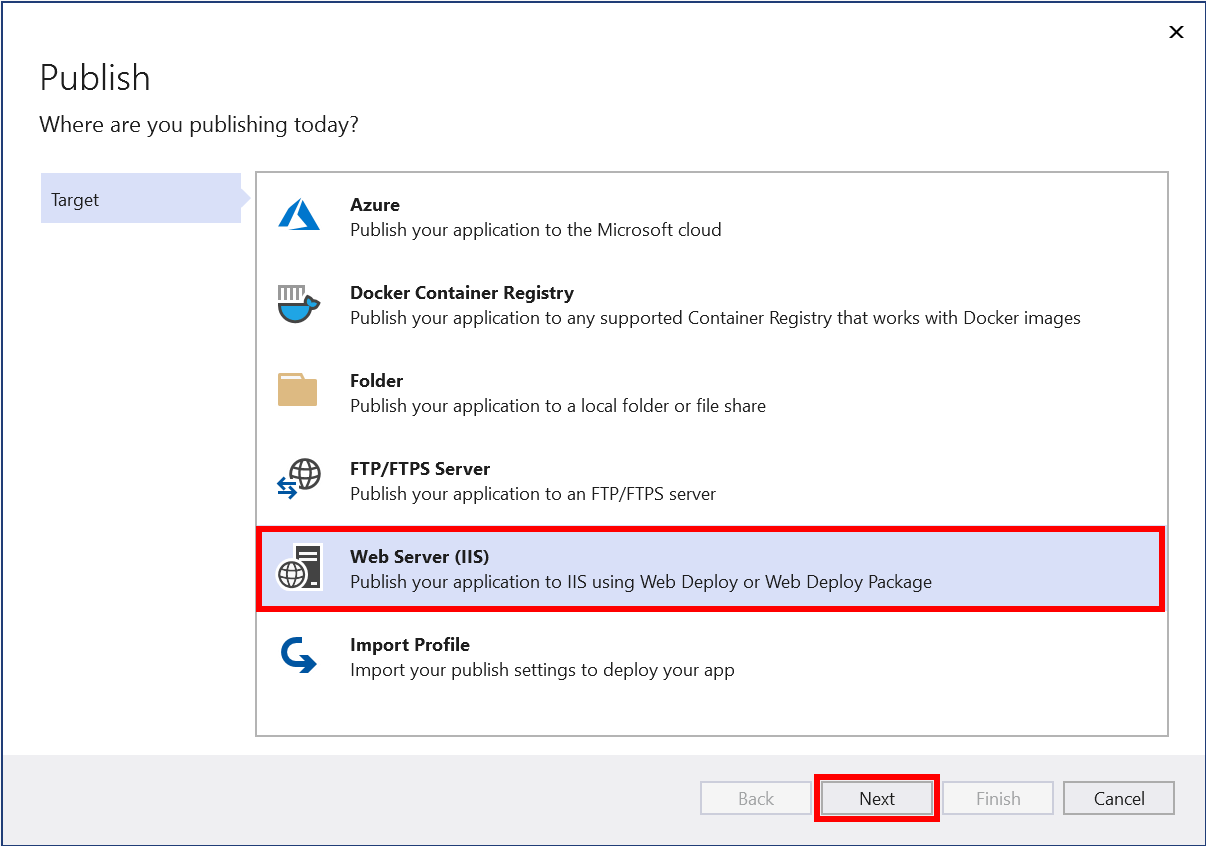
- Select the Web Deploy Package specific target, then click Next.
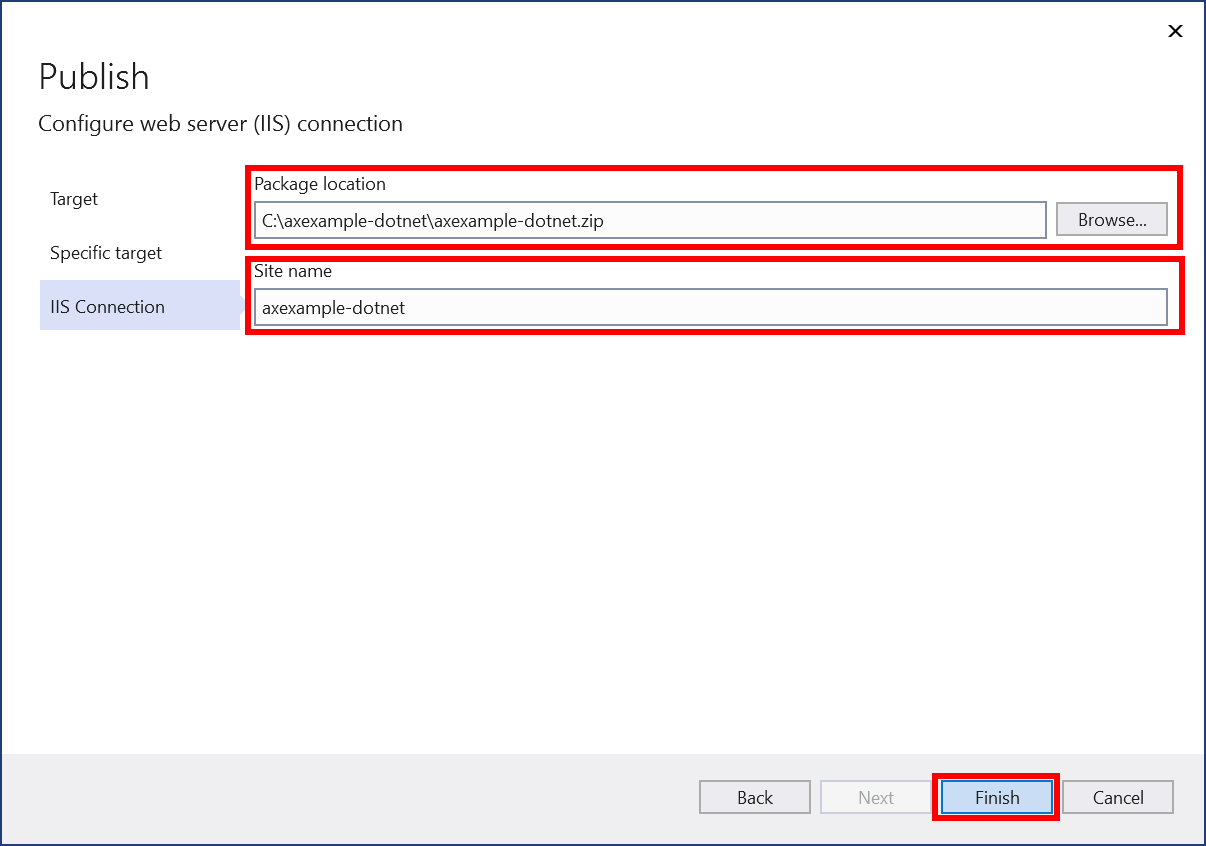
- Set the Package location to the folder where you want to keep your files and set the Site name. Then click Finish. In our example, we have set the package location to
C:\axexample-dotnet\axexample-dotnet.zipand the site name toaxexample-dotnet.
-
Click Publish.
-
Using Windows Explorer, navigate to your version of the
C:\axexample-dotnetfolder and remove the following files:- axexample-dotnet.deploy.cmd
- axexample-dotnet.deploy-readme.txt
- axexample-dotnet.SourceManifest.xml
Your folder should now only contain the following two files:
- axexample-dotnet.zip
- axexample-dotnet.SetParameters.xml
Step 3: Complete your application source code bundle
This simple web application is defined through the following file structure:
- C:\axexample-dotnet.ebextensions
- C:\axexample-dotnet.ebextensions\iastsensor.config
- C:\axexample-dotnet\aws-windows-deployment-manifest.json
- C:\axexample-dotnet\axexample-dotnet.SetParameters.xml
- C:\axexample-dotnet\axexample-dotnet.zip
- C:\axexample-dotnet\dotnet-iastsensor.zip
- Create your
C:\axexample-dotnet\.ebextensionsfolder. - Create your
C:\axexample-dotnet\.ebextensions\iastsensor.configfile to read as follows:
files:
  "C:\\Program Files\\Amazon\\ElasticBeanstalk\\hooks\\appdeploy\\post\\90create_folder.bat":
    content: mkdir C:\iastsensor
  "C:\\Program Files\\Amazon\\ElasticBeanstalk\\hooks\\appdeploy\\post\\91extract_iastsensor.bat":
    content: powershell Expand-Archive -force C:\staging-previous\dotnet-iastsensor.zip -DestinationPath C:\iastsensor
  "C:\\Program Files\\Amazon\\ElasticBeanstalk\\hooks\\appdeploy\\post\\92inject_iastsensor.bat":
    content: "C:\iastsensor\.NET Framework\injector.exe" -m inject -t http://localhost:80/
- Create your
C:\axexample-dotnet\aws-windows-deployment-manifest.jsonfile to read as follows:
{
  "manifestVersion": 1,
  "deployments": {
    "msDeploy": [
      {
        "name": "axexample-dotnet",
        "parameters": {
          "appBundle": "axexample-dotnet.zip",
          "iisPath": "/"
        }
      }
    ]
  }
}
- Copy the dotnet-iastsensor.zip file you created earlier into C:\axexample-dotnet\dotnet-iastsensor.zip.
- Build the source code bundle from the command line with:
powershell Compress-Archive -Path C:\axexample-dotnet\* -DestinationPath %USERPROFILE%\Desktop\axexample-dotnet-aws.zip
- Retain your zip file for the deployment.
Step 4: Deploy your web application to AWS Elastic Beanstalk
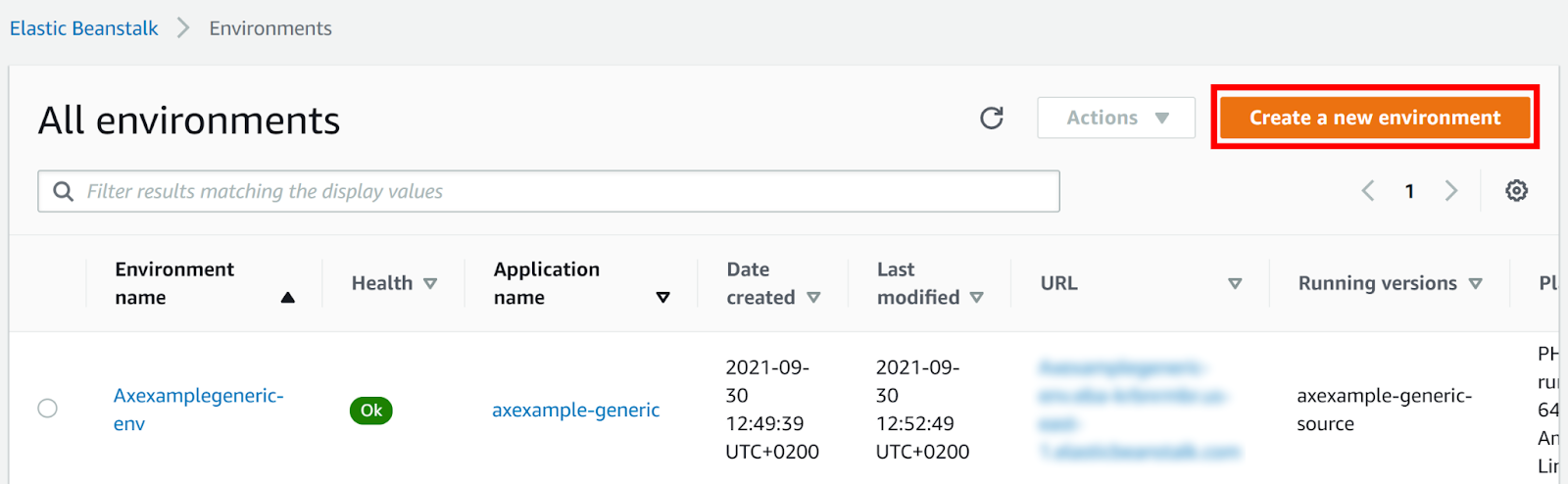
- From your AWS Dashboard, navigate to Elastic Beanstalk > Environments.
- Click Create a new environment.
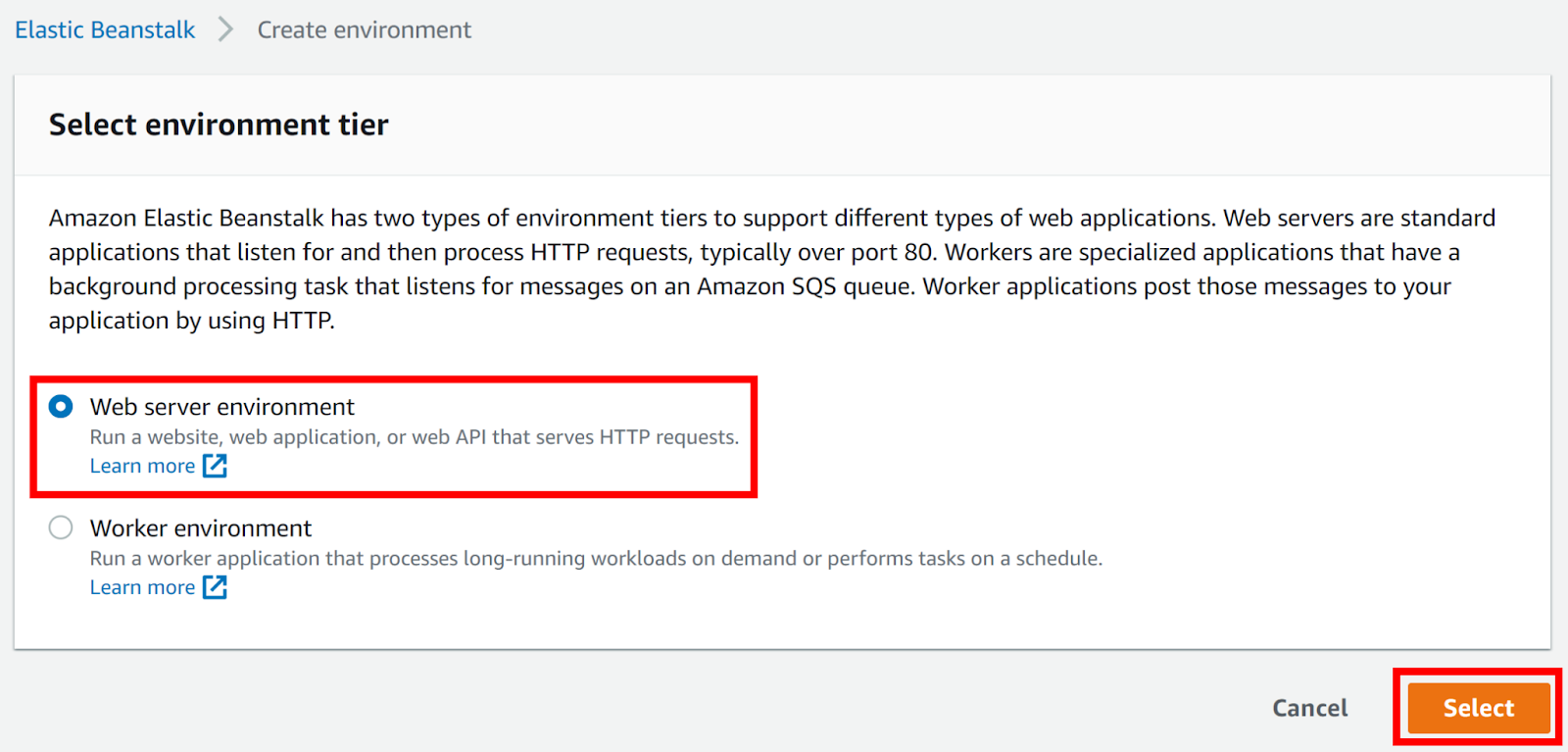
- Set your environment tier to Web server environment, then click Select.
- Set the Application name field to the name of your web application. (In this example we have used the name axexample-dotnet).
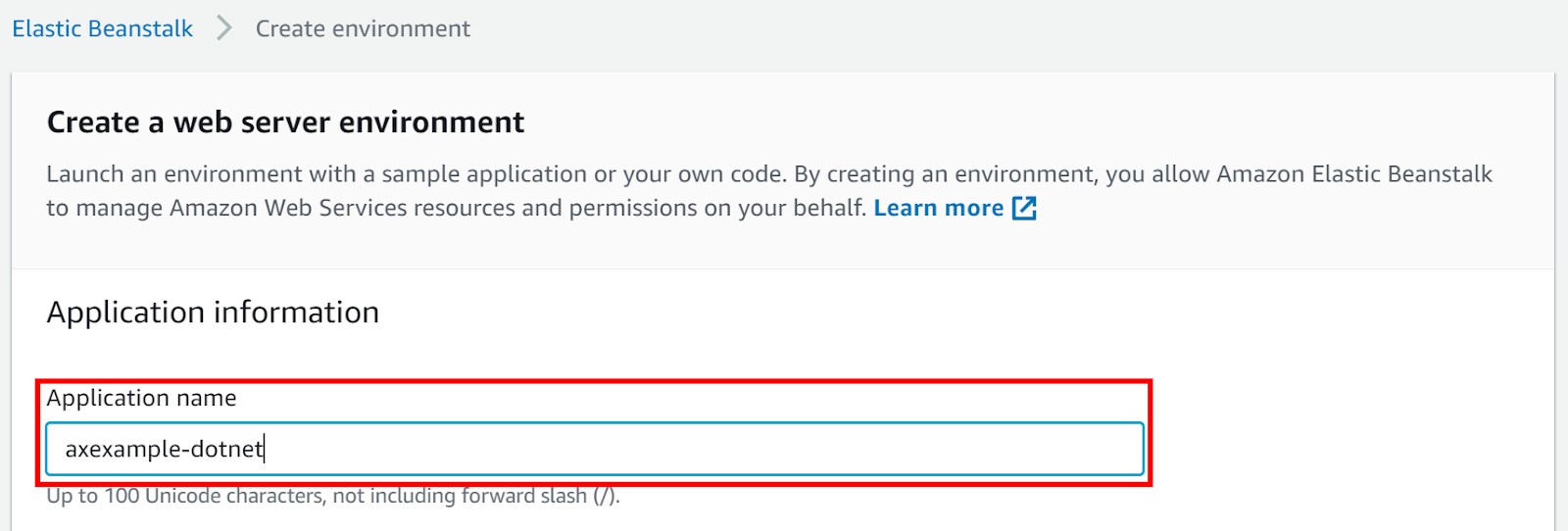
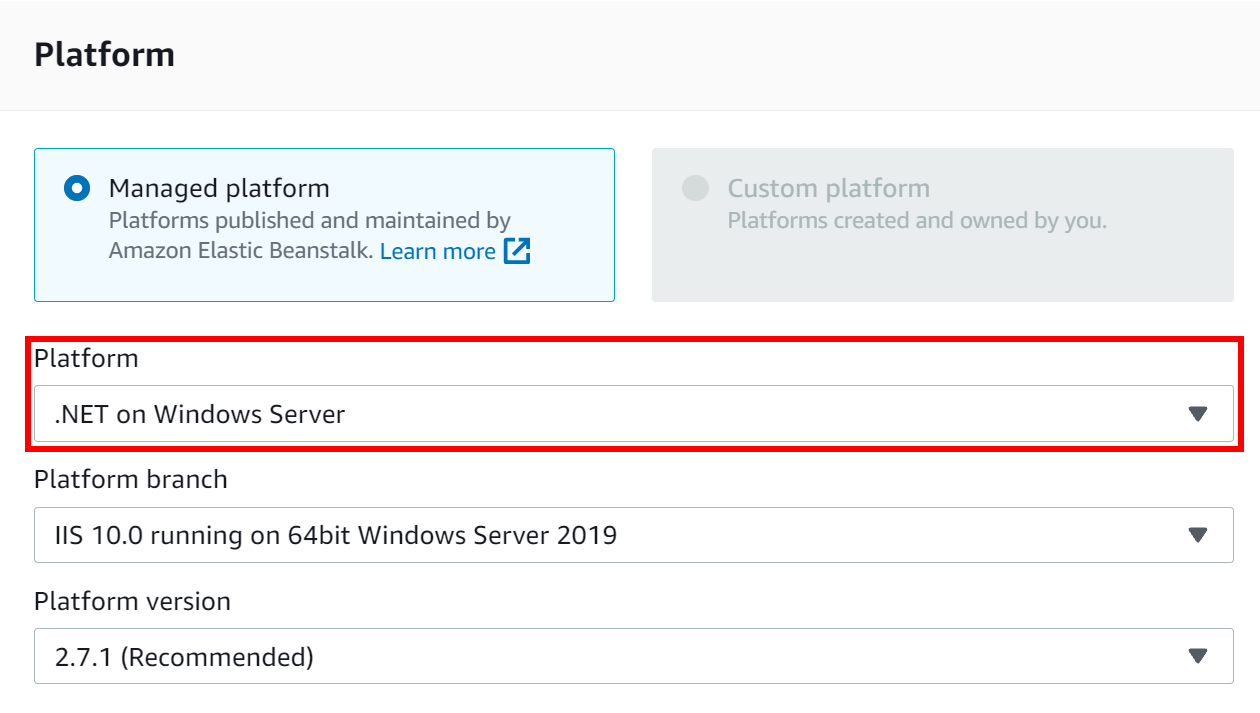
- Set the Platform drop-down to .NET on Windows Server.
- Enable the Upload your code option, then click Choose file.
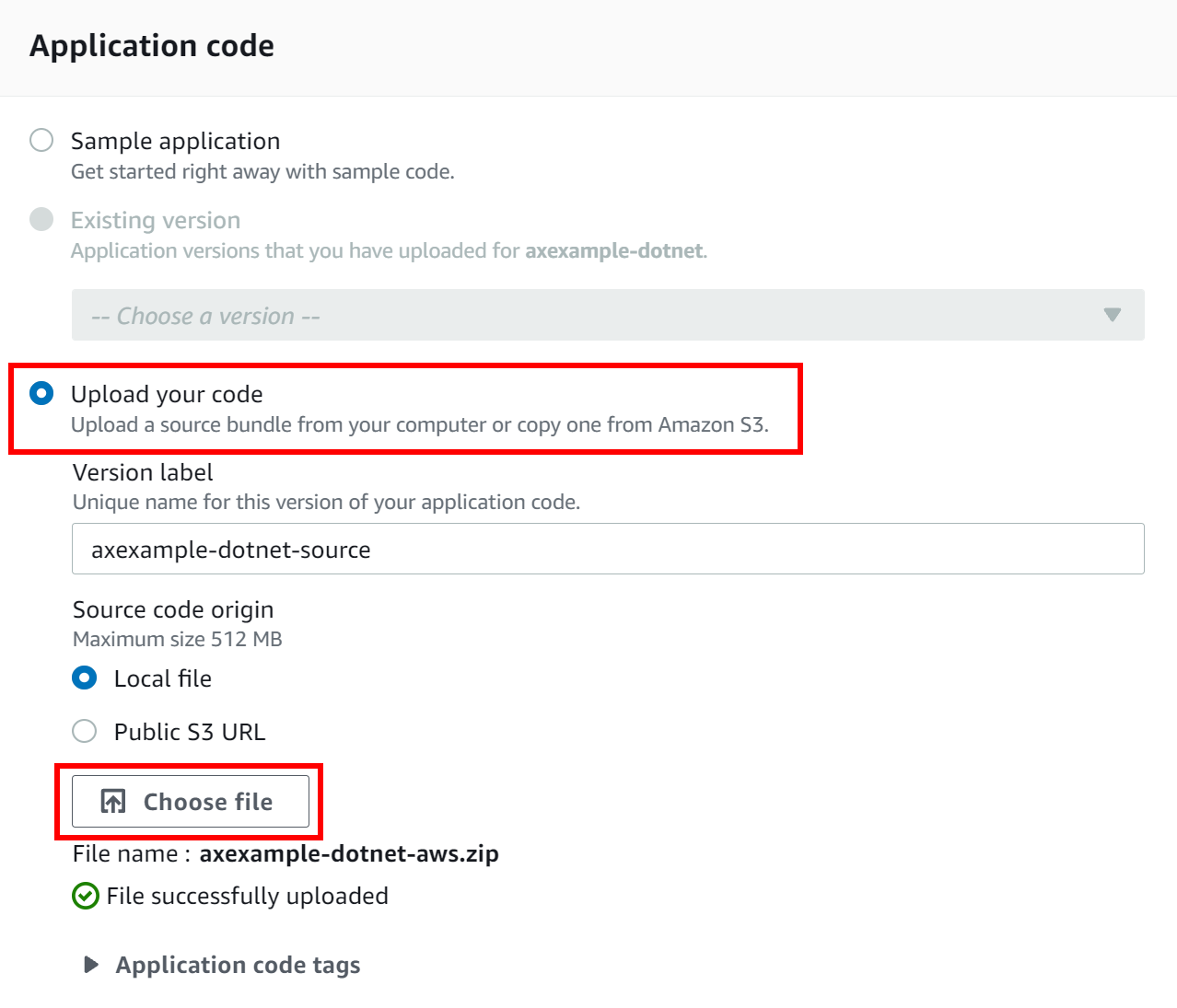
- Select your source code bundle for upload (in our example,
axexample-dotnet.zip) and click Create environment. AWS Elastic Beanstalk now creates your environment. This can take a few minutes. - When the process is complete you are sent to your environment's dashboard. Take note of your environment's new URL which was created automatically by AWS Elastic Beanstalk. You need this to create a CNAME to point to this URL.
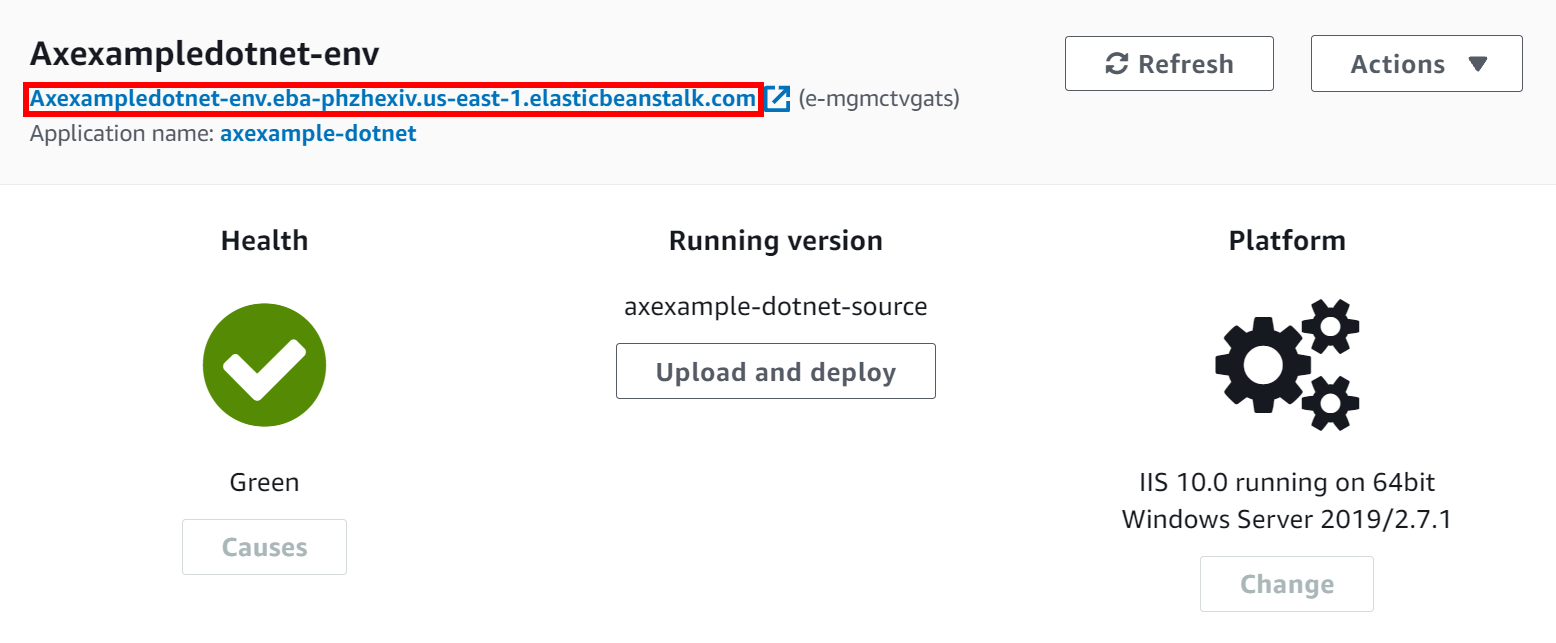
- Create a CNAME for your URL to point to your environment's new URL that was created automatically by AWS Elastic Beanstalk. In our example, we used the Namecheap cPanel interface to create a CNAME for
eb.invictiexample.comto point toaxexampledotnet-env.eba-phzhexiv.us-east-1.elasticbeanstalk.com. - Once the CNAME record has been added (giving time for DNS records to propagate), you can see the web application you have created by browsing to your URL (in this example
http://eb.invictiexample.com).
Step 5: Test and scan your web application
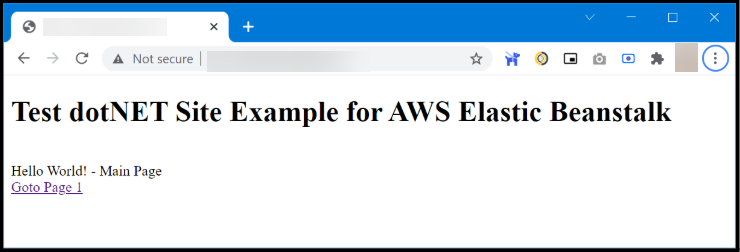
- Point your browser to your web application (in this example http://eb.invictiexample.com) to confirm it is running as intended. You get the following:
- Run a scan on your Target. The Vulnerability detail confirms that Invicti IAST was detected and used for the scan.
Need help?
Invicti Support team is ready to provide you with technical help. Go to Help Center