Invicti IAST for ASP.NET Core
info
- Invicti IAST for .NET supports .Net Core 6 and .Net Core 8.
- The IAST sensor must be able to reach your Invicti platform to transmit data to the DAST scanning engine.
Deploying Invicti IAST for ASP.NET Core websites
Invicti IAST sensor must be deployed to your web application. This section describes how to deploy Invicti IAST to an ASP.NET Core web application.
Prepare the Invicti IAST for .NET Core
- Download Invicti IAST for your Target.
- Create a folder to host your Invicti IAST files. In this example, we have used a folder called
C:\iastsensor. - Extract the files from the downloaded
dotnet-iastsensor.zipfile to another destination folder. - Navigate to the destination folder and open the
.NET Coresubfolder. - Select and copy all the items inside the subfolder.
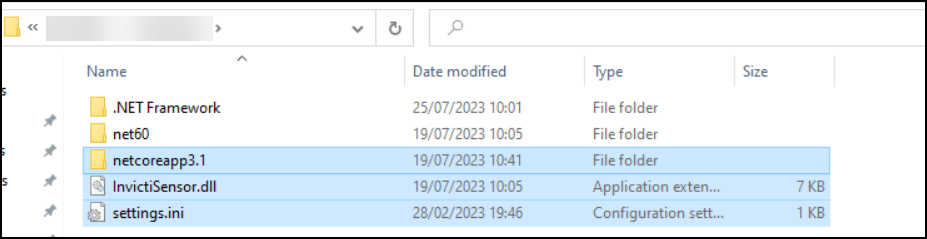
- Navigate to the folder you created in Step 2 (in the example C:\iastsensor).
- Paste into the folder the files you copied in Step 5.
Deploying into a .NET Core Website
- Kestrel .NET Core
- Kestrel .NET Core Linux
- IIS .NET Core
- Navigate to your web application root folder.
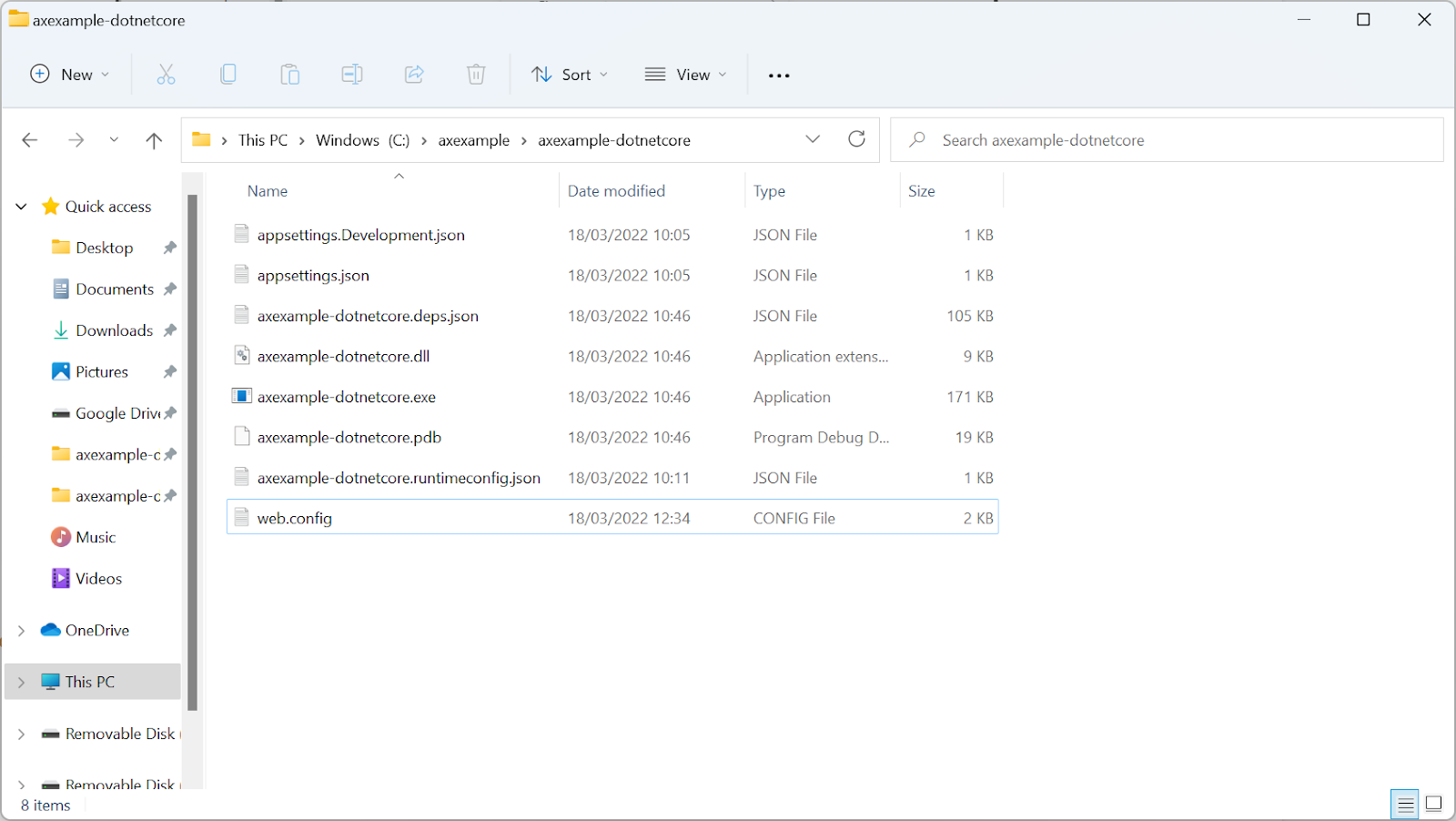
- Create a new
sitelauncher.batfile inside your web application root folder with the following contents (replacing axexample-dotnetcore.exe with the name of the executable file for your web application):
SET SENSOR_SETTINGS_PATH=C:/iastsensor/settings.ini
SET DOTNET_STARTUP_HOOKS=C:/iastsensor/InvictiSensor.dll
axexample-dotnetcore.exe --urls http://0.0.0.0:80
- From the command line, navigate to your web application root folder and launch your web application.
- Navigate to your web application root folder.
- Create a new
sitelauncher.shfile inside your web application root folder with the following contents (replacing axexample-dotnetcore.dll with the name of the executable file for your web application):
#!/bin/bash
export DOTNET_STARTUP_HOOKS="/iastsensor/InvictiSensor.dll"
export SENSOR_SETTINGS_PATH="/iastsensor/settings.ini"
dotnet ./axexample-dotnetcore.dll --urls "http://0.0.0.0:80"
- From the command line, navigate to your web application root folder and launch your web application.
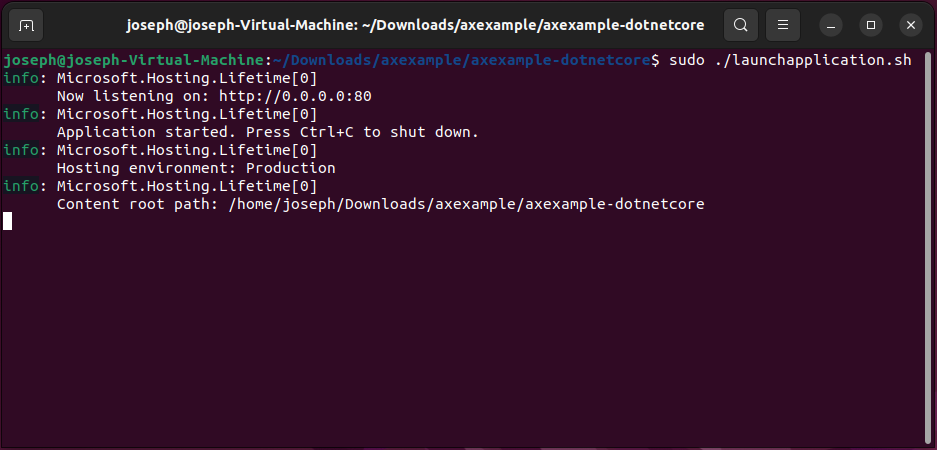
- Navigate to your web application root folder.
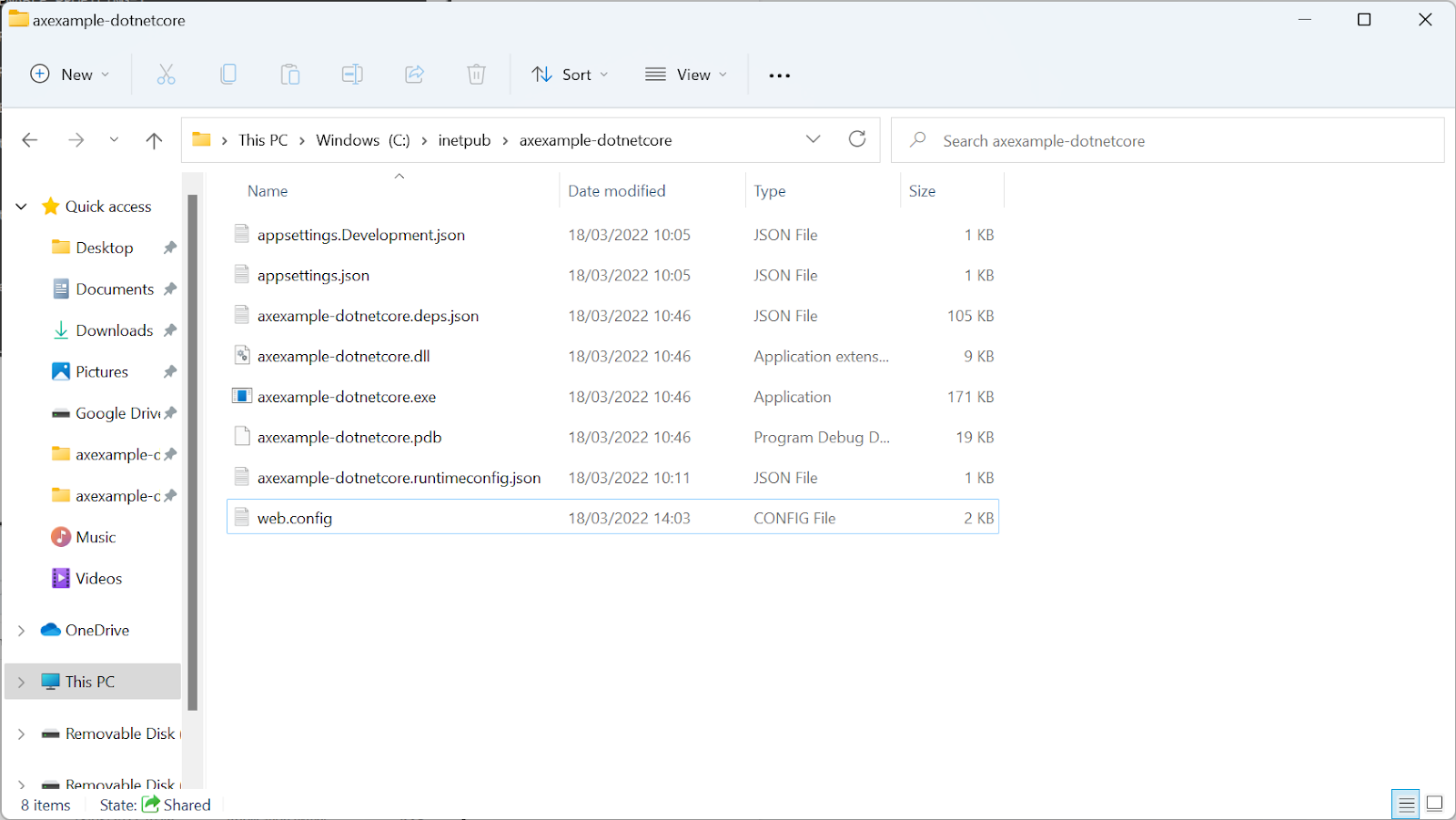
- Edit your
web.configfile to add environment variables for using Invicti IAST:
<?xml version="1.0" encoding="utf-8"?>
<configuration>
  <location path="." inheritInChildApplications="false">
    <system.webServer>
      <handlers>
        <add name="aspNetCore" path="*" verb="*" modules="AspNetCoreModuleV2" resourceType="Unspecified" />
      </handlers>
      <aspNetCore processPath="dotnet" arguments=".\axexample-dotnetcore.dll" stdoutLogEnabled="false" stdoutLogFile=".\logs\stdout" hostingModel="inprocess">
        <environmentVariables>
          <environmentVariable name="DOTNET_STARTUP_HOOKS" value="C:/iastsensor/InvictiSensor.dll" />
          <environmentVariable name="SENSOR_SETTINGS_PATH" value="C:/iastsensor/settings.ini" />
        </environmentVariables>
      </aspNetCore>
    </system.webServer>
  </location>
</configuration>
<!--ProjectGuid: 16505b2e-7499-4c97-a9ff-d18e39913ad5-->
- Restart your web application from IIS Manager.

Need help?
Invicti Support team is ready to provide you with technical help. Go to Help Center
Was this page useful?