Deployment: Invicti Platform on-demand, Invicti Platform on-premises
Access requirements: to access the API catalog, you need either an Administrator, Owner, Security Analyst, or Security Manager role with access to all collections, or a custom role with the API Security permission and access to all collections.
Manage your API catalog
This document explains how to keep your API catalog clean by hiding APIs you don't want to scan and removing specs that are no longer relevant.
Why this matters
An accurate API catalog makes it easier to prioritize what to scan and review. Hiding irrelevant APIs removes noise from your inventory without permanently losing them, while deleting outdated specs keeps your catalog focused on the APIs that matter. This helps your team spend scan time and review effort where it counts.
View the API catalog
After importing or discovering APIs, you can view all your API specifications and endpoints on the API catalog page. Select Inventory > API catalog from the left-side menu.
The page shows a table of discovered or imported APIs. To read more about the columns, refer to the API catalog table columns section of the API catalog overview document.
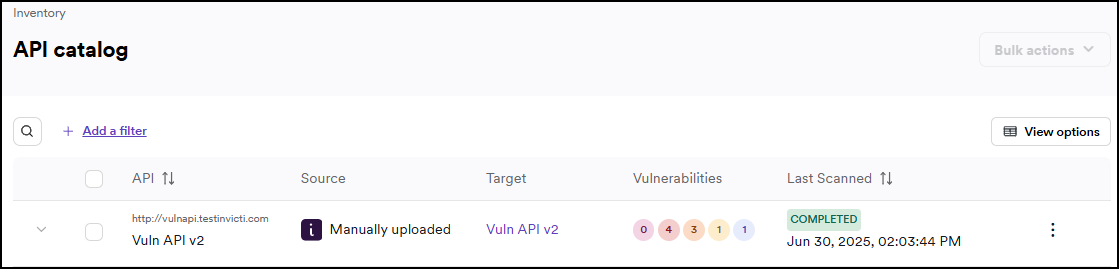
Hide discovered APIs
If you decide a discovered API is irrelevant and you don't want to scan it, you can hide it from your API catalog.
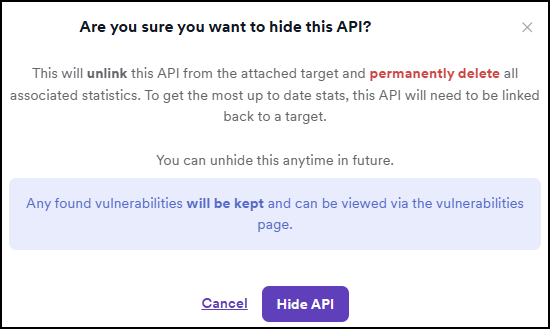
Hiding an API removes it from the attached target and permanently deletes all associated statistics. To get the most up-to-date stats, this API needs to be linked back to a target.
Any found vulnerabilities are kept and can be viewed via the vulnerabilities page.
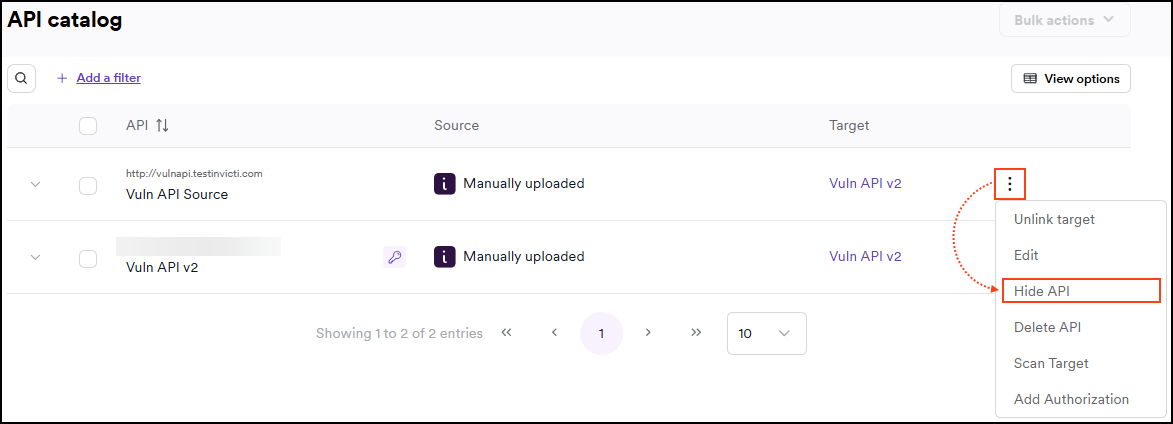
To hide an API in your API catalog:
- Select Inventory > API catalog from the left-side menu.
- Click the three-dot menu (⋮) to the right of the API you want to hide, then select Hide API.
- Select Hide API to confirm the action.
- The API is now hidden.
Delete an API
If you want to completely remove an API from your API catalog you can choose to delete it. However, if the source of the API is enabled (for example, a MuleSoft integration), the deleted API might reappear in your API catalog the next time the source synchronizes. In this situation, you may prefer to hide the API instead so that it's ignored each time a source synchronization occurs.
Deleting an API permanently removes all associated statistics and the action can't be undone.
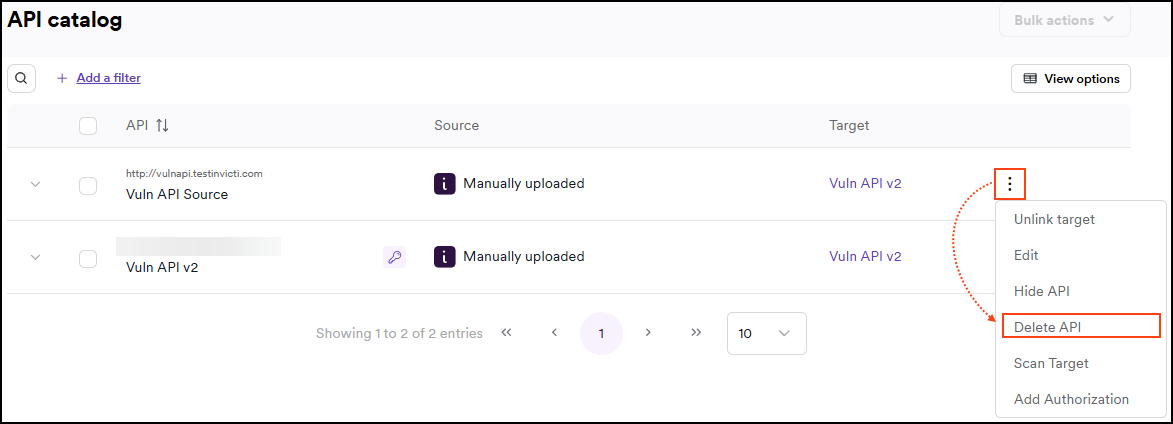
To delete an API from your API catalog follow these steps:
- Select Inventory > API catalog from the left-side menu.
- Click the three-dot menu (⋮) to the right of the API you want to delete, then select Delete API.
- Select Delete API to confirm the action.
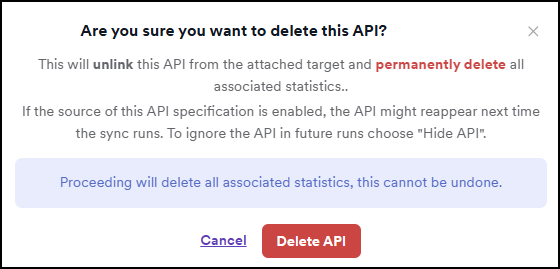
The API and all associated statistics are now deleted and the API is no longer visible in your API catalog.
Troubleshooting
I get a permission denied error (403) when opening the API catalog
This happens when your role is scoped to specific collections. The API catalog requires access to all collections - if one or more collections are assigned to your user, you lose access to the catalog even if you have the required role or the API Security permission.
To resolve this, ask an Administrator to remove the collection assignment from your user account. Once you have access to all collections, the API catalog loads correctly.
A deleted API reappeared in my catalog
If the API comes from an active source (for example, a MuleSoft integration), the source re-adds it on the next sync. Hide the API instead of deleting it - hidden APIs are skipped during source synchronization and won't reappear.
Related documents
For other API related documentation, refer to the following documentation:
Need help?
Invicti Support team is ready to provide you with technical help. Go to Help Center