Deployment: Invicti Platform on-demand, Invicti Platform on-premises
Package: Invicti API Security Standalone or Bundle
NTA with Tap Plugin
This document explains how to install the Invicti Network Traffic Analyzer (NTA) via command-line tool using the Tap Plugin to detect API traffic in your Kubernetes cluster and reconstruct OpenAPI3 specification files.
Prerequisites
- A Kubernetes cluster
- Helm command-line tool installed (version 3+)
- kubectl configured for your cluster (for example, using Get-AksHciCredential)
- A Kubernetes namespace created for Invicti NTA
Minimum system requirements
- 1 GB RAM
- 2-core 64-bit CPU
- 2 GB available HDD
Overview
There are two ways to capture Kubernetes traffic with the Invicti NTA:
- Integrating with a Kubernetes namespace interface natively (captures HTTP traffic only):
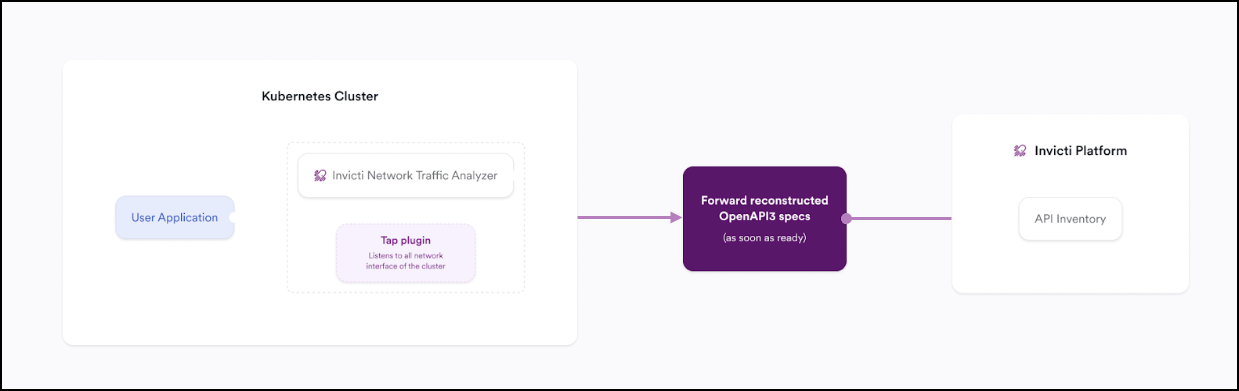
- This is the method described in this Tap Plugin document. It focuses on capturing HTTP traffic via the Tap Plugin using the Kubernetes namespace interface, which does not handle HTTPS traffic unless combined with Istio.
- Integrating with Istio Service Mesh (captures both HTTP & HTTPS traffic):
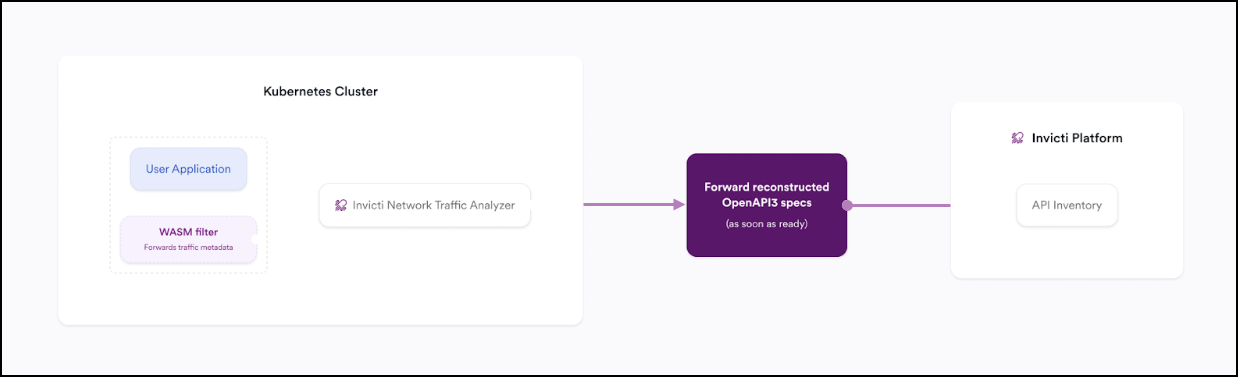
- This is not described in this Tap Plugin document. Instead, this integration is covered in the Istio Service Mesh document, where you configure the Istio Envoy proxy to handle encrypted traffic (HTTPS) using WASM filters.
Installation steps
The Invicti NTA Helm chart includes:
- Reconstructor - Processes captured traffic and generates OpenAPI3 specification files.
- Tap Plugin (traffic sensor) - Captures API traffic within your Kubernetes cluster for analysis.
Step 1: Generate a new registration token
- Select Discovery from the left-side menu.
- Under API configuration, select API sources.
- Click Add source.
- Leave the Import type as External platform.
- Enter a name for the source configuration. This helps you identify it later in your list of API sources.
- Select Invicti Network Traffic Analyzer as the Source type.
- Click Generate token.
- Click the copy icon next to the newly generated registration token.
- Click Save at the bottom of the page. Do not skip this step.
Step 2: Authenticate with the Invicti Registry
- Launch the Helm command-line tool that was set up during the prerequisites.
- Then run the following command:
helm registry login registry.invicti.com
Username: your Invicti Platform email
Password: your valid Invicti Platform license key
Step 3: Prepare and deploy the Invicti Helm chart
In your Helm command-line tool or terminal, run the following command to install Invicti NTA into your Kubernetes cluster:
helm install invicti-api-discovery \
  oci://registry.invicti.com/invicti-api-discovery \
  --version 25.11 \  # Optional: omit to pull the latest version
  -n default \
  --set trafficSource.tap.enabled=true \
  --set imageRegistryUsername=email-address \
  --set imageRegistryPassword=password \
  --set reconstructor.JWT_TOKEN="registration-token"
You can omit the --version parameter entirely to automatically pull the latest chart version. To install a specific version, use --version X.X.X (for example, --version 25.11). Note that Helm does not support --version latest syntax.
Replace the following placeholders with your actual credentials:
default: This sets the namespace where the Invicti NTA is installed. Replace with the namespace you created.email-address: Replace with your Invicti Platform email address.password: Replace with your valid Invicti Platform license key.registration-token: The registration token from Step 1.8. Keep it enclosed in double quotes.
Step 4: Verify the installation (optional)
After deployment, confirm that the Invicti NTA components are running correctly:
- Run the following command to select the pod status:
kubectl get pods -n <your-namespace>
- Ensure all pods (for example, tap, reconstructor) aren't in CrashLoopBackOff or Error states.
- If any pods aren't running properly, investigate their logs with:
kubectl logs <pod-name> -n <your-namespace>
- For the Tap Plugin pod:
kubectl logs invicti-api-discovery-tap-5slmn -n <your-namespace>
<5slmn> - these are randomized. Copy and paste the pod-name from the kubectl get pods -n <your-namespace> output.
If everything looks good, your Invicti NTA with the Tap Plugin is now successfully capturing and analyzing traffic in your Kubernetes cluster.
Update or reinstall Invicti NTA with Tap Plugin
- Follow Step 1 to get the latest token and password.
- Log in to the Invicti registry as described in Step 2 preceding.
- Prepare and run the update command:
helm upgrade --install invicti-api-discovery \
  oci://registry.invicti.com/invicti-api-discovery \
  --version 25.11 \  # Optional: omit to pull the latest version
  -n default \
  --set imageRegistryUsername="email-address" \
  --set imageRegistryPassword="password" \
  --set reconstructor.JWT_TOKEN="registration-token" \
  --set trafficSource.tap.enabled=true
You can omit the --version parameter entirely to automatically pull the latest chart version. To install a specific version, use --version X.X.X (for example, --version 25.11). Note that Helm does not support --version latest syntax.
Frequently asked questions
What does the Tap Plugin actually do?
The Tap Plugin monitors and analyzes network traffic by listening to all network interfaces and ports in your Kubernetes cluster. It captures unencrypted API communications and extracts a limited set of telemetry (metadata) for API discovery. This telemetry is then used to reconstruct OpenAPI3 specifications, which are sent to your API Catalog in Invicti Platform.
Does the Tap Plugin capture internal and external APIs?
Yes. The Tap Plugin can capture both internal (for example, between pods) and external (for example, incoming edge traffic) APIs, as long as the traffic is unencrypted (HTTP). If port forwarding is used, discovered APIs reflect the internal port, not the externally forwarded one.
Which network interfaces does the Tap Plugin listen to in Kubernetes?
By default, the Tap Plugin listens to all available network interfaces to ensure broad coverage. You can limit this by setting the INVICTI_TAP_INTERFACES environment variable with specific interfaces (comma-separated).
Does the Tap Plugin listen to all ports?
Yes. The Tap Plugin listens on all ports by default. You can restrict it using the INVICTI_TAP_PORTS environment variable. Examples:
- Specific Ports: 80,443,8080
- Port Range: 5005-6000
Which requests are being captured?
By default, only HTTP requests with 2XX status codes are captured. You can customize this behavior using the INVICTI_TAP_HTTP_STATUS_CODES environment variable. Examples:
- 200 - Only HTTP 200 OK
- 20x - Status codes 200 through 209
- 2xx - Status codes 200 through 299
Does the Tap Plugin support encrypted HTTPS traffic?
No. The Tap Plugin only supports unencrypted HTTP 1.x traffic. For encrypted (HTTPS) traffic, use the Istio Service Mesh integration or the eBPF Sniffer, which captures HTTPS without requiring a service mesh.
What technology does the Tap Plugin use?
It is based on pcap (packet capture), a well-established open source technology for monitoring network packets.
Can you exclude traffic with specific HTTP headers?
Yes. Use the INVICTI_TAP_EXCLUDE_TRAFFIC_WITH_HEADERS environment variable to define a comma-separated list of headers. Traffic containing these headers are ignored.
How is the Tap Plugin deployed?
The Tap Plugin is deployed as part of the Invicti Network Traffic Analyzer Helm chart inside your Kubernetes cluster. Refer to the Installation Steps section preceding for complete setup instructions.
Troubleshooting
For common issues including authorization failures, retry behavior, and resolution steps, refer to NTA troubleshooting.
Need help?
Invicti Support team is ready to provide you with technical help. Go to Help Center