Deployment: Invicti Platform on-premises
This is part 4 of 4 in the Windows on-premises installation series.
Previous: Trustlist configuration
Update or uninstall
Invicti Platform on Windows on-premises supports two update paths:
-
In-place update - initiated from the Invicti Platform Control Center. The Control Center downloads the latest Helm chart and performs a Helm upgrade within the existing WSL2 environment. This is the recommended path for routine updates on systems with sufficient memory (24 GB WSL2 / 32 GB host recommended).
-
Backup & restore (with update) - a full uninstall and reinstall. Use this when:
- The in-place update fails.
- The in-place update shows an incompatibility with the current installation.
- Your system has less than 24 GB WSL2 / 32 GB host RAM.
- You want to update the WSL2 distribution as well (for example, to apply OS-level vulnerability fixes).
Your scan data is preserved across a backup & restore update.
This document explains both paths, and covers uninstallation.
Why this matters
Keeping Invicti Platform up to date ensures you have the latest security checks, vulnerability detections, and platform features. Updates are delivered as new installer and WSL2 distribution packages, and can be applied through the Control Center or via backup & restore when the in-place update fails.
In-place update
The in-place update runs a Helm upgrade inside the existing WSL2 environment. Your data, configuration, and WSL2 setup aren't affected.
In-place updates require more free memory than normal platform operation. This update method is recommended for systems with at least 24 GB allocated to WSL2 and 32 GB total host RAM. On systems with lower memory, the update may fail — use backup & restore (with update) instead.
-
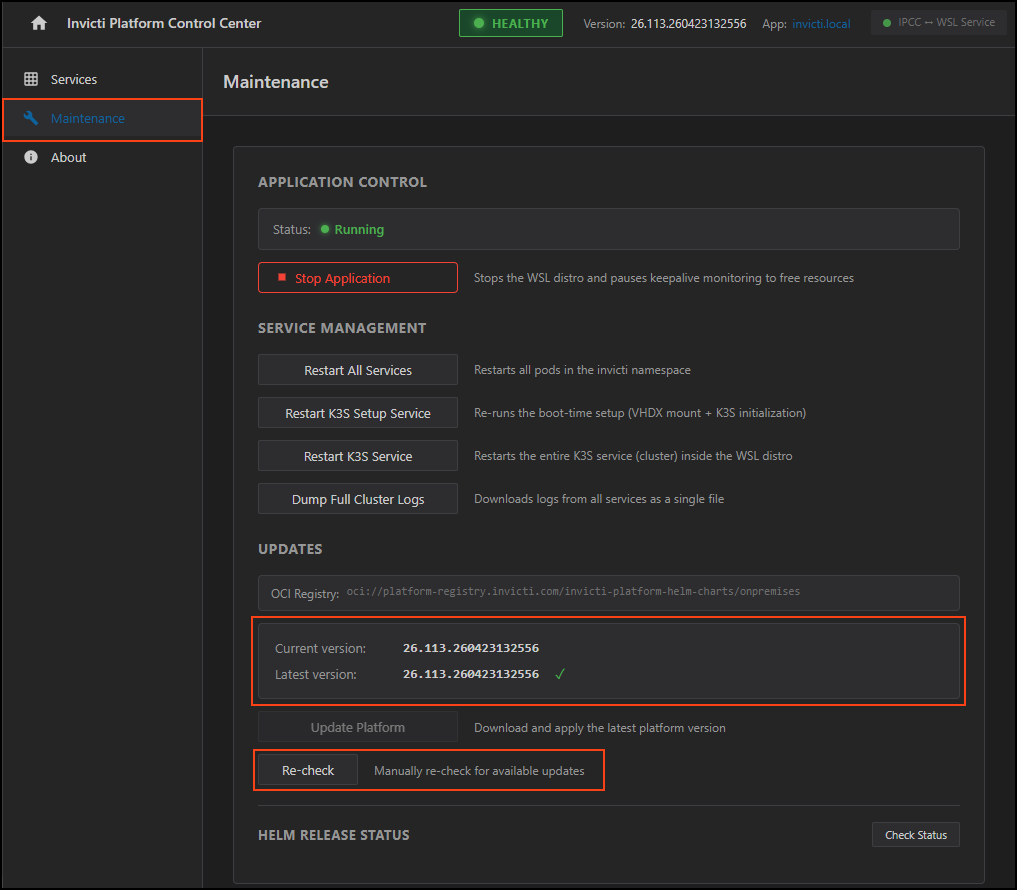
Open the Invicti Platform Control Center at
http://localhost:8088/. -
Select Maintenance from the left navigation.
-
In the Updates section, click Re-check to confirm the latest available version is shown.
-
Click Update now. The Control Center automatically starts downloading the latest Helm chart and applies it.
-
Monitor the update log in the Update log details panel. A successful update ends without errors.
Use backup & restore (with update) if:
- The update fails with the message "ERROR: Helm upgrade command failed. Check service logs for details."
- The update shows an incompatibility with the current installation.
- Your system has less than 24 GB WSL2 / 32 GB host RAM.
- You want to update the WSL2 distribution as well (for example, to apply OS-level vulnerability fixes).
Backup & restore (with update)
This method uninstalls the platform and reinstalls it from scratch. Your scan data stored in the VHDX file is preserved — only the application layer is replaced.
The VHDX data file is preserved, but your installation configuration is not. Have the following ready before starting the hard update:
- License key
- SMTP details (if configured)
- TLS certificate and private key (if configured)
- External database connection details (if using an external PostgreSQL database)
- Hostname / platform address
Before you start
A hard update replaces the application layer, but unexpected issues can still cause data loss. Before starting, back up your data folder:
- Default location:
C:\Program Files\Invicti\Platform\data\ - Custom location: If you specified a custom data volume path during the original installation, back up that folder instead.
Copy the entire data folder to a safe location before continuing.
The latest platform package is distributed as a single ZIP archive (invicti-platform-x64.zip) that contains both files needed for a backup & restore update:
| File | Description |
|---|---|
| Installer executable | Latest installer for Windows |
| WSL2 distribution tarball | Latest k3s distribution with container images |
The package lives at https://platform-registry.invicti.com/api/v1/dist/onprem/wsl/invicti-platform-x64.zip. The endpoint requires Basic authentication - your Invicti email address is the username and your license key is the password. Use the native browser prompt (if supported in your browser) or one of the following commands to download it.
- PowerShell
- curl
$username = "your.name@invicti.com"
$password = "xxxx-aaaa-rrrr-yyyy"
$pair = "${username}:${password}"
$encodedCreds = [System.Convert]::ToBase64String([System.Text.Encoding]::ASCII.GetBytes($pair))
$headers = @{ Authorization = "Basic $encodedCreds" }

Invoke-WebRequest `
  -Uri "https://platform-registry.invicti.com/api/v1/dist/onprem/wsl/invicti-platform-x64.zip" `
  -Headers $headers `
  -OutFile "$env:USERPROFILE\Downloads\invicti-platform-x64.zip" `
  -UseBasicParsing
curl -u "your.name@invicti.com:xxxx-aaaa-rrrr-yyyy" \
  -L "https://platform-registry.invicti.com/api/v1/dist/onprem/wsl/invicti-platform-x64.zip" \
  -o invicti-platform-x64.zip
Extract the ZIP to a directory (for example, C:\InvictiSetup\). Both files must be in the same folder before you run the installer.
To update only the platform layer and leave the WSL2 and Helm versions unchanged, run the new installer but point it at the WSL tarball from your current installation instead of the one in the new package. If the installer detects the same WSL tarball version that's already installed, it skips the WSL2 and Helm upgrade.
Steps
-
Right-click
C:\Program Files\Invicti\Platform\Uninstall.exeand select Run as administrator. Wait for the uninstaller to complete.The uninstaller removes the application but preserves the VHDX data file.
-
Right-click the new installer
.exeand select Run as administrator. -
Follow the installer prompts. When asked for the WSL2 distribution file, provide the path to the WSL tarball you downloaded.
Verify your data folder pathWhen prompted for the Data volume path, you must provide the same path used during your original installation - especially if you chose a custom location. If you leave this blank or enter a different path, the installer creates a new empty data volume instead of connecting to your existing data, and your scan history will not be visible.
- Default path:
C:\Program Files\Invicti\Platform\data\ - Custom path: Check your original installation settings or the backed-up data folder location.
- Default path:
-
Re-enter your configuration when prompted:
- Email address and license key
- SMTP settings (if used)
- TLS certificate (if used)
- External database details (if used)
- Hostname / platform address
-
Wait for the installation to complete. The installer redeploys the platform on top of the existing VHDX data.
-
Verify the platform is running. For more information, refer to the post-installation verification section in the Installation document.
Uninstall
To uninstall Invicti Platform, right-click C:\Program Files\Invicti\Platform\Uninstall.exe and select Run as administrator.
The uninstaller removes the application, WSL2 distribution, and service, but preserves the VHDX data file at C:\Program Files\Invicti\Platform\data\. If you want a fully clean removal, delete this folder manually after uninstalling.
Next steps
With your deployment updated or uninstalled, refer to the installation guides for redeployment:
→ Return to Prerequisites
Complete Windows installation series
- Part 1: Prerequisites
- Part 2: Installation
- Part 3: Trustlist configuration
- Part 4: Update or uninstall ← You are here
Need help?
Invicti Support team is ready to provide you with technical help. Go to Help Center