Package: Invicti AppSec Core (on-demand)
Add new project
Adding a new project to Invicti AppSec creates a dedicated space for tracking the security posture of a specific application or component. You can optionally associate projects with one or more products and configure them with various settings to align with your organization's security requirements.
Prerequisites
Before adding a new project, ensure you have:
- Correct access right to Invicti AppSec
- Project details such as name, description, and team assignment
- Access to the project's source code repository (if applicable)
- Existing products if you plan to associate the project with them (optional)
Add a project
To create a new project:
- Select Projects and Products from the left-side menu, then select Projects.
- Click the Add Project button in the upper right corner of the projects list.


- Complete the project creation form with the required information:
- Name: enter a unique, descriptive name for your project without spaces (required)
- Labels: add custom labels to help categorize and filter the project (optional)
- Default branch: enter the name of the main branch for scanning (free text field). When source control is enabled, default branch is automatically fetched from the ALM (required)
- Default branch pattern: enter a pattern to update your default branch in each scan (free text field). The dashboard metrics are calculated by considering the default branches
- Team: specify the team responsible for this project's security (required)
- Business criticality: set the project's business impact level:
- Critical: mission-critical applications that require immediate attention for security issues
- High: important applications with significant business impact
- Medium: standard applications with moderate business impact
- Low: less critical applications with minimal business impact
- None: you haven't assigned any specific business criticality
- Infra group name: associate the project with relevant infrastructure groups (optional)
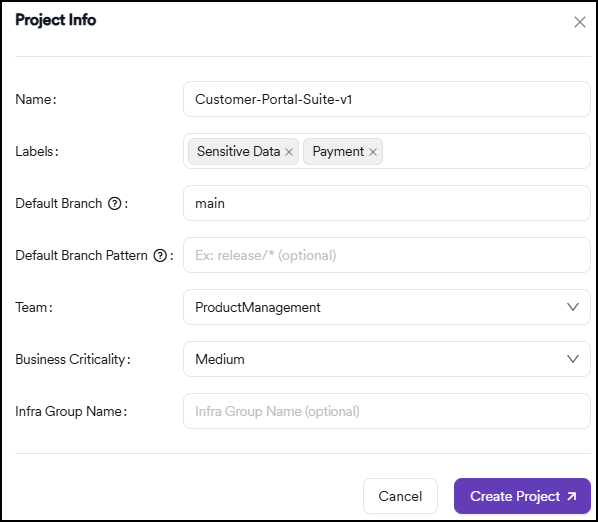
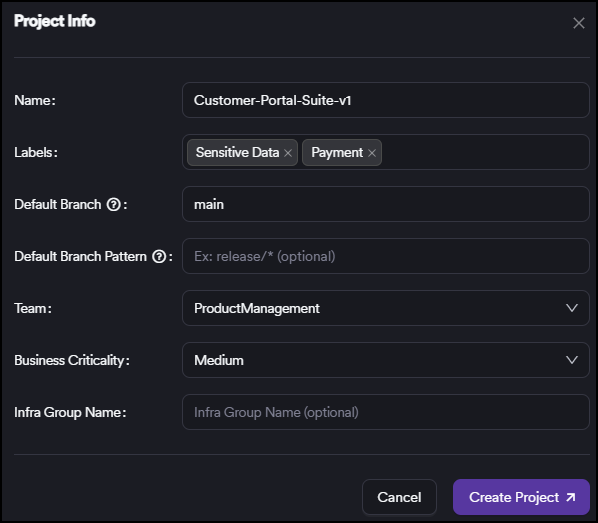
- Click Create project to finalize the project creation.
- The system opens the project dashboard page, which appears blank since it's a new project. You can modify the project settings or run your first scan from the Project page.
Start with basic project configuration and gradually add more advanced settings as your team becomes familiar with the platform. You can always modify project settings later through the project management interface.
Project validation
Once you create your project, verify the configuration:
- Check that the project appears in your projects list
- Verify team assignments and permissions
- Test repository connectivity if configured
- Run an initial scan to validate scanner configuration
Ensure that you properly secure sensitive information such as API keys, passwords, or tokens when configuring repository access and integrations. Use environment variables or secure credential storage rather than hardcoding credentials.
Need help?
Invicti Support team is ready to provide you with technical help. Go to Help Center