Package: Invicti AppSec Core (on-demand)
Azure DevOps Services
Prerequisites
Before you start, make sure you have access to the relevant Azure DevOps organization and that your account has permission to create personal access tokens. These permissions are required to generate the token used by Invicti AppSec during integration.
Integration steps
- Sign in to your Azure DevOps organization at Azure DevOps.
- From the home page, open User settings and go to Personal access tokens.
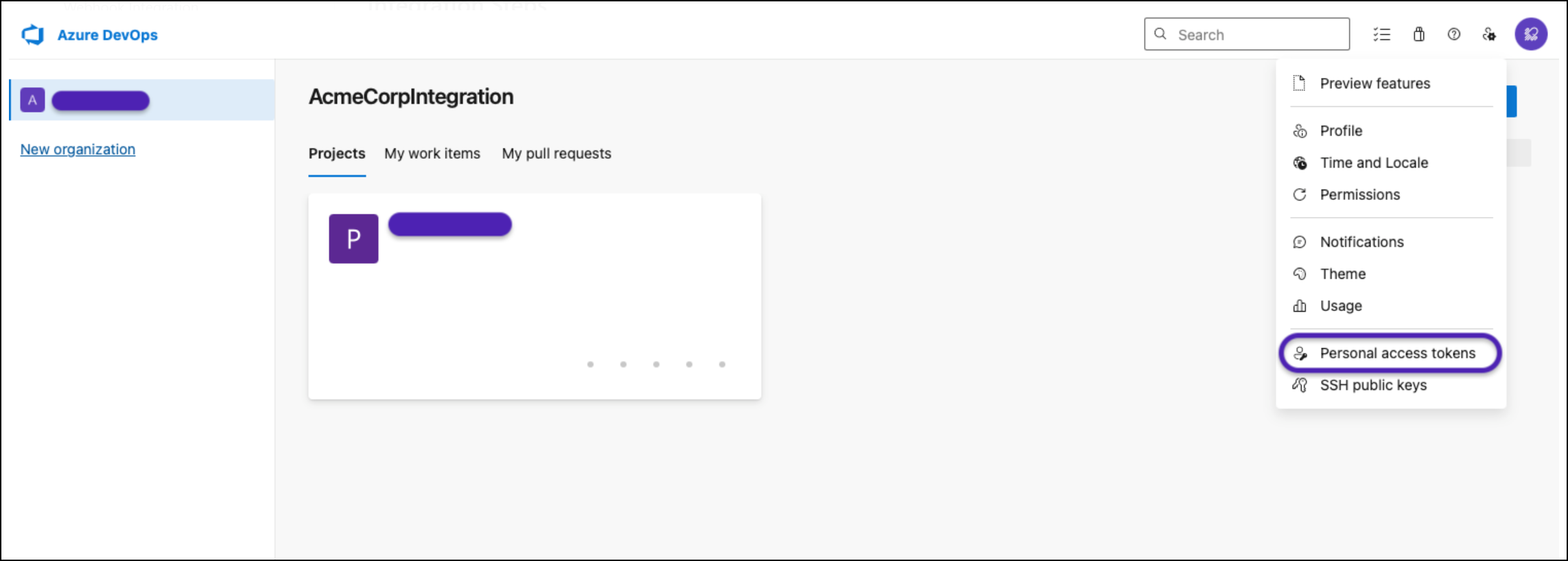
- Select + New Token to start creating a token.
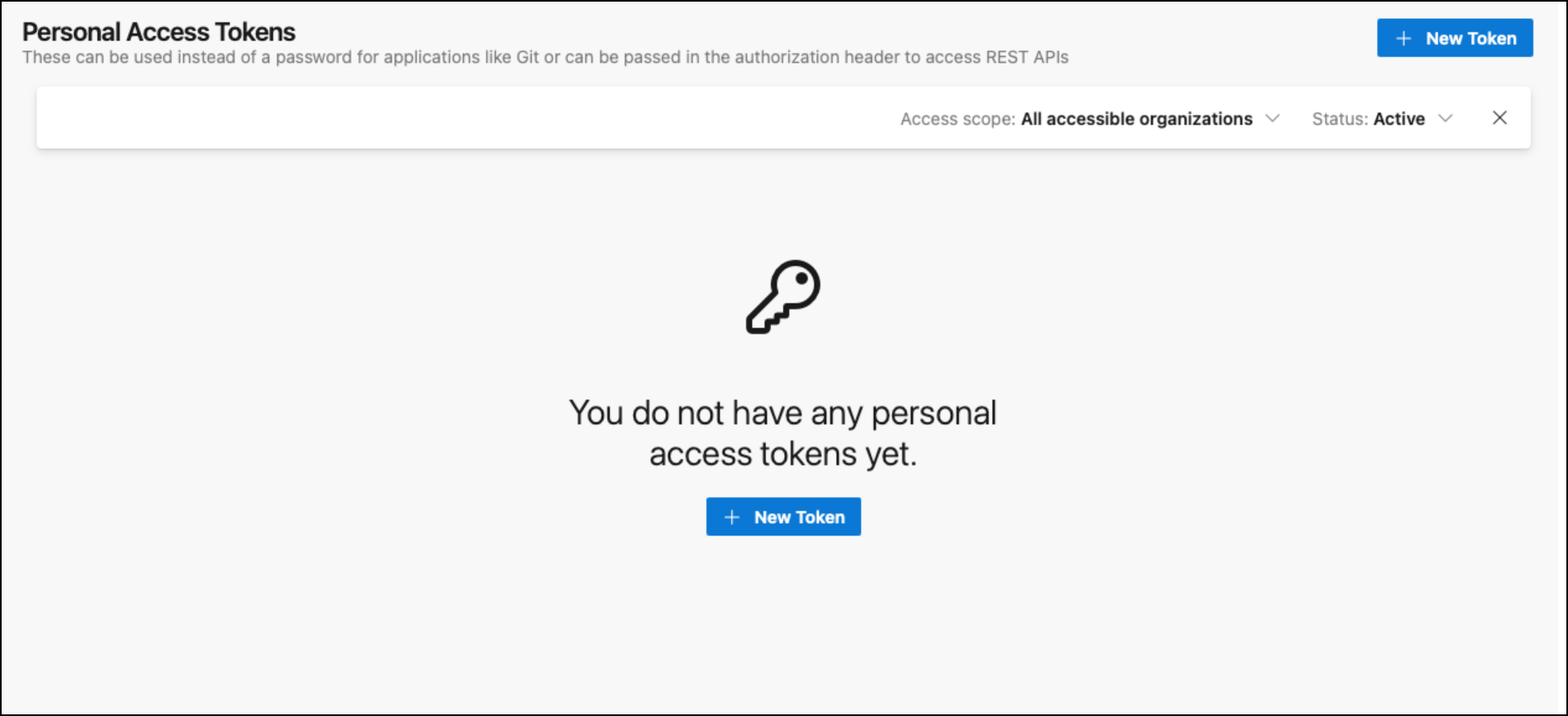
- Enter the token details:
- Provide a descriptive name for the token.
- Select All accessible organizations. If you don't select this, the token will fail during integration. The system prompts for the organization during integration, and selecting a specific organization when creating the token causes validation errors and integration failure.
- Choose an appropriate expiration period for the token.
- Configure the required scopes:
- Code: full
- Work Items: read, write, and manage
- Identity: read and manage
- User Profile: read and write
If you want a more granular permission model, grant these scopes:
- Project & Team: read, write, and manage
- Work Items: read, write, and manage
- Click Create to generate the token.
- Copy and securely store the generated token. For security reasons, the token won't be displayed again after you leave or refresh the page.
- Continue the process in the Invicti AppSec UI using the generated token.
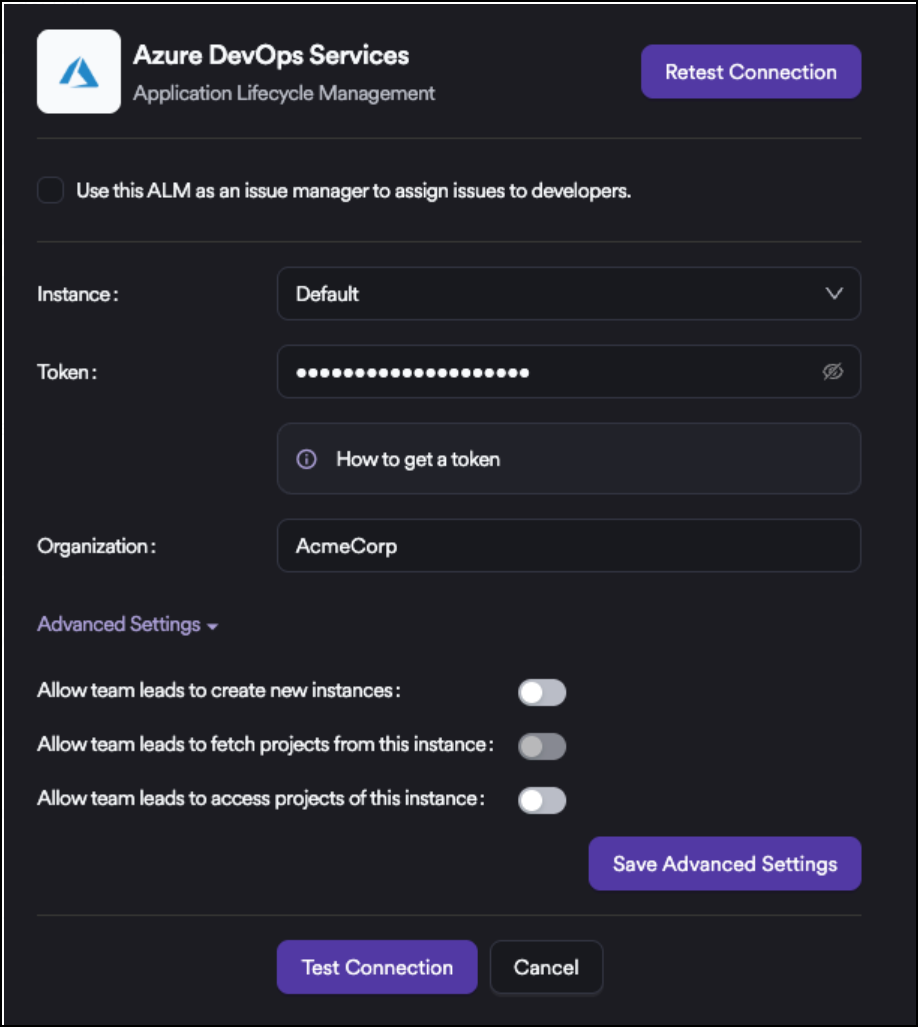
Under Advanced Settings, you can configure options for Azure DevOps Services. When enabled, these settings grant permissions to Team Leads as well as Administrators, allowing Team Leads to add their own organizations, onboard projects, and manage access independently.
If you want to use Azure DevOps as an Issue Manager, select the checkbox at the top of the list.
Need help?
Invicti Support team is ready to provide you with technical help. Go to Help Center