availability
Package: Invicti AppSec Core (on-demand)
GitHub Enterprise
Integration steps
- Go to your GitHub Enterprise URL.
- Select your organization and go to Settings.
- In the left menu, select Developer settings.
- Click New GitHub App.
- Enter a name and Homepage URL for your app.
- (Optional) Disable the Activate Webhook button.
- Under Repository permissions, select:
- Contents: read and write
- Issues: read and write
- Metadata: read-only
- Pull requests: read and write
- Dependabot alerts (optional): read
- Dependabot secrets (optional): read
- Code scanning alert (optional): read and write
info
Enable Dependabot alerts and Dependabot secrets permissions for Dependabot integration.
info
To use the GitHub Enterprise ALM integration for hosting a Semgrep CE rules repository, make sure the rules repository belongs to the organization and, if using limited repository scope, is added to the Only select repositories scope in the app configuration.
- Save the GitHub App.
- Go to the Install App section and install the GitHub App.


- Return to Developer settings and edit your app.

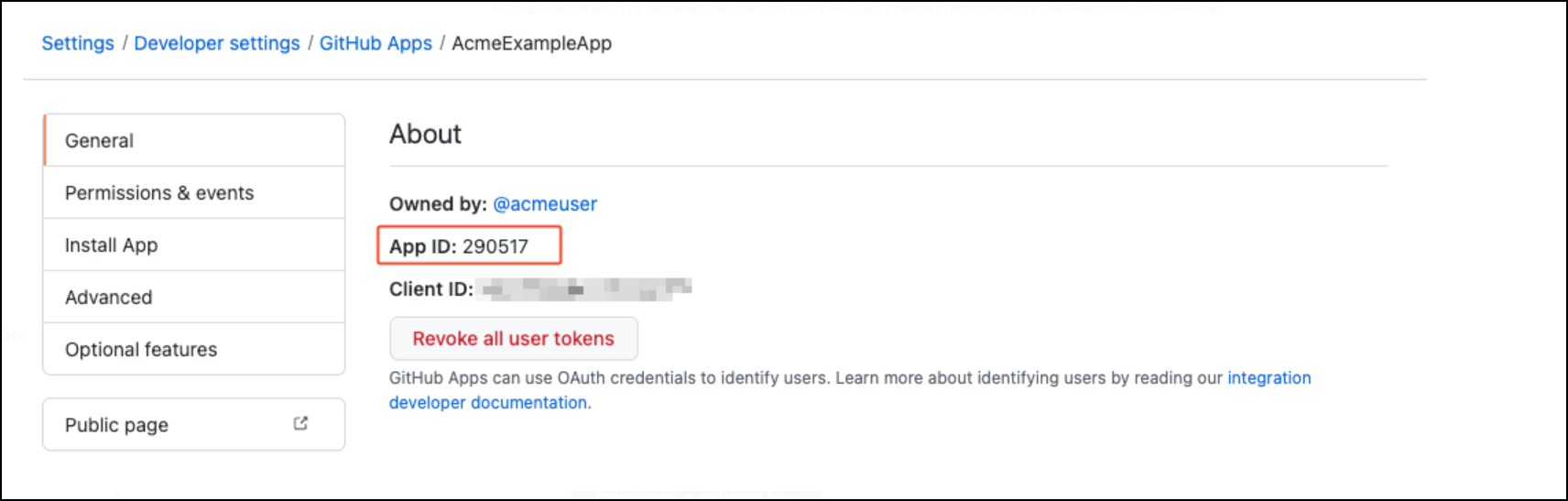
- Save your App ID for later use.
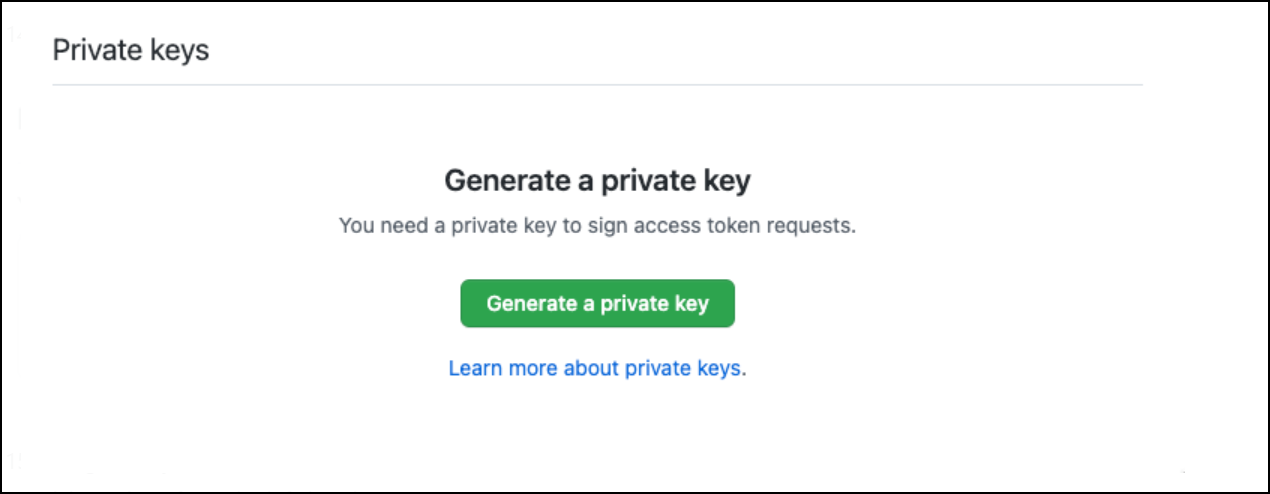
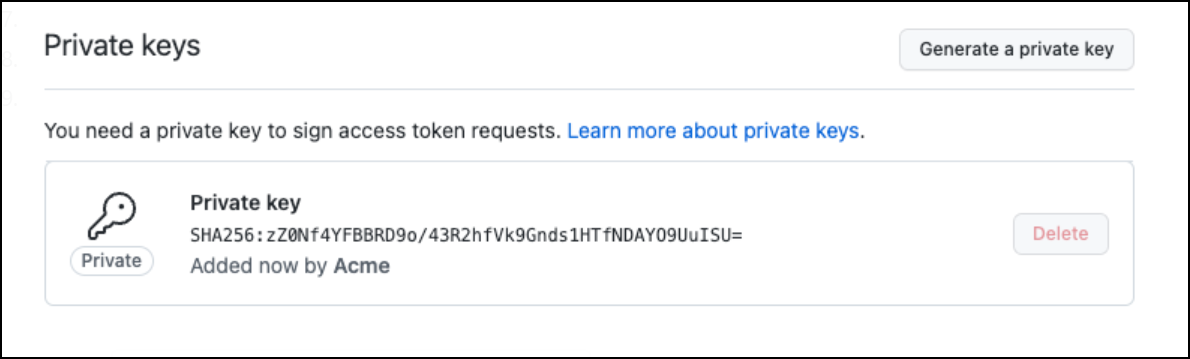
- At the bottom, click Generate a private key to create a new private key. The key will be downloaded automatically.
- Go to your Invicti AppSec instance.
- Select Settings from the left menu.
- Go to the Application Lifecycle Management section.
- Click the Active button on GitHub Enterprise.
- Enter the App ID and PEM key. If you use GitHub Enterprise On-premises, select Integrate with On-premises version.
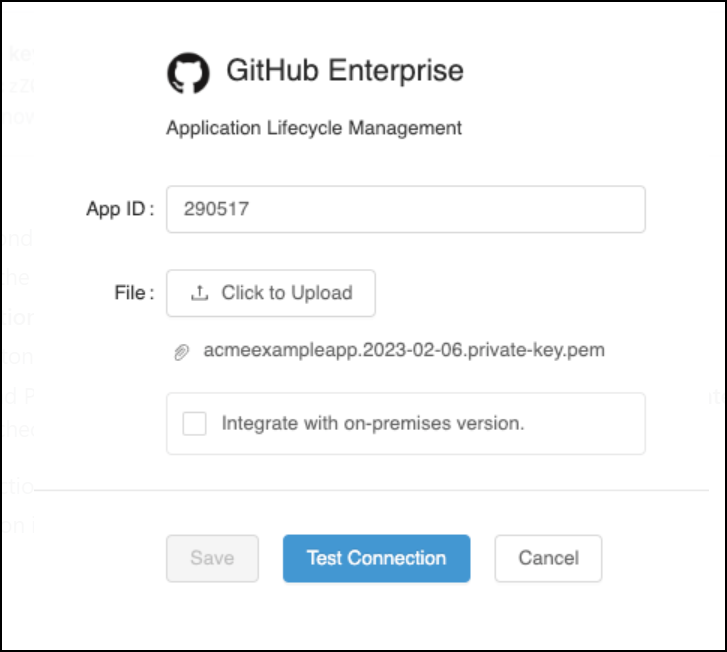
- Click Test Connection.
- If the test passes, click Save.
Need help?
Invicti Support team is ready to provide you with technical help. Go to Help Center
Was this page useful?