Package: Invicti AppSec Core (on-demand)
Bitbucket
Prerequisites
Before you integrate Bitbucket, create an Invicti AppSec service account and make sure this user has access to the projects to be scanned.
Integration steps
- Sign in to Bitbucket Cloud.
- Click your profile icon in the top right corner.
- Click Account Settings.
- Click the Security tab and go to API Tokens.
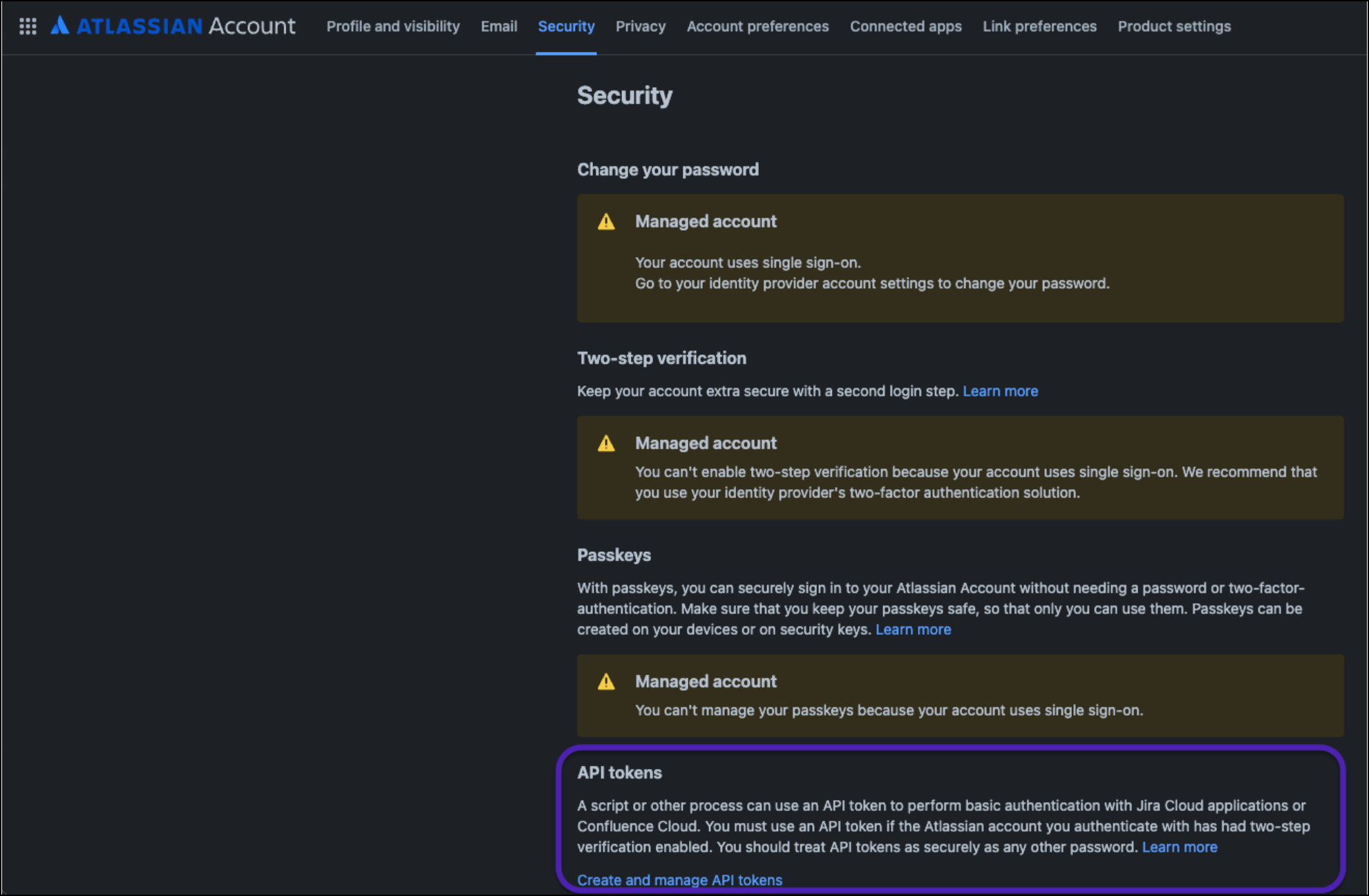
- Click Create and manage API tokens under the API Tokens section.
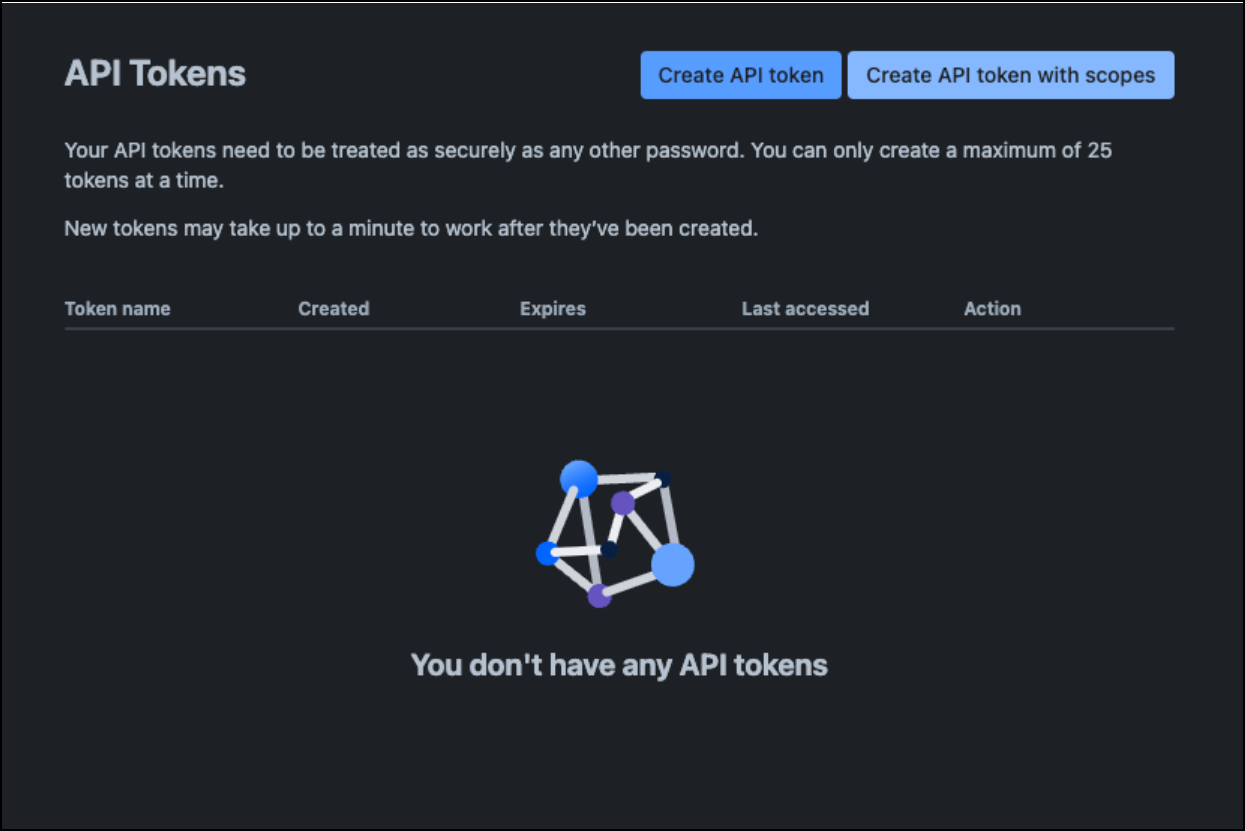
- Enter a descriptive name for the token and set an expiration date.
- Select Bitbucket as the application.
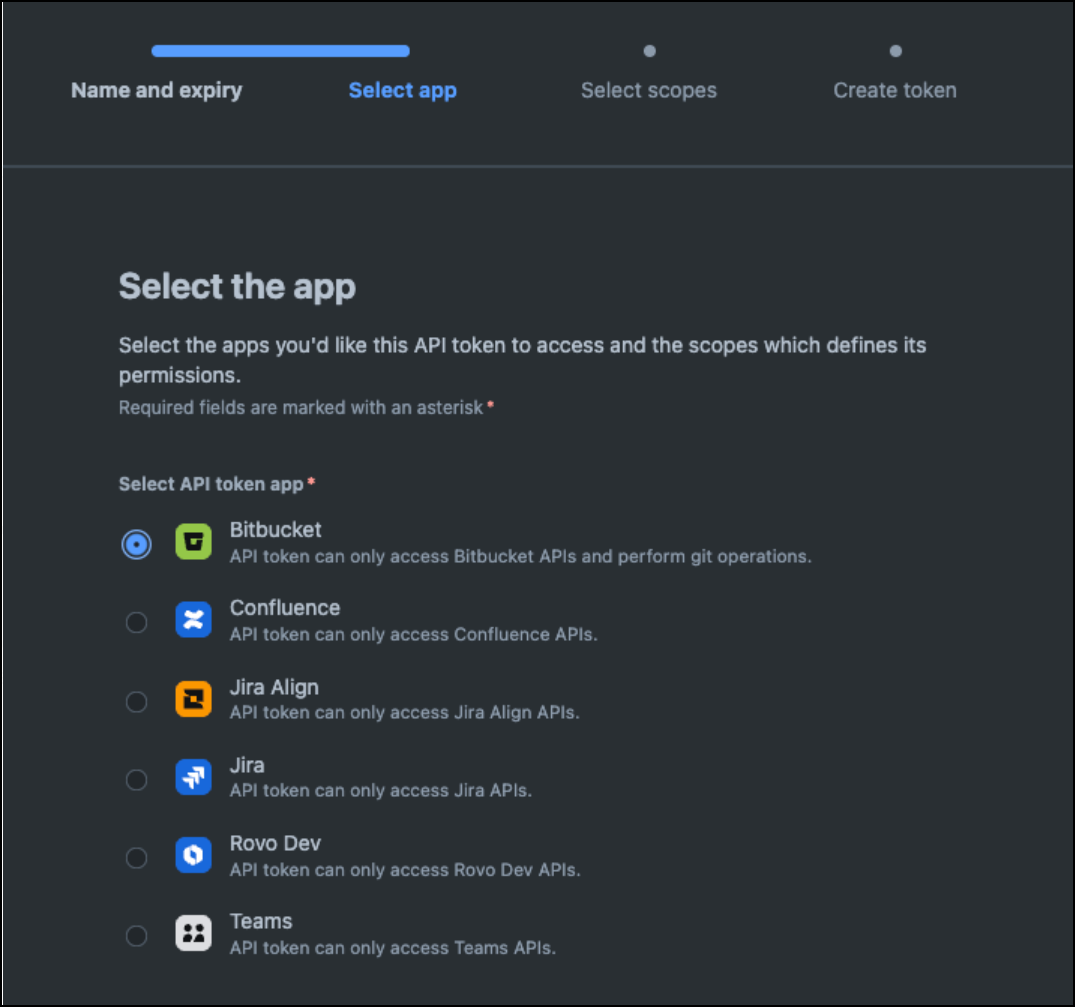
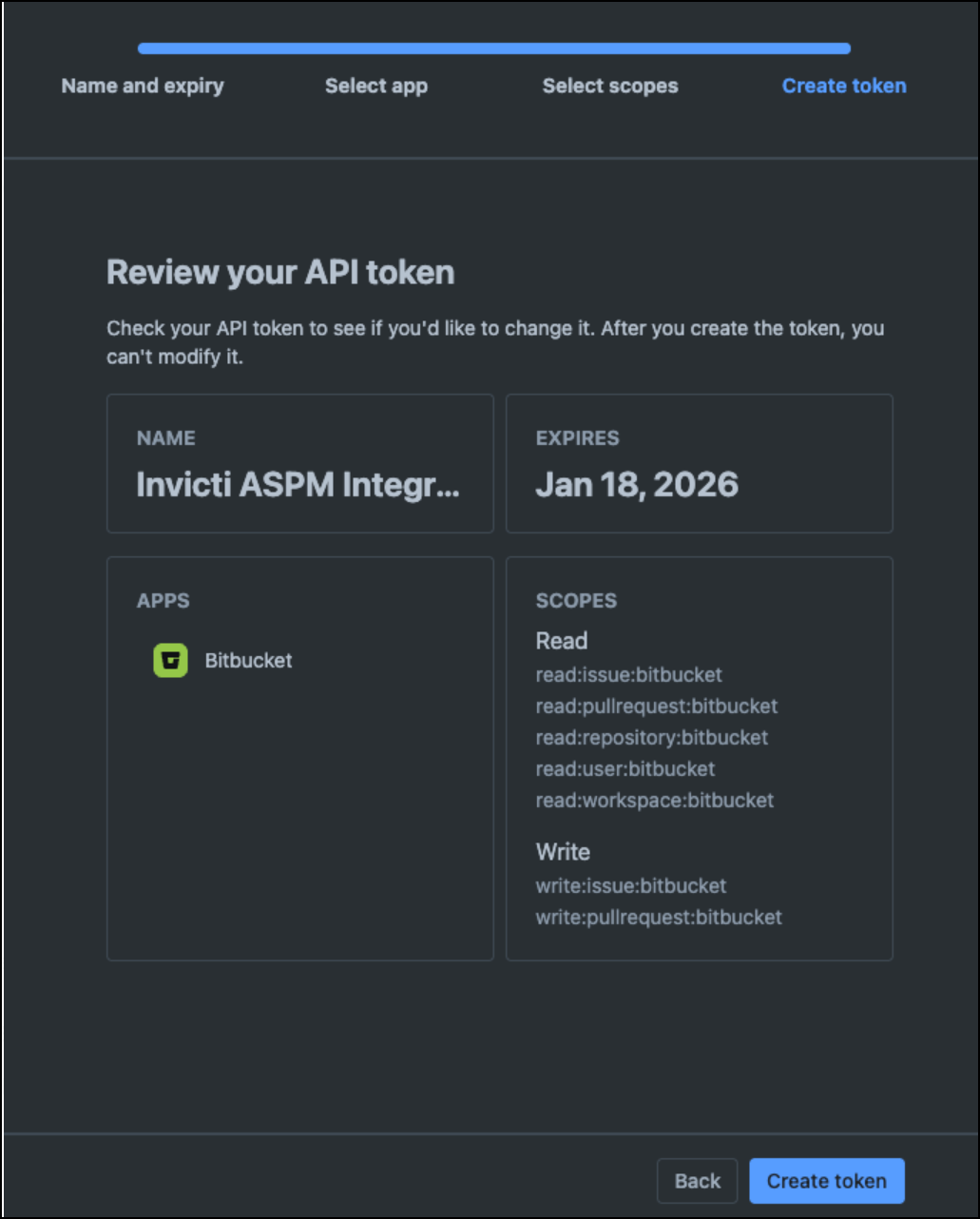
- Select the required scopes and create the token:
- Read
- read:issue:bitbucket
- read:pullrequest:bitbucket
- read:repository:bitbucket
- read:user:bitbucket
- read:workspace:bitbucket
- Write
- write:issue:bitbucket
- write:pullrequest:bitbucket
- Read
- Copy the generated token and store it securely. You won't be able to see the token again after you leave the page.
- Continue the process in the Invicti AppSec UI using the generated token.
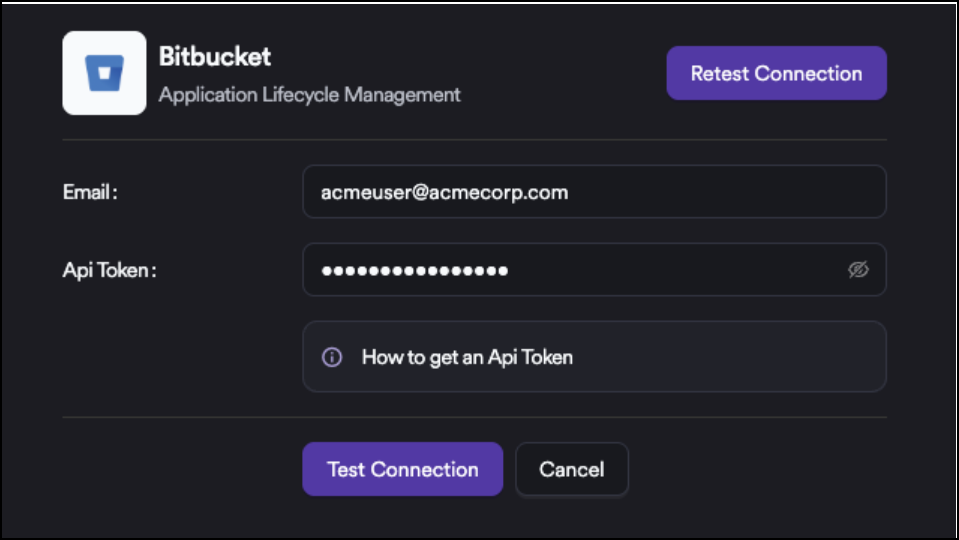
At this step, enter the token and click Test Connection.
Onboarding projects
After integration, you can synchronize projects from the Sync option next to the Activate button. This lets you onboard projects quickly.
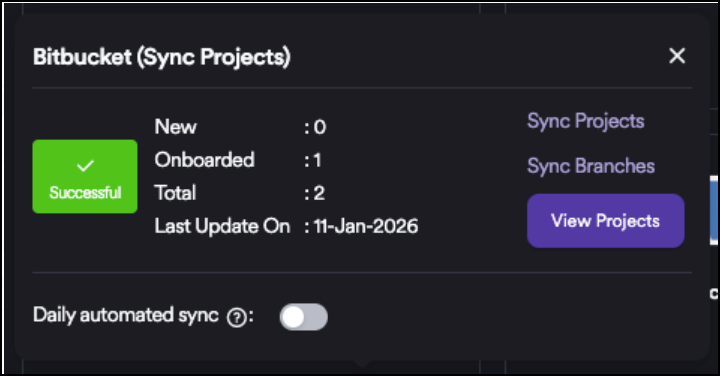
When you enable the Daily Sync feature, Invicti AppSec synchronizes projects from Bitbucket every day and automatically onboards all projects that haven't been onboarded yet. If your license project count is limited, don't enable Daily Sync. The available project quota may be consumed quickly, which can prevent you from adding new projects. :::
Need help?
Invicti Support team is ready to provide you with technical help. Go to Help Center