Package: Invicti AppSec Core (on-demand)
Configure target scan profile and speed
Tune how thoroughly Invicti AppSec scans a target so you get useful coverage without overwhelming the application. This document guides you through selecting scan settings that balance depth, speed, and operational constraints—so scans reach the right breadth without destabilizing your target or exceeding your maintenance window.
Why this matters
If scan profile and speed don't match your target, scans either run too shallow and miss paths or run too aggressively and disrupt normal traffic. A realistic duration limit also prevents stale scans from consuming capacity for too long. Setting these values up front gives your team predictable scan behavior.
Choose the right scan profile depth
To get started, navigate to Inventory > Targets from the left-side menu, select your target, then open Scan configuration. Locate the Default scan profile control.
In Default scan profile, select the profile that matches how deep you want to test this target.
- Use Full Scan when you want broad and deep coverage for regular security assessment.
- Use a lighter profile when you need quicker feedback and can accept narrower coverage.
The dropdown lists profiles defined for your account. To add a new profile, edit an existing one, or review what each profile covers, go to Scans > Scan profiles, then come back and select the profile on this target. For more on built-in options, see Default scan profiles; for creating, editing, or deleting your own, see Custom scan profiles.
If this target includes LLM features such as chat or prompt-based workflows, also review LLM-based app vulnerability testing and LLM scan verification.


If you change this value, click Save target configuration to apply it to upcoming scans.
Balance speed against target stability
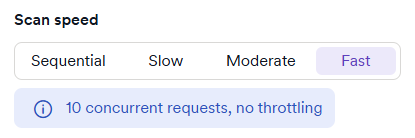
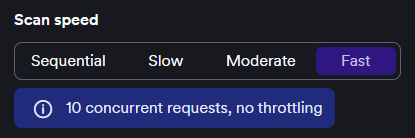
In Scan speed, choose the request rate your target can tolerate:
- Sequential - use for fragile targets where you need minimal concurrency.
- Slow - use when you want low pressure on the application but better throughput than sequential mode.
- Moderate - use for most stable environments where you want balanced speed and caution.
- Fast - use when the target can handle high concurrency and you want the shortest runtime.
The help text under the speed selector shows the effective concurrency and throttling for the selected mode.
Prevent long-running scans from overrunning your window
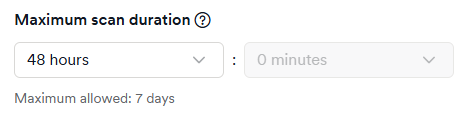
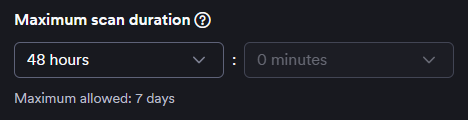
Set Maximum scan duration to enforce how long a single scan can run before it stops. Available durations range from 1 hour to 7 days:
- 1 to 48 hours: choose duration by the hour.
- 3 to 7 days: choose duration by the day.
- Default: 48 hours (if not configured).
Pick a duration based on your maintenance window and traffic pattern. Use this limit when you need scans to finish inside a strict operational window.
Troubleshooting
My scan takes too long even after I increased speed
Higher speed only controls request concurrency. Large applications, heavy authentication flows, and complex client-side routing can still extend runtime. Lower scan depth, tighten scope, or reduce maximum duration to keep scan time within your window.
I can select values but they don't apply to later scans
Changes only apply after you click Save target configuration. If the button remains disabled, confirm another required field on the page isn't in an invalid state.
Need help?
Invicti Support team is ready to provide you with technical help. Go to Help Center