Product AppSec vulnerabilities
This is the screen where you can drill down into the details of vulnerabilities discovered in the scans performed on the projects under the selected product, take action on vulnerabilities, or export them.
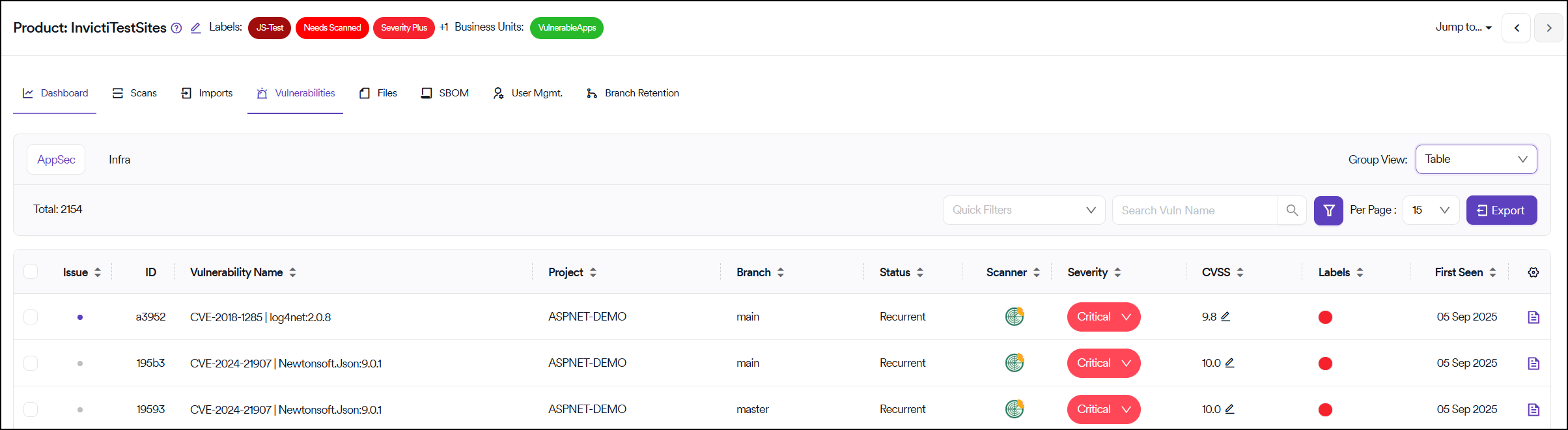
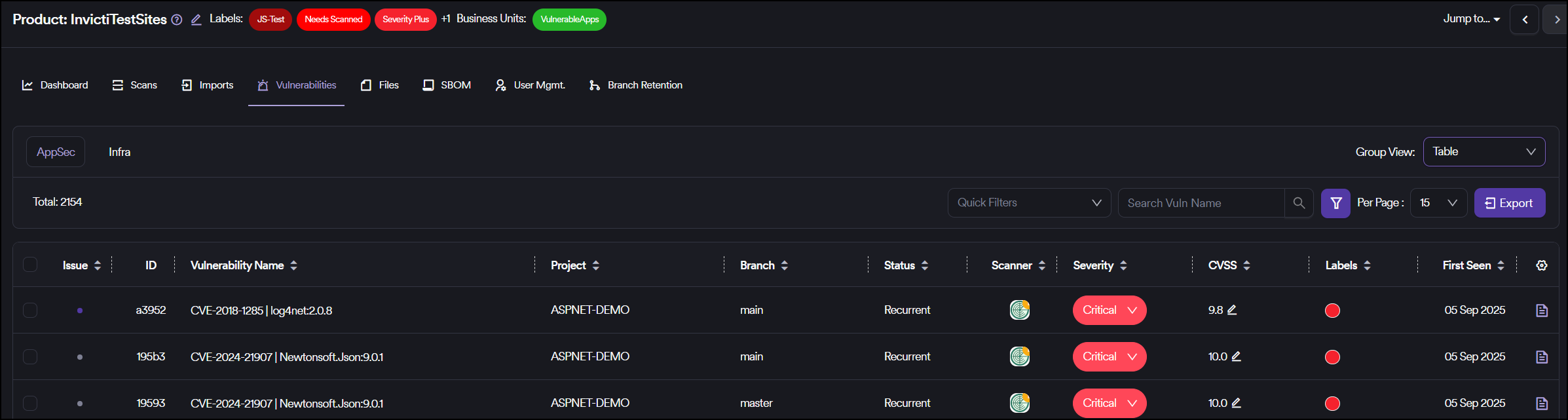
All vulnerabilities identified in the projects under the selected product since the platform's inception are listed in this section.
Vulnerability status indicators
The colored circles to the left of each row in the table indicate the ticket status:
- Blue circles: A ticket has already been created on the issue manager for that vulnerability, and its status is still open on the issue manager
- Grey circles: A vulnerability for which a ticket has not yet been created on the issue manager
- Red circles: The issue status on the issue manager is closed
View vulnerability details
You can see additional vulnerability details by clicking the page icon on each row's rightmost side. Details presented vary depending on the tool that identified the vulnerability.
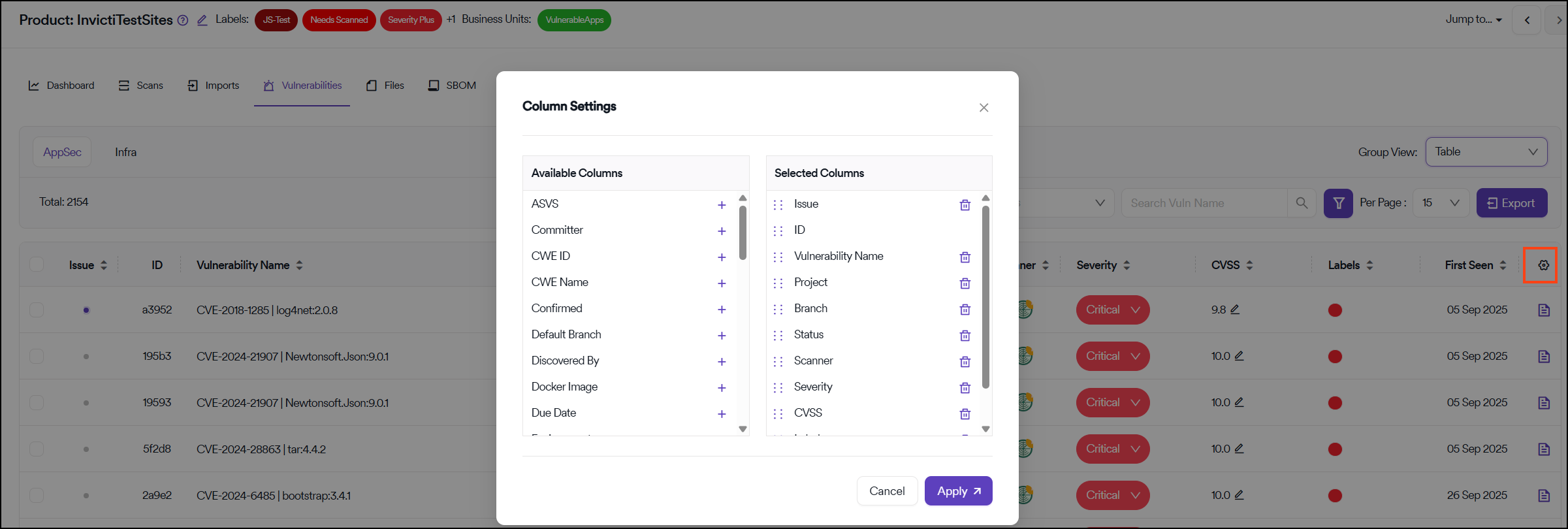
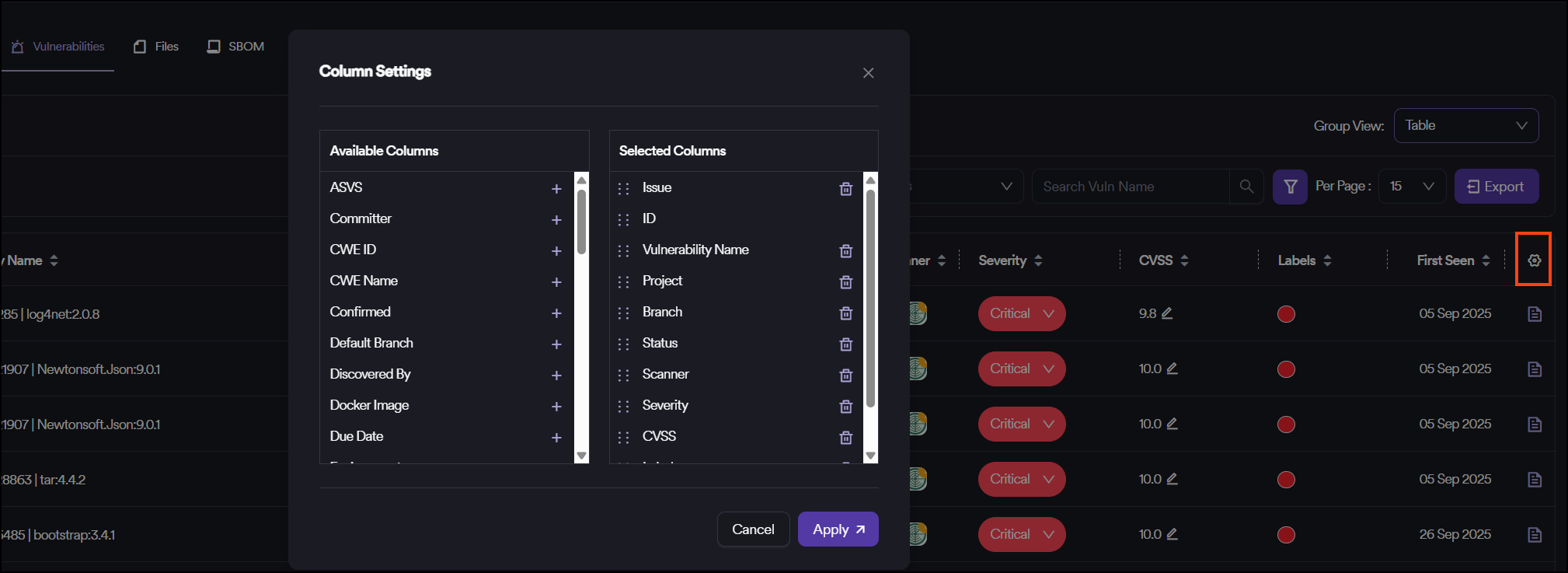
You can modify columns on the table by clicking the gear icon on the upper right corner of the vulnerability table.
Assign issues
If you want to create an issue manually:
- Check the checkbox to the left of the vulnerability
- Select Assign Issue from the Choose an action dropdown menu
Clicking this button opens a modal where you can choose whether to create a single ticket on the issue manager for the selected vulnerabilities or create separate tickets for each vulnerability.
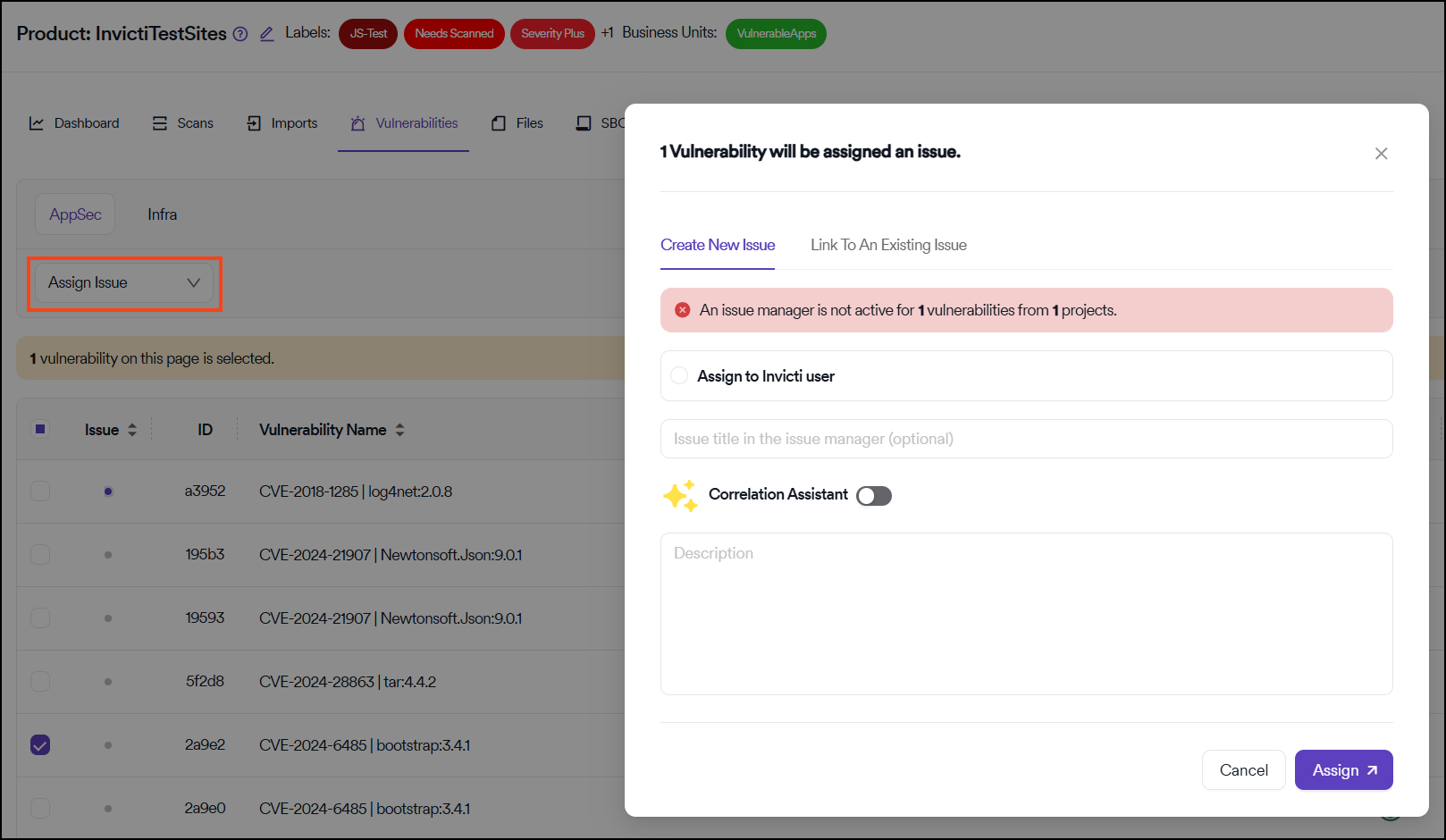
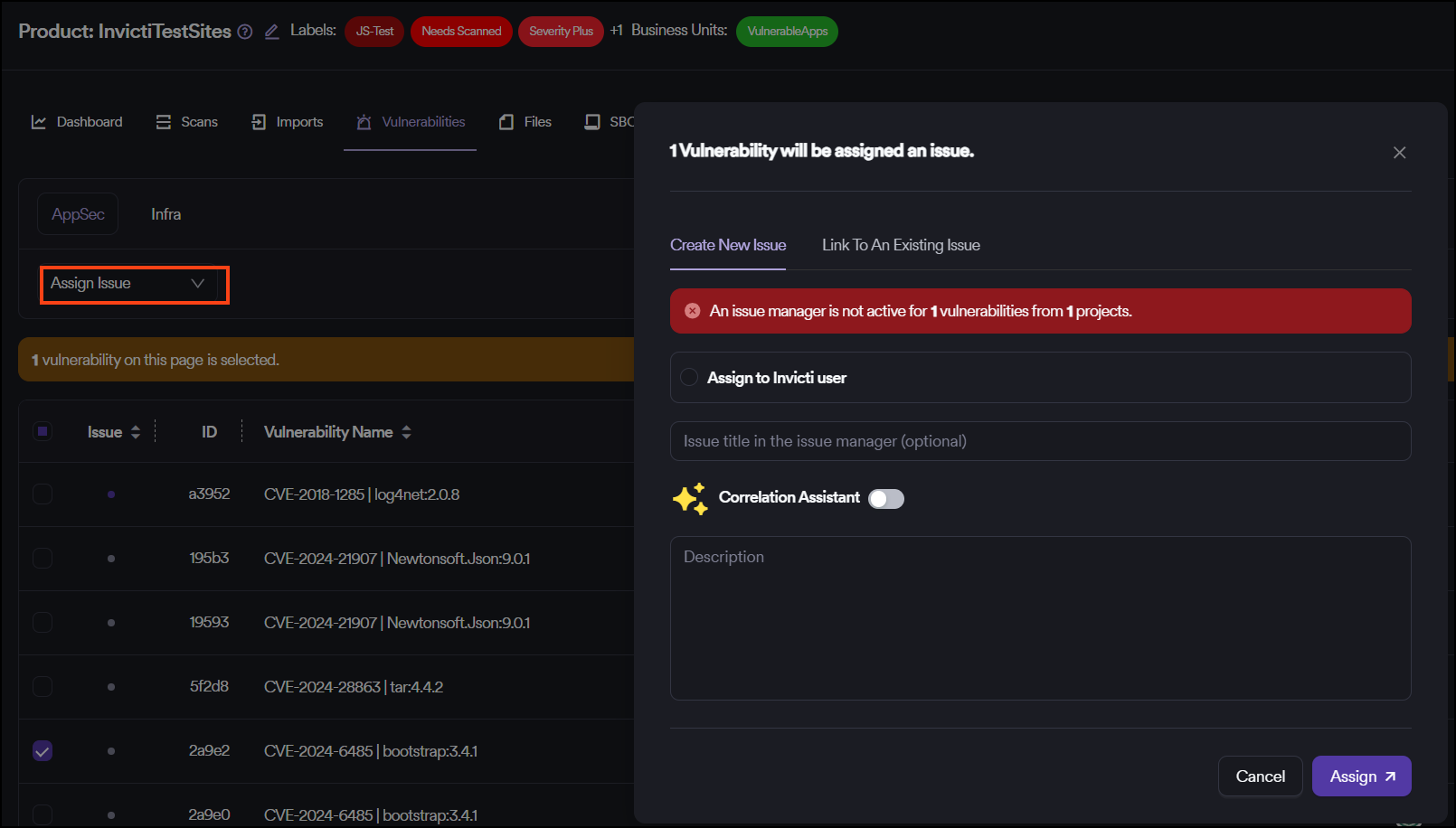
If multiple vulnerabilities are grouped into a single ticket, certain automated workflows such as validation scans or reflecting the status of the vulnerability on the ticket don't work until the status of all vulnerabilities become "Closed" in Invicti AppSec. However, if the ticket is closed on the issue manager, the issue status of vulnerabilities transitions to "Closed" in Invicti AppSec and a validation scan is triggered if configured. If the same vulnerabilities are rediscovered in the validation scan, Invicti AppSec can't reopen the ticket.
If the circle is already blue, selecting these vulnerabilities isn't possible when the Assign Issue bulk action is clicked.
Bulk actions
Other possible bulk actions include:
- Closing manually imported vulnerabilities
- Suppressing vulnerabilities (false positive or risk accepted)
- Adding screenshots
False positive management
- Team Lead and Admin level users: Can mark vulnerabilities as false positives by entering false positive descriptions without requiring approval
- Developer level users: Can only send a false positive request that their team leads or admin must approve
Export vulnerabilities
You can export vulnerabilities displayed on the table in CSV format by clicking the Export button in the top right corner. The columns available on the table can be changed by clicking the gear icon located in the top right corner of the table.
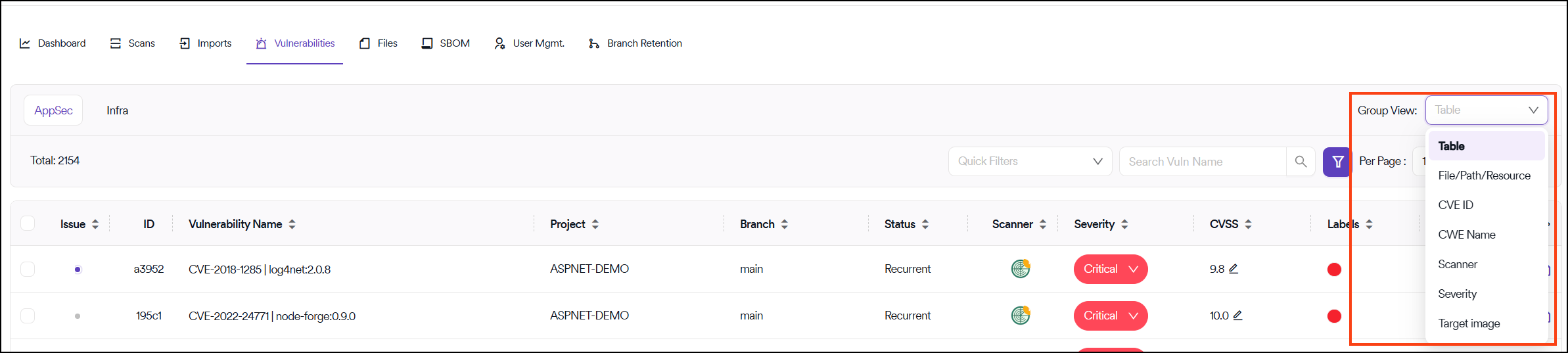
Group view options
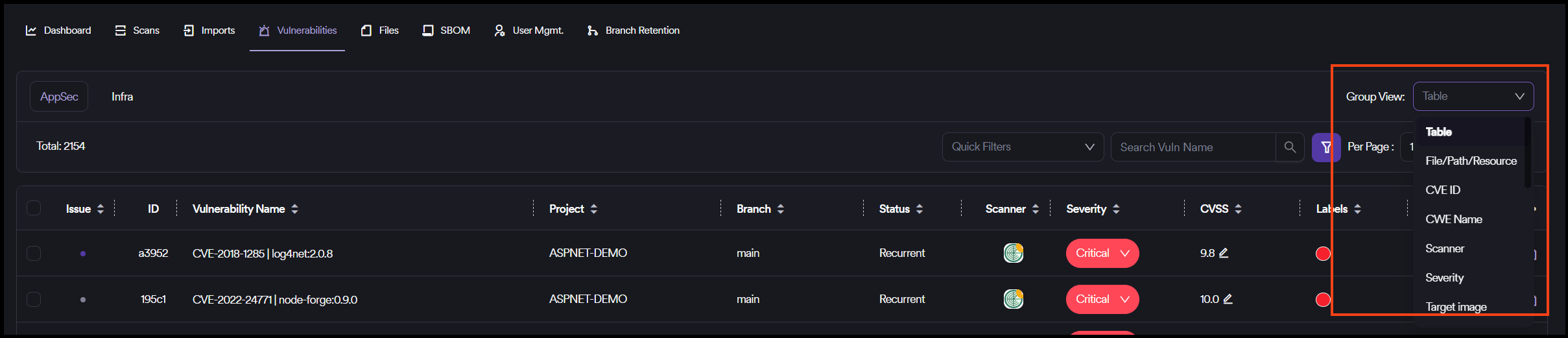
You can change the vulnerability view using the group view options available in the interface.
Need help?
Invicti Support team is ready to provide you with technical help. Go to Help Center