Package: Invicti AppSec Core (on-demand)
Project scans
The scans section displays a list of all scans performed on the project, organized into two tabs: Completed and Failed.
To view project scans:
- Select Inventory > Projects from the left side menu.
- Click the project name to open the project.
- Select the Scans tab.
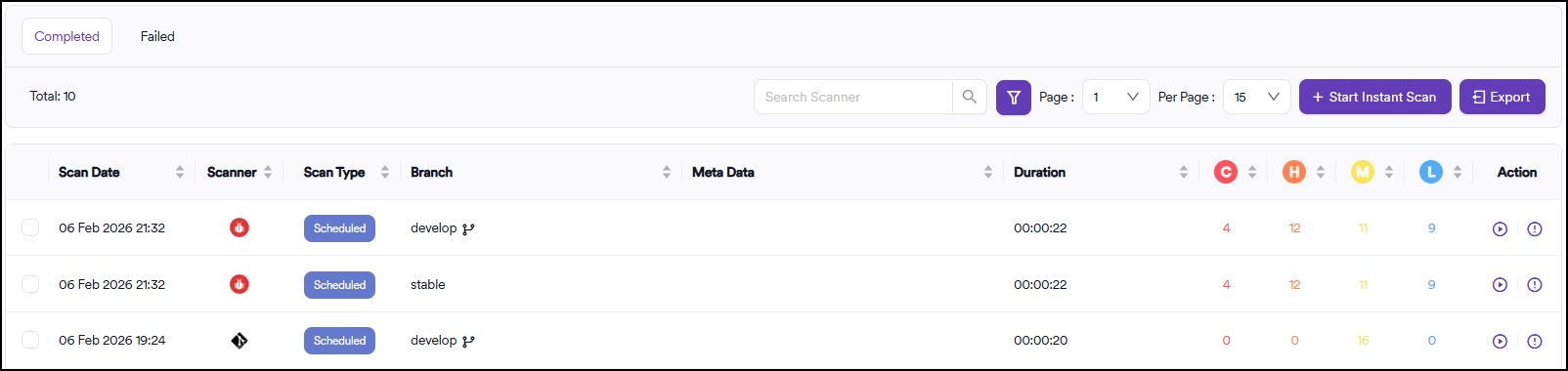
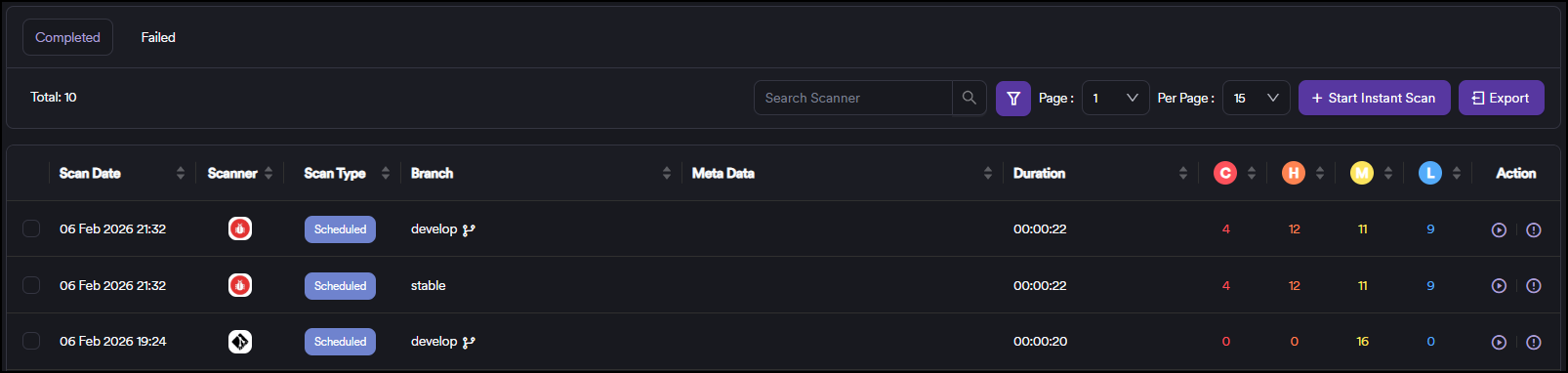
Scans table
Each scan row displays the following information:
| Column | Description |
|---|---|
| Scan date | The date and time the scan was executed. |
| Scanner | The scanner tool used for the scan. |
| Scan type | The type of scan (for example, SAST, DAST, SCA). |
| Branch | The branch that was scanned. |
| Metadata | Custom metadata associated with the scan. |
| Duration | The time taken to complete the scan. |
| Critical / High / Medium / Low | The number of vulnerabilities discovered at each severity level. |
| Action | Available actions for the scan. |
Use the filters at the top of the table to narrow down the results.
The vulnerability counts shown for each scan reflect the original number of vulnerabilities discovered at scan time. Changes made to vulnerabilities after the scan (such as changing the severity) aren't reflected in this view.
Available actions
These actions are avilable on the project scans page:
- View vulnerabilities: click the Vulnerabilities button in the Action column to view the list of vulnerabilities discovered in a specific scan.
- Rescan: click the Rescan button in the Action column to re-execute a scan. This action is available for both completed and failed scans.
The rescan option isn't available for manual scans or scans where you turned off the scanner tool.
-
Compare scans: choose two scans using the checkboxes in the table, then click Compare to view a side-by-side comparison of the scan results.
-
Export scans: you can export the scans table data. The export respects any filters currently applied to the table.
-
Start an instant scan: pick the scanner from the dropdown and click Start Scan. After clicking Start Scan, you are redirected to the scans queue view to monitor progress.
Need help?
Invicti Support team is ready to provide you with technical help. Go to Help Center