Package: Invicti AppSec Core (on-demand)
Review API endpoints discovered for a target
Review the API endpoints discovered for your target to see which routes are exposed, where they came from, whether they require authentication, and how many vulnerabilities each one has. This document explains how to open the API endpoint inventory, read the summary and table, manage the endpoint list, and troubleshoot common issues.
Why this matters
You can't protect an API you don't know about. Keeping an up-to-date inventory of endpoints lets you confirm that scanners are reaching the right routes, spot unauthenticated endpoints that handle sensitive data, and prioritize the endpoints with the most vulnerabilities. Without a single view of every discovered route, gaps in coverage stay hidden until an attacker finds them first.
Open the API endpoints for a target
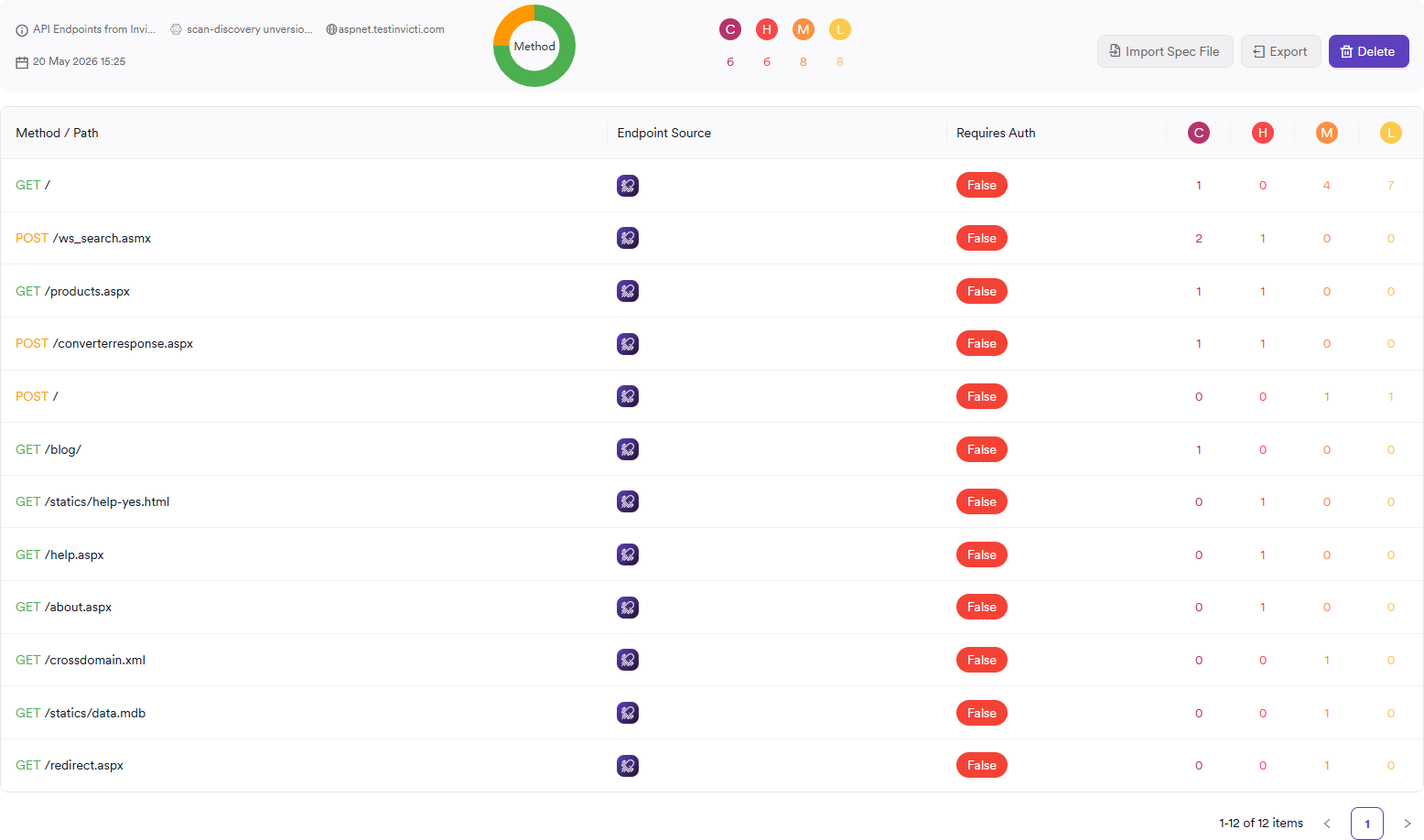
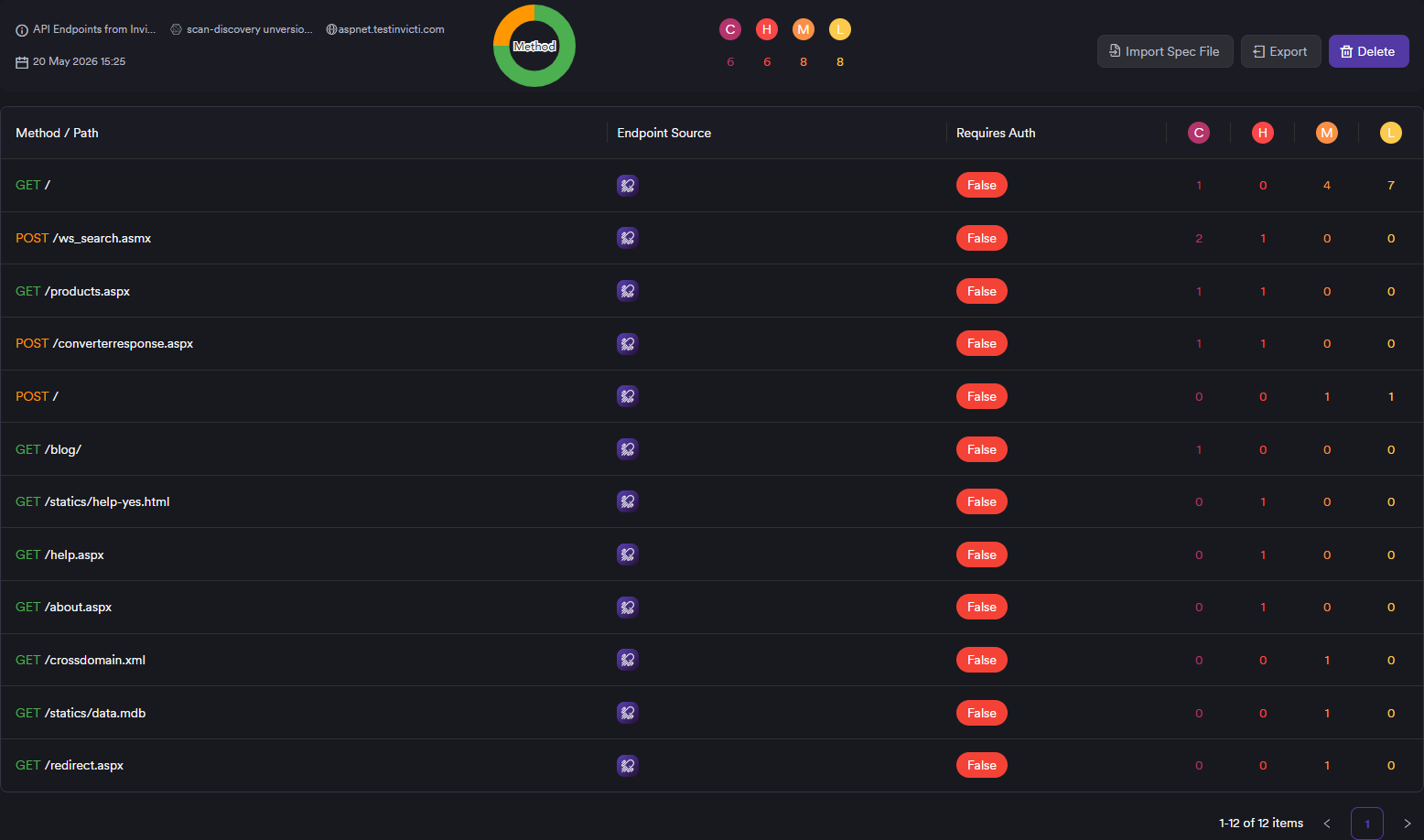
The API Endpoints tab shows every endpoint discovered or imported for the target, along with a summary of where the inventory came from and how it breaks down by HTTP method and severity.
To open the API endpoint inventory:
- Select Inventory > Targets from the left-side menu.
- Click the target name to open its dashboard.
- Select the API Endpoints tab.
Read the API endpoint summary
The summary bar at the top of the tab pulls together everything you need to know about the current inventory at a glance.
| Element | Description |
|---|---|
| Spec title and version | The title and version declared in the imported spec file. |
| Spec type and version | The specification standard and version (for example, OpenAPI 3.0). |
| Hostname | The base host the endpoints belong to. |
| Filename | The original filename of the imported spec. |
| Import date | When the spec was imported or last refreshed. |
| Security scheme | The authentication scheme declared in the spec (for example, OAuth2, API key). |
| Method chart | A donut chart that breaks down endpoints by HTTP method. Hover over a slice to see the count for that method. |
| Critical / High / Medium / Low (C / H / M / L) | The total number of vulnerabilities discovered across all endpoints, grouped by severity. |
Fields like spec type, security scheme, and filename only appear when the inventory was populated from an imported spec file. Endpoints discovered by a scanner or source code analysis may leave these fields blank.
Read each endpoint at a glance
Use these columns to size up an endpoint before opening it:
| Column | Description |
|---|---|
| Method / Path | The HTTP method (color-coded) and the endpoint path. If the endpoint handles personal data, a PII badge lists the detected fields next to the path. |
| Endpoint Source | An icon showing where the endpoint came from — a scanner tool (such as Invicti Platform), source code analysis, or an imported spec file. |
| Requires Auth | Whether the endpoint requires authentication: True (green), False (red), or N/A when the source doesn't provide that information. |
| Critical / High / Medium / Low | The number of vulnerabilities discovered for the endpoint at each severity level. |
| Action | The action available for the endpoint. |
Act on the API endpoint inventory
While you're on the API Endpoints tab, you can do any of the following:
- View vulnerabilities for one endpoint: click the warning icon in the Action column to jump to the vulnerabilities list filtered to that endpoint.
- Import a spec file: click Import Spec File to upload an API specification in JSON format. The endpoints in the file populate the inventory and overwrite any previously imported spec. Not available when the scanner is configured to sync endpoints automatically.
- Export the inventory: click Export to download the current endpoint list as a JSON file with a timestamped filename. Disabled when the table is empty or when endpoints come from source code analysis.
- Delete the inventory: click Delete to remove the entire imported spec and the endpoints it contributed. A confirmation prompt appears before the deletion runs. Disabled when the table is empty.
Delete clears the entire imported spec, not just a single endpoint. Endpoints discovered by scanners stay in place — only the imported spec and its endpoints are removed.
Troubleshooting
The Import Spec File button is greyed out
Import is disabled when the target is configured to sync endpoints automatically from a scanner. In that case the scanner owns the inventory and a manual import would conflict with it. To regain manual control, turn off scanner sync in the target's scan configuration before importing.
Import fails with an "unsupported file" error
The Import Spec File dialog only accepts files with a .json extension. Specs written in YAML or other formats need to be converted to JSON before they can be imported. If the file is already JSON, check that it's a valid API specification (for example, an OpenAPI document) and that the file isn't empty.
The Requires Auth column shows N/A for every endpoint
N/A appears when the endpoint source doesn't expose authentication information. This is normal for endpoints discovered by source code analysis, and for imported specs that don't declare a security scheme. To get accurate True or False values, import a spec that declares its security requirements, or rely on a scanner that reports authentication state.
The Export button is greyed out
Export is disabled when the table is empty, or when all endpoints in the inventory come from source code analysis. Import a spec file or run a scan that discovers endpoints to make the export available.
The endpoint list is empty after a scan
The list stays empty if no scanner has reported endpoints for the target and no spec file has been imported. To populate the inventory, either run a DAST or API scan that discovers endpoints, or import a spec file manually using Import Spec File.
Need help?
Invicti Support team is ready to provide you with technical help. Go to Help Center