Package: Invicti AppSec Core (on-demand)
Understand projects
Projects represent individual applications or components within your organization's security portfolio. In Invicti AppSec, products serve as umbrellas for projects, with one product containing multiple related projects.
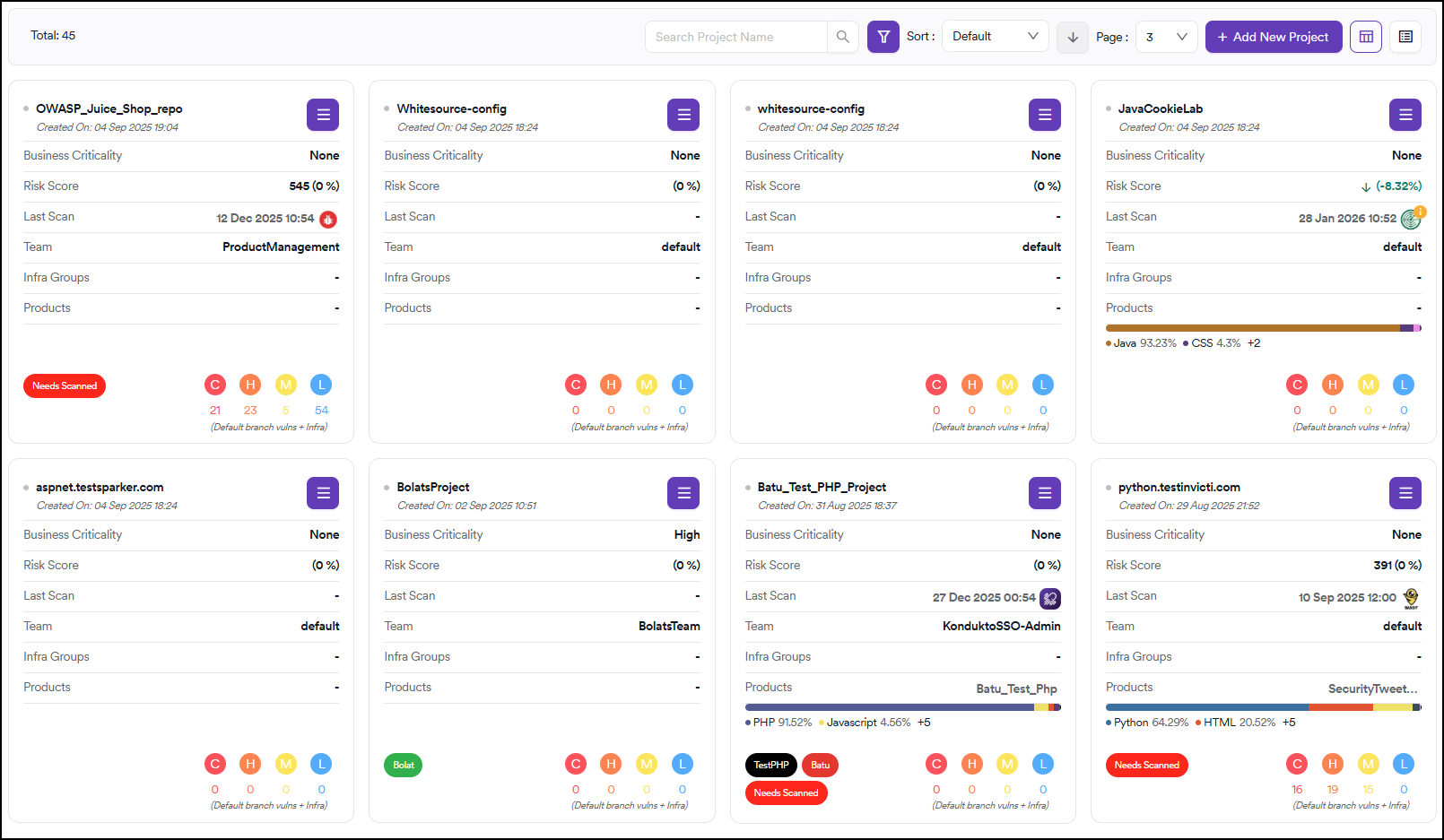
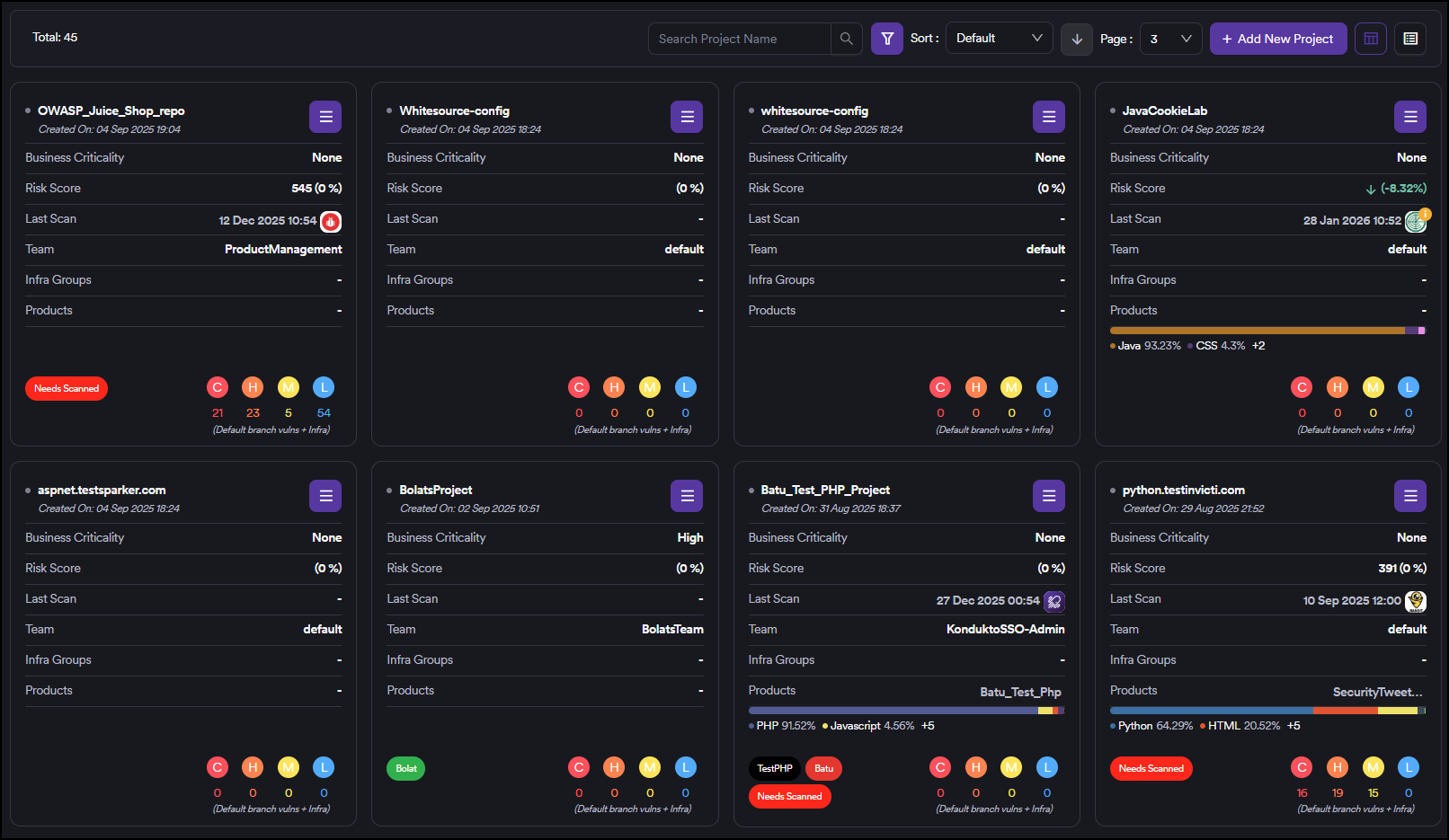
You can view projects as cards in the projects list. You can filter the cards by project, product, team, labels, language, or business criticality. By default, Invicti AppSec sorts projects by the creation date.
You can also sort by risk score and teams using the sort section.
Project card indicators
The circle to the left of the project name indicates whether the security criteria are met:
- Green circle: The project meets security criteria
- Red circle: The project doesn't meet security criteria
- Grey circle: No security criteria have been set for the project
Project information
Each project card displays the following information:
- Project name: the name of the project appears at the top of each card
- Created on: the date and time when the project was created
- Business criticality: the assigned business criticality level for the project, or "None" if no level has been set
- Risk score: the calculated risk score as a percentage, helping you assess the project's security posture at a glance
- Last scan: the date and time of the most recent security scan performed on the project
- Team: the team or user responsible for the project
- Infra groups: infrastructure groups associated with the project, if any
- Products: the products to which this project belongs
- Programming languages: a breakdown of programming languages used in the project, displayed as percentages. If more than a few languages are present, additional languages are indicated with a "+X" notation
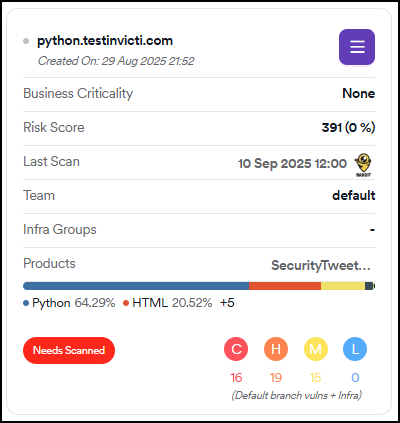
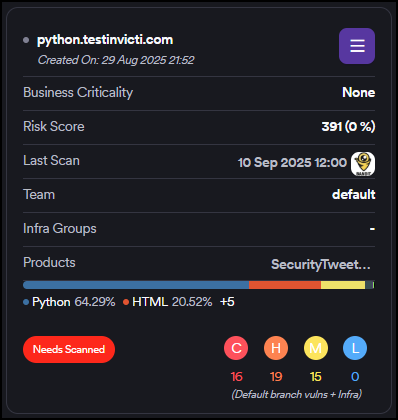
Risk scores help you prioritize which projects need immediate attention based on their current vulnerability exposure.
Filtering and sorting options
You can customize your project view using the available filtering, sorting, and display options. For more information, see Filter and sort.
Sorting options
You can sort projects by the following criteria, in either ascending or descending order:
- Default: default sorting order
- Status: sort by project status
- Team: sort by team assignments
- Score: sort by calculated risk scores
View options
- Gallery view: display projects as cards (default) with page navigation to move between specific pages
- List view: display projects in a table format with a dropdown to select the number of items displayed per page
Advanced filtering
Use the advanced filter options to narrow down your project list. These filters can be combined with one another to get very specific results:
- Business criticality: filter by assigned business criticality levels
- Language: filter by programming languages used in projects
- Label: filter by custom labels applied to projects
- Infra group names: filter by infrastructure group assignments
- Security criteria: filter by security criteria compliance
- Project: filter by specific project names
- Product: filter by product assignments
- Team: filter by team assignments
- Last scan date: filter by when projects were last scanned


Need help?
Invicti Support team is ready to provide you with technical help. Go to Help Center