Package: Invicti AppSec Core (on-demand)
Website exclusions
Website discovery in Invicti AppSec Core surfaces assets associated with your organization based on domain matching. In some cases, this process surfaces domains that belong to third parties, subsidiaries you don't manage, or other assets you don't want to track.
The Website exclusions page lets you explicitly remove domains, URLs, or URL patterns from the discovery scope. Entries you add here are always excluded from discovery results, regardless of whether they match the standard domain matching criteria.
This document explains how to add and remove website exclusions in Invicti AppSec Core.
Why this matters
Domain matching is designed to cast a wide net, but wide coverage can mean noise. Without a way to exclude specific assets, your discovery list may fill up with irrelevant results - third-party domains, shared infrastructure, or acquired properties you're not responsible for scanning.
Website exclusions give you a direct override in the other direction. By adding a domain, URL, or URL pattern to the exclusions list, you tell Invicti AppSec to never surface matching assets, regardless of how well they match your organization's profile. This keeps your discovery list focused on assets you actually own and are responsible for.
Add a website exclusion
- Select Discovery > Website configuration > Website exclusions from the left-side menu.
- Click Add exclusion .
- Enter the domain, URL, or URL pattern you want to exclude in the field.
- Click Save to add the entry to the exclusions list.
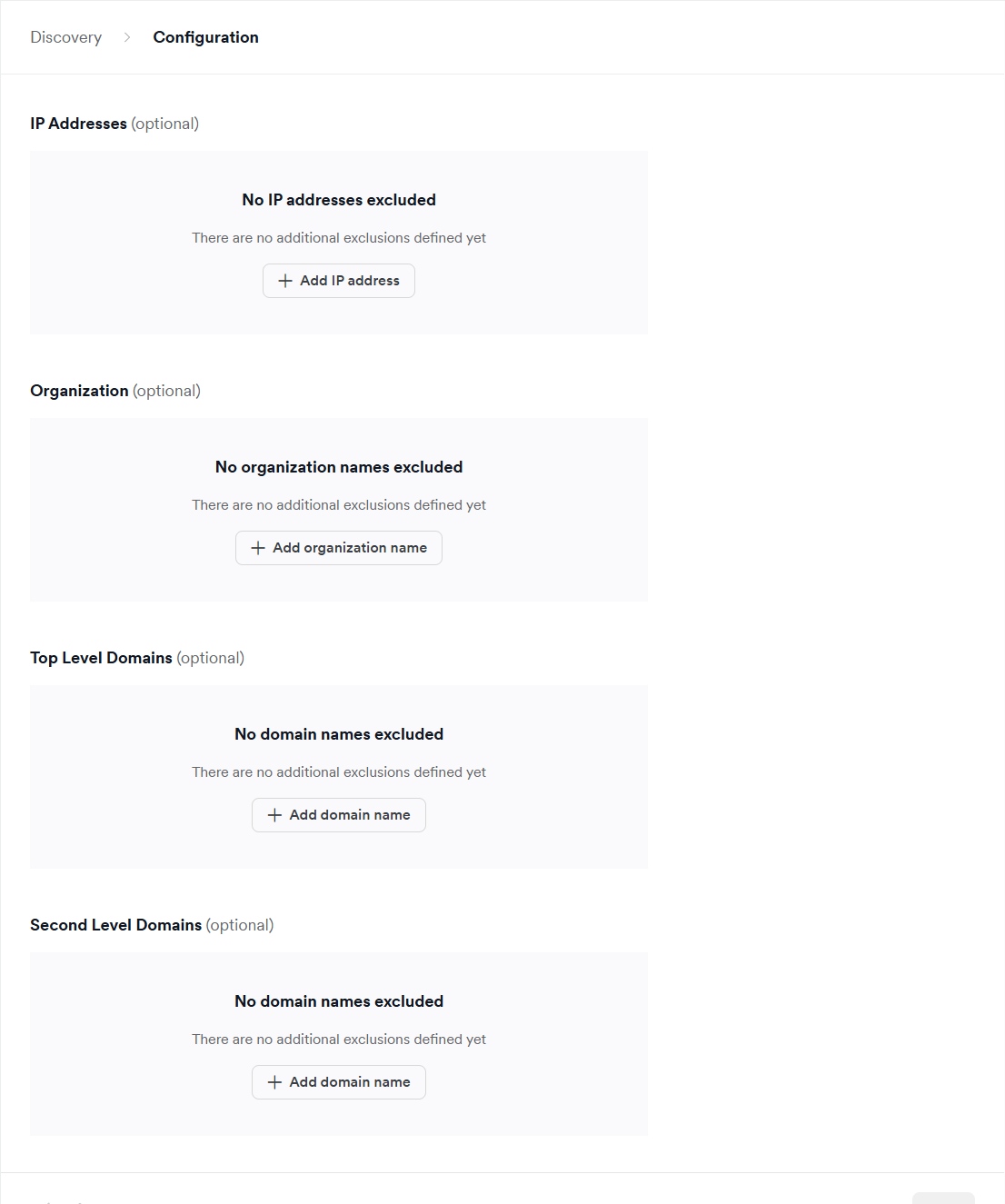
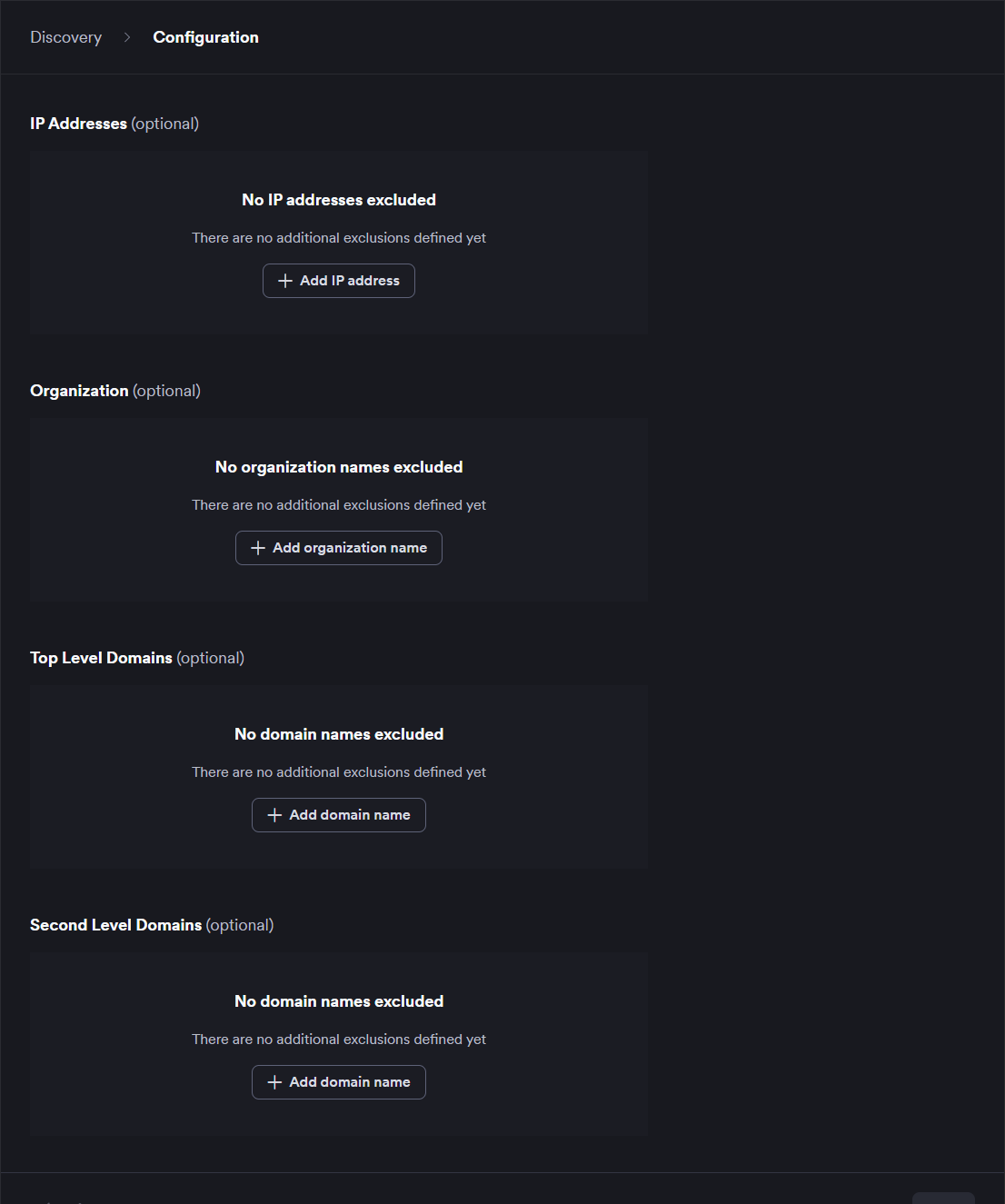
After you add an exclusion, Website discovery refreshes its results. Updates can take up to approximately one hour to appear. For more information, refer to the Introduction to Website discovery document.
Remove a website exclusion
Removing an exclusion doesn't automatically add the corresponding asset back to your discovery list. After removal, the asset is re-evaluated against the standard domain matching criteria. If it matches any active criteria, it reappears in discovery results.
- Select Discovery > Website configuration > Website exclusions from the left-side menu.
- Find the exclusion you want to remove in the list.
- Click next to the entry.
- Confirm the removal if prompted.
Need help?
Invicti Support team is ready to provide you with technical help. Go to Help Center