Deploy Invicti Shark for .NET Core
Invicti Shark enables you to carry out interactive security testing (IAST) in your web application to confirm more vulnerabilities and further minimize false positives.
For Invicti Shark to operate, you need to download an agent and deploy it on your server. Please note that this agent is generated uniquely for each target website for security reasons.
This document explains how to download and copy the Shark files to your hard disk and install the Shark to your web application.
Download the Shark agent
You can find the required instructions to download the Shark agent in Deploying Invicti Shark.
Invicti Shark supports .NET Core 3.1 on Windows and Linux. Testing has been performed on Debian 10 and 11, Ubuntu 18.04, 20, 22, and CentOS Stream 9. Generally, this sensor should work on any distributions that .NET Core runtime supports.
Prepare the .NET Core Shark
- Create a folder to host the Invicti Shark files. For this example, assume the folder is
C:\shark. - Right-click the downloaded Shark ZIP file.
- Choose Extract All
- Choose a destination folder and choose Extract.
- Navigate to the destination folder and enter the .NET Core subfolder.
- Choose all the items inside the subfolder, right-click them, and choose Copy.
- Navigate to the
C:\Sharkfolder, right-click in the window, and choose Paste.
Deploy into a .NET Core website
- Kestrel Windows
- Kestrel Linux
- IIS
- Navigate to your web application root folder.
- Create a new
sitelauncher.batfile inside your web application root folder with the following contents:
SET SENSOR_SETTINGS_PATH=C:/Shark/settings.ini
SET DOTNET_STARTUP_HOOKS=C:/Shark/SensorProfiler.Module/netcoreapp3.1/SensorProfiler.Module.dll
axexample-dotnetcore.exe --urls http://0.0.0.0:80
The said content assumes that the executable file for your web application is axexample-dotnetcore.exe.
- From the command line, navigate to your web application root folder and launch your web application.
- Navigate to your web application root folder.
- Create a new
sitelauncher.shfile inside your web application root folder with the following contents:
#!/bin/bash

export DOTNET_STARTUP_HOOKS="/Shark/.NET Core/SensorProfiler.Module/netcoreapp3.1/SensorProfiler.Module.dll"
export SENSOR_SETTINGS_PATH="/Shark/.NET Core/settings.ini"

dotnet ./axexample-dotnetcore.dll --urls "http://0.0.0.0:80"
- Assuming that the executable file for your web application is
axexample-dotnetcore.dll - From the command line, navigate to your web application root folder and launch your web application.
- Navigate to your web application root folder.
- Edit your
web.configfile to add environment variables for using Shark:
<?xml version="1.0" encoding="utf-8"?>
<configuration>
  <location path="." inheritInChildApplications="false">
    <system.webServer>
      <handlers>
        <add name="aspNetCore" path="*" verb="*" modules="AspNetCoreModuleV2" resourceType="Unspecified" />
      </handlers>
      <aspNetCore processPath="dotnet" arguments=".\axexample-dotnetcore.dll" stdoutLogEnabled="false" stdoutLogFile=".\logs\stdout" hostingModel="inprocess">
        <environmentVariables>
          <environmentVariable name="DOTNET_STARTUP_HOOKS" value="C:/Shark/SensorProfiler.Module/netcoreapp3.1/SensorProfiler.Module.dll" />
          <environmentVariable name="SENSOR_SETTINGS_PATH" value="C:/Shark/settings.ini" />
        </environmentVariables>
      </aspNetCore>
    </system.webServer>
  </location>
</configuration>
<!--ProjectGuid: 16505b2e-7499-4c97-a9ff-d18e39913ad5-->
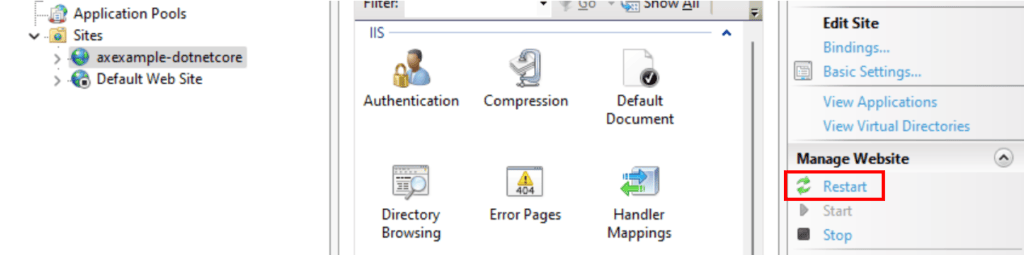
- Restart your web application from the IIS Manager.
Need help?
Invicti Support team is ready to provide you with technical help. Go to Help Center