Detecting the Log4j Vulnerability with Invicti Standard
Invicti Standard can detect whether you have Java applications vulnerable to remote code execution attacks targeting the Log4j library. A fix is already available, so the recommended course of action is to update to Log4j 2.17.0 (or newer) immediately. For further information about Log4j, see Why Log4Shell could be the worst software vulnerability ever and Log4J FAQ.
This document provides a step-by-step guide on how to identify the Log4j vulnerability using Invicti Standard. To detect the vulnerability using Invicti Enterprise, refer to Detecting the Log4j vulnerability with Invicti Enterprise manual.
Whitelisting requirements
Refer to these documents to whitelist the correct IP addresses:
Detecting the Log4j vulnerability with Invicti Standard
To detect the Log4j with Invicti Standard, follow these steps:
- Configure a scan policy for Log4j
- Scan your application with the custom scan policy
- Review the scan result
Step 1: Configuring a scan policy for the Log4j vulnerability
With the newest version installed on your environment, you can now configure a scan policy to run a security check to identify the Log4j vulnerability in your environment.
How to configure scan policy for the Log4j vulnerability
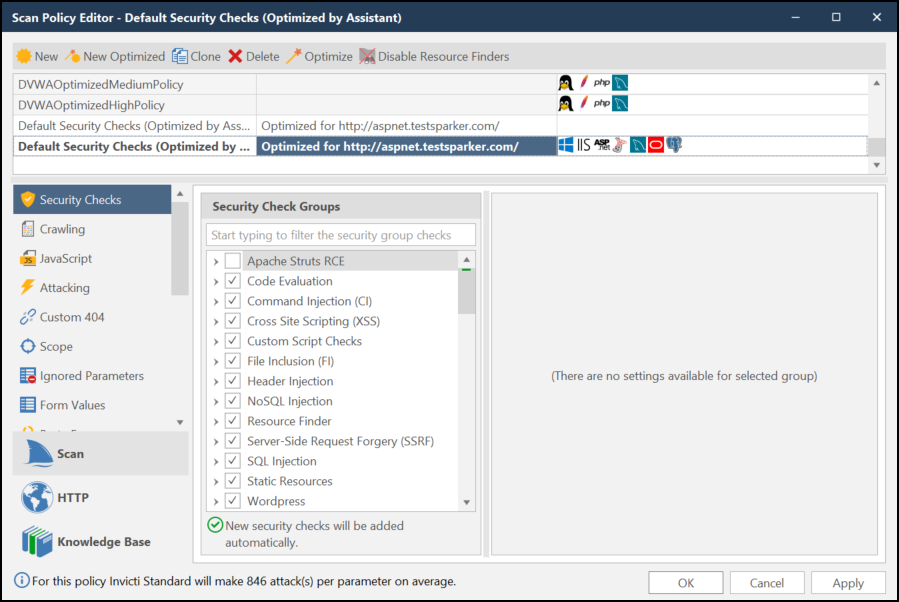
- In Invicti Standard select Home > Scan Policy Editor from the main ribbon. A new window will open allowing you to change the settings.
-
Select New and enter a name for your new scan policy.
-
In the Security Check Groups section, double-click Code Evaluation, then check Log4j Code Evaluation (Out of Band).
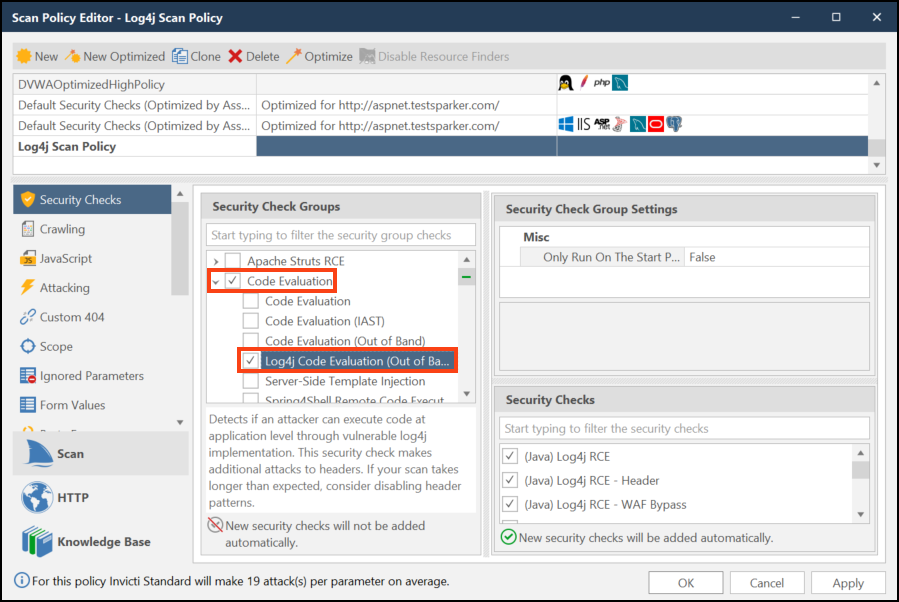
- In the Security Checks section, enable the security checks you want.
Additional attacks to the headers may extend the scan's duration. Consider this when planning your scanning schedule, especially for large applications or during business hours.
- Select Apply, then OK to close the Scan Policy Editor window.
Step 2: Scanning your application with the custom scan policy
After you create a custom scan policy to identify Log4j in your environment, you can run a scan.
How to scan your application to detect the Log4j vulnerability
- Select Home > New in the main ribbon.
- In Start a New Website or Web Service Scan field, type the URL.
- In the Scan Policy dropdown, select your custom scan policy.

- Select Start Scan to launch it.
- Select No in the pop-up asking if you want to enable Invicti Shark. Enabling it won't affect the scan results.
Step 3: Reviewing scan results
When Invicti Standard completes the scan, you can see the result in the Issues and Sitemap panels. The Issues panel lists all detected vulnerabilities and other issues.

Need help?
Invicti Support team is ready to provide you with technical help. Go to Help Center