Form authentication – Interactive Login
Interactive Login lets you scan applications when part of the sign-in process can't be completed automatically - for example, when the app requires a push approval, CAPTCHA, hardware security key, or another MFA step that a person must handle. This document explains how Interactive Login works, how to capture a session, and what to consider when planning scheduled scans.
Interactive Login captures the authenticated browser state after you sign in. It doesn't record your clicks and keystrokes, and it doesn't repeat the MFA process when a scan starts.
Why this matters
Some applications use MFA steps that automation can't complete. Without Interactive Login, these applications can't be scanned in authenticated mode at all. Interactive Login solves this by letting you sign in once through a real browser and saving the resulting session for Invicti to restore when a scan starts. Depending on the application, the saved state can include cookies, local storage, session storage, IndexedDB data, and authorization headers observed during authentication.
When to use Interactive Login
Interactive Login works best when:
- The sign-in flow includes a genuinely manual step such as CAPTCHA or push approval.
- You can start the scan soon after capturing the session.
- The target's sessions are known to remain valid for the expected wait time and full scan duration.
- You're running an occasional or operator-assisted scan and can refresh the capture when needed.
For repeatable unattended scanning, prefer an authentication method Invicti can perform at scan time - such as form authentication, a custom authentication script, configured TOTP or HOTP generation, OAuth 2.0, or a dedicated non-interactive test account.
Capture an interactive login session
Before you begin, make sure an Authentication Verifier is available and can reach the login page. The selected scan agent must also be able to reach the target.
- Open the scan or scan profile and go to its authentication settings.
- Enable Form Authentication.
- Enter the Login Form URL.
- Configure any part of the login that Invicti can complete automatically, such as credentials or a custom script.
- Select Interactive Login.
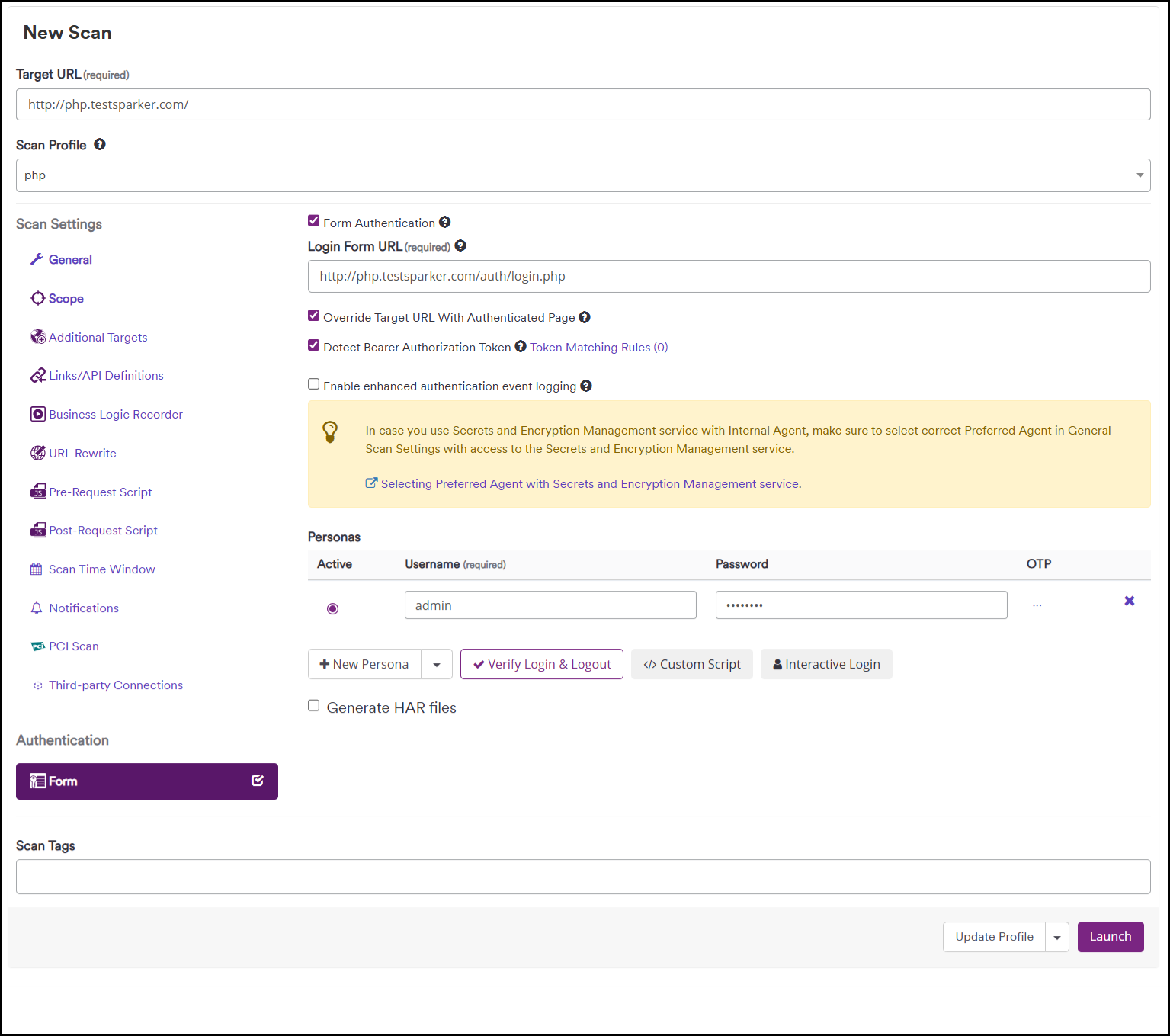
- Complete all remaining sign-in steps in the displayed browser.
- Wait until the application clearly shows the expected signed-in page, tenant, and user role.
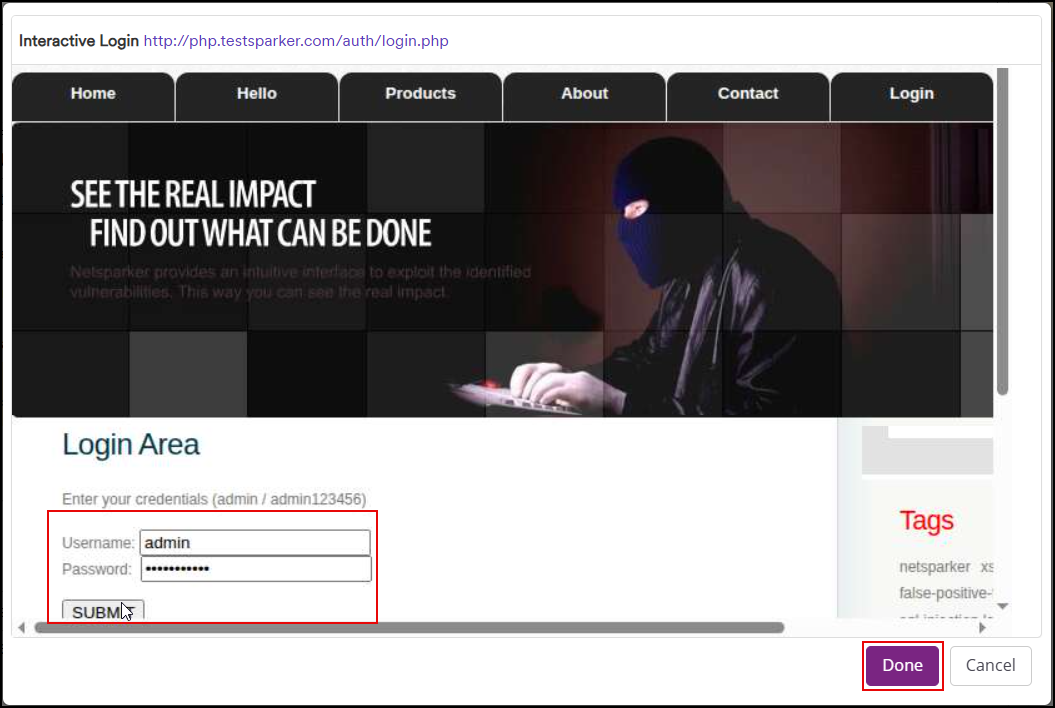
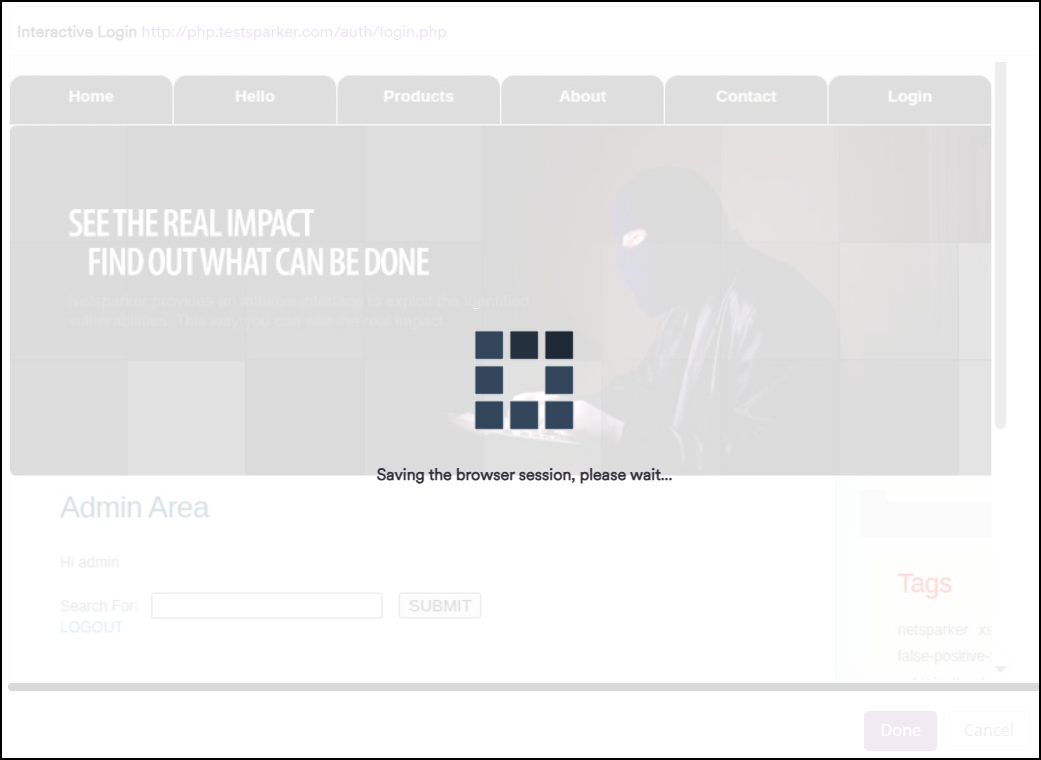
- Select Done and wait for Invicti to finish saving the browser session.
- Save the scan or scan profile.
- Run a representative scan promptly and confirm it reaches the expected authenticated pages.
When a capture is saved, the authentication settings show when it was captured. This timestamp is informational - Invicti doesn't use it to decide whether the session is still valid.
To replace a capture, select Delete next to the existing Interactive Login information, run Interactive Login again, and save the configuration. Changing the Login Form URL also clears the capture; save the configuration or create a new capture for the new URL.
The Generate HAR option applies to standard login and logout verification. Interactive Login doesn't generate HAR files.
Session lifetime and scheduled scans
Every captured session is subject to the target application's session and identity-provider policies. A capture can stop working because of:
- An idle or absolute session timeout
- Cookie, access-token, or refresh-token expiration
- One-time or rotating refresh tokens
- Server-side session revocation or signing out the captured account
- A password reset, MFA reset, account disablement, or role change
- Device, browser, IP address, or location binding
- A change to the login flow, hostname, tenant, or application storage format
- Another login or a concurrent scan invalidating the same session
A recent capture isn't necessarily a valid capture, and a session can expire during a long-running scan.
One-time scheduled scans
Capture the session as close as practical to the scheduled start time. Allow enough remaining session lifetime for both queuing delays and the full scan duration.
Recurring scheduled scans
Don't rely on Interactive Login for an unattended recurring schedule if the target requires a new manual MFA step for each login or regularly invalidates browser sessions. A scheduled scan can't pause and ask an operator to refresh the capture.
A recurring schedule is appropriate only when you've verified that the target accepts the same captured state across the complete recurrence interval and for the duration of each scan. Test this over a representative time period - an immediate successful scan proves only that the capture works at that moment.
If the session can't meet those conditions, use one of these approaches instead:
- Replace the manual factor with supported TOTP or HOTP generation when your security policy permits it.
- Automate the flow with form authentication or a custom script.
- Use an approved, dedicated test account with an authentication policy suitable for automated security testing.
- Use an OAuth or other machine-to-machine flow intended for automation.
- Run an operator-assisted scan after creating a fresh capture.
Coordinate any test-account or identity-policy change with the application and identity owners. Don't weaken production authentication controls solely to accommodate scanning.
Validate authenticated coverage
Don't use the scan's completion status alone as proof that authenticated areas were tested. After the first scan and after each scheduled run:
- Review the scan logs for authentication or logout messages.
- Confirm that the sitemap contains known post-login pages.
- Compare the authenticated URL count and important application areas with a known-good scan.
- Confirm that the scan used the expected account, tenant, and role.
- Configure reliable logout detection and a representative Login Required URL where possible.
If authenticated coverage drops, delete the old capture, create a fresh one, save the configuration, and run another validation scan.
Protect the captured session
Treat an Interactive Login capture as an active credential:
- Use a dedicated, least-privileged account with only the access needed for the scan.
- Limit who can view or edit the scan and scan profile.
- Don't share captured data, logs, or diagnostic exports through unapproved channels.
- Delete the capture and revoke the target session when it's no longer needed.
- Rotate or disable the test account according to your organization's credential policy.
Frequently asked questions
Does Interactive Login replay my manual login steps?
No. It saves the browser authentication state produced by those steps and restores that state when the scan starts.
Will a scheduled scan prompt me for MFA?
No. There's no interactive prompt at scan time. The scan uses the state that was captured earlier.
How long does a capture remain valid?
Invicti can't determine this from the capture. Validity is controlled by the application and identity provider. Consult their session policies and validate with a representative scan.
Can the same capture be used by more than one scan?
Invicti keeps and reuses the capture until it's deleted or replaced. The target may still reject reuse, rotate a token after its first use, or disallow concurrent sessions.
Does Invicti refresh the saved capture after a scan?
No. Changes to browser authentication state during a scan aren't written back to the saved capture.
When should I recapture the session?
Recapture after an authentication failure, before a scan that falls outside the verified session lifetime, or after any change to the account, MFA settings, login flow, identity-provider policy, hostname, or application environment.
Troubleshooting
The capture fails immediately in a scan
Create a new capture and try a short validation scan. If a fresh capture also fails, check whether the target binds sessions to the Authentication Verifier's IP address, browser, or device characteristics. Also confirm that both the verifier and scan agent can reach every identity-provider and application hostname used by the login flow.
The first scan works but a later scan doesn't
Check the application's idle and absolute session limits, token rotation policy, and server-side revocation events. The capture shown in Invicti is unchanged by earlier scans even if the application refreshed tokens during those scans.
Authentication is lost during a scan
Compare the scan duration with the target's session lifetime. Also check logout detection, concurrent-session restrictions, and whether another login or scan invalidated the session.
Interactive Login returns no session data
Make sure the application has completed sign-in before selecting Done. Wait for the authenticated page to finish loading, and confirm that the application has issued a cookie, authorization header, or other supported browser authentication state.
Need help?
Invicti Support team is ready to provide you with technical help. Go to Help Center