Invicti Standard – Logout detection – Configuration
During a scan, Invicti follows all links and submits forms, which can sometimes result in session termination and logout during an authenticated scan. However, even after logging out, Invicti must continue scanning the entire website, including sections that are typically restricted to logged-in users.
Before starting a scan, you need to confirm form authentication by providing Invicti with details about the pages that require login.
This document provides instructions on how to configure both redirect-based and keyword-based logout detection.
If you encounter any issues during logout detection, refer to our Logout detection issues documentation.
How to configure a logout detection
- In Invicti Standard, select New from the home tab
- Select Form from the Authentication section
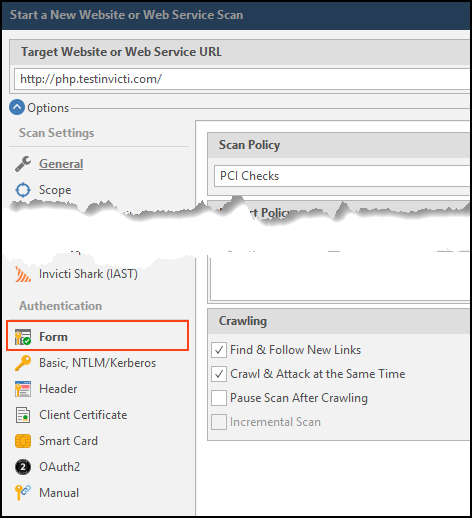
- Select the Enabled checkbox
- Enter the Login Form URL
- In the Personas section, enter username and password

- Select Verify login & logout to start the verification process
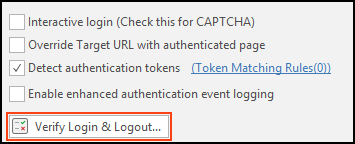
- When the process is complete, the Login Simulation and Logout Detection sections are displayed side by side
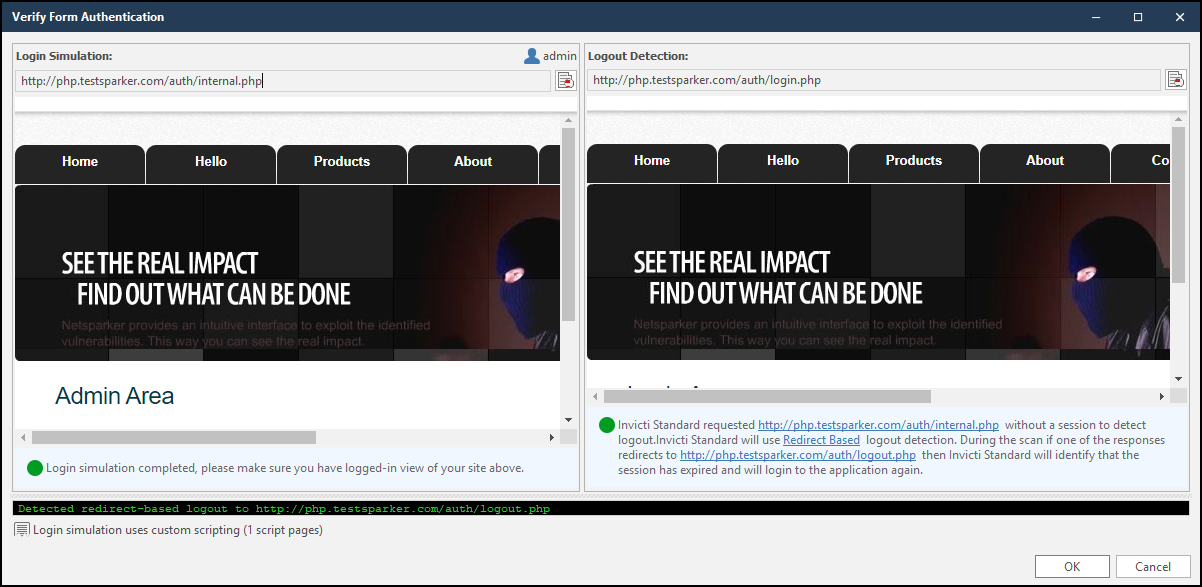
There are three options for logout detection. Continue with your preferred option:
A. Redirect-based logout detection
B. Keyword-based logout detection
C. None - no logout detection will be used - select None for the Detection type
For Authentication for unsupported forms, refer to the linked document to configure custom scripts for form authentication.
How to configure redirect-based logout detection
- In the blue box, you have the option to amend the following:
- Login Required URL
- Detection type
- Redirect URL pattern

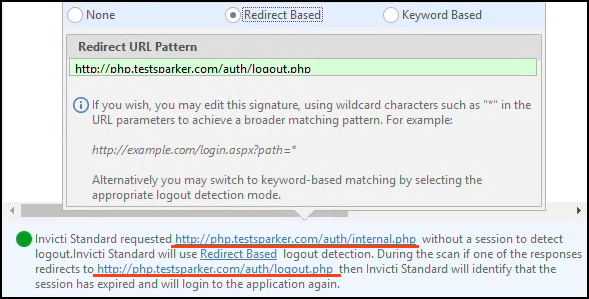
- Click the highlighted text in the blue box (1), and in the pop-up enable the Redirect Based checkbox (2)
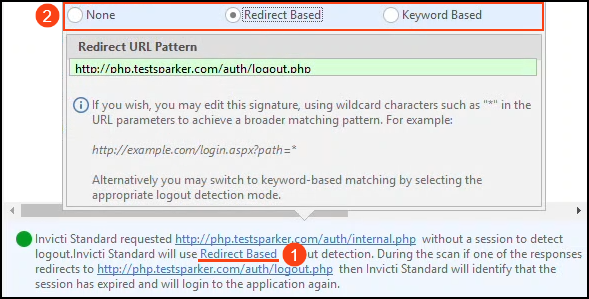
- Verify the Login Required URL and the Redirect URL Pattern by clicking the links in the blue box
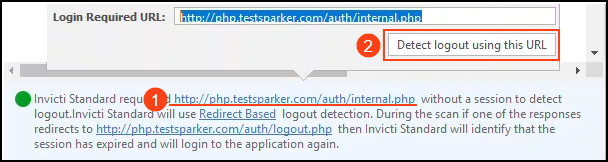
- Click the highlighted text (1) and in the pop-up select Detect logout using this URL (2). This verifies the logout detection.
- Click OK to save the logout detection configuration
How to configure keyword-based logout detection
- In the blue box, you have the option to amend the following:
- Login Required URL
- Detection type
- Keywords

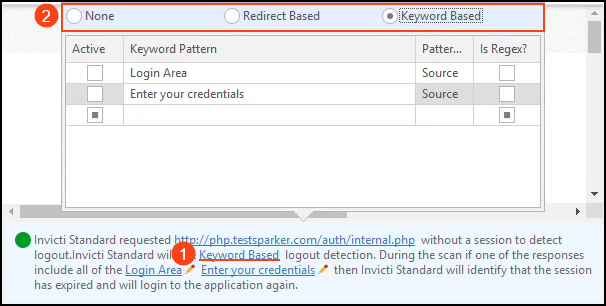
- Click the highlighted text in the blue box (1), and in the pop-up enable the Keyword Based checkbox (2). Enter as many keywords as needed. Specify as many keywords as needed. Invicti must match all keywords in an HTTP response to confirm session termination. To use regular expressions, check the "Is Regex?" box next to the keyword pattern. These will then appear in the blue box.
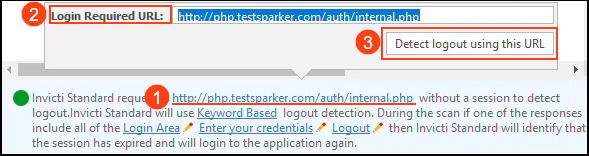
- Click the highlighted text (1) and in the pop-up verify the Login Required URL (2), and click Detect logout using this URL (3).
- Click OK to save the authentication configuration
Need help?
Invicti Support team is ready to provide you with technical help. Go to Help Center