Manual Crawling in Proxy Mode
Invicti Standard has a built-in proxy that allows you to manually crawl a target and scan it. Manual crawling is a process that is used to scan parts of a web application that cannot be crawled automatically. This may be for several reasons.
It could be because:
- It uses a third-party plugin such as Flash or Silverlight (currently unsupported by Invicti)
- It uses forms that required DOM simulation
- If the website does not provide a link to a sub-directory and it also needs to be scanned
Use manual crawling when you want to:
- Scan sections of the web application that were not automatically crawled
- Scan a limited number of URLs and parameters
- Launch a Controlled Attack
During a manual crawl, the scanner will only scan the URLs that you feed through the proxy, though you can also combine both the automated and manual crawl as this post explains.
For further information, see Manual Crawling and Security Scanning.
How to Run a Manual Crawl with Invicti Standard
There are four steps:
- Start Invicti Standard in Proxy Mode
- Configure a Browser to Proxy the Traffic Through Invicti
- Start Browsing the Pages You Want to Scan
- Scan the Manually Crawled Pages
Step 1: Start Invicti Standard in Proxy Mode
- Log in to Invicti Standard.
- From the Home tab, click New. The Start a New Website or Web Service Scan dialog is displayed.
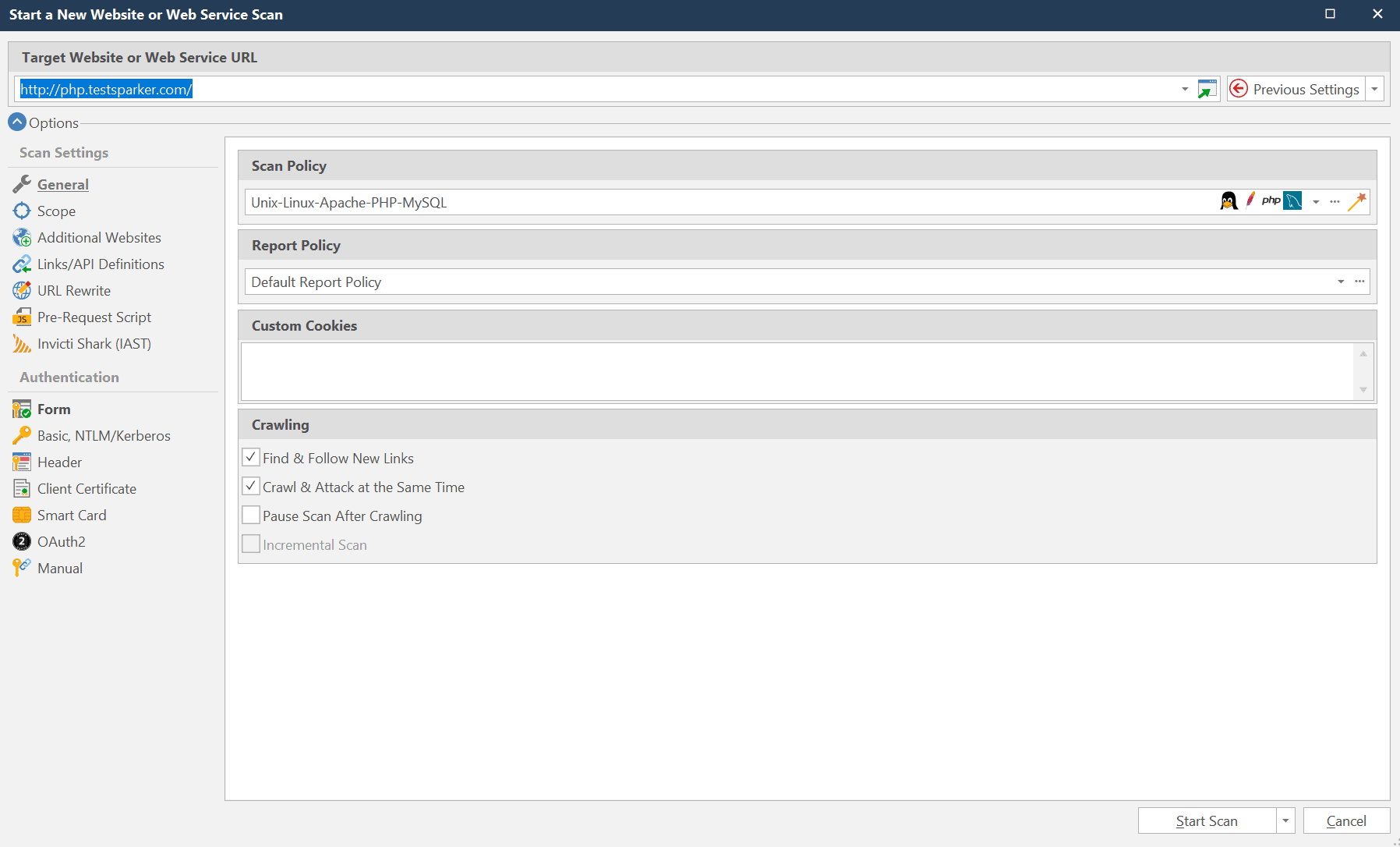
- In the Target Website or Web Service URL, enter the target URL. The target URL will be used to filter the requests received from the web browser, so only those requests related to the scan will be added. Therefore, if, for example, you want to scan
http://php.testsparker.com, enter this URL. If you browse pages from other domains in your web browser, Invicti will not add them to the scan scope.

- Note that all requests captured from proxy will also be filtered according to the active Scan Scope. To start Invicti's proxy, from the Start Scan dropdown, select Manual Crawl (Proxy Mode).
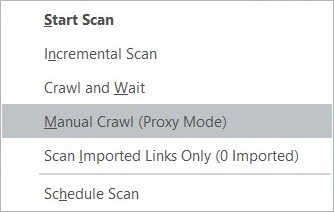
Step 2: Configure a Browser to Proxy the Traffic Through Invicti
- By default, when Invicti's proxy is started, it sets itself as a system proxy. This means that all the popular browsers, such as Internet Explorer, Google Chrome and Mozilla Firefox will automatically proxy traffic through it. So, you don't need to manually configure the browser's proxy settings.
- If you are using a browser that is not automatically proxying the traffic through Invicti's proxy, configure it before starting the scan (enable Use Custom Proxy) to proxy the traffic to port 10010, Invicti's proxy default port.
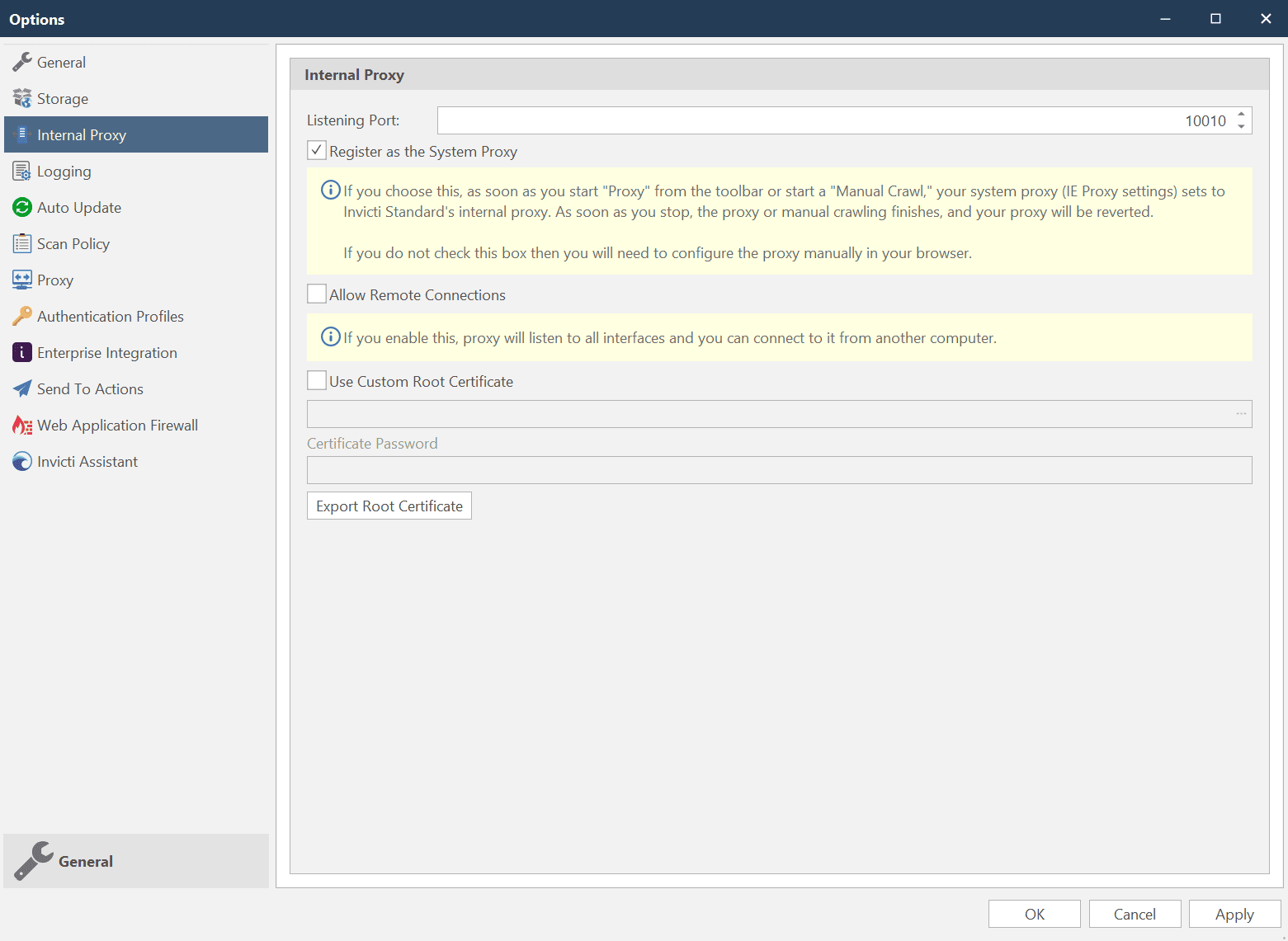
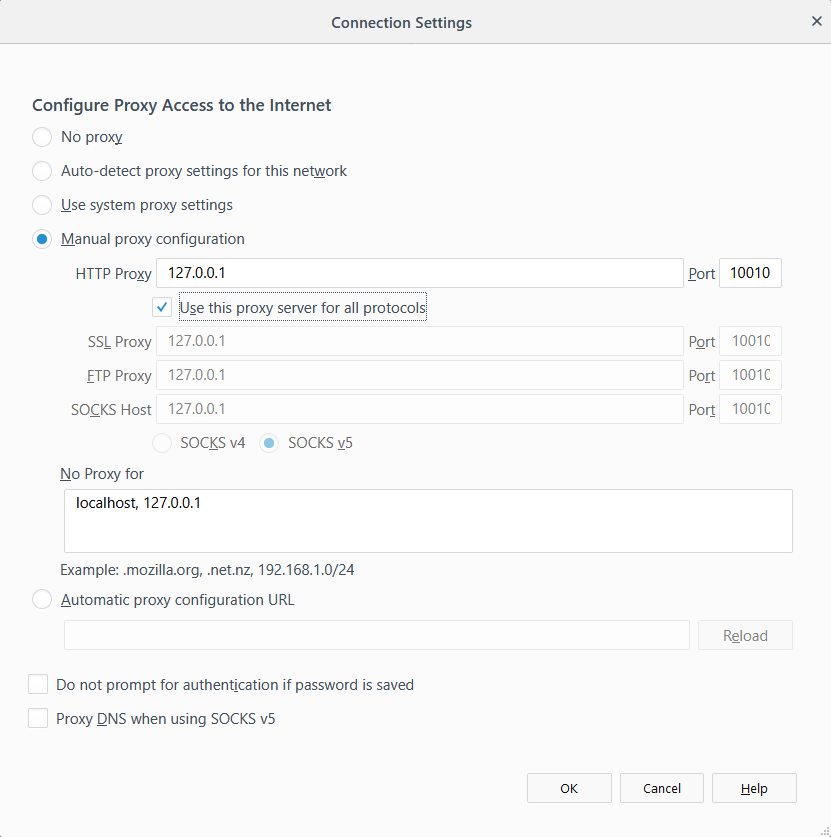
- When the proxy has started, the listening port will be shown on the Proxy button.
Step 3: Start Browsing the Pages You Want to Scan
- Using your web browser, start browsing the pages you want the scanner to scan.
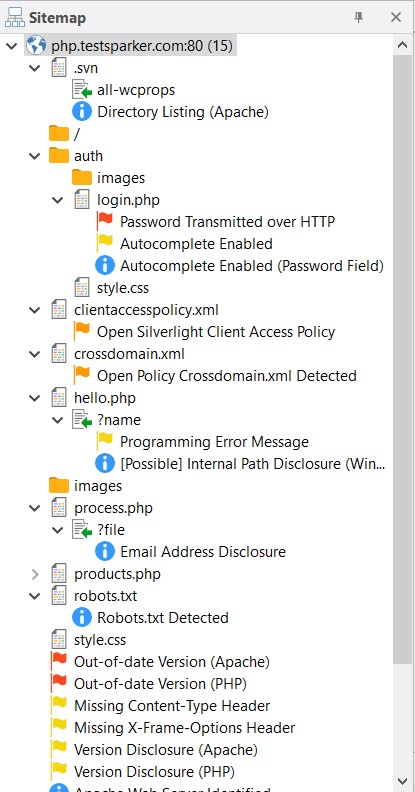
- If you look at the Sitemap panel, you'll notice these browsed pages are being added to as you browse them.
Step 4: Scan the Manually Crawled Pages
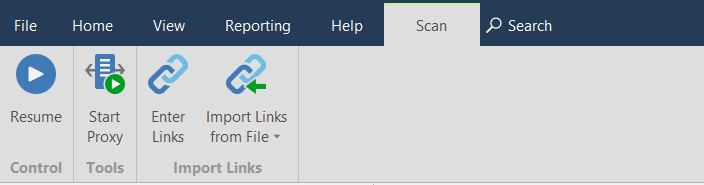
Once you have crawled all the pages, click the Resume button on the Scan tab.
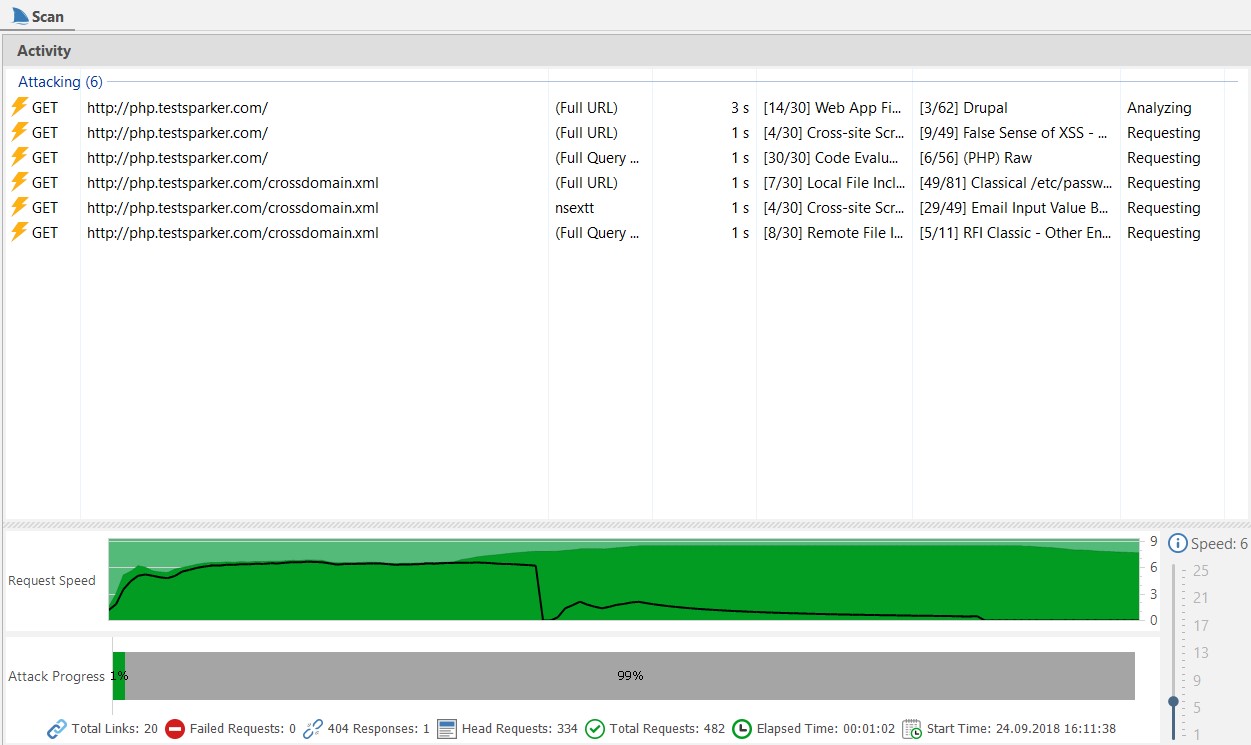
The scanner proceeds with attacking the pages listed in the Sitemap.
How to Combine Automated and Manual Crawling in a Web Security Scan
- To crawl a website automatically, but also add URLs from a manual crawl, open the Start a New Website or Web Service Scan dialog, and select the option Crawl and Wait from the Start Scan dropdown button.
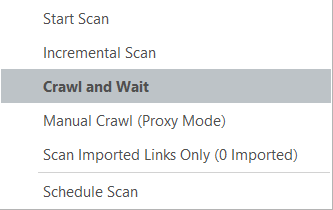
- In this mode Invicti will crawl the website automatically and then stop before starting the Attack phase. At this point, from the Scan tab, click Start Proxy to switch on the proxy.
- At this stage follow the steps in How to Run a Manual Crawl with Invicti Standard to configure a browser to proxy the traffic through Invicti Standard and browse the pages you want to add to the sitemap for the scan.
Using Selenium for Manual Crawling
Selenium testing framework allows you to record and play back the browsing of a web application. It is very popular with developers, QA engineers and others who are involved in the development and testing of web applications.
It is possible that you already have Selenium scripts to test your web application. These might take the form of certain flows within your application, such as multiple step forms or shopping cart-like functionality. You can use the Selenium IDE Firefox browser extension or any other driver to replay the recordings and capture all the browsed pages and parameters in Invicti, and get them scanned automatically.
How to Use Selenium and Invicti for the Manual Crawling of Web Applications
- Open Invicti Standard.
- Start Invicti Standard Scanner in Proxy Mode.

- Play the Macro on Selenium IDE.
- Click Selenium IDE from the tools dropdown menu of your browser.
- Click Play Entire Test Suite.
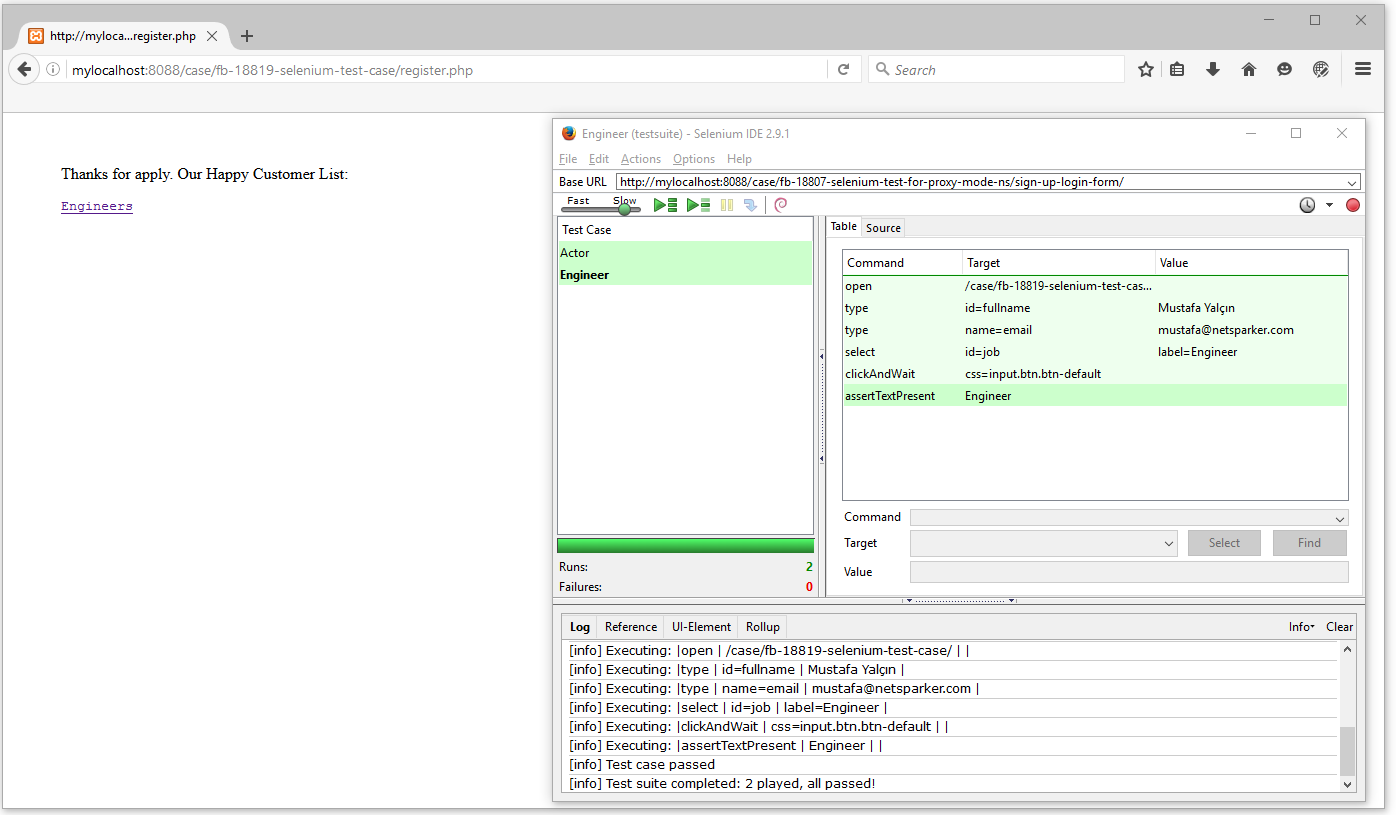
- Start the Automatic Vulnerability Scan.
- Switch back to Invicti when the macro is finished.
- Check the Sitemap to confirm that the scanner captured the links.
- Click Resume to resume the scan so Invicti can start attacking the parameters.
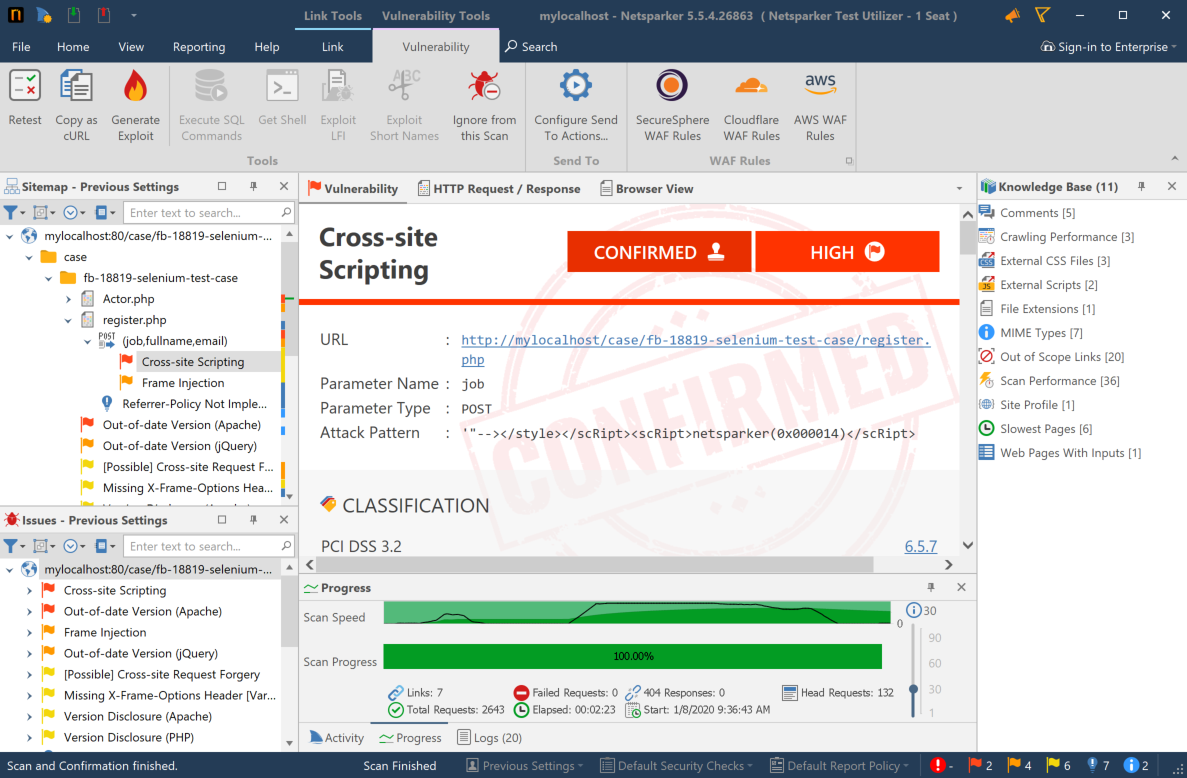
For more information, see Scanning URLs in Selenium Playbacks with Invicti Standard.
Need help?
Invicti Support team is ready to provide you with technical help. Go to Help Center