Reducing scan times
Optimizing scan times involves a continuous process of refinement. After verifying your scan coverage and investigating factors that may be contributing to longer scan times, you can refer to the sections in this document to explore various strategies that may help you shorten scan durations and enhance scan efficiency.
Reviewing the slowest pages report
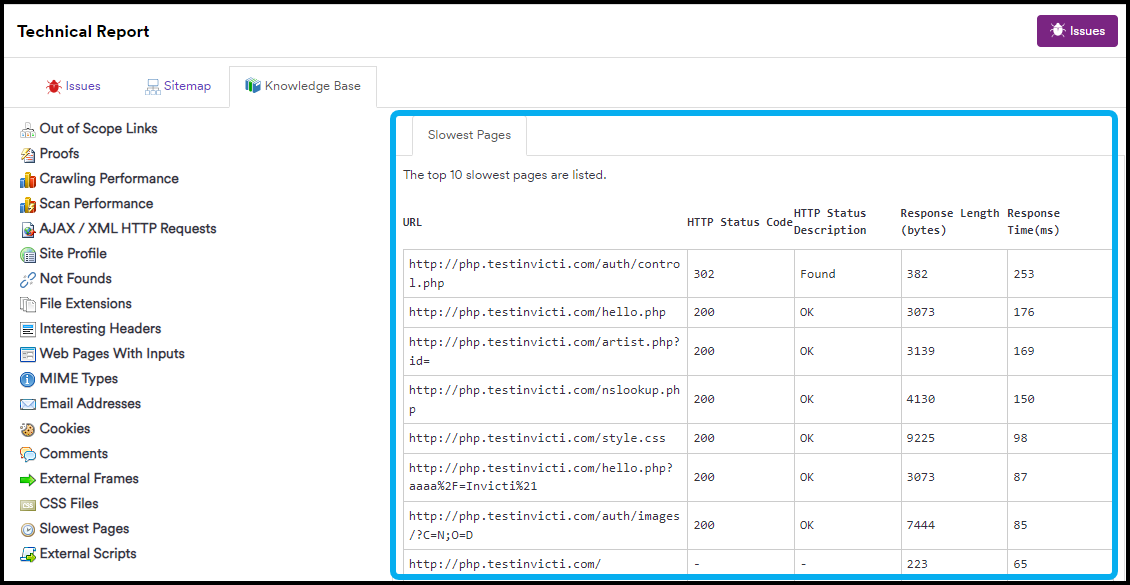
The information in this report may identify endpoints that don't need to be scanned or highlight slow-loading endpoints impacting the overall scan duration. Review the slowest pages by following the steps below:
- Select Scans > Recent Scans from the left-side menu.
- Locate the scan you would like to review and click Report.

- Scroll down to the Technical Report section and select the Knowledge Base tab. Then select Slowest Pages.
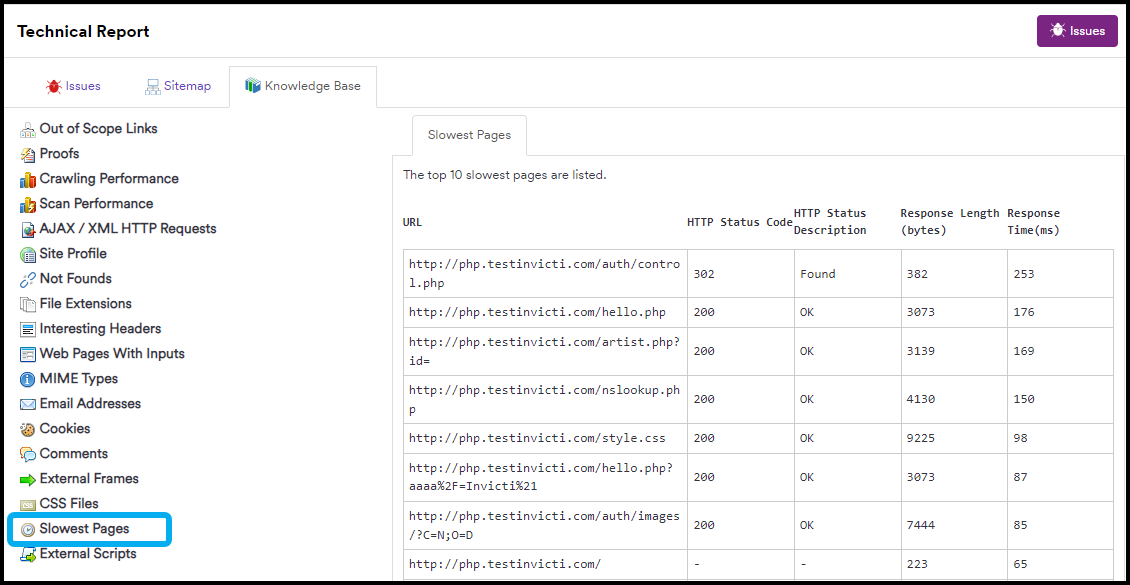
- Review the list of the top 10 slowest pages seen during the scan and consider whether to exclude any of the URLs from future scans to help shorten the scan duration. Instructions for excluding URLs from scans are available in the next section of this document.
Excluding URLs from scans
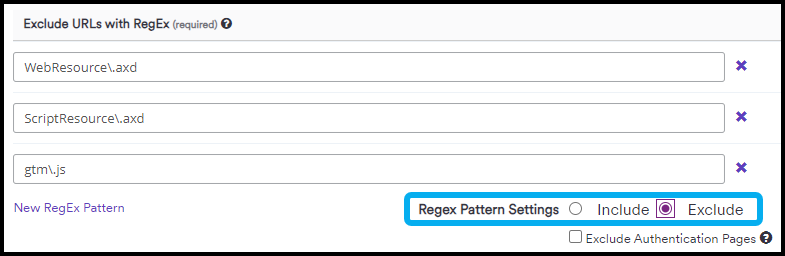
The Exclude URLs with RegEx section in the scan profile allows you to exclude specific endpoints from the scan.
- Select Scans > New Scan from the left-side menu.
- In the Scan Settings, select Scope.
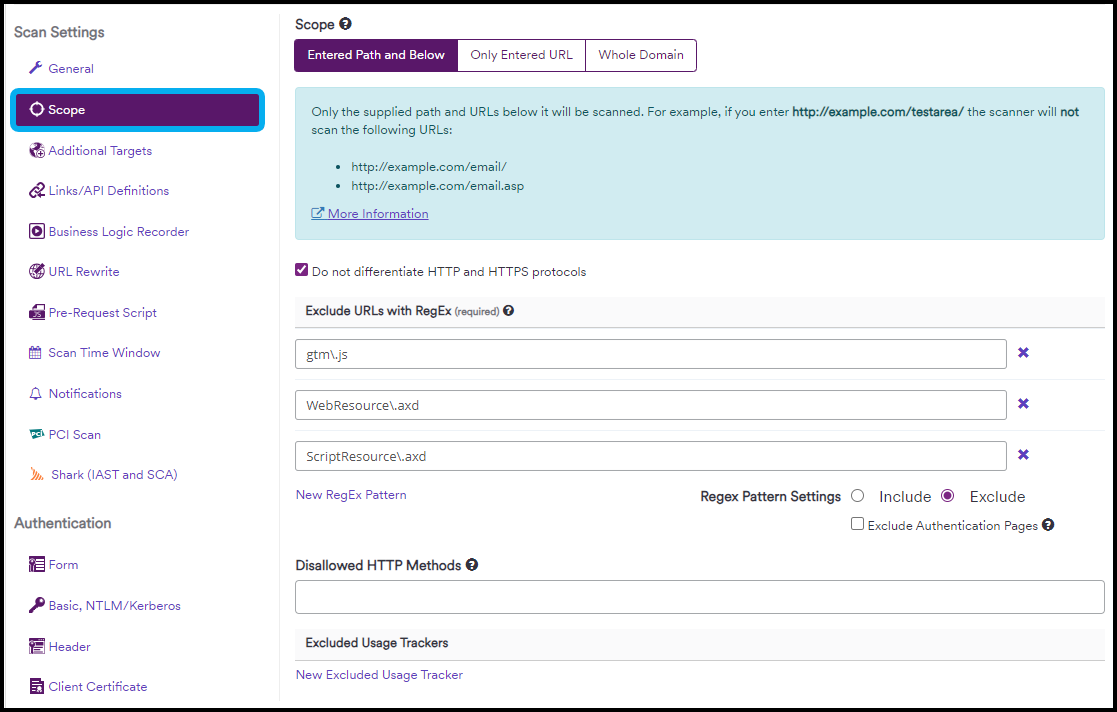
- In the Exclude URLs with RegEx section, click New RegEx Pattern and populate the new row with RegEx.
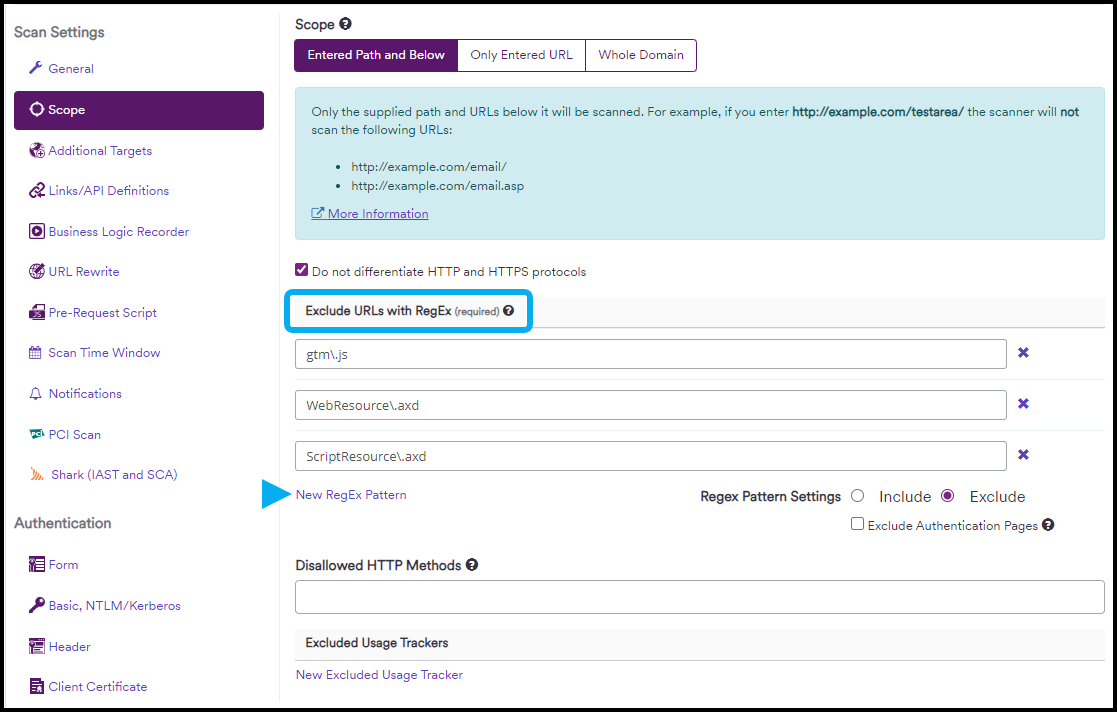
You can switch from Exclude URLs with RegEx to Include URLs with RegEx by selecting the corresponding checkbox. Make sure the Exclude option is selected to configure the scan correctly.
- Click Save Profile to update or create a new scan profile. Alternatively, click Launch to run a new scan with the updated settings.
Reviewing signature and page limits
Review the Maximum Signature Limit Exceeded and Maximum Page Limit Exceeded to see how many pages in your application are hitting this limit. Follow these steps to locate the information:
- Select Scans > Recent Scans from the left-side menu.
- Locate the scan you would like to review and click Report.

- Scroll down to the Technical Report section and select the Knowledge Base tab. Then select Out Of Scope Links.
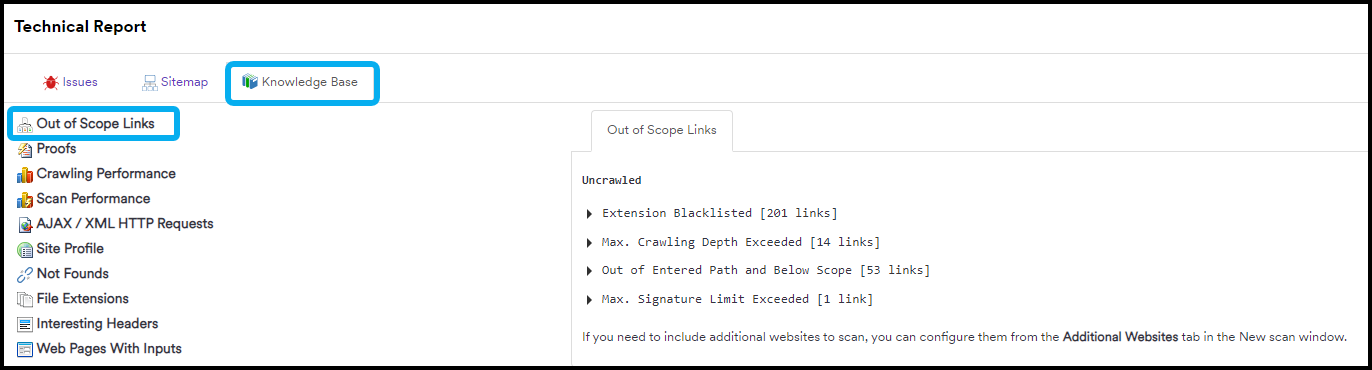
- Expand the Max. Signature Limit Exceeded and Max. Page Limit Exceeded to find the URLs that exceeded these limits.
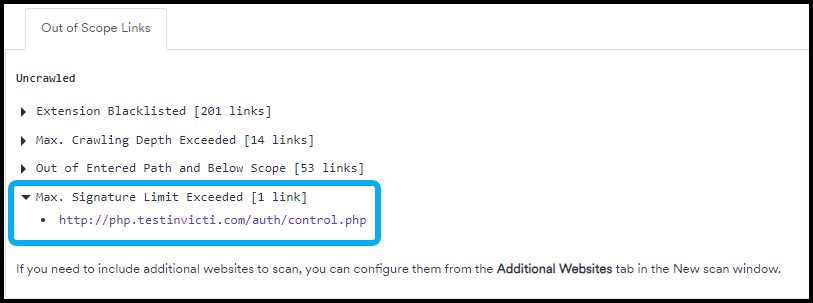
When the scan is within the maximum signature and page limits, it may become slower or less efficient, and some parts of the scan might be truncated or skipped. To lower the crawling limits, follow the steps in the next section.
Lowering crawling limits
Invicti Enterprise has default limits on the number of similar types of pages it will scan. Lowering these limits can reduce scan times. You can adjust these settings in the Scan Policy section as needed.
- Select Policies > New Scan Policy from the left-side menu.
- Select Crawling.
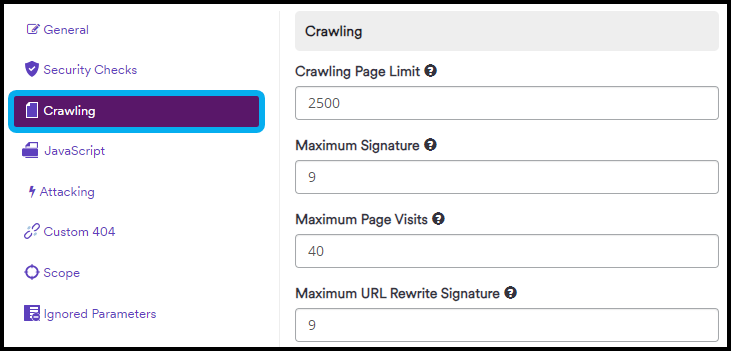
- Update these fields as required, then click Save.
Remove some security checks
Some security checks count towards the total number of links, potentially inflating page limits. Turning the Resource Finder and Static Resource off may decrease the scan time.
Follow these steps to turn off the resource finder and static resource security checks:
- Select Policies > New Scan Policy from the left-side menu.
- Select Security Checks.
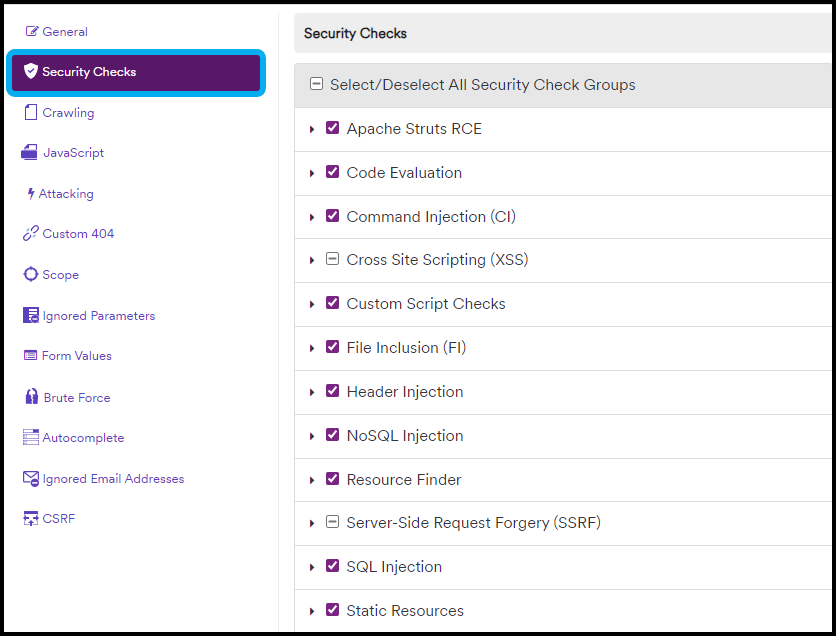
- Clear the Resource Finder and Static Resources checkboxes.
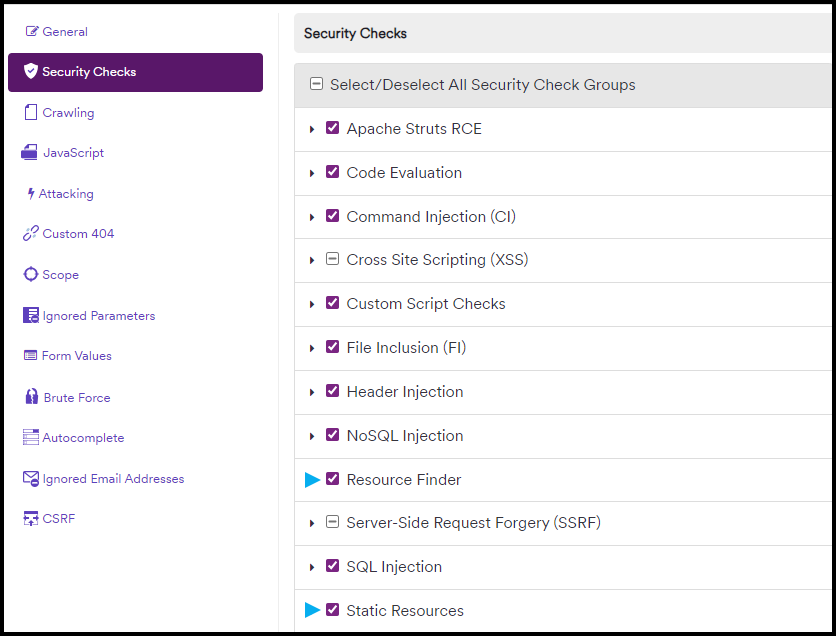
- Click Save at the bottom of the page.
Sufficient RAM for Invicti Enterprise On-Premises agents
If you use Invicti Enterprise On-Premises agents to scan your targets, ensure that each agent has at least 4GB of dedicated RAM for optimal scan performance. More resources can positively affect scan times.
Application availability
Slow page load times, though not directly reflected as a setting or data point during the scan or in the scan results, can reveal insights into your application's performance during the scan. Check the target's resources to ensure they remain stable during the scan.
Although you can adjust the Requests per second or Connection Timeout limits, doing so won't necessarily reduce scan times. Reducing the Requests per Second, for example, could increase the overall scan duration.
To update the requests per second and connection timeout settings, follow these steps:
- Select Policies > New Scan Policy from the left-side menu.
- Select Request.
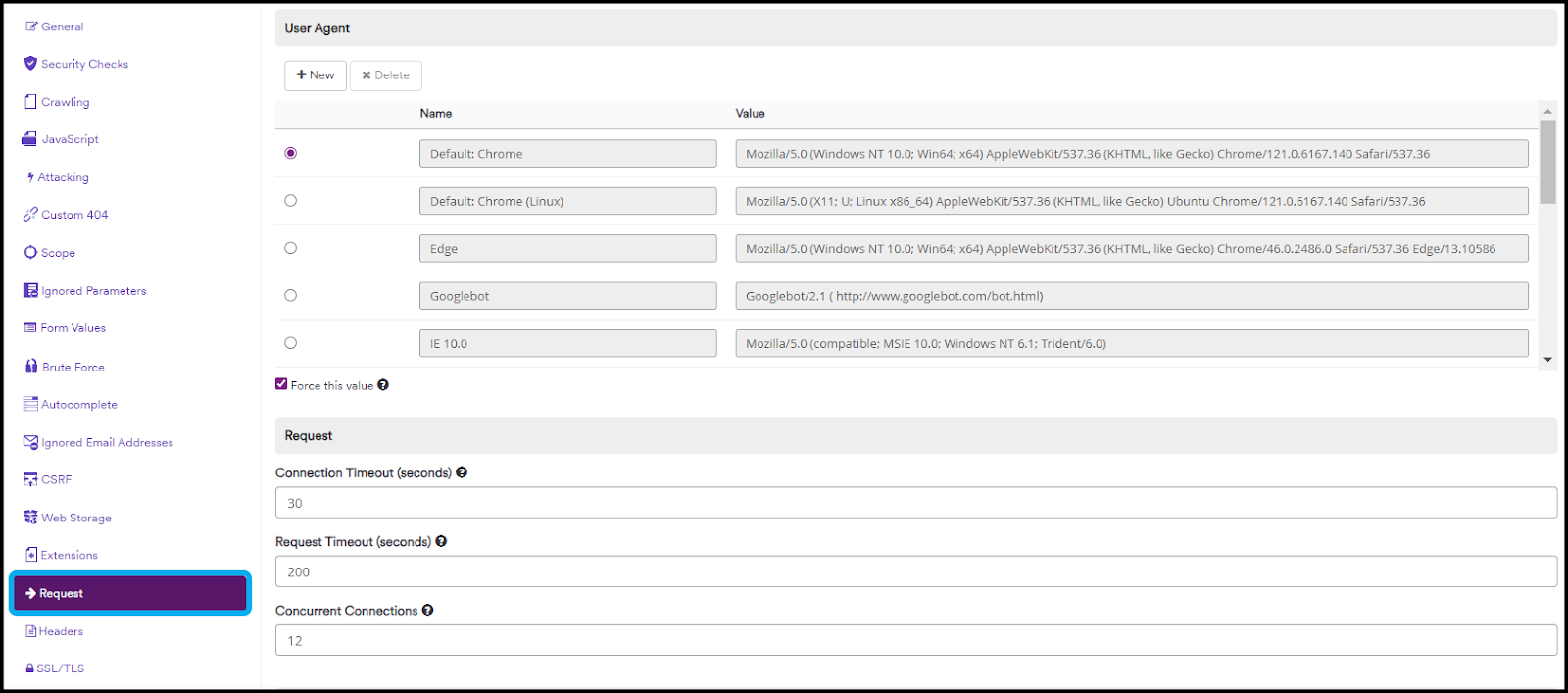
- Edit the Connection Timeout and Request Timeout fields. You can also adjust the slider in the Requests per Second widget.
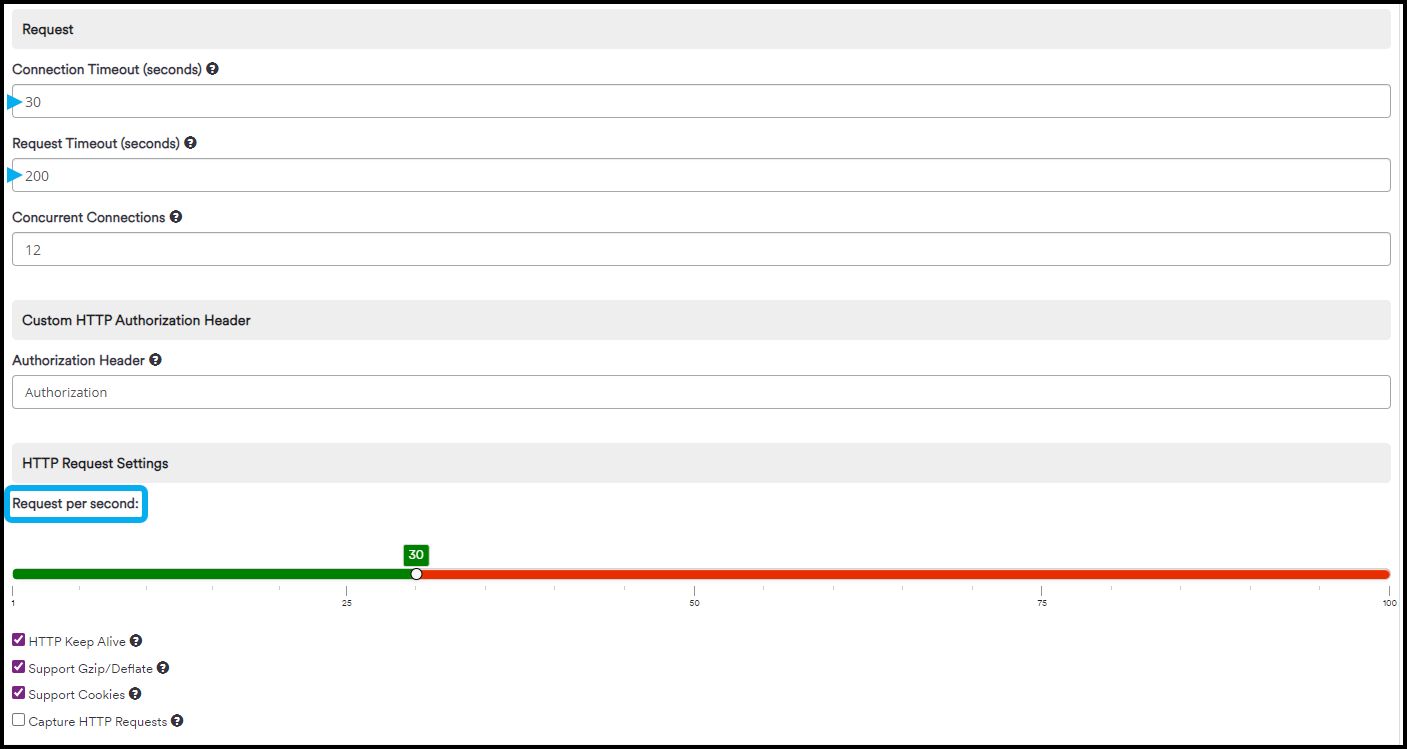
Any changes made here are at your discretion. Optimizing scan times involves a continuous process of refinement.
- Click Save at the bottom of the page.
Need help?
Invicti Support team is ready to provide you with technical help. Go to Help Center