View the HTTP request and response of an issue
An HTTP request includes information that is sent by a client to the website over hypertext transfer protocol when you click a link, submit a button, or expand a menu, for example. This information mostly contains the request method, the host address of the target site, the path or the page you requested, and some headers. The server responds to this request, which is referred to as an HTTP response.
Steps to view the HTTP request and response of an issue in Invicti Enterprise
- Complete the scan, or check that the issue is populated during the scan.
- From the main menu, select Issues > All Issues.
- Select an issue.
- On the Issue Details page, click the downward arrow to view more.
- Select the Request/Response tab. The screen refreshes, and the Request/Response is displayed. (Alternatively, from the Scans menu, select Recent Scans, then a particular scan, and an issue from that scan.)
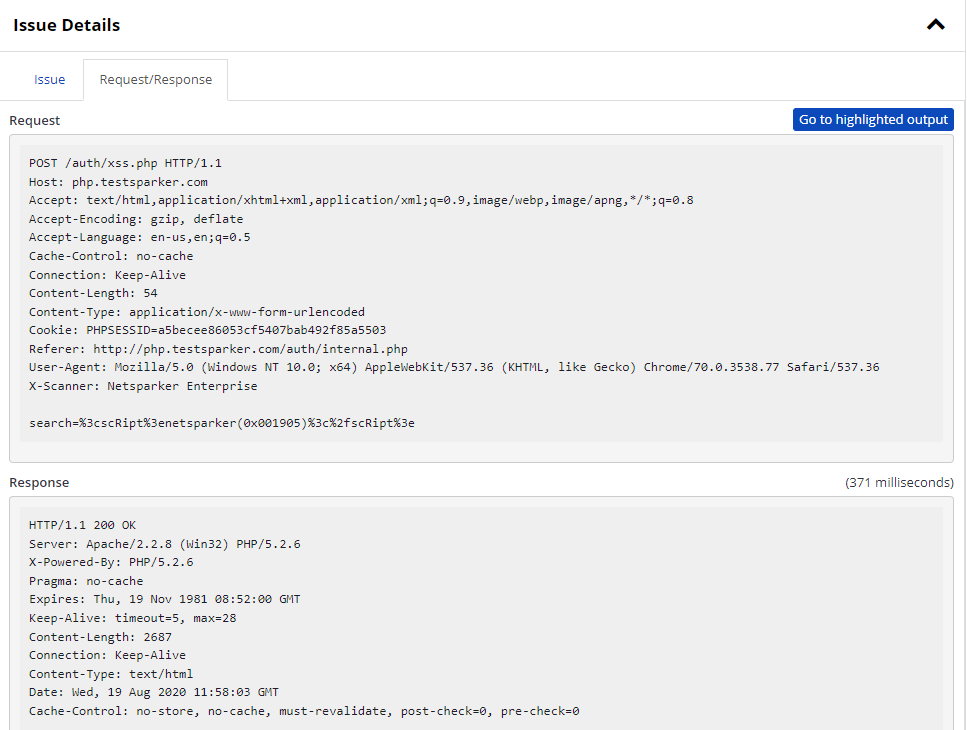
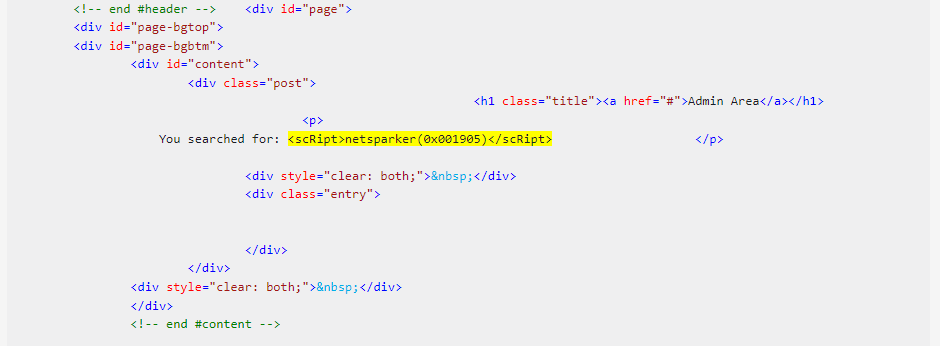
- Click Go to Highlighted Content to view the output that lets you verify the vulnerability.
View the HTTP request and response of an issue in Invicti Standard
- Complete the scan, or check that the issue is populated during the scan. refer to Create a new scan.
- In the Issues panel, select an Issue. The Issue is displayed in the Vulnerability tab of the Central Panel. (Depending on your monitor size, you may want to resize the panels in the window, so that you can see it better.)
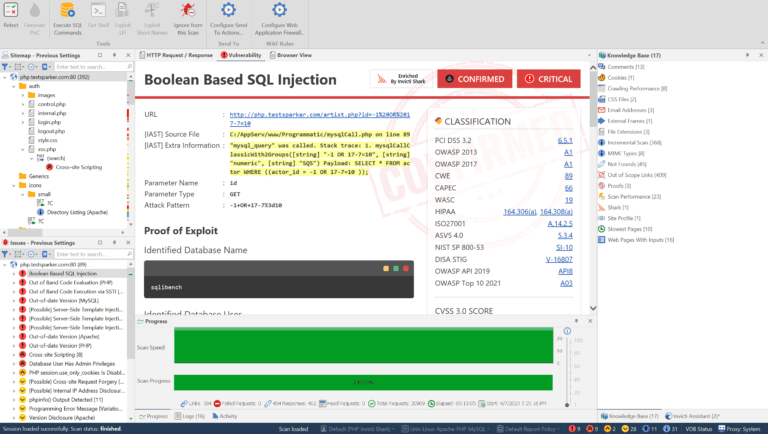
- Select the HTTP Request/Response tab. The HTTP Request and Response panels are displayed, showing the Request and Response the scanner received from the target server. (You may wish to close the Dashboard, Sitemap, Knowledge Base, Issues or Logs panels for a better view.)
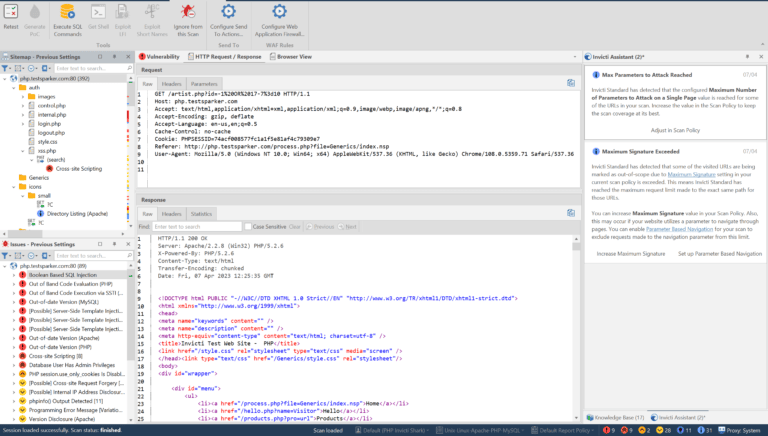
Depending on the Issue you've selected and the Response body's content, other tabs may be displayed allowing you to view the Request and Response in different ways:
- Click, for example, the XML tab
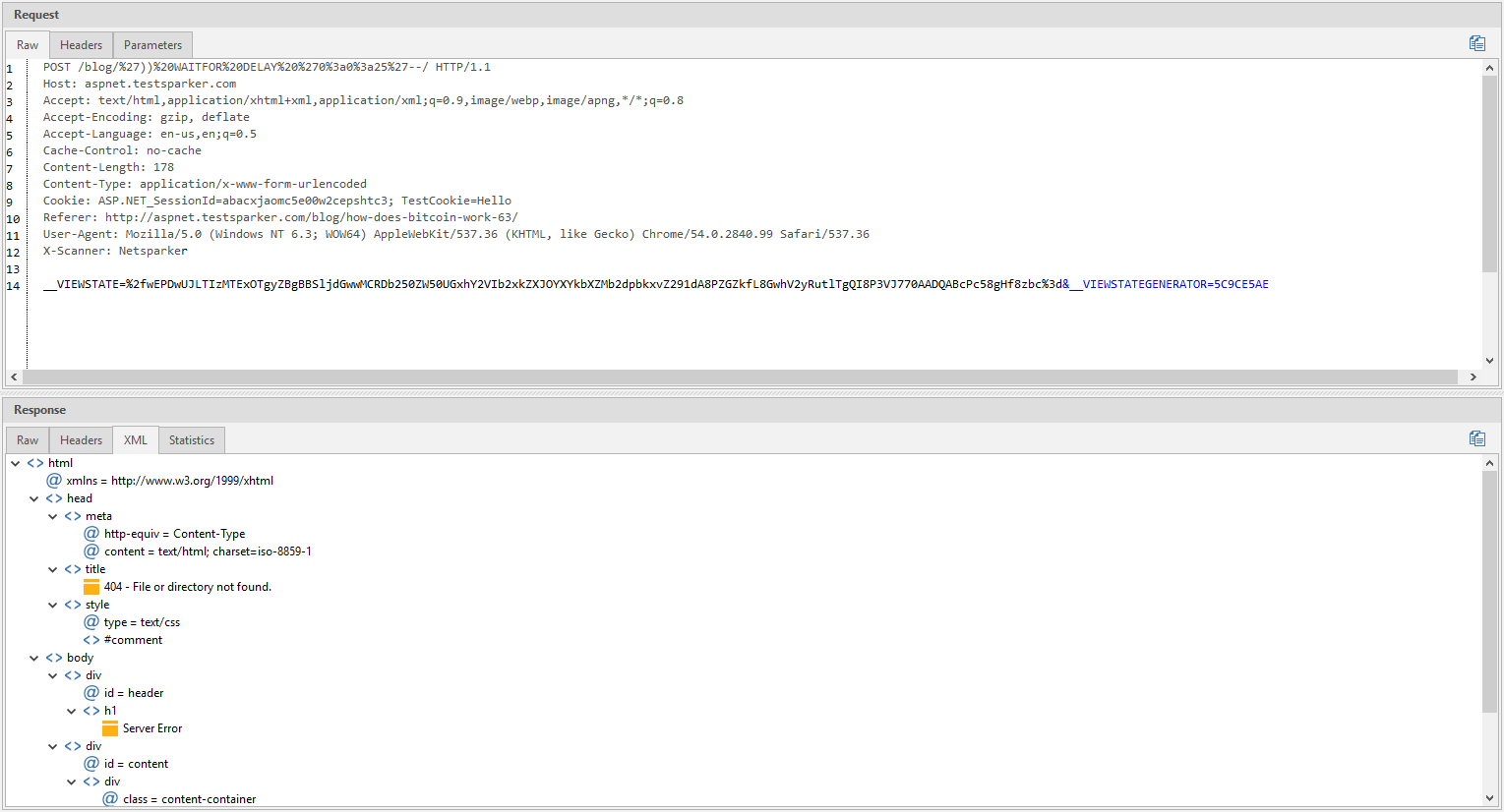
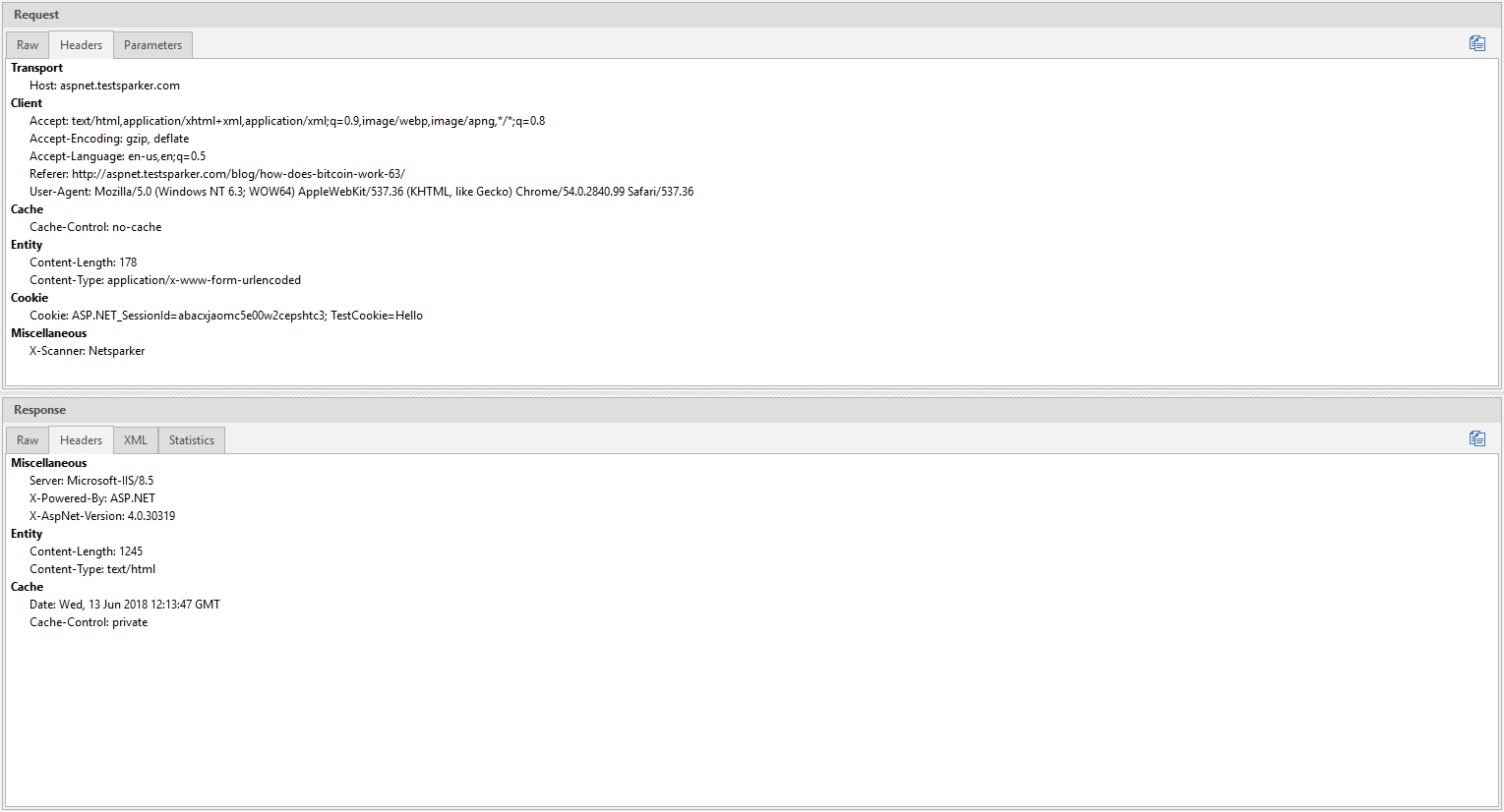
- Click the Raw or Headers tabs to view the same HTTP Request or Response in an alternative, more readable, format
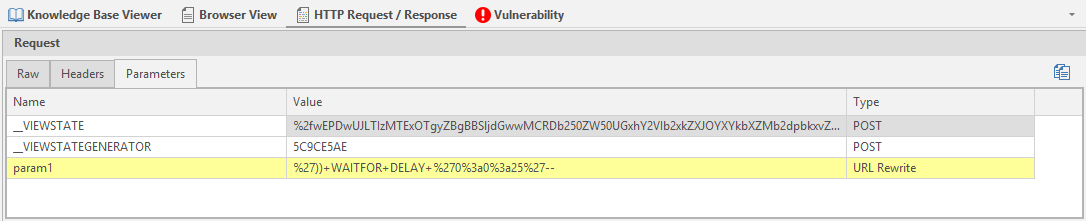
- Click the Parameters tab to view the parameters and their values that were sent in the HTTP Request
In the Response panel, you can use Ctrl+F to find any text, then and use Shift+F3 to move through all instances of that text.
Need help?
Invicti Support team is ready to provide you with technical help. Go to Help Center