View Recent Technologies
Invicti Enterprise monitors and reports issues in third-party components such as JavaScript libraries and off-the-shelf web applications detected when scanning your target websites. These issues can be out-of-date technologies or vulnerabilities. Using outdated technologies introduces serious risks that can allow attackers to exploit vulnerabilities. That means even if your web application has no vulnerabilities, it will not be secure if it uses even a single vulnerable external library.
Refer to How Invicti identifies out-of-date technologies to learn more about the process.
This document describes how to view the list of detected technologies in your recent scans, and how to review the technologies in detail.
How to view recent technologies
The Recent Technologies page lists all the front-end and back-end technologies detected in your targets during recent scans. From this page, you can access detailed information about each technology.
Follow the instructions below to view recent technologies:
-
Select Technologies > Recent Technologies from the left-side menu.
-
Review the list of recently detected technologies. Refer to the recent technologies columns table below for an explanation of each column.

You can adjust the filters as needed to prioritize and change the view. For more information, refer to Using Filters.
- Click Detail next to a technology to open the Technology Detail page.

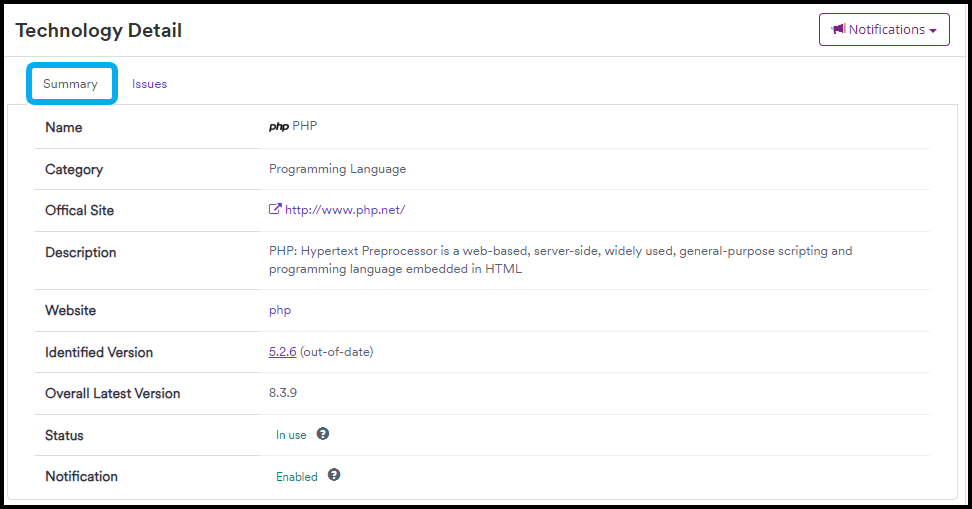
- Select the Summary tab to view the following information:
- Name: The name of the technology.
- Category: The category to which the technology belongs.
- Official Site: The official website of the technology.
- Description: A brief description of the purpose and features of the technology.
- Website: The target website where the technology was found.
- Identified Version: The version number of the technology detected on the scanned website, including whether this version is outdated.
- Overall Latest Version: The latest available version of the technology.
- Status: Indicates whether the technology is currently being used on the website.
- Notification: Indicates whether notifications are enabled. Refer to Technology notifications for more information.
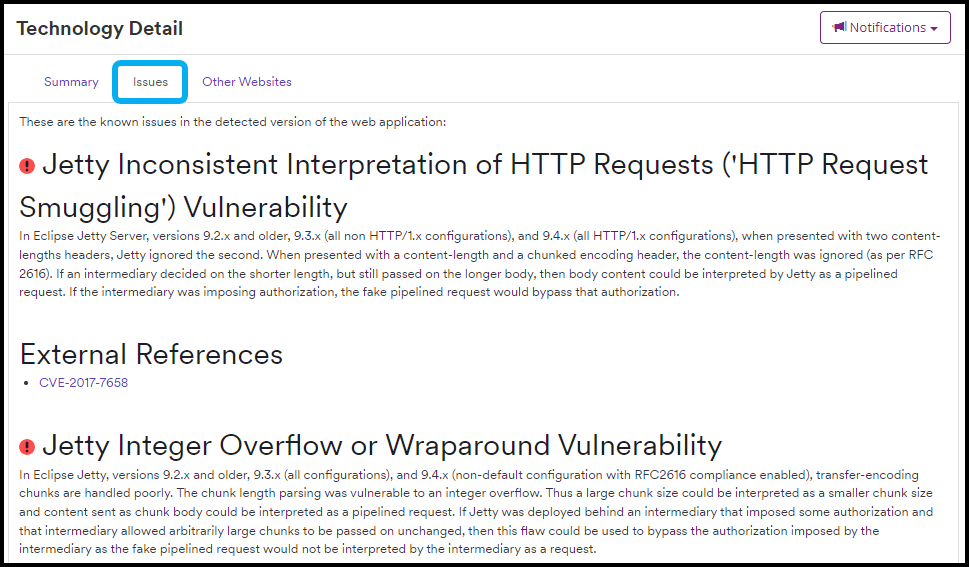
- Select the Issues tab to view information about the known issues in the detected version of the technology.
- If the selected technology has been detected on other websites during other scans, select the Other Websites tab to view information about those other detections. If the tab is not visible, the technology was not detected on any other websites.
Recent technologies columns
This table lists and explains the columns on the Recent Technologies page.
| Column | Description |
|---|---|
| Website | The website on which the technology was found. |
| Name | The name of the technology. |
| Identified Version | The version number of the technology as used on the scanned website. |
| Latest Branch Version | The latest available version within the same branch of the technology. For example, if Invicti identifies your PHP version as 5.2.6, the latest in this v5 branch is 5.2.17. However, PHP's latest overall version is 8.2.1. |
| Overall Latest Version | The latest available version of the technology. |
| Issues | The number of issues detected on the website, grouped by severity levels (refer to Vulnerability Severity Levels). |
| Last Seen | The date the technology was last detected on the website. |
| Status | Indicates whether the technology is currently being used on the website. |
| Notification | Indicates whether notifications are enabled for this technology. |
Need help?
Invicti Support team is ready to provide you with technical help. Go to Help Center