Application dashboard
The Applications dashboard, accessible via Inventory > Applications > select an application from the list, provides a detailed security overview for individual applications. This dashboard helps users monitor vulnerabilities, track trends, and assess remediation progress.
Application dashboard header
At the top of the dashboard, there is the name and description of the application, together with key actions and tools hidden under the three-dot menu (⋮):
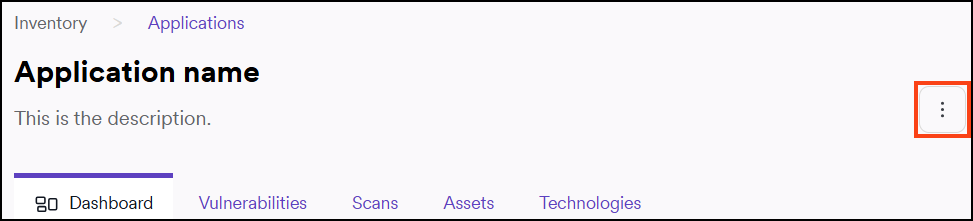
- Manage assets
- Settings
- Generate reports
Dashboard tab
Threat summary
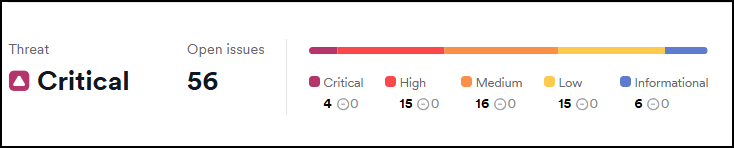
This section provides an overview of the application's current security status, showing the total number of open issues and a breakdown by severity level.
Vulnerability trend over time
This chart shows the trend of vulnerabilities discovered over different time periods: Last 30 days, Last 3 months, Last 12 months. This helps identify whether the security posture is improving, declining, or remaining stable.
Clicking on a severity level toggles the visibility of its corresponding details.
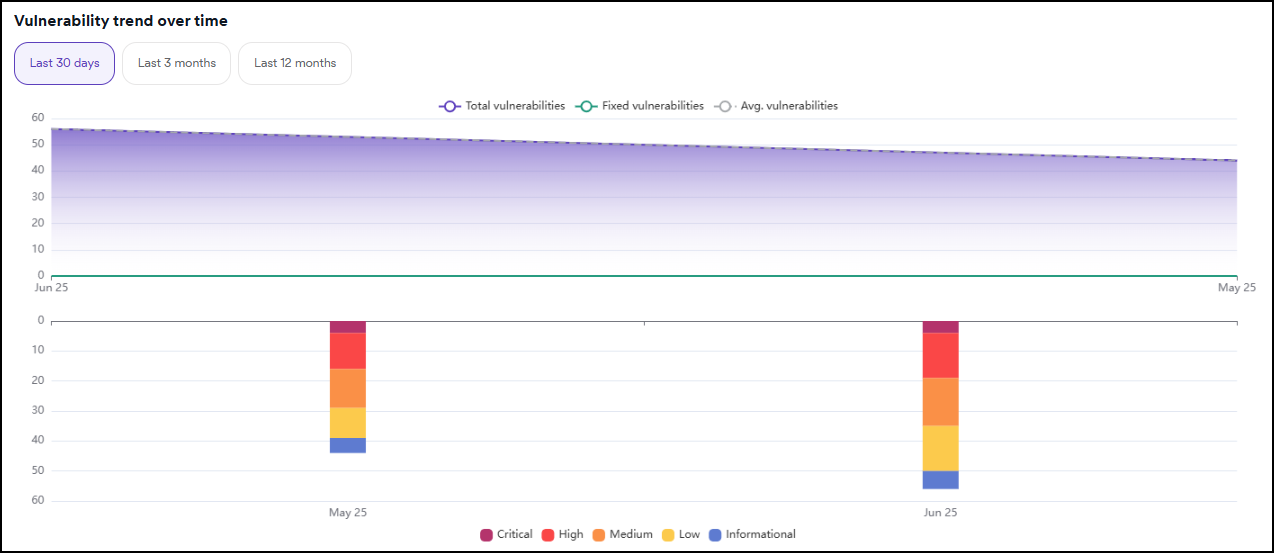
To see the full history of each vulnerability's status across all scans, select View trend matrix to open the Trend Matrix.
Mean time to remediate (MTTR)
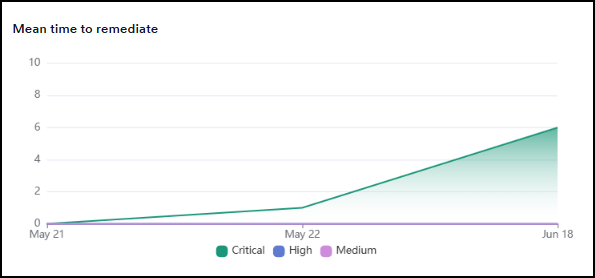
Displays the mean time taken to fix vulnerabilities.
Vulnerabilities by scan type
Breakdown of vulnerabilities discovered by different scan types: DAST, SAST, SCA.

Remediations over time
A timeline chart visualizes how many vulnerabilities have been remediated over a selected period.

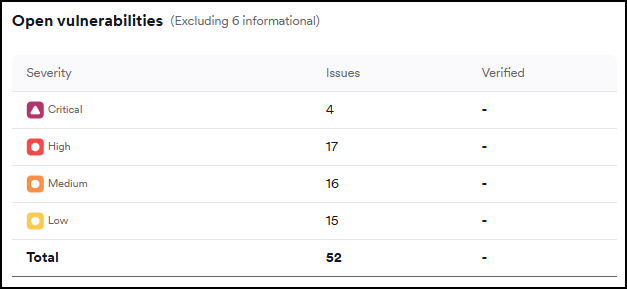
Open vulnerabilities
This table displays the number of vulnerabilities, grouped by severity level.
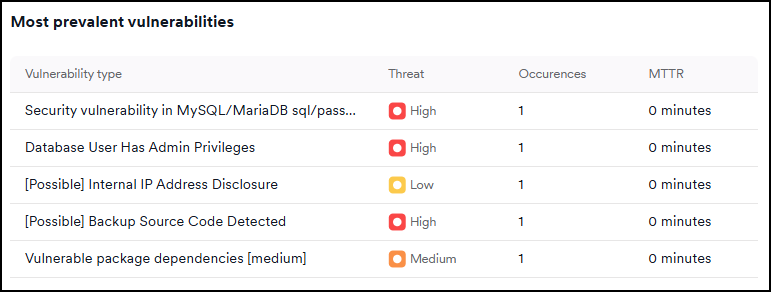
Most prevalent vulnerabilities
This section highlights the most frequently detected vulnerabilities along with their threat level, occurrences, and MTTR.
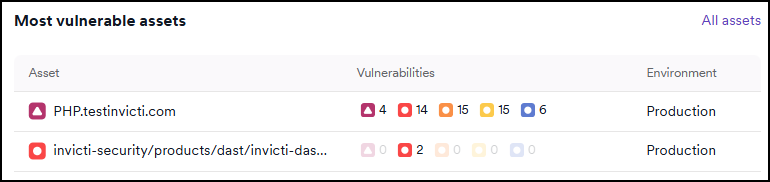
Most vulnerable assets
This section lists the assets with the highest number of vulnerabilities.
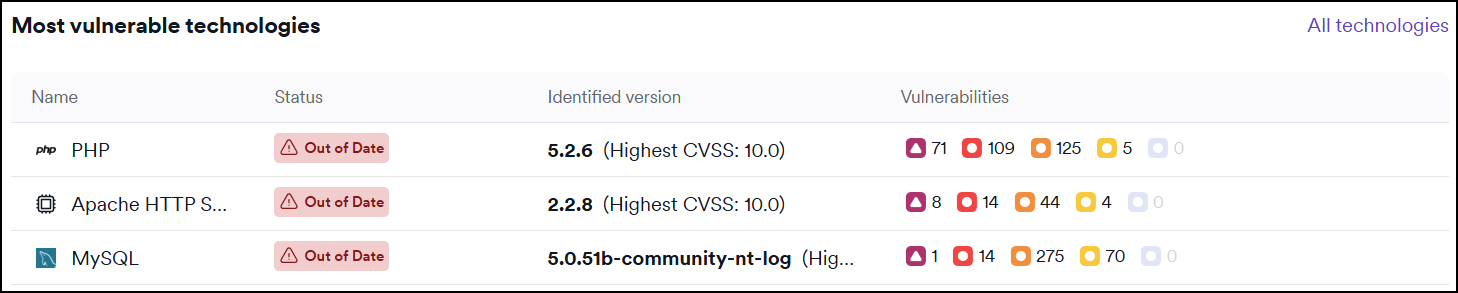
Most vulnerable technologies
This section lists the technologies with the highest number of vulnerabilities.
Vulnerabilities tab
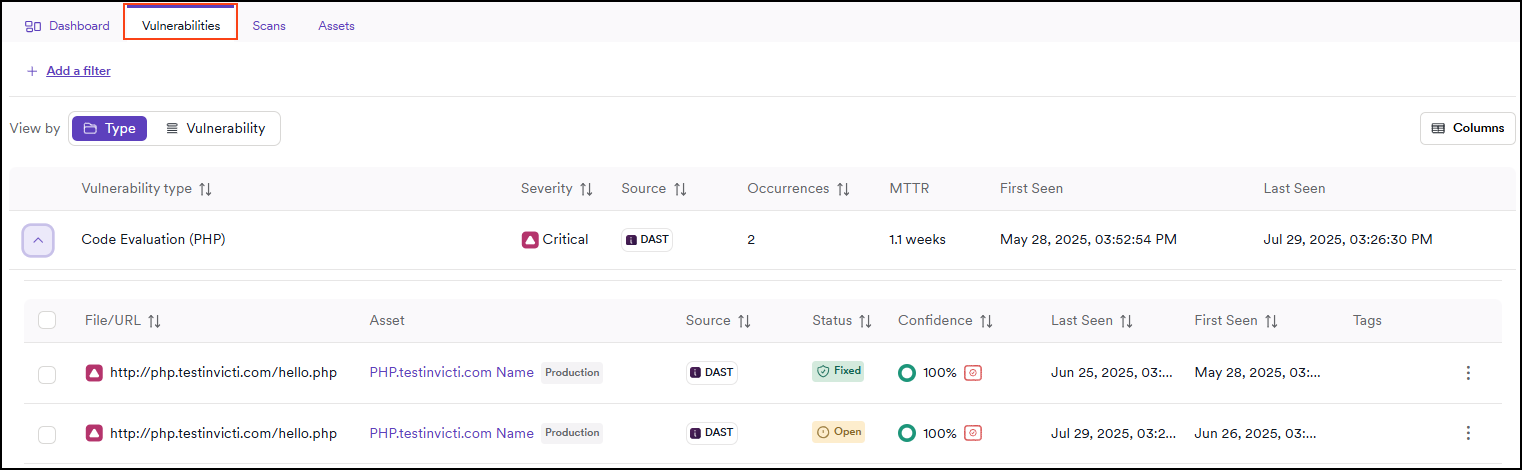
This tab displays all identified vulnerabilities for the selected application. You can choose to sort them in two ways:
- By Type (default): Groups vulnerabilities based on their type.
- By Vulnerability: Lists all vulnerabilities ordered by severity level and name, helping you quickly identify the most critical issues.
Vulnerability detail drawer
Clicking on any of the vulnerabilities opens the Vulnerability detail drawer on the right.
Scans tab
This tab displays the total number of vulnerabilities identified over time, along with the latest vulnerabilities detected in the most recent scan. It also includes a list of all previous scans. Clicking on any scan in the list opens its detailed view.
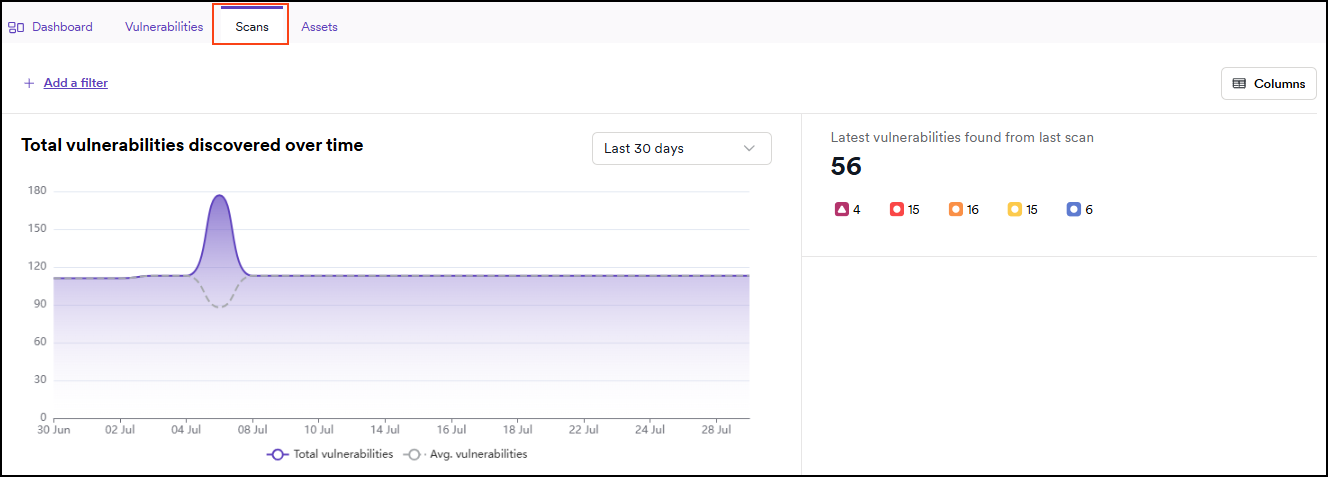
You can apply filters or customize the displayed columns.
Assets tab
This tab displays all assets for the selected application.
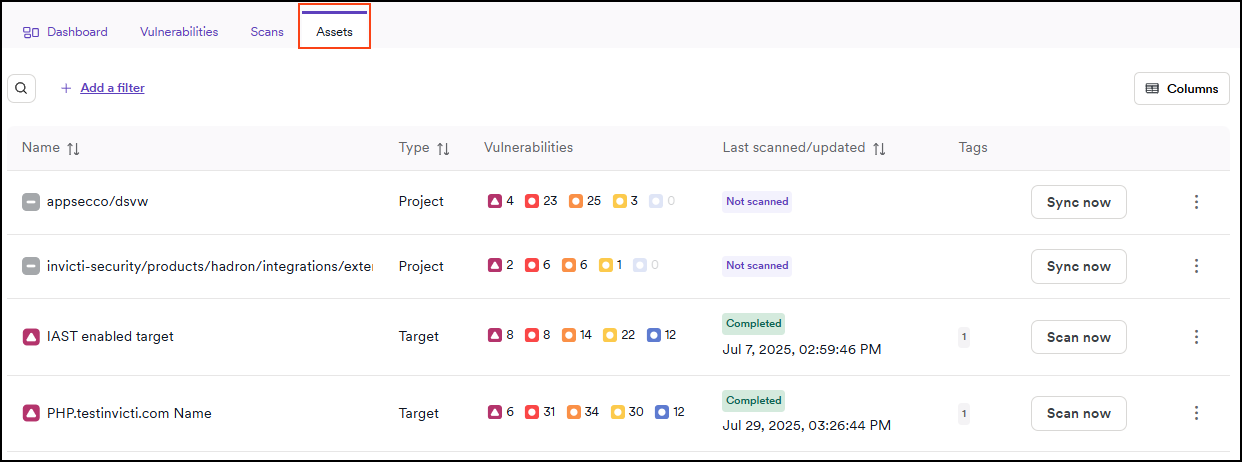
You can apply filters or customize the displayed columns.
Technologies tab
This tab displays technologies identified for the selected application.
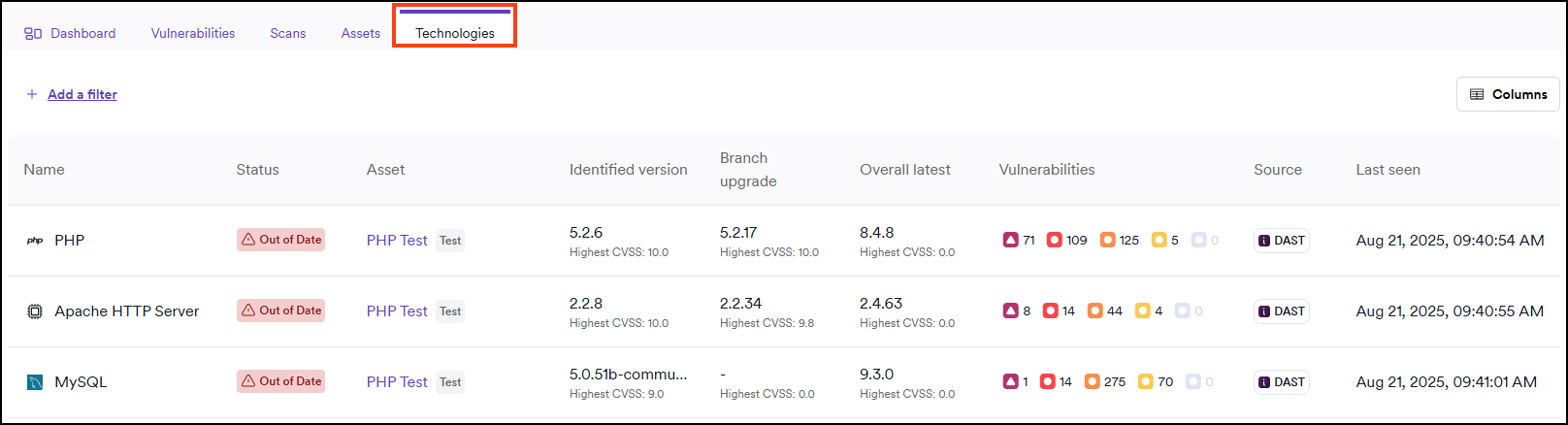
You can apply filters or customize the displayed columns.
Need help?
Invicti Support team is ready to provide you with technical help. Go to Help Center