Deployment: Invicti Platform on-demand, Invicti Platform on-premises
Review scan results
Use the DAST scans page to open a scan and review its findings, coverage, and activity from one place. This document explains what appears on the Scan details page and how to use each tab.
Invicti flags findings attributed to API specs with an API tag. API specs can come from:
- Manual uploads or links to a target's scan configuration.
- API Discovery.
Why this matters
Reviewing scan results helps you confirm what Invicti found, where the scan reached, and whether anything limited coverage. It also helps you prioritize remediation, compare recurring scan outcomes, and export the evidence your team needs.
Access scan results
When a scan is complete, Invicti emails you a summary of the results and a link to access the scan results directly.
To automatically email a report after a scan completes, follow the instructions in the New automation document.
You can also access the scan results by following these steps in Invicti Platform:
- Select Scans > DAST scans from the left-side menu.
- Click the target for the relevant scan.
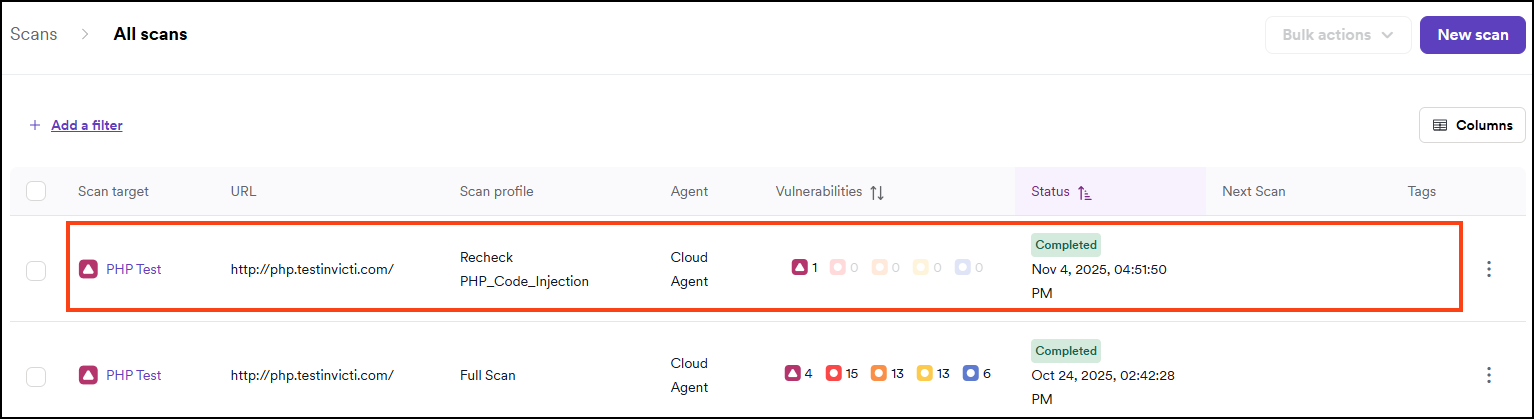
The Scan details page opens. Use its tabs to review the scan results.
For recurring scans, only the latest scan result for a specific target appears when you open the scan. In contrast, if you run multiple scans manually, each result appears separately.
Scan details
The Scan details page groups scan results under six tabs.
You can also generate a report or export the results to XML, JSON, or CSV files to share or review them further.
Vulnerabilities with False positive and Ignored statuses aren't displayed in reports, but might still be visible on the Scan details page.
Scan summary
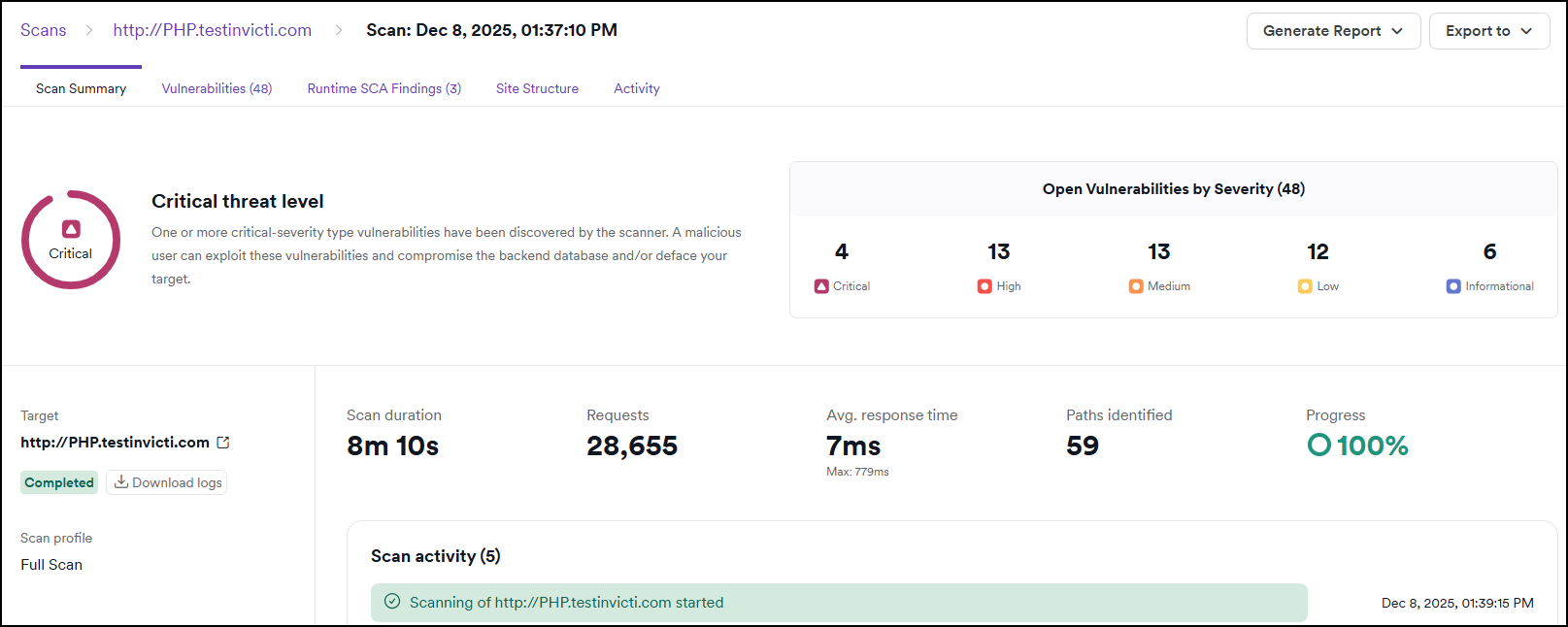
The Scan summary tab provides an overall threat level rating for the target based on the number and severity of vulnerabilities discovered by the scanner. It also displays the number of found and open vulnerabilities by severity, a summary of the scan parameters and activities during the scan, discovered hosts, and the most vulnerable technologies detected on the target.
For detailed troubleshooting and analysis, you can download the complete scan logs from this tab, which provide comprehensive information about the scanning process, including HTTP requests, security checks, and performance metrics.
Statistics
The statistics panel shows key scan metrics at a glance:
- Scan duration - total time elapsed since the scan started.
- Requests - total number of HTTP requests sent to the target.
- Avg. response time - average server response time, including the maximum response time recorded.
- Paths identified - number of unique paths discovered on the target.
- Progress - percentage of the scan completed. During an active scan, an estimated time remaining is also shown.

Scan activity
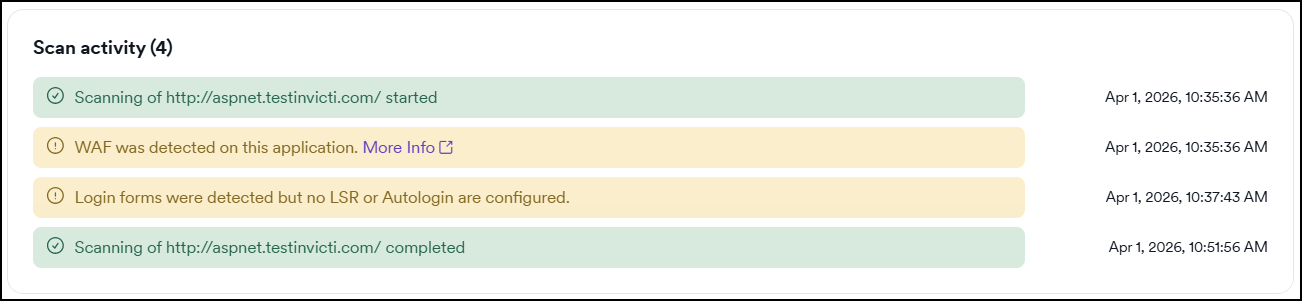
The scan activity panel lists key events that occurred during the scan, each with a timestamp. Events are color-coded by type:
- Green - informational events confirming that key scan actions completed successfully, for example: scan started or completed, authentication completed, API specifications detected or imported.
- Yellow - warnings that don't stop the scan but may affect results, for example: WAF was detected on this application, login forms detected but no authentication method configured.
- Red - errors that affected the scan, for example: connection failure or scan aborted due to a network error.
Additional notifications may appear depending on the target and scan configuration.
Scan summary overview
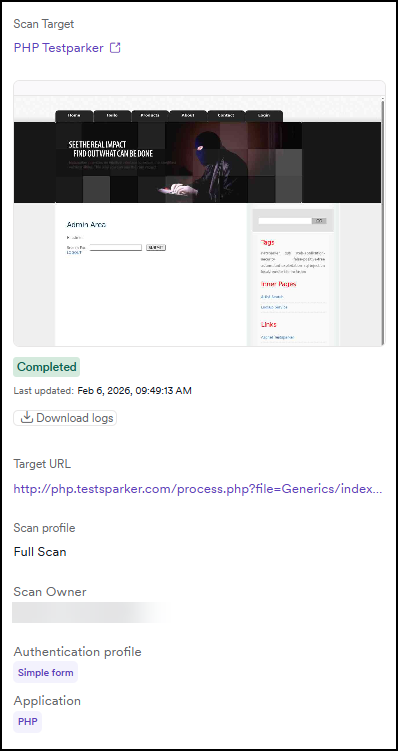
The left side displays a summary of the scan and its parameters:
- Scan target name with link.
- Screenshots taken during the scan:
- if no simple form authentication or Login sequence recorder (LSR) is configured: screenshot of the first loaded page
- if simple form authentication or LSR is configured: screenshot after authentication
- if authentication fails: screenshot of the failed authentication
- Status and date of the scan
- Download logs button
- Target URL
- Scan profile, for example, Critical/High risk
- Scan type - indicates whether the scan was a full scan or an incremental scan
- Scan owner name
- Authentication profile used, for example, Simple form
- Application name
- Tags for the scan
Vulnerabilities
This is the list of detected vulnerabilities, ordered by severity. You can filter the information by severity and target type. For example, you may choose to view only Critical and High severity vulnerabilities.
On the right-hand side, you can change which columns appear. Click a vulnerability from the list to view all information about the detection and to change the vulnerability status.

If Invicti doesn't find a vulnerability with an Open status in 3 consecutive scans, the system automatically changes its status to Fixed. For more information, refer to the Retest vulnerabilities document.
For more information, refer to the vulnerability details document.
Runtime software composition analysis findings
The availability of Runtime SCA information depends on the scan profile used, for example, Full scan.
This section lists technologies used by the scanned target that Invicti has identified as out of date. Invicti doesn't classify these as active vulnerabilities, and they don't appear in the Vulnerabilities list. However, they may still pose a risk due to the use of outdated software versions.
Select Technology from the list to view details about its detection and recommended remediation steps.
For more information, refer to the Runtime SCA findings document.

Site structure
Use this section to verify that the scan has covered all parts of your target and to identify vulnerabilities affecting a specific file or folder. Click Folder to expand the site structure tree and display the vulnerabilities detected in that part of your target. You can also click Vulnerability to show more information about the attack details, impact, and how to fix it.
Each path in the site structure includes the HTTP Content Type returned by the server, which helps you assess the nature of each endpoint and identify any unexpected response types.
Click a node in the tree to open a detail panel on the right. The panel shows the following information for the selected path:
- Path - the full URL of the selected node, with a copy button.
- HTTP Status - the HTTP response codes the server returned for that path. Multiple codes may appear if Invicti received different responses for different request types.
- Input data - the HTTP methods, content types, and parameters Invicti used to probe this path.
The panel also lists the vulnerabilities detected at that specific path.

Past scans
This tab is only available for recurring scans.
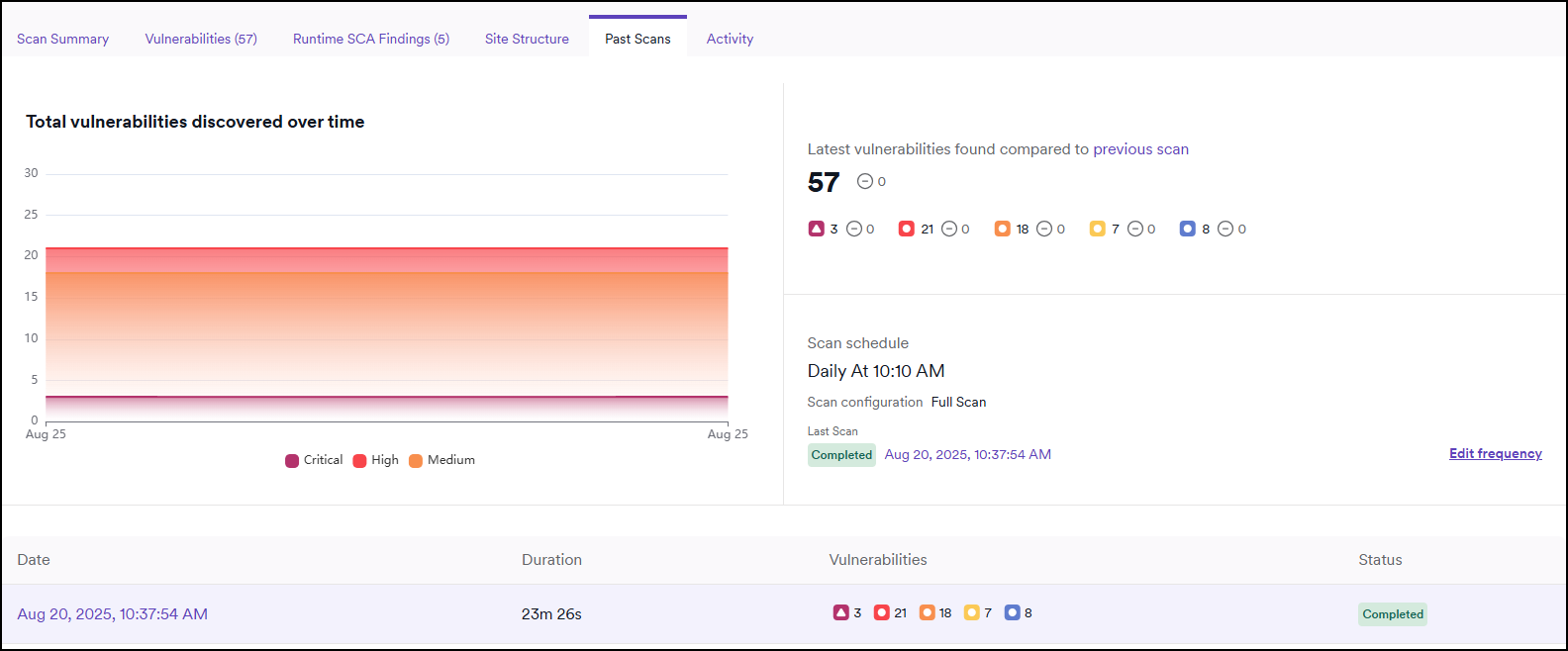
The Past scans tab allows you to access an overview and manage the scan schedule. You can see the summary of the last 10 scans, compare scans, and view the total number of critical, high, and medium vulnerabilities discovered.
Activity
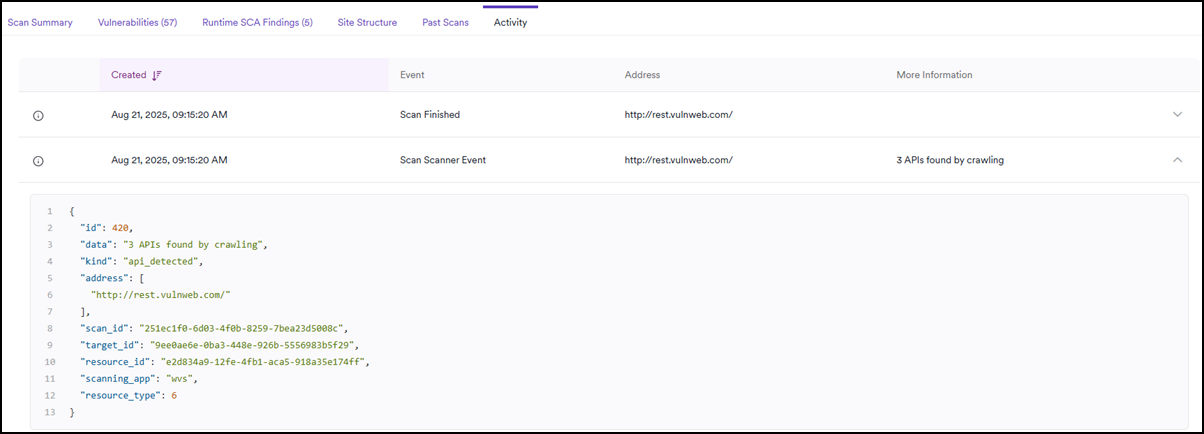
The Activity tab provides a list of the scan events, showing when the scan started and completed, and if any errors occurred during the scan. Click an item to reveal more details about the scan event.
Troubleshooting
I don't see the Past scans tab
The Past scans tab is only available for recurring scans. If you started the scan manually or ran it as a one-time scan, Invicti doesn't display this tab.
A vulnerability appears on the page but not in the report
Invicti doesn't include vulnerabilities with False positive or Ignored statuses in generated reports. Review the finding on the Scan details page and confirm its current status before you export the report again.
The scan didn't reach 100% or the activity log shows errors
The Activity tab lists scan events with timestamps. Red entries indicate errors that affected the scan, such as connection failures or aborts triggered by network issues. For the full list of statuses and error messages, refer to the scan statuses and error messages document.
The login screenshot shows a failed authentication
If the scan summary screenshot shows a failed authentication, the configured authentication method couldn't complete the login. Re-check the credentials and the authentication profile (for example, Simple form or LSR) for the target, and run the scan again. If you're using the Login Sequence Recorder and the scan shows the login sequence is invalid alert, refer to the Login sequence is invalid document.
The Runtime SCA findings tab is empty
Runtime SCA findings depend on the scan profile. Profiles like Crawl only don't collect technology version data. Re-run the scan with a profile that includes Runtime SCA (for example, Full scan) to populate this tab.
Need help?
Invicti Support team is ready to provide you with technical help. Go to Help Center