Configure excluded hours profile
There are times when you don't want to scan a target. For example, you might want to scan your site during your workday so you can monitor the site while Invicti is scanning it. Alternatively, you may want to scan your web application during the weekend when nobody is using it.
Excluded hours allow you to configure the times when Invicti Platform shouldn't perform scans. The default excluded hours profile is assigned to all new targets, however, you can change this to a different excluded hours profile for each target. You can also create a custom excluded hours profile if needed.
This document explains how to configure the excluded hours setting and how to create a custom excluded hours profile.
Invicti Platform stops any scans running at the start or during an excluded hours. Invicti delays any scans scheduled to start during an excluded hour until after the excluded hour period ends.
Configure excluded hours profile
Default excluded hours profile
-
Select Scans > Excluded hours from the left-side menu.
-
Enable the Default toggle next to the profile name to assign them as default profile for all new scans. You can choose from:
- No excluded hours: Scans run without limitations, depending on the scheduled time or immediate scan time.
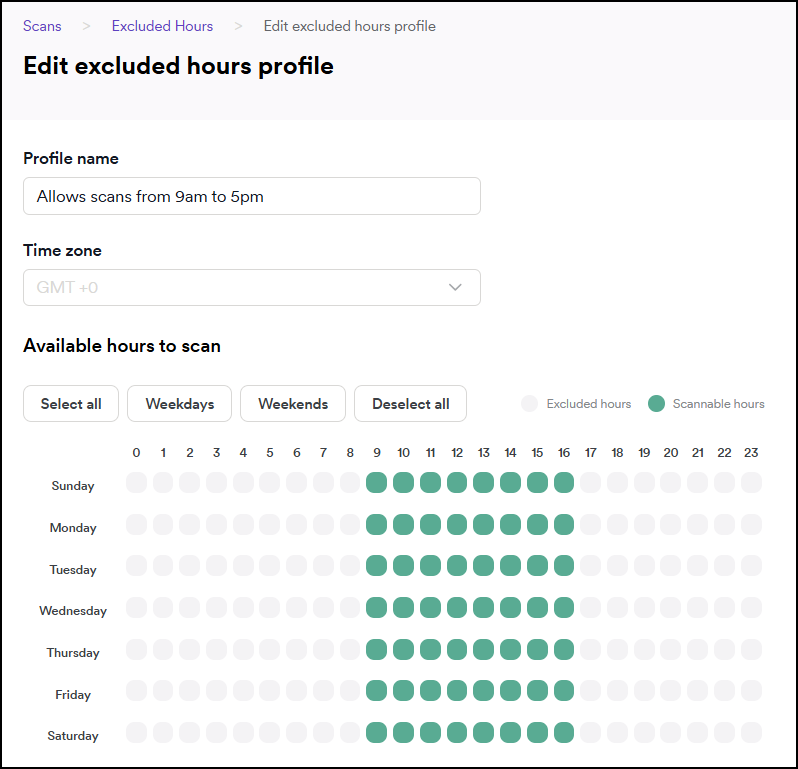
- Allows scans from 9 AM to 5 PM: Scans can only run between 9 AM and 5 PM every day of the week.
- No weekends: Scans don't run on weekends (Saturday and Sunday by default).
- Except working hours: Scans don't run between 9 AM and 5 PM every day of the week.
Edit excluded hours profile
- Select Scans > Excluded hours from the left-side menu.
- Click the pencil icon button to edit the specific profile.
- Change the profile name, time zone, and scannable hours settings.
- Click Update profile to complete the changes.
Create a custom excluded hours profile
- Select Scans > Excluded hours from the left-side menu.
- Click Add profile.
- Enter a name for the profile.
- Set the time zone. By default, the time zone in your profile is used.
- Click the Deselect all preset to clear the selection.

- Adjust the hour and day to allow the scans. Click the hour to enable scanning during this hour for the whole week; click the day to enable scanning during the whole day.
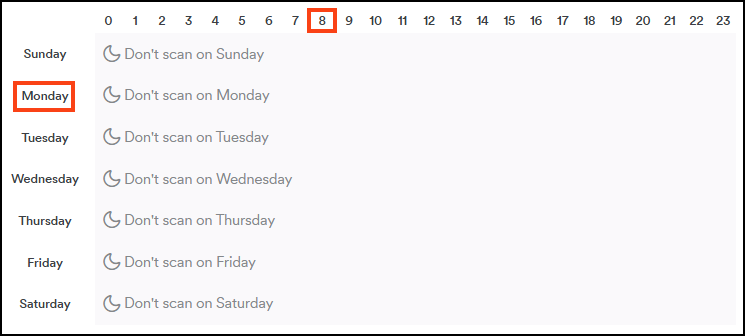
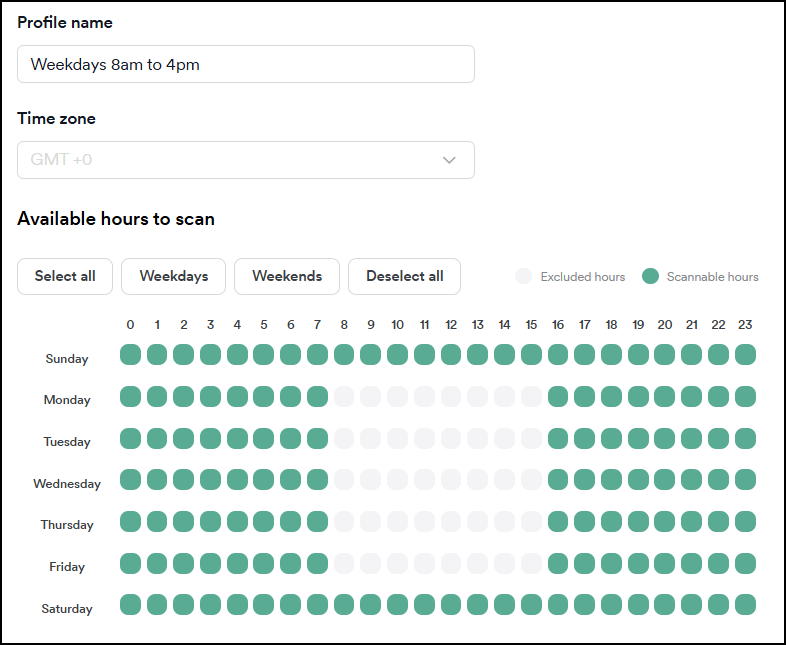
- Click a square again to change it to excluded hours (gray). In the following example, the excluded hours are on weekdays between 8 AM and 4 PM.
- Click Add profile to finish the configuration and add it to the list of profiles.
You can now use your custom profile to change a target's excluded hours. For more information, refer to the Assign excluded hours profile to target document.
Need help?
Invicti Support team is ready to provide you with technical help. Go to Help Center