Runtime software composition analysis findings
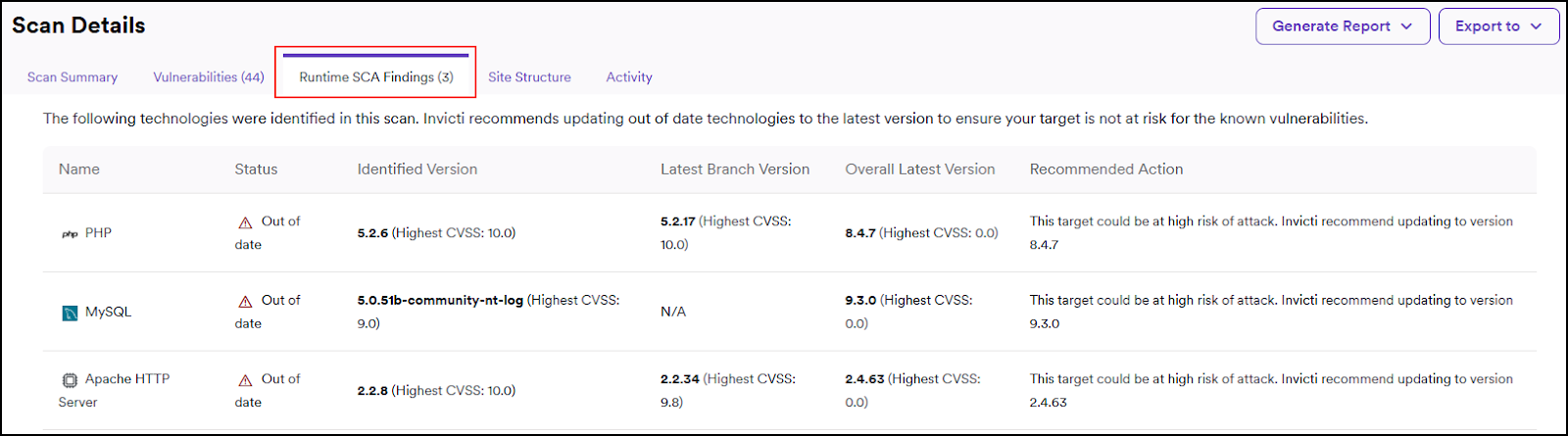
Runtime SCA Findings show you all the technologies (libraries, frameworks, and server versions) used by a scanned target and highlight which of those technologies are out of date. For each out-of-date technology, Invicti provides the version number you are using (Identified Version), the latest branch version, and the overall latest version, along with the highest CVSS rating of the vulnerabilities in each version. This information and the recommended action are intended to help you assess the risk for your organization and decide how you mitigate the risk.
This document explains how to view details of detected out-of-date technologies and how to generate an SCA report.
Runtime SCA findings are only available when you run a full scan for a target. If you use a scan profile other than full scan, the Runtime SCA findings tab on the Scan details page doesn't display any technology information.
Inspect identified outdated technologies
Out-of-date technologies aren't considered active vulnerabilities. You don't find them in your vulnerabilities list but rather items of interest picked up by the scanner that may pose a risk to your target due to using an older version.
Follow the following steps to view details about the out-of-date technologies detected on a target:
- Select Scans > DAST scans from the left-side menu.
- Click one of the scan entries, ensuring that you choose a completed scan that used the Full Scan as the Scan Profile.

- Click the Runtime SCA findings tab on the Scan Details page and choose one of the listed technologies.
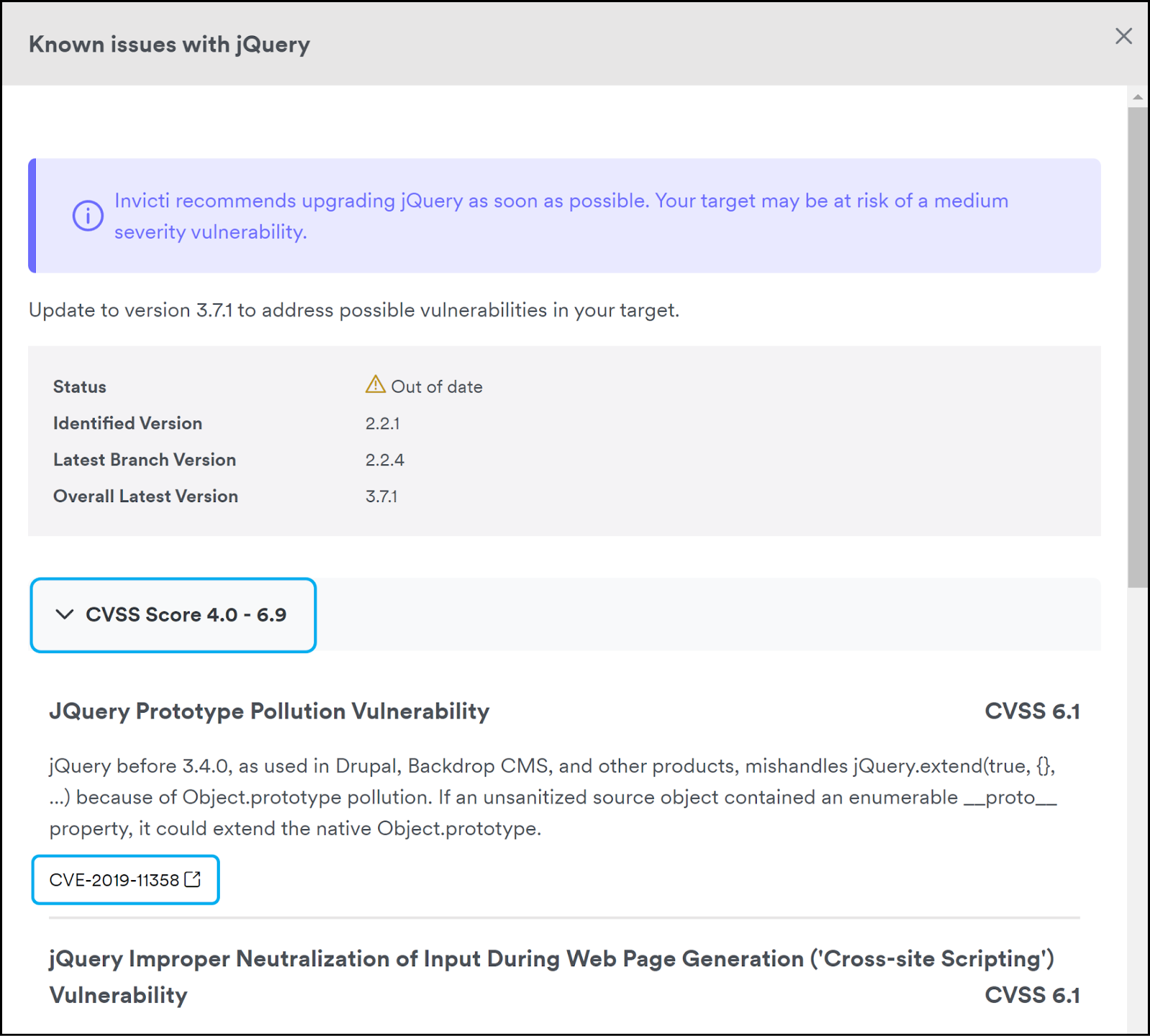
- Review the details of the known issues with the selected technology.
- The CVSS Score section provides information about the vulnerabilities in each version.
- If a CVE (Common Vulnerabilities and Exposures) number is listed, click it to view the relevant entry in the National Vulnerabilities Database.
Generate a runtime SCA report
The Runtime SCA Report can be generated for a particular scan or multiple targets. The report contains all available information about the identified out-of-date technologies. To generate an SCA report, follow the following steps:
- Select Scans > DAST scans from the left-side menu.
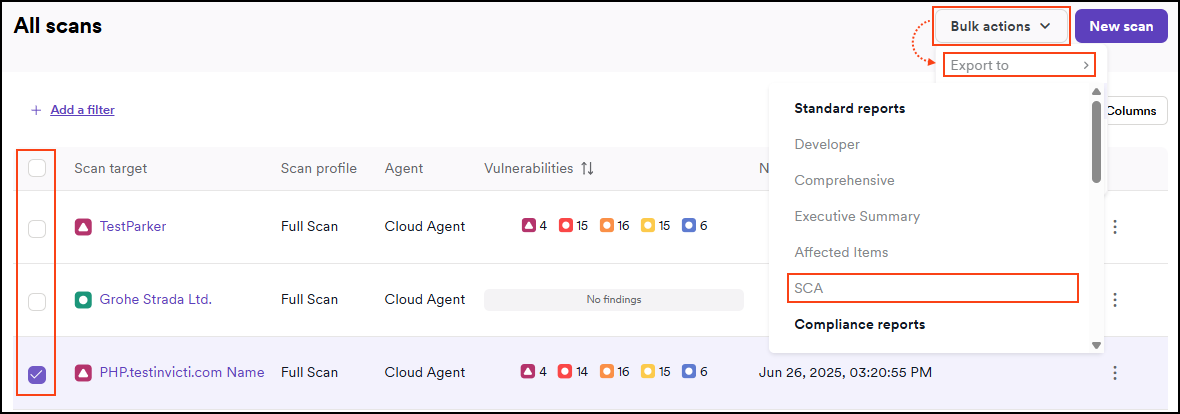
- Click the checkboxes on the left to choose one or more scans for the report.
- Under Bulk actions, choose Export to, then choose SCA.
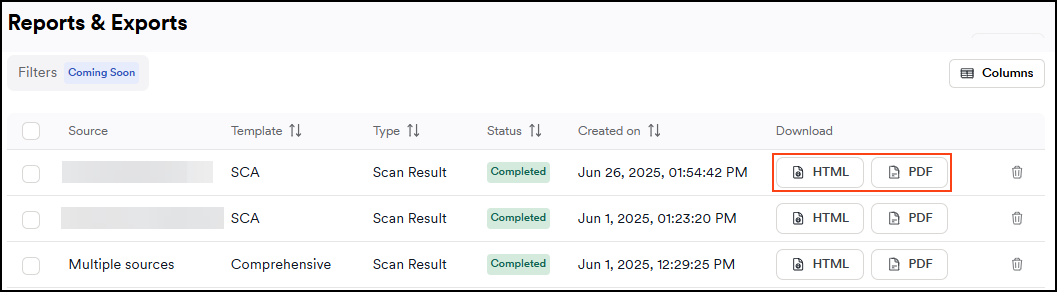
- The Reports page is updated with your SCA Report listed in the table.
- From the Download column, choose PDF or HTML, depending on your preferred format.
- The download begins automatically. Once downloaded, you can open the report file from your downloads folder.
Need help?
Invicti Support team is ready to provide you with technical help. Go to Help Center