Deployment: Invicti Platform on-demand, Invicti Platform on-premises
Reduce scan times
This document explains how to check whether your scan duration is normal for your target and how to reduce it step by step when it isn't. It covers:
- Judging whether your scan time is normal by building your own baseline
- A step-by-step path from a slow scan to a faster one
- Utilizing custom scan profiles
- Monitoring average response time and scan duration
- Scheduling scans during off-peak hours
- Configuring excluded paths
- Increasing scan speed
- Retesting only fixed vulnerabilities
Why this matters
A scan that takes longer than it should delays feedback to your developers, can overrun maintenance windows and release deadlines, and can stop at the maximum scan duration before it finishes. Knowing what's normal for your own targets, and which settings to adjust first, helps you shorten scans without losing coverage.
Check whether your scan time is normal
There's no single "normal" scan time. How long a scan takes depends on your target, your scan settings, and your environment, so two applications of similar size can take very different amounts of time. The most reliable reference is the history of your own target. Use it to decide whether a scan is slow. If so, follow the step-by-step path to reduce a scan time.
Build your own baseline
Compare scans that are alike. Use scans of the same target, with the same scan profile, scan speed, and authentication settings.
Authenticated and unauthenticated scans of the same target aren't alike. An authenticated scan reaches the pages behind the login, so it usually takes longer. Keep a separate baseline for each.
- Select Scans > DAST scans from the left-side menu.
- Open a completed scan of the target, and note the Scan duration and Avg. response time on the Scan Summary tab. For the steps, refer to Monitor the average response time and scan duration.
- Do the same for the next completed scans of that target.
Treat the duration of an earlier scan that finished without problems as your baseline. Update it when the application or the scan settings change significantly, for example after a large release or after you add an authentication state.
Signs that a scan takes too long
Look into your scan time if you notice any of the following:
- The scan duration grew noticeably compared with earlier scans of the same target, and the application didn't change much.
- The average response time is higher than in earlier scans. This usually points to the target or the network rather than the scan settings.
- The scan stops because it reached the maximum scan duration (48 hours by default) before it finished. For more information, refer to Maximum scan duration.
- An authenticated scan is much shorter than usual. The scan may have failed to sign in and run unauthenticated, which misses the pages behind the login. For more information, refer to The login sequence is invalid.
- Scans of a target consistently take longer than your schedule allows, for example, they overrun the maintenance window or the time before the next release.
A scan that takes longer because the application grew isn't a problem by itself. In that case, compare the scan duration with the size of the application rather than with older scans.
What affects scan time
| Factor | How it affects scan time | Can you change it? |
|---|---|---|
| Application size and complexity | More pages, endpoints, JavaScript, and authentication states give the scanner more to crawl and test. | Partly. Exclude paths you don't need, or use a custom scan profile. |
| Authentication | A scan that signs in reaches the pages behind the login, so it usually takes longer than an unauthenticated scan of the same target. | Not by choice. An unauthenticated scan misses the protected areas. For more information, refer to Scan authenticated targets. |
| Target response time | Slow responses make every request take longer. | Not in Invicti Platform. Ask the owner of the target to check server performance. |
| Scan speed | A lower scan speed sends fewer concurrent requests, so scans take longer. | Yes. Refer to Increase scan speed. |
| Scan profile | A profile with fewer checks takes less time. | Yes. Refer to Utilize custom scan profiles. |
| Network, WAF, and rate limits | Bandwidth limits, a web application firewall (WAF), or rate limiting slow the scan or cause retries. | Partly. Work with your network or security team. |
| Internal agent resources | An internal agent with limited CPU, memory, or bandwidth slows the scan. | Yes. Allocate more resources to the agent. |
Utilize custom scan profiles
Custom scan profiles let you control the specific checks included or excluded during the scanning process. This customization helps streamline the scan by focusing only on the areas you specify.
Follow the instructions in the Custom scan profile documentation to create and configure a custom scan profile. The document also contains instructions for running a scan using the custom scan.
Monitor the average response time and scan duration
Monitoring the average response time of your scans and analyzing scan durations helps you understand if there might be a need to optimize your scan configurations or allocate resources more effectively.
Follow these steps to review the average response time:
- Select Scans > DAST scans from the left-side menu.
- Click anywhere in the white space surrounding the scan entry you wish to review.

- On the Scan Summary tab, review the Scan duration and Avg. response time.
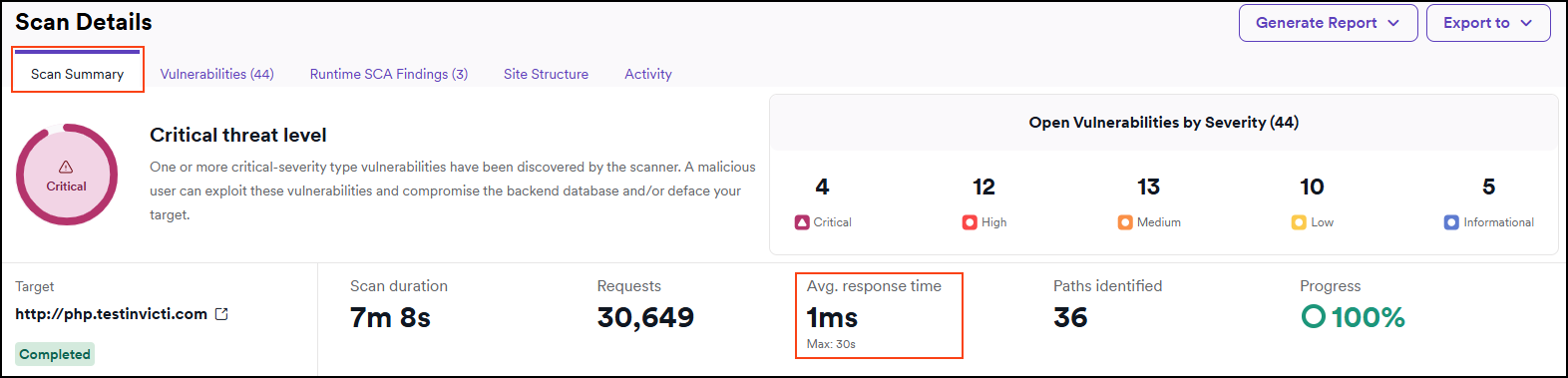
It's a useful metric for diagnosing performance issues during scanning and ensuring scans are efficient and non-disruptive.
Scan during off-peak hours
Using the Excluded hours setting allows you to schedule scans to avoid peak business hours, ensuring they run when system activity is minimal. This helps prevent interference with critical operations and can potentially shorten overall scan durations.
Learn how to assign an excluded hours profile to a target by following the steps in the linked document.
After the profile is assigned, all future scans of this target run according to the excluded hours profile you specified. For example, if you initiate a scan during the workday with the excluded hours set to 'Except working hours,' then the scan is in 'Queued' status for the remainder of the workday and begins scanning after working hours.
If the available excluded hours profiles don't meet your needs, you can create a custom profile and assign it to your targets.
Set excluded paths
Setting Excluded Paths can reduce scan times by narrowing the scan's focus to relevant areas and avoiding unnecessary reviews of known safe or irrelevant paths. By concentrating resources on critical or high-risk areas, the scan becomes faster and less resource-intensive. You can set excluded paths in the Crawling options of the Target settings.
Increase scan speed
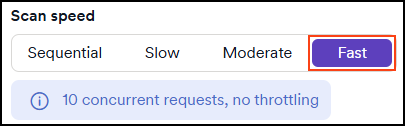
If you have previously reduced the scan speed, and the server can handle the bigger load, follow the following steps to increase the scan speed.
The default scan speed is set to Fast.
- Select Inventory > Targets from the left-side menu.
- Click the target to edit it.
- In the Target Information section, set the Scan Speed slider to the Fast setting.
- Save target configuration.
Retest only fixed vulnerabilities
Retesting only fixed vulnerabilities reduces scan times by focusing on specific issues that have been addressed rather than rescanning the entire web application. This targeted approach eliminates the need for a full scan, which saves time and resources. It allows for quicker verification of fixes and avoids the processing overhead associated with a comprehensive scan.
For information on how to retest specific vulnerabilities, or all vulnerabilities found by a scan, refer to the Retest vulnerabilities document.
Reduce a scan time step by step
If your scan takes longer than your own baseline or shows signs of taking too long, work through these steps in order. Start with the steps that carry the least risk to scan coverage, and check the scan duration after each step before moving on to the next.
- Review the current scan duration and average response time. Follow the steps in Monitor the average response time and scan duration. If the average response time is high, the target or the network is the bottleneck, and the next steps have limited effect. Ask the owner of the target to check the server performance first.
- Confirm the scan covers what you expect. Review the sitemap before you reduce anything, so you don't trade coverage for speed. For more information, refer to the Review and improve scan coverage document.
- Increase the scan speed. If you previously reduced the scan speed and the target can handle the load, set it back to Fast. For the steps, refer to Increase scan speed.
- Limit the scan to the paths you need. If you only need part of a large target, set the target URL to that path with a trailing slash and keep Limit to address and sub-directories only on. Alternatively, import an API specification and turn on Restrict scans to imported files. The scan then ignores everything else, so make sure the path or the file covers what you need. For more information, refer to Limit crawling to address and sub-directories only and Add paths.
- Exclude paths you don't need to scan. Exclude areas that are irrelevant or known to be safe. For the steps, refer to Set excluded paths.
- Use a custom scan profile. Remove the checks you don't need for this target. For the steps, refer to Utilize custom scan profiles.
- Check that the scan cache is on. The scan cache is on by default and gives repeat scans a head start. If you turned it off, consider turning it back on. For more information, refer to the Scan cache document.
- Schedule the scan for off-peak hours. This can help avoid slowdowns caused by competing traffic on the target. For the steps, refer to Scan during off-peak hours.
- Retest only fixed vulnerabilities. After you fix vulnerabilities, verify the fixes without running a full scan. For more information, refer to Retest only fixed vulnerabilities.
If your scan still takes too long after these steps, contact Invicti Support.
If you scan a well-known test site, such as OWASP Juice Shop, the scan auto-tuner can optimize the scan for you. For more information, refer to the Enable scan auto-tuner document.
Troubleshooting
The scan stopped before it finished
The scan probably reached the maximum scan duration for the target (48 hours by default). When a scan reaches the limit, it stops and shows the results found so far. Work through the step-by-step path to shorten the scan first. If the target needs more time, you can raise the limit, up to 7 days. For more information, refer to Maximum scan duration.
The scan is slow and the average response time is high
A high Avg. response time means the target or the network is the bottleneck, so changing scan settings has limited effect. Ask the owner of the target to check the server performance, and check the bandwidth between the scanner and the target.
The scan is slow or fails because of a firewall or rate limiting
A web application firewall (WAF) or rate limiting can slow or interrupt a scan. For the recommended fixes, refer to Consequences of scanning without trustlisting. Lowering the scan speed avoids rate limiting, but it increases the scan duration, so use it as a last resort. If the scan fails, refer to Troubleshoot failed scans.
The scan stays in Queued status
If you assigned an excluded hours profile to the target, a scan that you start during the excluded hours stays in Queued status until the excluded hours end. For more information, refer to Scan during off-peak hours.
Need help?
Invicti Support team is ready to provide you with technical help. Go to Help Center