Deployment: Invicti Platform on-demand, Invicti Platform on-premises
Package: Invicti API Security Standalone or Bundle
NTA with eBPF Sniffer
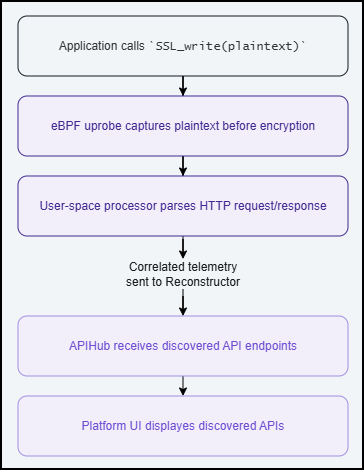
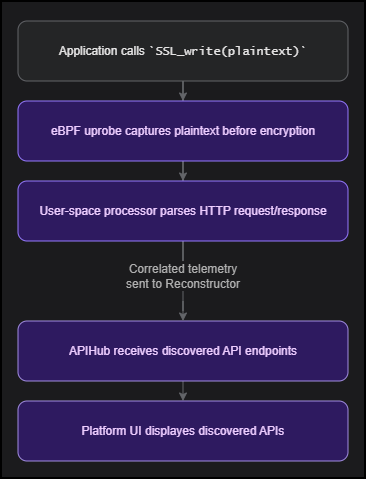
The Invicti Network Traffic Analyzer (NTA) eBPF Sniffer captures encrypted API traffic at the Linux kernel level using eBPF technology. It intercepts plaintext data before encryption and after decryption — enabling automatic API discovery for HTTPS/TLS traffic without requiring TLS termination, certificate manipulation, or application changes.
The eBPF Sniffer works only with TLS-encrypted connections. It does not capture unencrypted HTTP traffic — for that, use the Tap Plugin. Compared to the Tap Plugin, the eBPF Sniffer supports:
- HTTPS/TLS traffic — no TLS termination or certificate injection required
- HTTP/2 — full protocol support beyond HTTP/1.1
- Cross-container capture — one DaemonSet pod per node captures all containers on that node
- No service mesh dependency — works without Istio or any proxy
- DNS enrichment — resolves destination IP addresses to hostnames using in-kernel DNS capture
- Process identification — identifies which service or process made each API call
Prerequisites
- A Kubernetes cluster (EKS, GKE, AKS, k3s, or self-managed) with Linux worker nodes
- Helm command-line tool installed (version 3+)
- Cluster access configured (for example, via kubeconfig)
- Linux kernel version 5.2 or later on cluster worker nodes (5.8 or later recommended)
Overview
The eBPF Sniffer uses CO-RE (Compile Once, Run Everywhere) technology to load a pre-compiled eBPF program that works across different kernel versions without runtime compilation. It attaches eBPF probes (uprobes) to TLS library functions (for example, OpenSSL's SSL_write and SSL_read), capturing plaintext data before encryption and after decryption. For Go and Rust applications, the sniffer attaches to their built-in TLS implementations directly. This approach requires no changes to your applications, no proxy configuration, and no service mesh.
How it works
Supported SSL/TLS libraries
| Library | Supported runtimes | Status |
|---|---|---|
OpenSSL (libssl) | Python, Node.js, Ruby, PHP, curl, nginx, Apache | Fully supported |
OpenSSL 3.x (SSL_read_ex/SSL_write_ex) | Applications linked against OpenSSL 3.x | Fully supported |
GnuTLS (libgnutls) | Linux system tools | Fully supported |
NSS (libnspr4) | Firefox, some Linux tools | Supported |
Go crypto/tls | Any Go application using crypto/tls (for example, Traefik, Caddy, CoreDNS) | Supported (opt-in) |
Rust rustls | Any Rust application using rustls (for example, linkerd2-proxy, vector, cloudflared) | Supported (opt-in) |
Container images based on Alpine Linux or musl libc often use statically linked OpenSSL, which the sniffer cannot attach uprobes to. Traffic from these containers will not be captured. Use glibc-based images (Debian, Ubuntu, RHEL) for workloads where capture is required.
Supported protocols
- HTTP/1.1
- HTTP/2
Enrichment features
The sniffer enriches each captured API call with additional context:
| Feature | Description | Default |
|---|---|---|
| DNS enrichment | Resolves destination IP addresses to domain names. The resolved hostname is included in the telemetry sent to the Platform. | Enabled |
| Process identification | Identifies which service made each API call, including the process ancestry chain. | Enabled |
| SNI extraction | Captures the Server Name Indication (SNI) from TLS handshakes to identify the destination hostname. | Enabled |
| Self-healing | Monitors sniffer health and takes corrective action automatically (event loss, memory, connectivity). | Enabled |
Data handling and privacy
The eBPF Sniffer captures HTTP metadata (method, path, headers, status code) and request/response bodies from decrypted TLS traffic. This data is processed locally inside the sniffer pod and sent to the Reconstructor service. The Reconstructor assembles captured HTTP telemetry into OpenAPI specifications and forwards only the relevant API endpoint metadata to the Invicti Platform.
Sensitive data protection:
- Sensitive headers (
Authorization,Cookie,Set-Cookie,X-API-Key,X-Auth-Token, and others) are redacted before data leaves the sniffer pod. - Request and response bodies are scanned for sensitive patterns (passwords, API keys, tokens, credit card numbers, Social Security numbers) and redacted automatically.
- No captured data is written to disk on the node.
- All operations are recorded in an audit log (start, stop, probe attachment, configuration changes).
The sniffer captures plaintext data from TLS library calls. Ensure that deploying traffic capture tools in your cluster complies with your organization's security and privacy policies.
Namespace filtering
By default, the sniffer captures TLS traffic from all containers on the node. To limit capture to specific Kubernetes namespaces or exclude sensitive namespaces (for example, PCI-scoped environments):
# Enable cgroup-based filtering (required for namespace filtering)
--set trafficSource.ebpfSniffer.filter.cgroupFilterEnabled=true

# Include only specific namespaces
--set "trafficSource.ebpfSniffer.filter.namespaces={production,staging}"

# Exclude specific namespaces (takes priority over include)
--set "trafficSource.ebpfSniffer.filter.excludeNamespaces={kube-system,monitoring,payment-pci}"
Namespace filtering requires cgroupFilterEnabled: true. Without it, the filter settings are ignored and all containers on the node are captured.
Installation
Step 1: Generate a registration token
- Select Discovery from the left-side menu.
- Under API configuration, select API sources.
- Click Add source.
- Leave the Import type as External platform.
- Enter a name for the source configuration. This helps you identify it later in your list of API sources.
- Select Invicti Network Traffic Analyzer as the Source type.
- Click Generate token.
- Click the copy icon next to the newly generated registration token.
- Click Save at the bottom of the page. Do not skip this step.
Step 2: Authenticate with the Invicti registry
- Launch the Helm command-line tool.
- Run the following command:
helm registry login registry.invicti.com
Username: your Invicti Platform email
Password: your valid Invicti Platform license key
Step 3: Verify kernel compatibility
Verify that your cluster worker nodes are running a supported kernel version. You can check this with:
kubectl get nodes -o wide
The KERNEL-VERSION column shows the kernel version on each node.
Most modern cloud kernels (EKS, GKE, AKS) meet these requirements. No additional packages or kernel headers need to be installed.
Step 4: Deploy the Helm chart
Run the following command to install the NTA with the eBPF Sniffer into your Kubernetes cluster:
helm install invicti-api-discovery \
  oci://registry.invicti.com/invicti-api-discovery \
  --version 26.4.0 \
  -n <your-namespace> \
  --set trafficSource.ebpfSniffer.enabled=true \
  --set trafficSource.ebpfSniffer.discovery.rescanInterval=60 \
  --set imageRegistryUsername=<email-address> \
  --set imageRegistryPassword=<license-key> \
  --set reconstructor.JWT_TOKEN="<registration-token>" \
  --create-namespace
The rescanInterval=60 setting enables automatic discovery of SSL libraries from newly deployed pods. Without it (default 0), only applications running at sniffer startup are captured. This is recommended for dynamic environments where workloads start and stop regularly.
Replace the following placeholders:
| Placeholder | Description |
|---|---|
<your-namespace> | The Kubernetes namespace for the deployment |
<email-address> | Your Invicti Platform email address |
<license-key> | Your Invicti Platform license key |
<registration-token> | The token generated in Step 1. Keep it enclosed in double quotes. |
Always specify a --version in production environments. Using a pinned version ensures reproducible deployments and controlled upgrades. Check the Invicti release notes for the latest available version.
The --create-namespace flag creates the namespace automatically. In enterprise environments where namespaces are managed by infrastructure teams, remove this flag and create the namespace beforehand. Ensure your RBAC policies allow the Helm service account to deploy in the target namespace.
Step 5: Verify the installation
Check that the pods are running:
kubectl get pods -n <your-namespace>
You should see one sniffer pod per worker node and one reconstructor pod, all with Running status:
NAME                                                   READY   STATUS    RESTARTS   AGE
invicti-api-discovery-ebpf-sniffer-xxxxx               1/1     Running   0          2m
invicti-api-discovery-reconstructor-xxxxxxxxxx-xxxxx   1/1     Running   0          2m
Verify that the sniffer is capturing traffic by checking the logs. Replace <sniffer-pod> with a pod name from the output above:
kubectl logs -n <your-namespace> <sniffer-pod> --tail=20
You should see output similar to:
{"level":"INFO","msg":"CO-RE mode: using pre-compiled BPF (libbpf, no kernel headers needed)"}
{"level":"INFO","msg":"CO-RE: BPF programs loaded successfully"}
{"level":"INFO","msg":"Discovery: found 3 unique SSL libraries across 45 processes"}
{"level":"INFO","msg":"Attached probes to 4 SSL libraries"}
{"level":"INFO","msg":"DNS capture enabled (cache_ttl=300s, max_size=10000)"}
{"level":"INFO","msg":"Process tracking enabled (max_tree=50000, ancestor_depth=5)"}
{"level":"INFO","msg":"Sniffer is running. Press Ctrl+C to stop."}
If everything looks good, the NTA with the eBPF Sniffer is now capturing and analyzing encrypted traffic in your Kubernetes cluster.
After installation, the source status in the Invicti Platform may show Offline briefly while the first heartbeat is processed. The Reconstructor logs are the reliable indicator of connectivity — look for "Heartbeat completed successfully". If the status remains Offline despite successful heartbeats in the logs, contact Invicti Support.
Update or reinstall
Use the same registration token and credentials from your initial installation.
- Log in to the Invicti registry as described in Step 2.
- Run the upgrade command:
helm upgrade invicti-api-discovery \
  oci://registry.invicti.com/invicti-api-discovery \
  --version <new-version> \
  -n <your-namespace> \
  --set trafficSource.ebpfSniffer.enabled=true \
  --set imageRegistryUsername=<email-address> \
  --set imageRegistryPassword=<license-key> \
  --set reconstructor.JWT_TOKEN="<registration-token>"
Replace <new-version> with the target version.
Uninstall
To remove the NTA eBPF Sniffer from your cluster:
helm uninstall invicti-api-discovery -n <your-namespace>
This removes all sniffer and reconstructor pods, services, and ConfigMaps. The sniffer does not persist data on the nodes.
After uninstalling, manually delete the Reconstructor PersistentVolume (it uses a Retain policy and is not removed automatically):
kubectl delete pv invicti-api-discovery-reconstructor-pv
kubectl delete pvc invicti-api-discovery-reconstructor-pvc -n <your-namespace>
Configuration
You can customize the eBPF Sniffer deployment using Helm values. Pass them using --set or a values file. The following example shows an installation command with commonly used parameters:
helm install invicti-api-discovery \
  oci://registry.invicti.com/invicti-api-discovery \
  --version 26.4.0 \
  -n <your-namespace> \
  --set trafficSource.ebpfSniffer.enabled=true \
  --set trafficSource.ebpfSniffer.logLevel=info \
  --set trafficSource.ebpfSniffer.goDiscovery.enabled=true \
  --set trafficSource.ebpfSniffer.discovery.rescanInterval=60 \
  --set imageRegistryUsername=<email-address> \
  --set imageRegistryPassword=<license-key> \
  --set reconstructor.JWT_TOKEN="<registration-token>"
Configuration reference
| Parameter | Description | Default |
|---|---|---|
trafficSource.ebpfSniffer.enabled | Enable the eBPF Sniffer DaemonSet | false |
trafficSource.ebpfSniffer.logLevel | Log level: debug, info, warning, error | info |
trafficSource.ebpfSniffer.capture.maxBufferSize | Maximum bytes captured per SSL event | 8192 |
trafficSource.ebpfSniffer.capture.perfBufferPages | Buffer size in pages (power of 2). Increase for high-throughput environments. | 64 |
trafficSource.ebpfSniffer.goDiscovery.enabled | Enable Go crypto/tls binary discovery | false |
trafficSource.ebpfSniffer.rustDiscovery.enabled | Enable Rust rustls binary discovery | false |
trafficSource.ebpfSniffer.discovery.rescanInterval | Interval in seconds to rescan for new SSL libraries. 0 = scan only at startup. | 0 |
trafficSource.ebpfSniffer.namespace | A custom label added to telemetry data to identify the source cluster or environment (for example, production-us or staging). This does not filter which Kubernetes namespace is monitored. | "" |
trafficSource.ebpfSniffer.filter.cgroupFilterEnabled | Enable kernel-level cgroup filtering. Required for namespace filtering. | false |
trafficSource.ebpfSniffer.filter.namespaces | Include only these Kubernetes namespaces. Empty list captures all. Requires cgroupFilterEnabled: true. | [] |
trafficSource.ebpfSniffer.filter.excludeNamespaces | Exclude these Kubernetes namespaces. Takes priority over namespaces. Requires cgroupFilterEnabled: true. | [] |
trafficSource.ebpfSniffer.dns.enabled | Enable DNS enrichment (resolve destination IPs to hostnames) | true |
trafficSource.ebpfSniffer.process.enabled | Enable process identification (identify source service per API call) | true |
trafficSource.ebpfSniffer.watchdog.enabled | Enable self-healing watchdog (memory guard, event loss detection, stall detection) | true |
trafficSource.ebpfSniffer.privileged | Run as fully privileged container. Only required for kernels earlier than 5.8. | false |
trafficSource.ebpfSniffer.legacyKernelSupport | Add SYS_ADMIN capability for BCC fallback on kernels earlier than 5.8. Not needed on kernel 5.8 or later. | false |
Security
Container permissions
The eBPF Sniffer runs with the minimum set of Linux capabilities required for eBPF operation. It does not require privileged: true on kernel 5.8 or later.
| Capability | Purpose |
|---|---|
CAP_BPF | Load and attach eBPF programs |
CAP_PERFMON | Access perf events (uprobe and kretprobe attachment) |
CAP_SYS_PTRACE | Read /proc/*/maps to discover SSL libraries in other containers |
CAP_SYS_RESOURCE | Increase RLIMIT_MEMLOCK for BPF maps |
CAP_DAC_READ_SEARCH | Read container filesystems via /proc/*/root |
CAP_NET_ADMIN | Create uprobe perf events |
For kernels earlier than 5.8, enable legacyKernelSupport: true to add CAP_SYS_ADMIN (required for BPF on older kernels).
Self-healing
The sniffer includes an internal watchdog that monitors its own health and takes corrective action automatically:
- Event loss detection — alerts when the event loss rate exceeds a configurable threshold (default: 10%)
- Memory guard — prunes internal caches when memory usage exceeds the limit (default: 400 MB)
- Output health — detects and reports connectivity issues with the Reconstructor
- Stall detection — alerts when no events are captured for multiple check intervals
The watchdog runs every 30 seconds by default and requires no configuration.
Audit logging
All sniffer operations are recorded in a structured audit log:
- Sniffer start and stop events (including the operator user and process ID)
- Probe attachment and re-attachment events
- Configuration changes (hot-reload)
- Namespace filter updates
- Security alerts
- Self-healing recovery actions
The audit log is written to /var/log/invicti-sniffer/audit.log inside the pod and rotates automatically at 50 MB.
Audit logs are not persisted across pod restarts. To retain logs long-term, configure a log shipping solution (for example, Fluentd or Filebeat) to collect from /var/log/invicti-sniffer/.
Metrics
The sniffer exposes Prometheus metrics on port 9090 at the /metrics path. Metrics include event counts, error rates, probe status, and capture statistics.
The Prometheus metrics endpoint does not require authentication. If your security policy requires authenticated access to metrics, use a Kubernetes NetworkPolicy to restrict access to your monitoring namespace, or place a sidecar proxy in front of the metrics port.
Network requirements
Ensure the following network connectivity is available from the cluster:
| Endpoint | Port | Direction | Purpose |
|---|---|---|---|
registry.invicti.com | 443 (HTTPS) | Outbound | Pull sniffer and reconstructor container images |
platform.invicti.com | 443 (HTTPS) | Outbound | Reconstructor heartbeat and API specification upload |
| Cluster DNS | 53 (UDP) | Internal | Kubernetes service discovery between sniffer and reconstructor |
If your cluster uses an egress firewall or proxy, add these endpoints to your allowlist.
Frequently asked questions
Show all questions
What does the eBPF Sniffer do?
The eBPF Sniffer monitors SSL/TLS library function calls at the Linux kernel level using eBPF uprobes. It captures the plaintext data before encryption (on outgoing requests) and after decryption (on incoming responses), extracts HTTP telemetry, enriches it with DNS and process context, and sends it to the Reconstructor service for API discovery.
Does it capture both internal and external API traffic?
The eBPF Sniffer captures SSL/TLS traffic from all processes running on the node. This includes any encrypted HTTP traffic that those processes send or receive, whether to other services within the cluster or to external endpoints.
You can restrict capture to specific namespaces using the namespaces and excludeNamespaces configuration options. In shared or multi-tenant clusters, use namespace filtering to limit the scope to specific workloads.
Does it support HTTPS traffic?
Yes. This is the primary advantage of the eBPF Sniffer over the Tap Plugin. It captures plaintext data directly from SSL library functions, so TLS encryption is transparent to the sniffer. No TLS termination, proxy, or certificate injection is required.
Does it require a service mesh?
No. The eBPF Sniffer operates at the kernel level and does not require Istio, Linkerd, or any other service mesh. It works with any Kubernetes setup.
What kernel version is required?
The minimum kernel version is 5.2 with BTF support. Kernel 5.8 or later is recommended for fine-grained capabilities (no privileged: true or SYS_ADMIN required).
| Kernel version | Support level |
|---|---|
| Earlier than 5.2 | Not supported |
| 5.2–5.7 | Supported (requires legacyKernelSupport: true) |
| 5.8 and later | Full support (fine-grained capabilities, no SYS_ADMIN needed) |
Which Kubernetes platforms are supported?
| Platform | Status | Notes |
|---|---|---|
| Amazon EKS (Amazon Linux 2023 / Ubuntu) | Supported | BTF available by default |
| Google GKE (Ubuntu node pools) | Supported | Use Ubuntu image type |
| Google GKE (Container-Optimized OS) | Supported | Kernel 5.10+ with BTF (CO-RE mode) |
| Azure AKS (Ubuntu) | Supported | BTF available by default |
| k3s / RKE2 | Supported | Works out of the box |
| microk8s (WSL2) | Supported | Requires systemd enabled in WSL2 |
| OpenShift | Supported | Requires SecurityContextConstraint for the required capabilities |
Are Go and Rust applications supported?
Yes, with opt-in configuration. Go and Rust applications typically use statically-linked TLS libraries that are not shared as .so files. Enable support via:
trafficSource.ebpfSniffer.goDiscovery.enabled=truefor Go applications usingcrypto/tlstrafficSource.ebpfSniffer.rustDiscovery.enabled=truefor Rust applications usingrustls
Go and Rust support uses uretprobes, which may have a minor performance impact on the target application. Enable only if needed.
Does the eBPF Sniffer capture request and response bodies?
Yes. Request bodies up to 256 KB and response bodies up to 1 MB are captured. Larger bodies are truncated. Sensitive data in both headers and bodies (such as passwords, API keys, tokens, credit card numbers, and Social Security numbers) is redacted automatically before data leaves the sniffer pod.
What is the performance impact?
The eBPF Sniffer operates in kernel space with minimal overhead. The probes execute only during TLS read/write calls and copy a small buffer of plaintext data to user space. The sniffer does not proxy or redirect traffic — it passively observes TLS library calls without affecting the data path.
How many pods does it deploy?
The eBPF Sniffer runs as a Kubernetes DaemonSet — one pod per node. Because eBPF operates at the kernel level, a single pod captures traffic from all containers on that node.
The Reconstructor runs as a single-replica Deployment that receives telemetry from all sniffer pods and forwards API specifications to the Invicti Platform.
Do pods run in privileged mode?
No — on kernel 5.8 and later, the sniffer uses fine-grained Linux capabilities and does not run as a privileged container. The required capabilities are:
CAP_BPF— load and attach eBPF programsCAP_PERFMON— access perf events for uprobe attachmentCAP_SYS_PTRACE— read/proc/*/mapsto discover SSL libraries in other containersCAP_SYS_RESOURCE— increase locked memory for BPF mapsCAP_DAC_READ_SEARCH— read container filesystems via/proc/*/rootCAP_NET_ADMIN— create uprobe perf events
For kernels earlier than 5.8, set legacyKernelSupport: true to add CAP_SYS_ADMIN, or set privileged: true if required by your cluster's security policy.
What happens if a new application is deployed after the sniffer?
By default, the sniffer discovers SSL libraries at startup only. If you deploy new applications after the sniffer is running, their traffic will not be captured until the sniffer rescans.
To enable automatic discovery of new applications, set trafficSource.ebpfSniffer.discovery.rescanInterval to a non-zero value (in seconds). For example, 60 rescans every minute. This is recommended for clusters where applications are deployed or restarted frequently.
Can I exclude specific namespaces from capture?
Yes. Enable cgroup filtering and set excludeNamespaces to prevent the sniffer from capturing traffic in specific namespaces. This is useful for PCI-scoped environments, monitoring namespaces, or system namespaces:
--set trafficSource.ebpfSniffer.filter.cgroupFilterEnabled=true \
--set "trafficSource.ebpfSniffer.filter.excludeNamespaces={kube-system,monitoring}"
Exclusion takes priority over inclusion — if a namespace appears in both namespaces and excludeNamespaces, it is excluded.
How do I deploy across multiple clusters?
Deploy the Helm chart separately in each cluster using the same registration token. Use the namespace parameter to identify each cluster in the Platform UI:
# Cluster 1: US production
--set trafficSource.ebpfSniffer.namespace="production-us"

# Cluster 2: EU production
--set trafficSource.ebpfSniffer.namespace="production-eu"

# Cluster 3: Staging
--set trafficSource.ebpfSniffer.namespace="staging"
The namespace value appears as a label on discovered API endpoints in the Invicti Platform, allowing you to filter and compare API inventories across environments.
Troubleshooting
Show all troubleshooting topics
Pods are stuck in Init state
The init container is setting up kernel header symlinks. Check the init container logs:
kubectl logs -n <your-namespace> <sniffer-pod> -c fix-kernel-headers
Check the kernel version on the node (see Step 3) and restart the pod.
Sniffer reports "0 probes attached"
No SSL libraries were found on the node. Possible causes:
- No applications using OpenSSL, GnuTLS, or NSS are running on the node
- The
/procvolume is not mounted correctly - The sniffer does not have sufficient permissions to read
/proc/*/maps
Check the sniffer logs for detailed discovery output:
kubectl logs -n <your-namespace> <sniffer-pod> | grep -i "discover"
Sniffer logs show "falling back to BCC"
The sniffer could not load its pre-compiled eBPF program, usually because the kernel is older than 5.2 or does not include BTF support. The sniffer will still work using a fallback method, but you may need to set legacyKernelSupport: true for kernels earlier than 5.8.
Readiness probe fails (503)
The readiness probe returns 503 during startup while the sniffer loads eBPF programs and attaches probes. This typically takes 10–30 seconds. If it persists:
- Check for errors in the sniffer logs.
- Ensure the kernel version is 5.2 or later (see Step 3).
No traffic appears in the Platform UI
- Verify the sniffer is running and ready:
kubectl get pods -n <your-namespace> | grep ebpf-sniffer
- Check connectivity to the Reconstructor:
kubectl logs -n <your-namespace> <sniffer-pod> | grep -i "reconstructor\|telemetry\|send"
- Verify the registration token is valid and the Reconstructor is authenticated with the platform.
- Confirm that the target applications use TLS. The eBPF Sniffer does not capture unencrypted HTTP traffic. For plain HTTP, use the Tap Plugin.
High memory usage
If the sniffer pod is consuming more memory than expected:
- Reduce
trafficSource.ebpfSniffer.capture.perfBufferPages(for example, from64to32). - The built-in watchdog automatically prunes internal caches when memory usage exceeds 400 MB. This threshold is configurable.
- Increase the memory limit if your environment has high SSL/TLS throughput.
Permission denied errors in logs
If you see Permission denied errors related to BPF program loading or uprobe attachment:
- Verify the pod has the required capabilities (see Container permissions).
- For kernels earlier than 5.8, set
legacyKernelSupport: trueto addCAP_SYS_ADMIN. - If your cluster has restrictive PodSecurityPolicies or PodSecurityStandards, ensure the sniffer's service account is allowed the required capabilities.
Reconstructor crashes with 401 Unauthorized
If the Reconstructor pod is in CrashLoopBackOff and logs show 401 Unauthorized on heartbeat requests, the registration token is invalid or was not passed correctly.
Registration tokens do not expire, so the most common causes are:
- The token was truncated or modified during copy-paste (ensure it is enclosed in double quotes in the Helm command)
- The token contains shell-special characters that were interpreted by the shell
To fix:
- Verify the token by decoding its base64 content:
echo "<token>" | base64 -d - If the token is corrupted, generate a new one following Step 1.
- Update the deployment using the upgrade procedure with the correct token.
Reconstructor crashes with 410 Gone / "Couldn't find NAD agent importer"
If the Reconstructor pod is in CrashLoopBackOff and logs show 410 Gone with the message "Couldn't find NAD agent importer", the API source associated with the registration token was deleted from the Invicti Platform UI.
To fix:
- Create a new API source following Step 1.
- Update the deployment using the upgrade procedure with the new registration token.
Reconstructor logs "permission denied" for state file
If the Reconstructor logs show permission denied for /mnt/data/reconstructor/reconstructor_state.gob, the PersistentVolume has incorrect ownership. The Reconstructor continues running but loses state on every restart.
To fix the permissions:
kubectl run fix-perms -n <your-namespace> --image=busybox --restart=Never \
  --overrides='{"spec":{"volumes":[{"name":"data","persistentVolumeClaim":{"claimName":"invicti-api-discovery-reconstructor-pvc"}}],"containers":[{"name":"fix","image":"busybox","command":["chmod","777","/mnt/data"],"volumeMounts":[{"name":"data","mountPath":"/mnt/data"}]}]}}'
Delete the fix pod after it completes: kubectl delete pod fix-perms -n <your-namespace>
Traffic from Alpine/musl-based containers is not captured
Container images based on Alpine Linux or musl libc often use statically linked OpenSSL. The sniffer cannot attach uprobes to statically linked libraries, so traffic from these containers will not be captured. The sniffer logs may show failed to create uprobe: No such file or directory for these processes.
To resolve, use glibc-based container images (Debian, Ubuntu, RHEL) for workloads where traffic capture is required.
For additional issues, refer to NTA troubleshooting.
Need help?
Invicti Support team is ready to provide you with technical help. Go to Help Center