Deployment: Invicti Platform on-demand, Invicti Platform on-premises
Scan schedule failure limit
The scan schedule failure limit is an organization-wide setting that automatically turns off a scan schedule when its scans fail consecutively, up to a configured threshold. This document explains how the setting works and how to configure it.
Why it matters
Scheduled scans that fail repeatedly provide no security value and consume scan capacity. Without protection, a broken schedule keeps attempting scans on a target that can't be reached or scanned - generating noise and wasting resources. The scan schedule failure limit stops this automatically and notifies the right people so the root cause can be addressed.
How it works
The failure limit applies to all recurring scans for a given target. Each scheduled scan execution is one session - there are no retries within a single run. When a session ends, Invicti checks whether the last N sessions for all recurring scans on that target all reached Failed status, where N is the configured limit.
If they have, Invicti automatically turns off the schedule for that target. If a session succeeds at any point, it breaks the consecutive count and the schedule stays active.
- Scans with other terminal statuses - such as Aborted - don't count and don't affect the schedule. For example, if the target's internal agent is offline, the scan is marked as Aborted after the agent timeout period - not Failed - and doesn't contribute to the consecutive count.
- Running Scan again from a failed scan creates a one-time non-recurring scan. It doesn't count toward the failure limit and doesn't re-enable a schedule that was automatically turned off.
Configure the failure limit
To access and change this setting, you must have the Owner or Administrator role, or the relevant permissions.
- Select Settings > Scanning from the left-side menu.
- Under Scan controls, find the Scan schedule failure limit section.
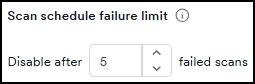
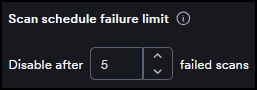
- In the Disable after field, enter the number of consecutive failed scans that should trigger automatic schedule protection. The default is 5.
- Click Save changes.
What happens when the limit is reached
When the failure count reaches the configured limit, Invicti:
- Automatically turns off the schedule for the affected target.
- Sends an in-app notification to organization members who have access to the affected target, and to users with organization-wide event visibility.
- Records the event in the audit log as a system event.
Turn the schedule back on
After investigating and resolving the cause of the failures, you must turn the schedule back on manually. To do this, go to Scans > DAST scan schedules and use the Enabled toggle or the Resume selected scans bulk action on the affected schedule.
When you turn the schedule back on, Invicti recalculates the next run date based on the original recurrence settings. The previous failure count isn't retained - the schedule starts fresh from the next planned run.
For step-by-step instructions, refer to the DAST scan schedules document. For information on scheduled and recurring scans, refer to the scheduled scans and recurring scans documents.
To temporarily stop all scanning across your organization - rather than letting individual schedules self-protect against failures - use the Suspend all scanning setting instead.
Need help?
Invicti Support team is ready to provide you with technical help. Go to Help Center