Deployment: Invicti Platform on-demand, Invicti Platform on-premises
Recurring scans
Recurring scans allow you to set up automated scanning routines to execute at predefined intervals on specified days. With flexible scheduling options - including a fixed day of the month or an ordinal weekday, such as the first Monday - and a frequency that suits you, you can tailor the scanning pattern to your specific requirements.
This document describes how to create a recurring scan in Invicti Platform.
All scans must comply with the Authorized target scanning policy. Review this document before executing the scans.
Steps to schedule a recurring scan
After configuring your targets, you're ready to begin scanning.
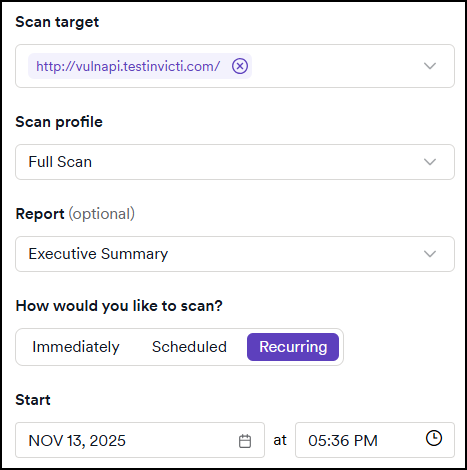
- Select Scans from the left-side menu, then click New scan on the DAST scans page to open the scan settings.
- In the Scan target drop-down, use the checkboxes to select the targets you want to scan.
- Select a Scan profile from the list of available default or custom profiles.
- From the Report drop-down menu, select your preferred report type.
- Optionally, in the Tags field, add tags to label and organize the scan.
- In the Would you like the scan to be incremental? field, select Yes to focus on scanning only the changes. The default is No.

For more information, refer to the incremental scanning document.
- Select Recurring in the How would you like to scan? field.
- Optionally provide a Schedule name to differentiate the scans.
- In the Start fields, specify when you want the scan to begin.
-
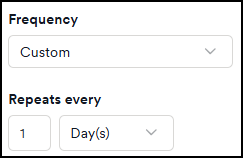
Specify the Frequency. If you select Monthly or Yearly, choose whether the scan runs:
- On day
[number]of the month - a fixed calendar day. - On the
[position][weekday]of the month - an ordinal weekday, such as the first Monday.
For more information, refer to the monthly and yearly day options in the DAST scan schedules document.
- On day
- Specify the end date if applicable.
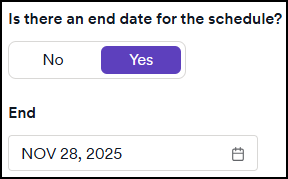
For more information on scheduling frequency and custom schedules, refer to the Scan schedules document.
- Select Schedule scan to complete the scan configuration.
The scan starts according to the set schedule and frequency. You can access the scan results by clicking on the relevant line in the list of scans on the DAST scans page. For more information, refer to the Review scan results document.
Invicti automatically turns off a recurring scan when consecutive scans fail, based on the scan schedule failure limit configured in Settings > Scanning. Running Scan again from a failed scan doesn't affect the failure count or re-enable the schedule. To turn a schedule back on after it has been automatically turned off, refer to the DAST scan schedules document.
An administrator can also suspend all scanning organization-wide. When active, no new or recurring scans start.
Alternative scan options
- Instant scan - starts a scan immediately on the selected target.
- Future scan - schedules a one-time scan for a specific date and time.
- Scheduled scan - sets up recurring scans through DAST scan schedules.
- Incremental scan - scans only newly discovered or modified pages.
- Scan dynamic URL target - triggers scans on ephemeral targets via API or CI/CD.
- PCI ASV scan - runs official PCI DSS compliance scans through Clone Systems.
Need help?
Invicti Support team is ready to provide you with technical help. Go to Help Center