Deployment: Invicti Platform on-demand, Invicti Platform on-premises
Slack integration
Integrating Invicti Platform with Slack enables your security and development teams to receive real-time notifications about scan results directly in your Slack workspace. This integration keeps teams informed and allows for immediate response to critical security findings, fostering better collaboration between security and development teams.
Prerequisites
To set up this integration, you need:
- Slack workspace administrator approval: You don't need to be a Slack workspace administrator, but the Slack administrator is the person who decides whether to install the application or not.
- Slack channel permissions: If you wish to create new channels specifically for the Slack integration, you need access to create channels or permission to add apps to existing channels where you want to receive notifications.
For Invicti Platform on-premises, you must create your own Slack app before configuring the integration. Invicti cannot distribute its own Slack app credentials to on-premises customers due to OAuth 2.0 security constraints.
Once you have created your Slack app, you are going to need the Client ID and Client Secret from your app's Basic Information page. See Create a Slack app for on-premises for instructions.
Multiple integrations for different notification types
You can create multiple Slack integrations to organize notifications by purpose. Each Slack integration can specify one Slack channel. Create your Slack channels first. Consider these example configurations:
- Scan completion: dedicated integration for
#security-reportschannel for scan completed events - Scan failures: separate integration for
#security-alertschannel for scan failed events
This allows you to configure different notification rules based on:
- Event types: Scan completed, scan failed
- Specific targets, collections, or applications
Step 1: Configure Invicti Platform integration
-
In Invicti, select Integrations from the left-side menu.
-
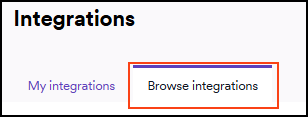
Switch to the Browse integrations tab.
-
Scroll down to the Team communication section and select Configure in the Slack tile.
-
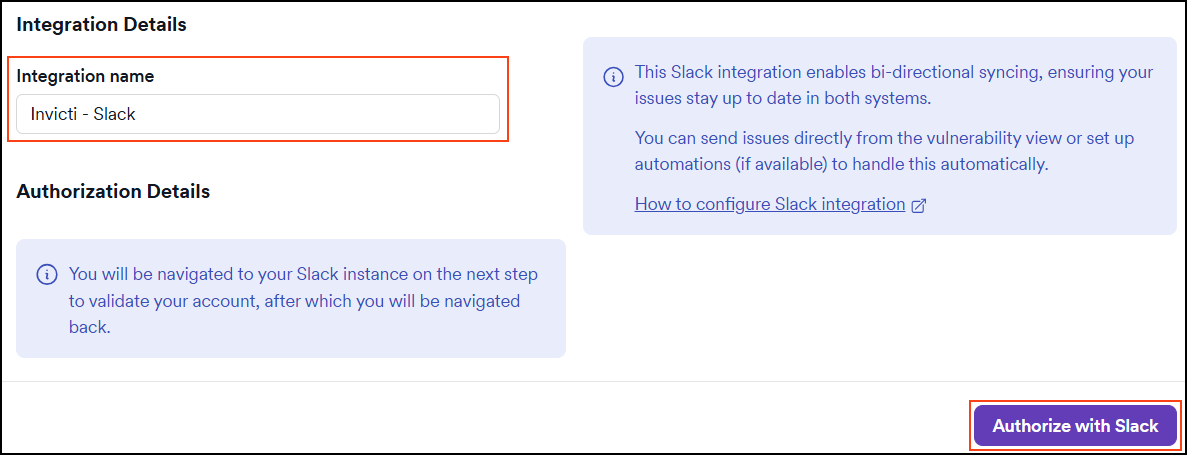
Enter an integration name.
Enter the Client ID and Client Secret from your Slack app. See Create a Slack app for on-premises for instructions on obtaining these values.
- Click Authorize with Slack. You are going to be navigated to your Slack instance to validate your account, after which you are going to be navigated back.
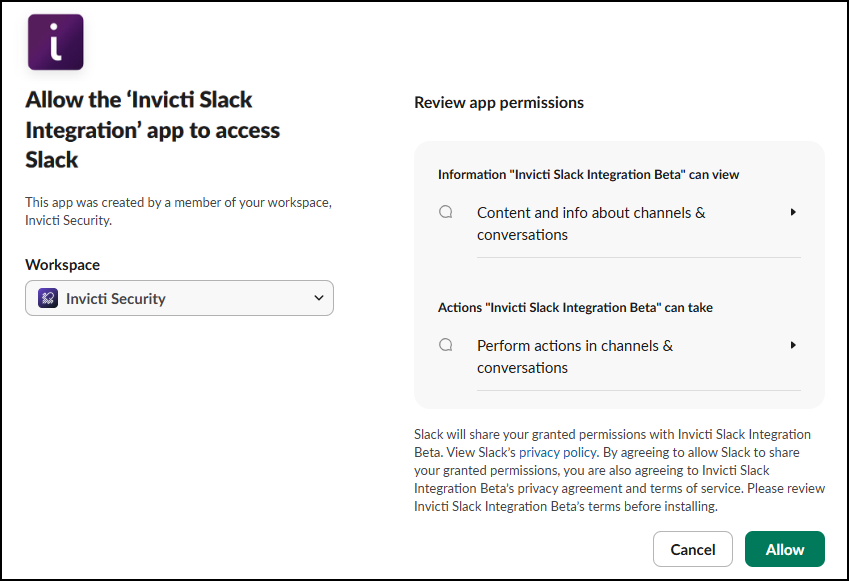
- The first time you add a Slack Integration to Invicti you are going to be redirected to the OAuth consent screen.
- Slack workspace admins - specify the Workspace and then click the Allow button. The Invicti Slack Integration app is going to be added to your workspace:
- Not a Slack workspace admin - type a message and Submit request to your Slack admin:
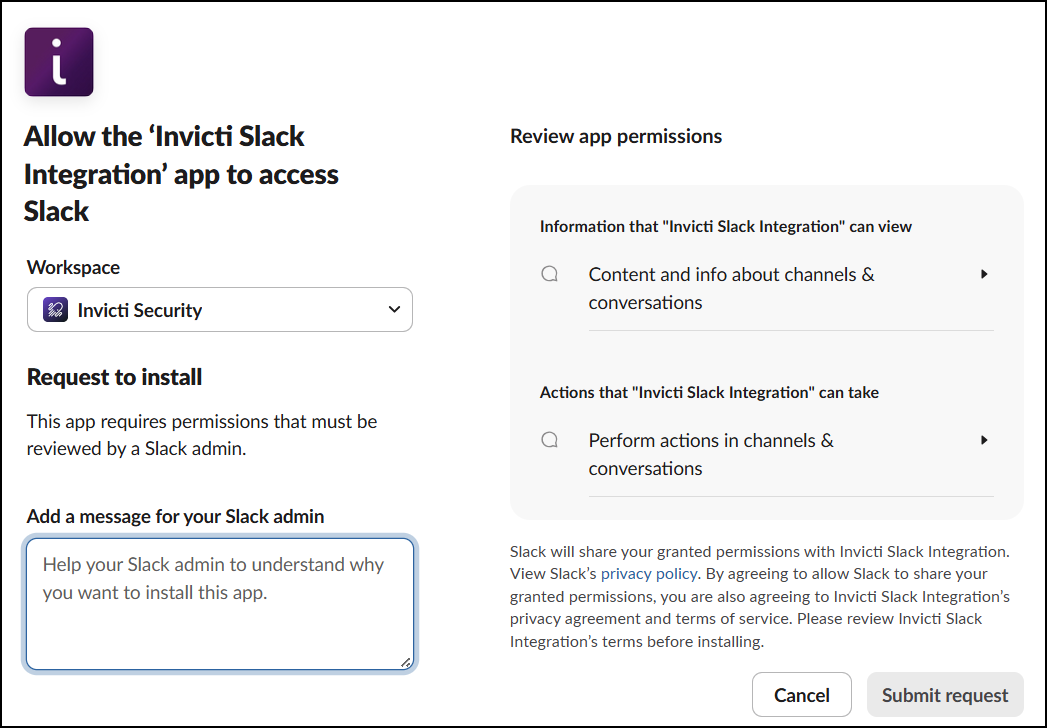
Once your request is approved, the Invicti Slack Integration app is going to be added to your Slack workspace, and you are going to be able to re-authenticate successfully.
- Specify the channel using the drop-down menu and click Send test message.
By default, all public channels show up in the channel selection drop-down once the Invicti Slack Integration app has been added to your workspace by the workspace admin.
Private channels aren't shown by default. To include selected private channels, add the Invicti Slack Integration app explicitly to your private channel by pressing / in your channel and selecting "Add apps to this channel." Then choose the Invicti Slack application.
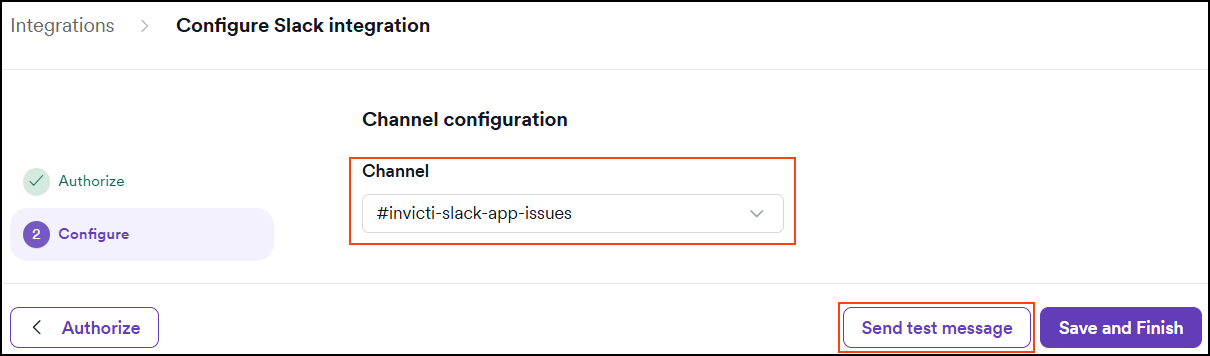
- Test message is sent to your selected channel

-
Click Save and finish to complete the integration.
-
The Slack integration is now visible in the list of My integrations.
Step 2: Configure notifications
This section provides basic instructions on how to create various automations. The instructions are very basic so for more detailed instructions on how to create an automation, refer to the new automation document.
Send a Slack message on scan completion
Click to expand step-by-step instructions
-
Select Automations from the left-side menu.
-
Populate these fields:
- Name: send a Slack message on scan completion.
- Description: sends a Slack message to the
#security-reportschannel when a scan is completed.
-
Add an event of Scan completed.
-
Add an action of Send to communicator and specify the correct channel.
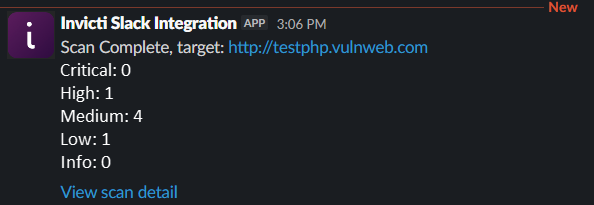
Example notification in Slack:
Send a Slack message on scan failure
Click to expand step-by-step instructions
-
Select Automations from the left-side menu.
-
Populate these fields:
- Name: send a Slack message on scan failure.
- Description: sends a Slack message to the
#security-alertschannel when a scan fails.
-
Add an event of Scan failed.
-
Add an action of Send to communicator and specify the correct channel.
Create a Slack app for on-premises
This section is only required for Invicti Platform on-premises deployments. If you are using Invicti Platform on-demand, skip this section.
For on-premises environments, you must create your own Slack app and configure Invicti Platform to use it. This is required because Slack's OAuth 2.0 implementation requires a Client Secret, which Invicti cannot distribute to on-premises customers.
-
Go to https://api.slack.com/apps. Sign in using an account with administrative permissions on the workspace you want to link.
-
Click Create New App.
-
Click From a manifest.
-
Choose the workspace you want to link to the app.
-
When prompted for the app's manifest, copy and paste the following JSON. Replace
<your_domain>with your Invicti Platform domain name (for example,invicti.yourcompany.com).
{
    "display_information": {
        "name": "Invicti Slack Integration",
        "description": "Receive Slack notifications on DAST Scan Events",
        "background_color": "#6040ba",
        "long_description": "Invicti unifies all security testing tools and manual processes under one platform. Installing this app allows you to configure Slack integrations in Invicti and configure Slack in Automation workflows."
    },
    "features": {
        "bot_user": {
            "display_name": "Invicti Platform",
            "always_online": false
        }
    },
    "oauth_config": {
        "redirect_urls": [
            "https://<your_domain>/app/integrations/callback"
        ],
        "scopes": {
            "bot": [
                "chat:write",
                "chat:write.public",
                "channels:read",
                "groups:read"
            ]
        }
    },
    "settings": {
        "org_deploy_enabled": false,
        "socket_mode_enabled": false,
        "token_rotation_enabled": true
    }
}
-
Complete the app creation.
-
Under Basic Information, locate the Client ID and Client Secret. Copy these values and store them in a secure location. You are going to need them to configure the integration in Invicti Platform.
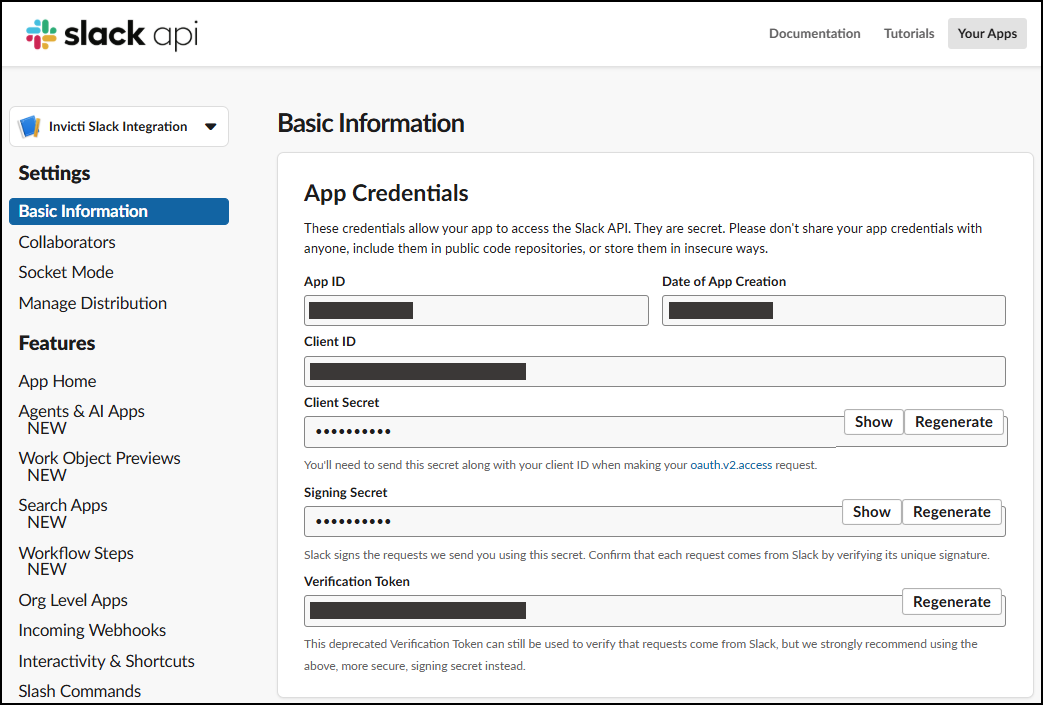
You can also customize the display name and icon for your app under Display Information.
Need help?
Invicti Support team is ready to provide you with technical help. Go to Help Center