Deployment: Invicti Platform on-demand, Invicti Platform on-premises
Utilize predictive risk scoring
Predictive risk scoring helps you prioritize your web assets before scanning by showing how likely each website is to have vulnerabilities.
This document explains how to enable Predictive risk scoring and use it to order and filter your discovered web assets by risk score, so you can focus on scanning and fixing your most vulnerable websites first. Enabling the feature requires the Owner role and AI features enabled for your organization.
For more information about Predictive risk scoring and how it works, refer to the Introduction to Predictive risk scoring document.
Why this matters
Scanning every discovered web asset takes time. Predictive risk scoring lets you identify which sites are most likely to have vulnerabilities before you commit scan resources to them. By enabling and acting on risk scores, you can start with the highest-risk assets and work down - reducing the time between discovery and remediation for your most critical exposures.
Enable predictive risk scoring
The Predictive risk scoring setting is on the AI page in Settings, which is only accessible to users with the Owner role. To enable the feature:
- Select Settings > AI from the left-side menu.
- Set Enable AI features for your organization to Yes.
- Under Features, set Enable Predictive risk scoring in Discovery to Yes.
- Click Save changes.
The Enable Predictive risk scoring in Discovery toggle is greyed out until you enable AI features for your organization in step 2. If you turn off AI features, Predictive risk scoring also turns off automatically. For more information about the AI settings page, refer to the Enable AI features document.
Use predictive risk scoring
Predictive risk scoring runs in the background as part of Discovery. Risk scores appear on the Website discovery page for each of the discovered web assets. Filtering and sorting your discovered web assets according to their risk score lets you determine which sites to scan immediately and which sites can be scanned next.
View risk scores
- Select Discovery > Website discovery from the left-side menu.
- The Website discovery page displays a table with details of each web asset that Invicti detected.
You can adjust the Discovery settings to specify which domains, IP addresses, and organization names are included or excluded in your Discovery results. For more information, refer to the Adjust Discovery configuration document.
-
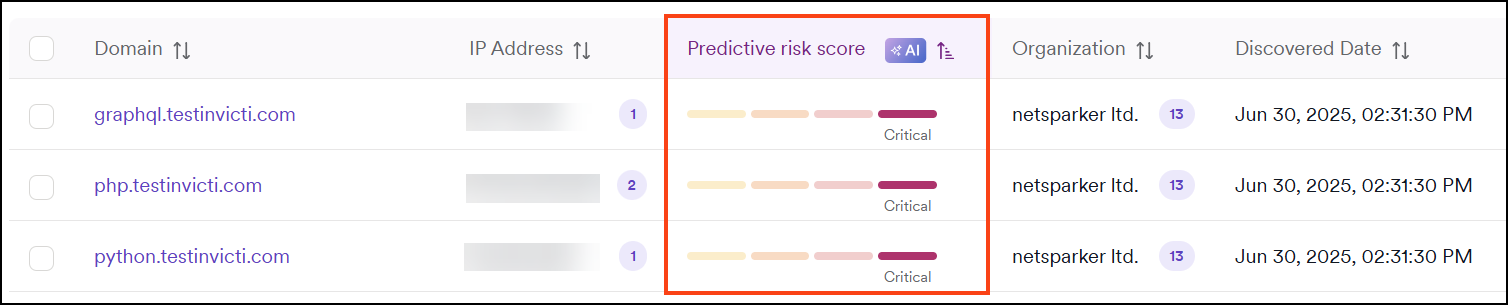
The third column in the table displays the risk score for each web asset. The possible risk scores are:
- Critical: The site is predicted to have at least one critical severity vulnerability.
- High: The site is predicted to have at least one high severity vulnerability.
- Medium: The site is predicted to have at least one medium severity vulnerability.
- Low: The site is predicted to have at least one low severity vulnerability.
- Undetermined: Invicti can't calculate a risk score for this site.
- Temporarily Offline: A risk score can't be calculated at this time. Try again later.
- Scoring Queued: The risk score is queued for calculation and updates its state once complete.
- Refreshing Score: The risk score is being refreshed and updates its state once complete.
Filter by risk score
- Click + Add a filter above the Discovery results table.
- Select Risk score from the drop-down menu.
- Select a risk score from the drop-down. Your web asset discovery results now display based on the filter you selected.
You can only filter by one risk score at a time.
- To clear your filter settings, click Reset filters at the top of the Discovery table.
Sort by risk score
- In the Website discovery results table heading bar, click the Predictive risk score heading.
- Your web asset discovery results appear in ascending or descending priority order (depending on the direction of the arrow).
Refresh risk score results
- Select the checkboxes on the left of the Discovery results table to select web assets to refresh their risk score.
- Click Bulk actions > Refresh Risk. This sends a new request to calculate the risk score prediction.
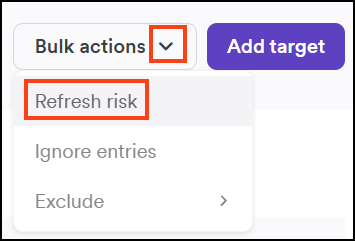
- The Website discovery page reloads, and the enabled websites have the Refreshing score status until the refresh is complete.
Create targets for scanning
After using the Risk Score information to identify your most vulnerable web assets, you can create Targets for those web assets to immediately start scanning them for vulnerabilities. For more information about targets, refer to the Target definition.
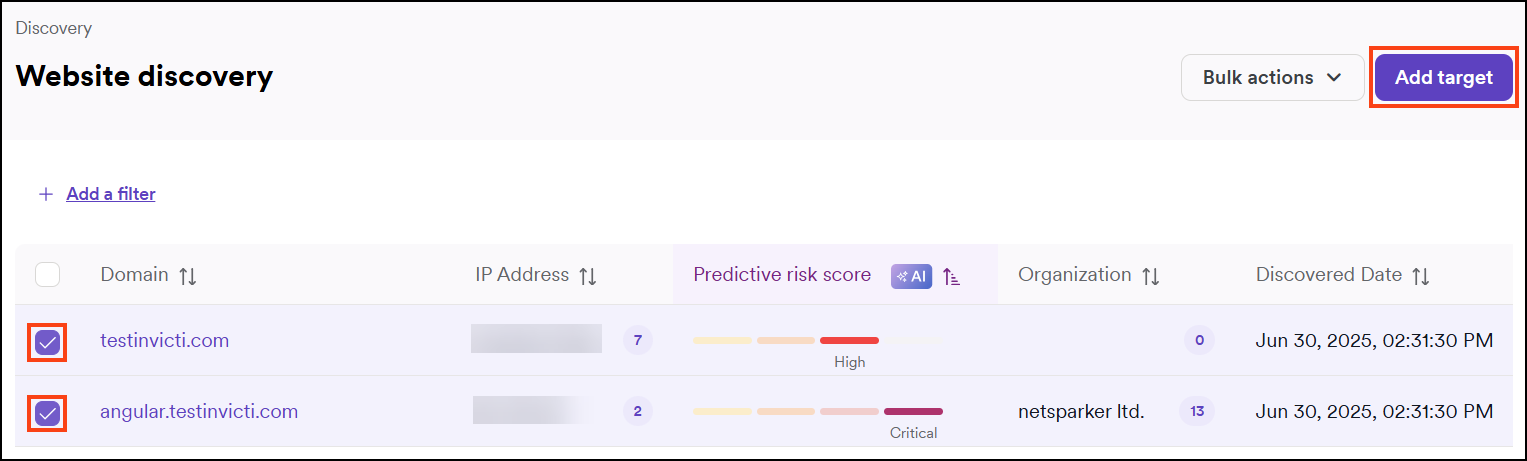
- On the Website discovery page, use the checkboxes on the left of the table to select web assets to create Targets.
- Click Add Target.
- Add a Name for each new Target.
- Click Add targets.
For more information on creating targets refer to the following documents: Create assets from website discovery, Add target, or Add multiple targets.
Your newly created targets appear on the Inventory > Targets page.
If you now return to the Discovery page, the Domain column populates with the date and time when the Target was created for the listed web asset.
Further resources
For more information about scanning Targets, refer to the following documentation:
Troubleshooting
The Enable Predictive risk scoring in Discovery toggle is greyed out
The toggle is off until AI features are enabled for your organization. On the Settings > AI page, set Enable AI features for your organization to Yes, then try again.
If you can't see the Settings menu at all, your account doesn't have the Owner role. Contact your account owner to enable Predictive risk scoring.
Risk scores aren't appearing for my discovered websites
Predictive risk scoring runs as part of Discovery and may take a few minutes after enabling. If scores still don't appear after a few minutes, confirm that the feature is enabled under Settings > AI and that Discovery is actively running. You can also select assets and use Bulk actions > Refresh Risk to request a new calculation.
Need help?
Invicti Support team is ready to provide you with technical help. Go to Help Center