Package: Invicti AppSec Core (on-demand)
Start a DAST scan
Run a DAST scan on demand to immediately check a target for vulnerabilities - no schedule required. This document explains how to start a DAST scan from the DAST scans page in Invicti AppSec Core.
Why this matters
Scheduled scans keep your security posture up to date over time, but they don't help when you need results right now - for example, after deploying a fix, adding a new target, or responding to a reported vulnerability. Starting a scan on demand means you can test on your own timeline without waiting for the next scheduled run.
DAST scans page
The DAST scans page lists all your scans with their current status. Each row shows the scan target, URL, scan profile, scan type, agent, vulnerability count, status, next scheduled run, tags, and schedule.
Start a DAST scan
-
Select Scans > DAST scans from the left-side menu.
-
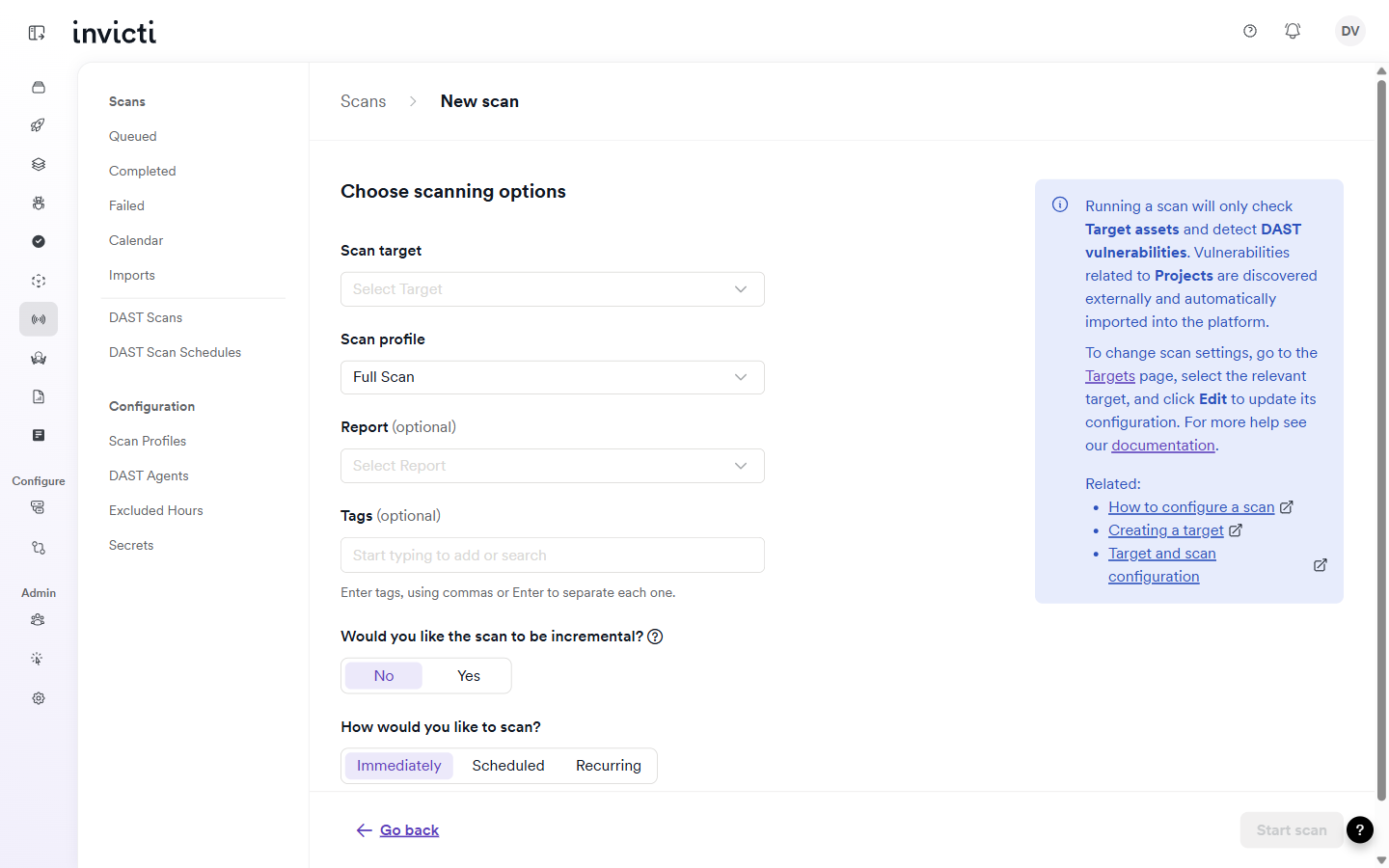
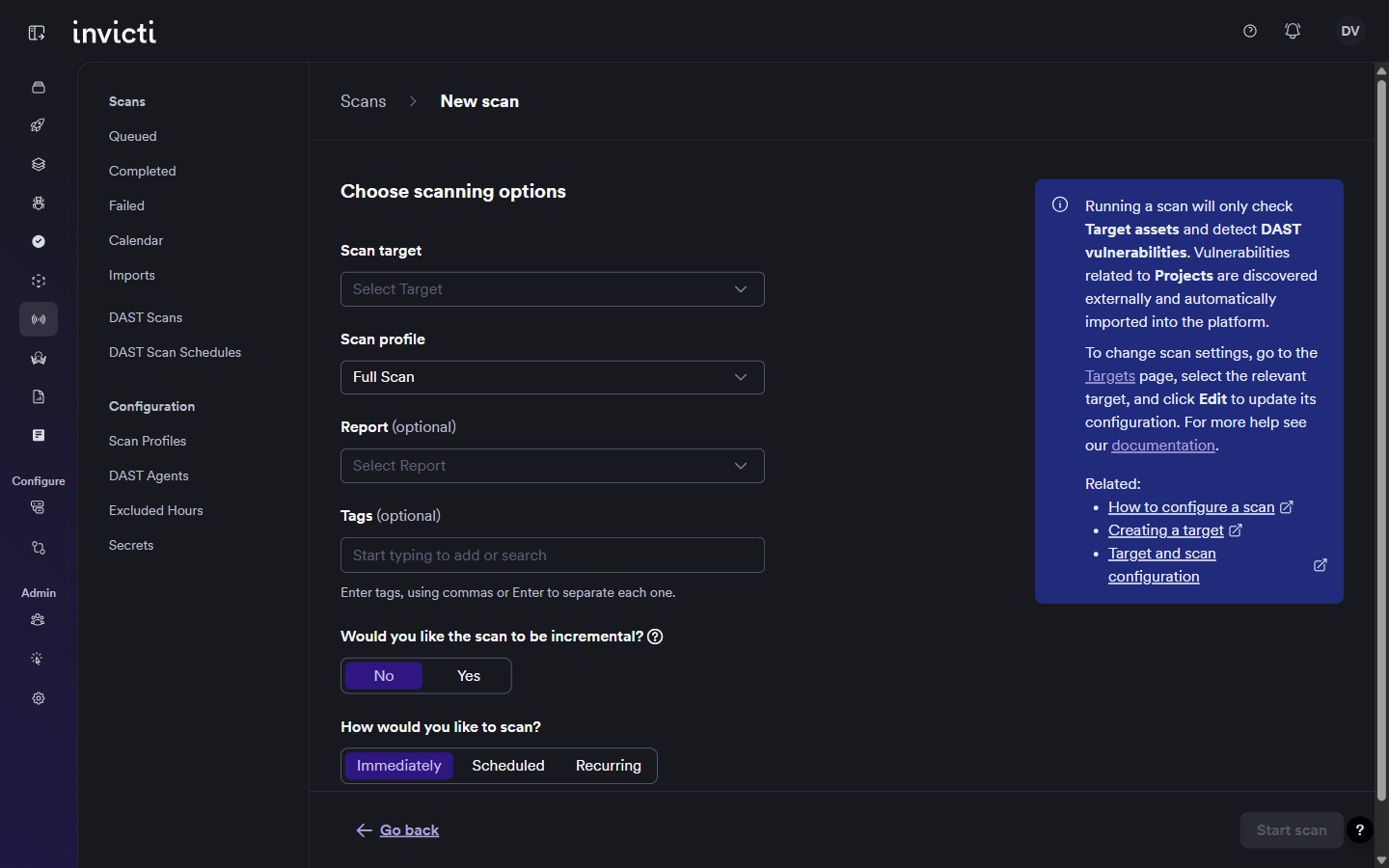
Click New scan to open the Choose scanning options page.
-
Fill in the fields:
- Scan target (required) - select the target you want to scan. Start typing to search.
- Scan profile - select the scan profile to use. Defaults to Full scan.
- Report (optional) - select a report template to associate with the scan.
- Tags (optional) - add tags to categorize the scan. Separate tags with a comma or press Enter.
- Would you like the scan to be incremental? - select Yes to run an incremental scan that checks only what's changed since the last scan, or No to run a full scan. Defaults to No.
- How would you like to scan? - select Immediately to start the scan right away, Scheduled to run it once at a specific date and time, or Recurring to set a repeating schedule.
-
Click Start scan.
The scan is added to the queue and appears in the DAST scans list. Its status updates as it progresses.
Invicti AppSec only checks target assets and detects DAST vulnerabilities - it doesn't run other scan types from this page.
Schedule or repeat a scan
If you want to run the same scan automatically on a fixed schedule, use the Scheduled or Recurring options in step 3 above, or refer to Schedule a scan for more details.
Troubleshooting
The Start scan button is greyed out
The Scan target field is required. The button stays disabled until you select a target. Open the Scan target dropdown and select a target to enable the button.
No targets appear in the Scan target dropdown
Either no targets have been configured yet, or your account doesn't have access to any. Check that at least one target exists and that you have the necessary permissions to scan it.
The New scan button isn't visible on the DAST scans page
You need write permission on scans to start a scan. Contact your administrator to check your role and permissions.
The scan doesn't appear in the DAST scans list after starting
The scan is added to the queue and may take a moment to appear. Refresh the page. If the scan was started with the Immediately option, its initial status is Queued until a slot becomes available.
Need help?
Invicti Support team is ready to provide you with technical help. Go to Help Center