Package: Invicti AppSec Core (on-demand)
Get started with API discovery
API discovery surfaces APIs found across your organization's environment so you can review them and assign them to targets for scanning.
This document walks you through the end-to-end process: viewing the discovery list, understanding what each column shows, filtering results, and taking action on discovered APIs.
Step 1: view discovered APIs
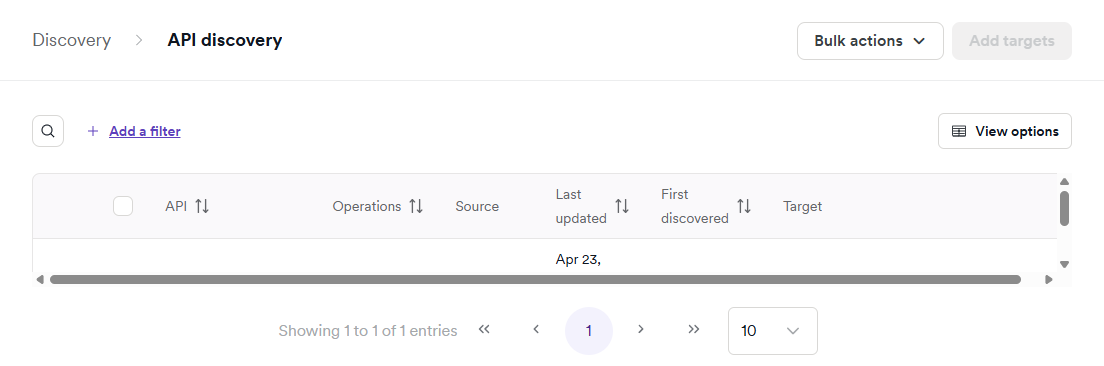
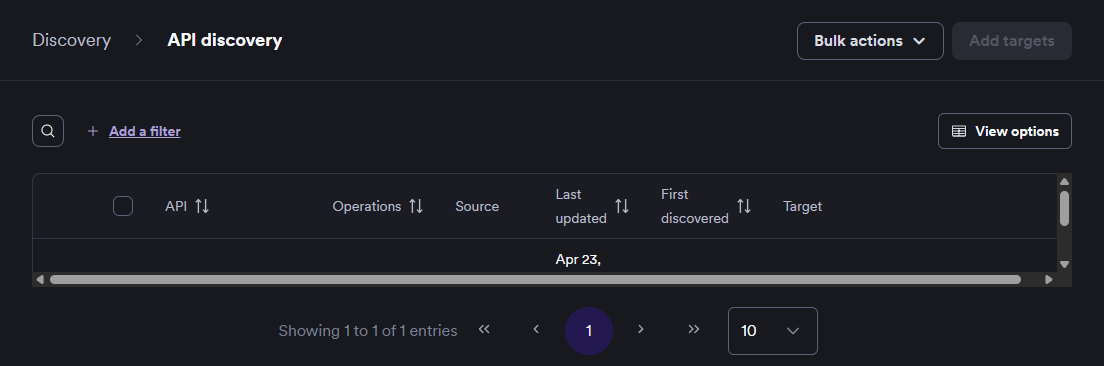
The API discovery page shows all APIs that haven't been linked to a target yet, giving you a prioritized view of APIs that still need to be processed.
- Select Discovery > API discovery from the left-side menu.
By default, API discovery displays only APIs that haven't been linked to a target yet. Once you link an API to a target, it moves to the API catalog.
The table shows the following columns for each discovered API:
- API - the name or URL of the discovered API.
- Operations - the number of operations the API has.
- Source - how the API was discovered (for example, NTA, API management integration, or zero-config).
- Last updated - when the API specification was last modified.
- First discovered - when the API was initially discovered.
- Target - provides options to link to an existing target or create a new target.
Sort by Operations to prioritize APIs with the most endpoints, or sort by First discovered to process the most recent discoveries first.
Step 2: filter results
Use filters to focus on the APIs most relevant to you.
- Select Discovery > API discovery from the left-side menu.
- Click Add a filter to open the filter options.
- Choose one or more filter criteria and enter the values.
- Apply the filter.
The list updates to show only APIs matching your criteria.
By default, hidden APIs aren't shown. To include them, click View options and enable Show hidden APIs.
Step 3: take action on discovered APIs
Once you've reviewed the discovery list, you can take the following actions:
Create a new target for an API
To scan an API that doesn't yet have a target, create a new target directly from the discovery list.
For step-by-step instructions, see Create assets from API discovery.
Link an API to an existing target
If you already have a target set up and the API's base URL is a subset of that target URL, you can link the API to the existing target instead of creating a new one.
For step-by-step instructions, see Link discovered APIs to targets.
View individual endpoints
To inspect the specific operations an API exposes before deciding what to do with it, you can expand the API to see its endpoints.
For step-by-step instructions, see View discovered API endpoints.
Export to CSV
To share the discovery list or analyze it externally, you can export selected APIs to a CSV file.
- Enable the checkboxes next to the APIs you want to export.
- Click Bulk actions and select Export CSV.
- Choose whether to include individual operations or just the high-level list of APIs.
- Click Export APIs to start the download.
Need help?
Invicti Support team is ready to provide you with technical help. Go to Help Center