Configuring Scan Profiles in Invicti Enterprise
In Invicti Enterprise, configuring scan profiles is achieved through fields that are mostly the same for all scan types: full or incremental, single or group, immediate or scheduled.
This document describes how to create and use a scan profile and how to edit and delete scan profiles.
How to create a scan profile from scan settings
- Select Scans > New Scan from the left-side menu.
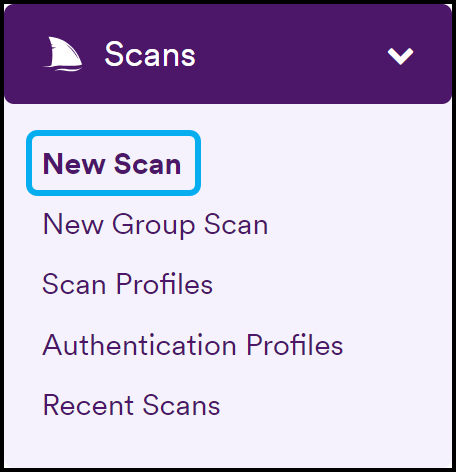
- Configure the scan settings as explained in Creating a New Scan.
- Click Save Profile.
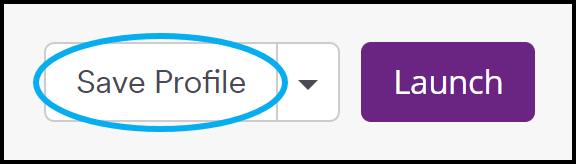
- Enter a Name for the scan profile.
- Enable Primary or Shared.
To set the Scan Profile as the default for a specific website, select it as Primary. Alternatively, to share it with your team, select it as Shared.
- Click Save As New Profile.
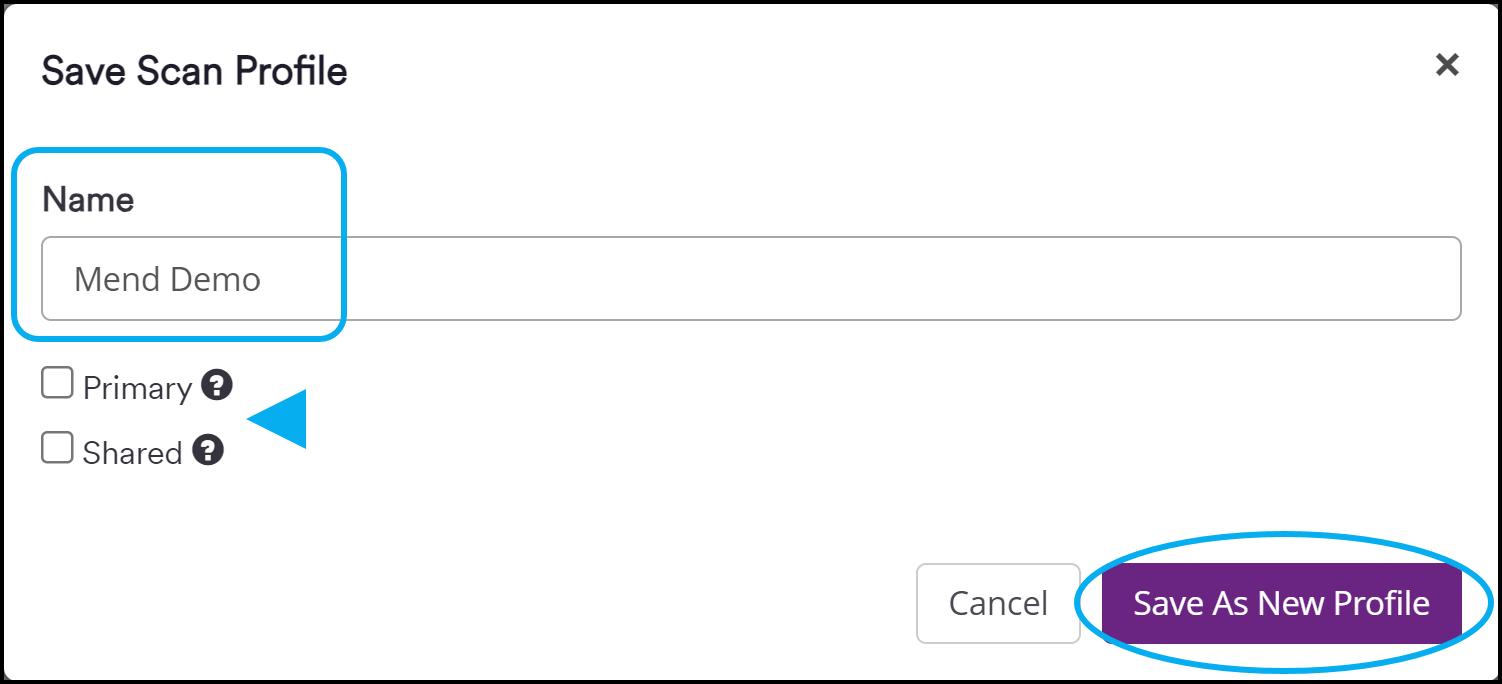
Your new scan profile is now listed on the Scans > Scan Profiles page, and you can select it when creating a new scan.
How to use a scan profile in a scan
- Select Scans > New Scan from the left-side menu.
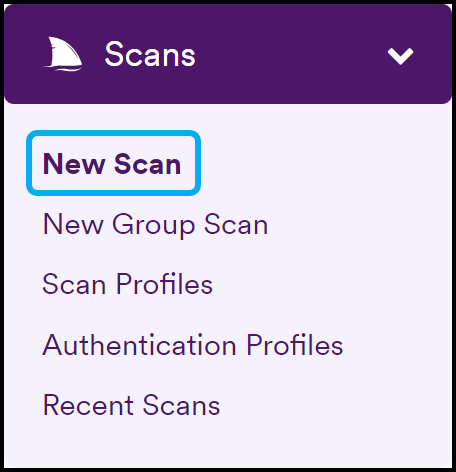
- Select a Target URL.
- Click the Scan Profile dropdown and select a scan profile.
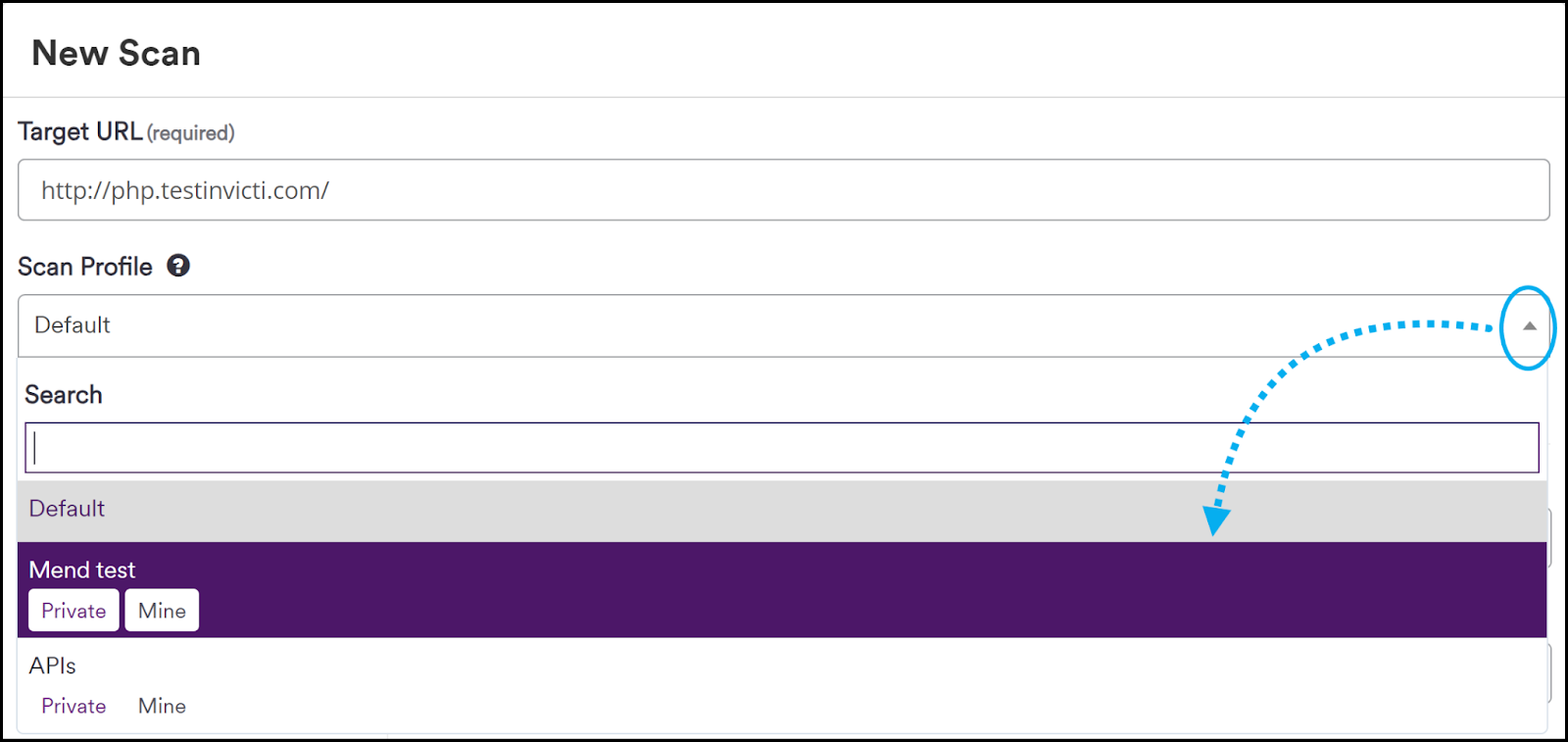
- Configure the scan settings as explained in Creating a New Scan.
- Click Launch.

A new scan is queued and will run according to your specified scan profile and settings.
If you select a scan profile while creating a new scan, any scan tags associated with that scan profile will appear on the New Scan page.
How to edit a scan profile
- Select Scans > Scan Profiles from the left-side menu.
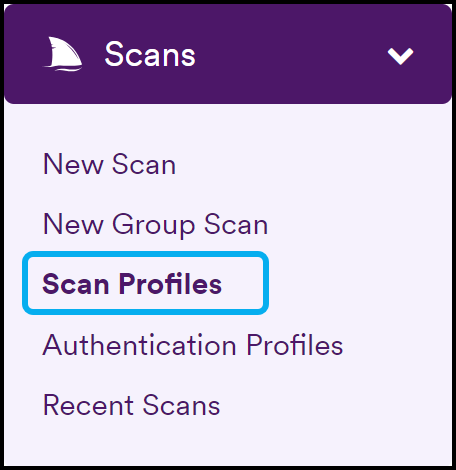
- Click Edit next to the relevant scan profile.

- Edit the scan settings as required.
- Click Update Profile.
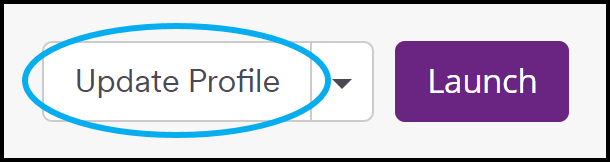
- Optionally, adjust the Name, Primary, and Shared settings.
- Click Update. (Alternatively, click Save As New Profile.)
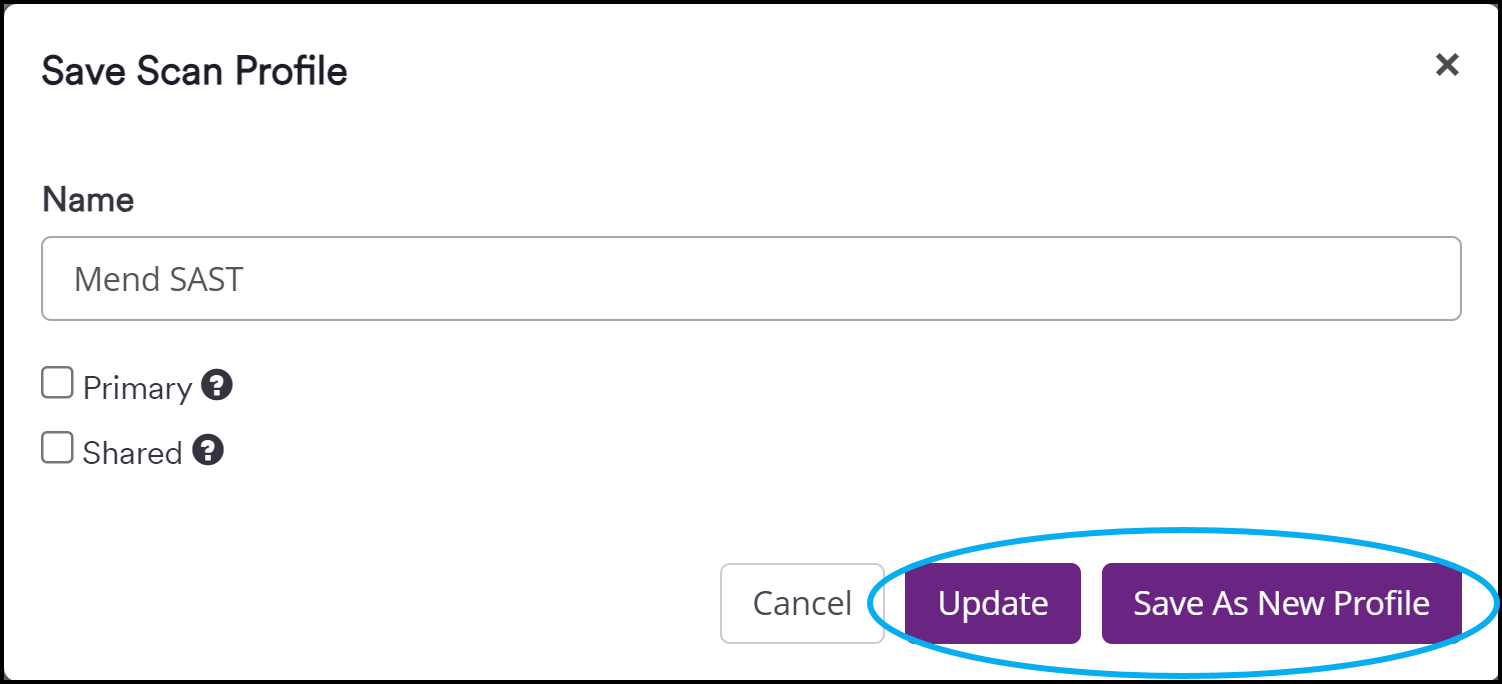
The scan profile has been updated with your new settings.
How to delete a scan profile
- Select Scans > Scan Profiles from the left-side menu.
- Click Delete next to the relevant scan profile.

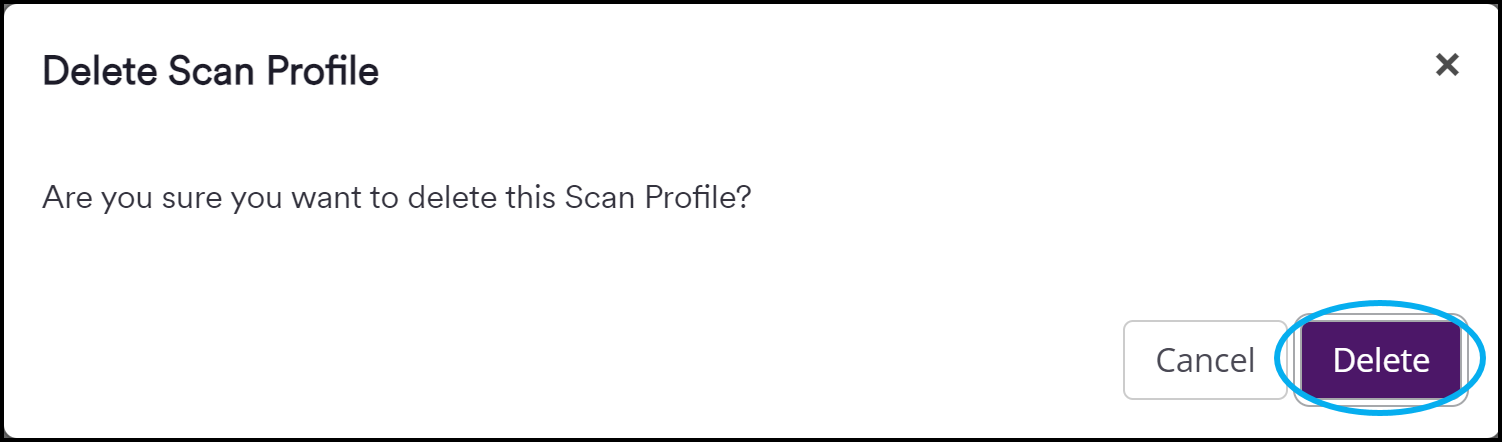
- Click Delete to confirm the action.
The scan profile has been removed from the Scan Profiles page and is no longer available for selection when creating a new scan.
Need help?
Invicti Support team is ready to provide you with technical help. Go to Help Center