Configuring Header Authentication
Invicti supports the Header Authentication mechanism, enabling you to configure scans for websites that require Header authentication.
You can use a secret with header authentication. For more information, refer to the Secrets document.
Header Authentication Fields
This table lists and explains the fields in the Authentication HTTP Headers section.
| Field | Description |
|---|---|
| Enabled | Select to enable Header Authentication. All listed HTTP headers will be added to all HTTP requests. |
| New Authentication Header | Click to add a new Authentication Header. |
| Name | Enter the header name. It must contain only ASCII characters. |
| Value | Enter the header value. |
| Add Authorization Header | Click this button to open a dialog for entering a header. |
How to Configure Header Authentication in Invicti Enterprise
- Log in to Invicti Enterprise.
- From the main menu, click Scans, then New Scan. The New Scan window is displayed.
- From the Authentication tab, select Header. The Header section is displayed.
- Select the Enabled checkbox.
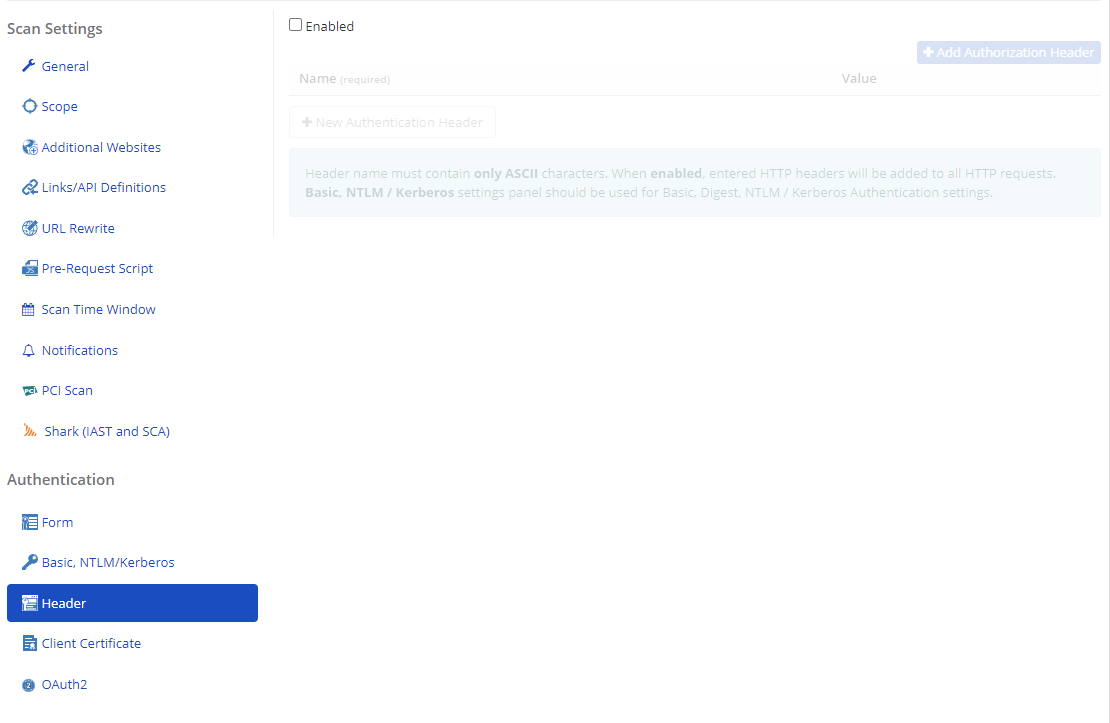
- Click New Authentication Header.
- Complete the Name and Value fields.
- Click Add Authorization Header if required. The Add Authorization HTTP Header dialog is displayed.
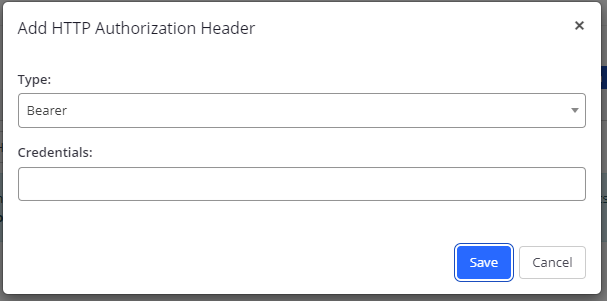
- Select from the Type dropdown.
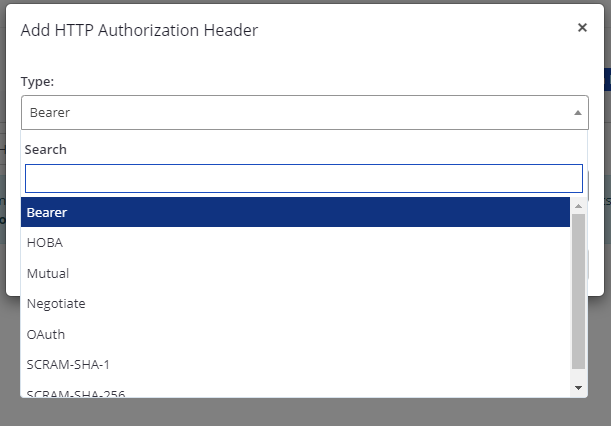
- Enter Credentials
- Click Save.
How to Configure Header Authentication in Invicti Standard
- Open Invicti Standard.
- From the Home tab, click New. The Start a New Website or Web Service Scan dialog is displayed.
- Click the Header tab.
- In the Authentication HTTP Headers section, check Enabled.
- In the Name field, enter the name.
- In the Value field, enter the value.
- Click Add Authorization Header if required. The Add Authorization HTTP Header dialog is displayed.
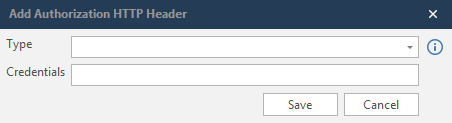
- Select from the Type dropdown
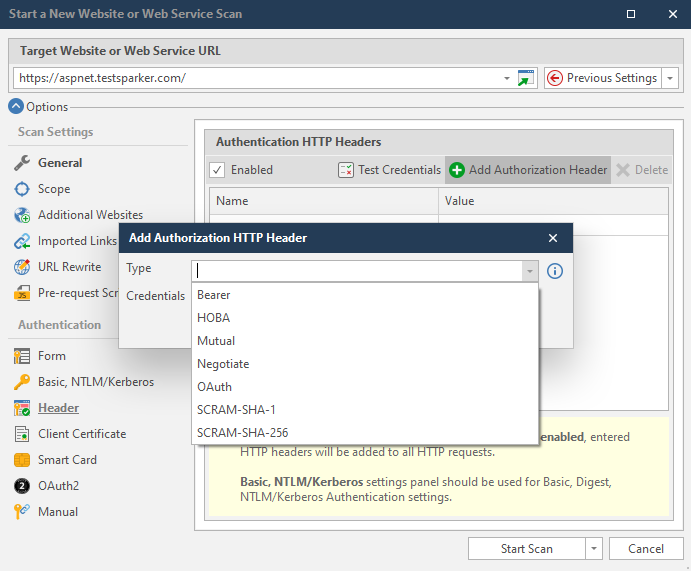
- Enter Credentials
- Click Save.
Need help?
Invicti Support team is ready to provide you with technical help. Go to Help Center
Was this page useful?