Deploy Invicti Shark for PHP
You can use Invicti Shark to carry out interactive security testing (IAST) in your web application to confirm more vulnerabilities and further minimize false positives.
Before deploying Shark, note the list of supported servers and frameworks.
| Environments | Supported servers and frameworks |
|---|---|
| PHP Language | • 5.6.x • 7.x • 8.x |
| Application Frameworks | • Laravel • Symfony • CodeIgniter • Yii • Zend v3 • Slim v2, v3, v4 • Smarty v3, v4 |
| Web Servers | • Apache • Nginx |
| Database Engines | • MySQL • PostgreSQL • Microsoft SQL Server • DB2 • Ingres • Oracle • FireBird/InterBase • Sybase • Mongo DB v2.6 or later, using Mongodb PHP Extension 1.3 or later |
| Package Manager | • Composer |
For Shark to operate, you need to download an agent and deploy it on your server. Please note that this agent is generated uniquely for each target website for security reasons.
To deploy Shark, you need to keep in mind that the mechanism you need to use is to invoke the PHP directive auto_prepend_file and point this directive to the Shark PHP file.
This topic explains how to download and copy the Shark files to your hard disk and configure your web server to use these files.
Download the Shark agent
You can find the required instructions to download the Shark agent in Deploying Invicti Shark.
Copy the Shark agent
You need to create a dedicated folder inside the root folder of your operating system to hold the Shark agent.
- Windows
- Linux
- Create a file in
C:and name itshark - Copy the
shark.phpfile intoC:\shark
Execute the following commands by using terminal:
- Run the following command:
mkdir /shark/ - Use
cdto locate the folder that contains the Shark agent file - Then, run the following command:
cp shark.php /shark
Configure your web server
Invoking auto_prepend_file changes for different web servers. Instructions for each web server are provided in this section.
To invoke auto_prepend_file, you need to identify the INI file and make changes as instructed.
- If your website has its own INI file (typically a
.user.inifile in your website's root folder), you need to add the specified line below to that website's specific INI file. - Otherwise, you need to add the specified line to the general
php.inifile. Note that this operation affects all websites on the web server.
For further information, see Identify php.ini in your web server.
- Internet Information Services (IIS)
- Apache
- NGINX
- Identify the
php.inifile that contains the PHP directives for your website - Add
auto_prepend_file="c:\shark\shark.php"to the website's INI file
There are two options in Apache.
Option 1
- Add
php_value auto_prepend_file c:\shark\shark.phpto the.htaccessfile in the root folder of your website
Option 2
- Add
auto_prepend_file="c:\shark\shark.php"to the website's INI file
There are two options in Nginx
Option 1
- Identify Nginx config file
- Add
fastcgi_param PHP_VALUE "auto_prepend_file = /shark/shark.php";in the section forlocation ~ \.php$
Option 2
- Add
auto_prepend_file="c:\shark\shark.php"to the website's INI file
Identify php.ini in your web server
Temporarily create a simple PHP file with phpinfo(); - the "Loaded Configuration File" is the general php.ini file you need to change.
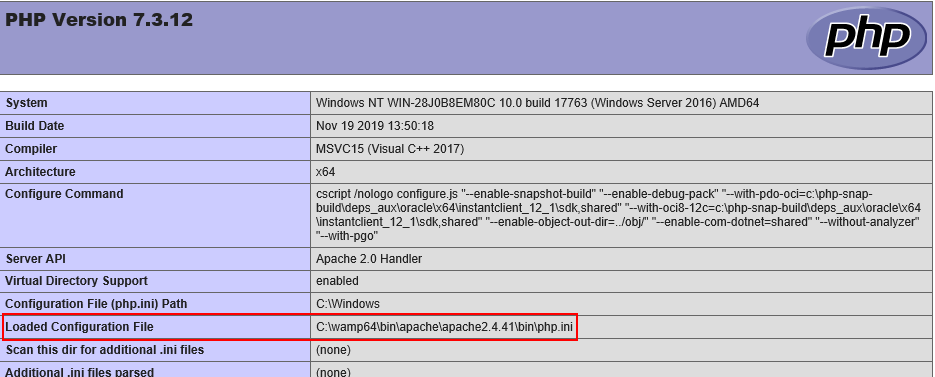
- You should always remove any
phpinfo()pages from your web application - The information disclosed by such a file is itself a vulnerability and provides attackers with essential information
- This information may allow attackers to potentially craft an exploit targeting your web application
Docker
The simple Docker example is applicable for Apache + PHP + Shark.
- Prepare an example website. For this single-page example, here are the contents of
/home/myuser/www/index.php
<?php echo "Hello World!"; ?>
<?php phpinfo(); ?>
- Configure loading of Shark agent for the website; here are the contents of
/home/myuser/www/.htaccess
php_value auto_prepend_file /var/www/mysite/shark.php
- Configure Apache configuration for the website: here are the contents of
/home/myuser/mysite-apache.conf
<VirtualHost *:80>
  ServerAdmin me@mydomain.com
  DocumentRoot /var/www/mysite
  <Directory /var/www/mysite/>
      Options Indexes FollowSymLinks MultiViews
      AllowOverride All
      Order deny,allow
      Allow from all
  </Directory>
  ErrorLog ${APACHE_LOG_DIR}/error.log
  CustomLog ${APACHE_LOG_DIR}/access.log combined
</VirtualHost>
-
Copy the
shark.phpfile in/home/myuser/www -
Configure the Docker file for building the container; here are the contents of
/home/myuser/Dockerfile
FROM ubuntu:latest
MAINTAINER Acunetix

# Install apache, PHP
RUN apt-get update
RUN apt-get -y upgrade
RUN DEBIAN_FRONTEND=noninteractive apt-get -y install apache2 php libapache2-mod-php

# Expose apache
EXPOSE 80

# Copy website and Shark agent into place
COPY www /var/www/mysite

# Update the default apache site with the website config
COPY mysite-apache.conf /etc/apache2/sites-enabled/000-default.conf

# Start up apache in the foreground
CMD /usr/sbin/apache2ctl -D FOREGROUND
- Build the container, then run the following commands from the docker machine:
cd /home/myuser
docker build -t mysite
Uninstall Shark
You may choose to uninstall the Shark agent from your server. You can take the following steps to uninstall.
- Reverse changes in the configuration file to invoke the
auto_prepend_filedirective - Next, remove the Shark agent file as follows:
- Windows
- Linux
- Remove the
C:\shark\shark.phpfile - Then, remove the
C:\sharkfolder
Write the following command by using terminal:
rm -rf /shark/
Although the Invicti Shark agent is secured with a unique strong built-in password, it's recommended that the Shark agent files are uninstalled and removed from the web application if they're no longer in use.
Need help?
Invicti Support team is ready to provide you with technical help. Go to Help Center