Import links and API definitions
This guide shows you how to import links and API definition files from either a file or a URL to Invicti Enterprise and Invicti Standard. This lets you specify pages for scanning that may not be linked from any other part of your website.
Overview
When Invicti crawls and scans a target, it tries to reach all parts of the website. However, there may be input points and resources that aren't linked to the target, which can prevent Invicti from identifying all vulnerabilities on the website. By importing links or API definition files, you can specify all the web pages you want to be scanned. You have a choice to import links or API definition files from either a file or a URL. You can also make sure Invicti considers data from other third-party tools during the scan.
For more information about importing links from third-party tools, see Importing links from supported tools.
Import links and API definitions to Invicti Enterprise
-
Select Scans > New Scan from the left-side menu.
-
Populate the Target URL and Scan Profile.
-
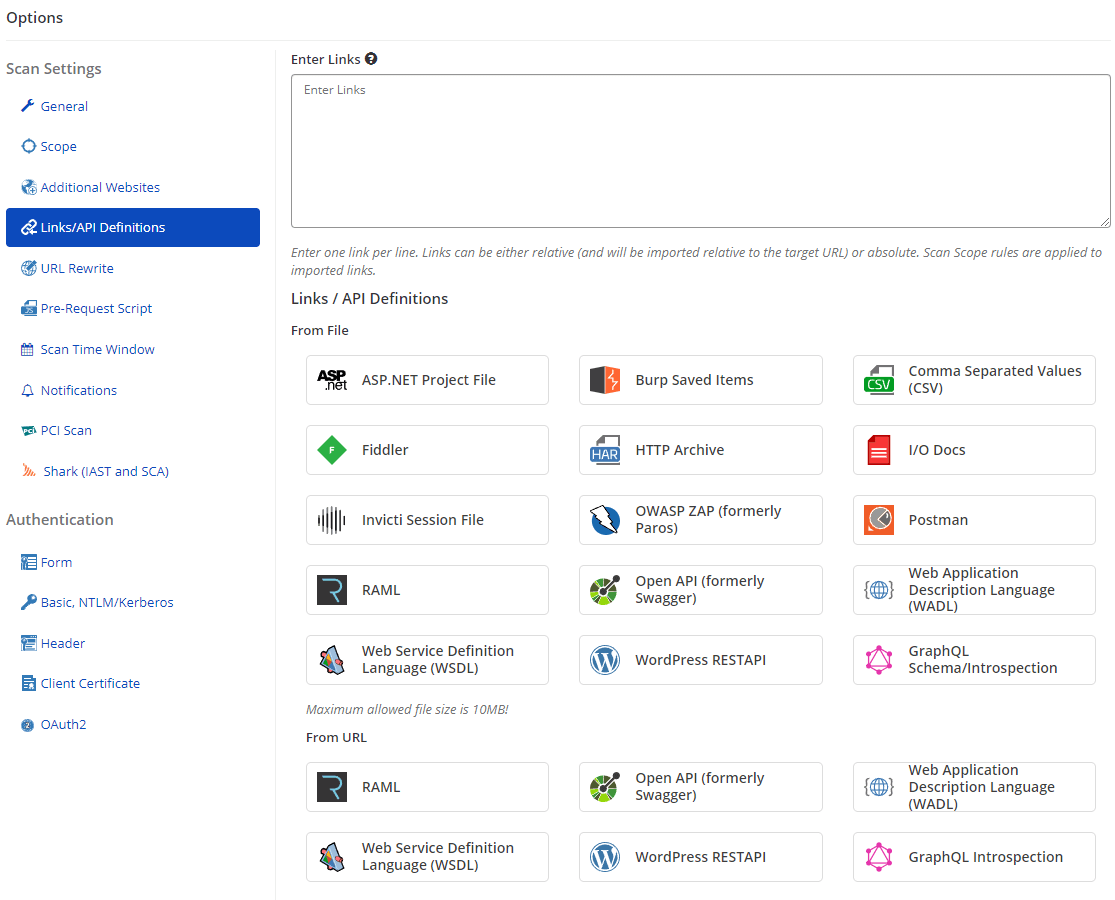
In the Scan Settings menu, select Links/API Definitions.
-
To specify the links for import, use one of the following options:
- Enter Links: Add your links manually in the Enter Links section.
- From File: Select the relevant third-party tool in the From File section and import the file. With this option, you need to import the file again every time you edit it.
The maximum individual file size limit is 10 MB, and the maximum total upload size is 100 MB (combined total for all uploaded files).
- From URL: Select the relevant third-party tool in the From URL section and enter the URL of the file. With this option, when you make changes to the document, there is no need to re-upload it because it's already linked. For example, in the case of GraphQL, even if you edit the schema repeatedly, you don't need to import the file to Invicti because the scanner can already access it via the URL.
- Add Scan Tags and any Comments.
- Select Launch to start the scan.
Import links and API definitions to Invicti Standard
-
Click New in the Home tab.
-
Populate the Target URL.
-
From the Start a New Website or New Service Scan, click the down arrow to expand the Options menu.

-
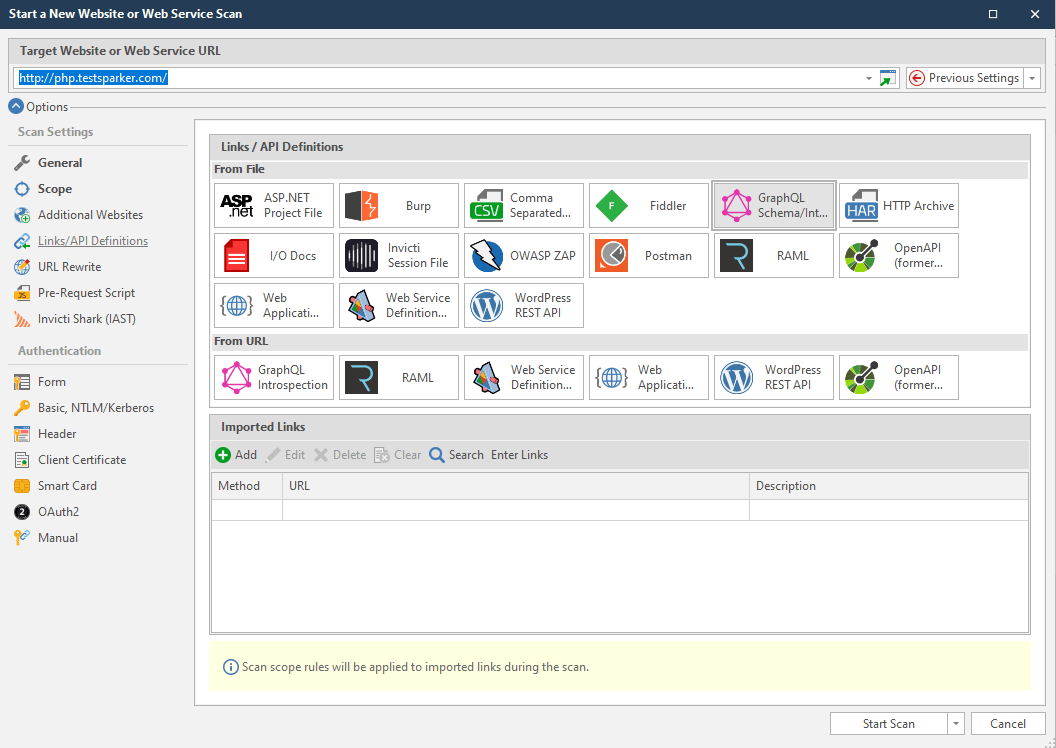
On the left-hand side, select Links/API Definitions.
-
To specify the links for import, use one of the following options:
- From File: Select the icon of the relevant third-party tool and import the file. With this option, you need to import the file again every time you edit it.
- From URL: Select the icon of the relevant third-party tool and enter the URL of the file. With this option, when you make changes to the document, there is no need to re-upload it because it's already linked. For example, in the case of GraphQL, even if you edit the schema repeatedly, you don't need to import the file to Invicti because the scanner can already access it via the URL.
- Imported Links: Manually enter the URL information for one or more URLs. Refer to the following section for more detailed information about how to manually enter URLs.
There are two ways to enter the URLs:
- By using the Enter Links button:
- The Enter Links/HTTP Requests window is displayed. Select the appropriate option from the Link Format dropdown.
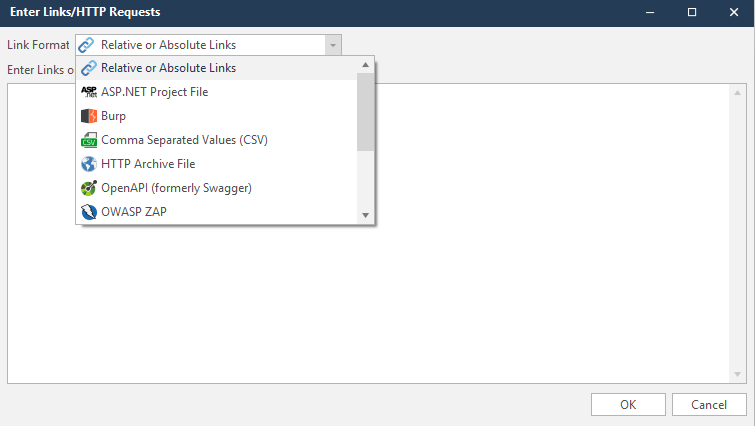
- Type the URLs and press OK.
- By adding the details of a single link or request through the Add button:
- Press Add.
- Add the request details.
- On the bottom left-hand corner of the Add New Link window, there is the Enable Raw Request Body checkbox. If you select this option, the POST parameters in the request form are ignored.
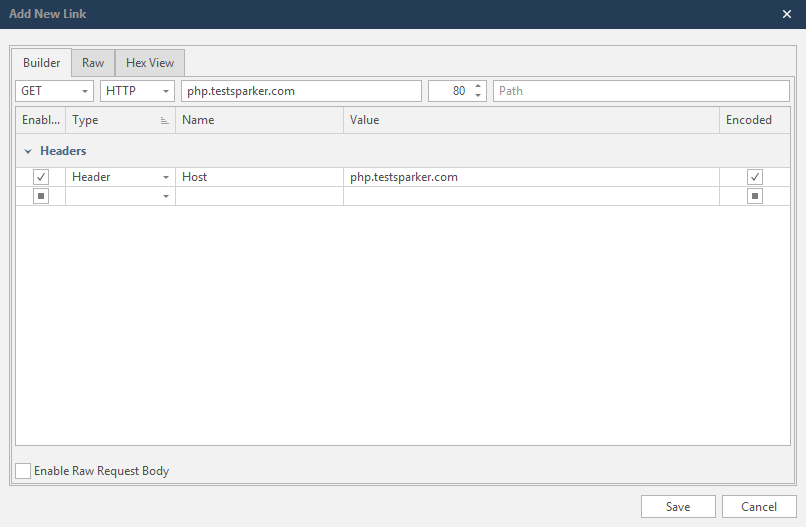
- Select Save to save the data you entered and close the window.
- Click Start Scan.
You can also choose to only scan the imported links. To do this, click the drop-down arrow next to Start Scan, then select Scan Imported Links Only. Note that when you choose to scan only imported links, Invicti's "Find and Follow New Links" option is automatically turned off. This means that Invicti cannot identify any new links based on the imported links provided, potentially resulting in missed vulnerabilities.
Need help?
Invicti Support team is ready to provide you with technical help. Go to Help Center