Import links from supported tools
The Imported Links feature allows you to add links to determine web pages that you want scanned. This gives the scanner a head start and achieves greater coverage during scanning. You can also ensure that data already captured using other tools is included in the scan.
This document explains the file types that can be imported into Invicti Enterprise and Invicti Standard and explains how to import them. For more information on how to import links for additional websites in both Invicti Enterprise and Invicti Standard, refer to the Importing links and API definitions document.
In Invicti Enterprise, the maximum individual file size limit is 10 MB, and the maximum total upload size is 100 MB (combined total for all uploaded files). If the file size is bigger, you can split the files into separate files to be able to upload them.
What file types can be imported?
An Invicti scan can be fed using output from the following tools:
- Acunetix XML
- ASP.NET Project File (.csproj, .vbproj)
- Burp Saved Items (.xml)
- Comma Separated Values (.csv)
- Fiddler (.saz files)
- HTTP Archives (HAR files)
- I/O Docs (.json, .zip)
- Invicti Session File (.nss)
- OWASP ZAP (.txt)
- Postman (.json)
- RAML (.raml)
- Open API (.json, .yaml, .yml)
- Web Application Description Language (.wadl)
- Web Service Definition Language (.wsdl, .xml)
- WordPress REST API (.json)
Acunetix XML
You can import an Acunetix XML file to Invicti Standard for vulnerability scanning.
Export an xml file from Acunetix Online
- Select Scans from the left-side menu.
- From the list of scans, select the scan you want to export.
- From the Export to drop-down, select XML. The file begins to download to your default downloads folder.
ASP.NET project file (.csproj, .vbproj)
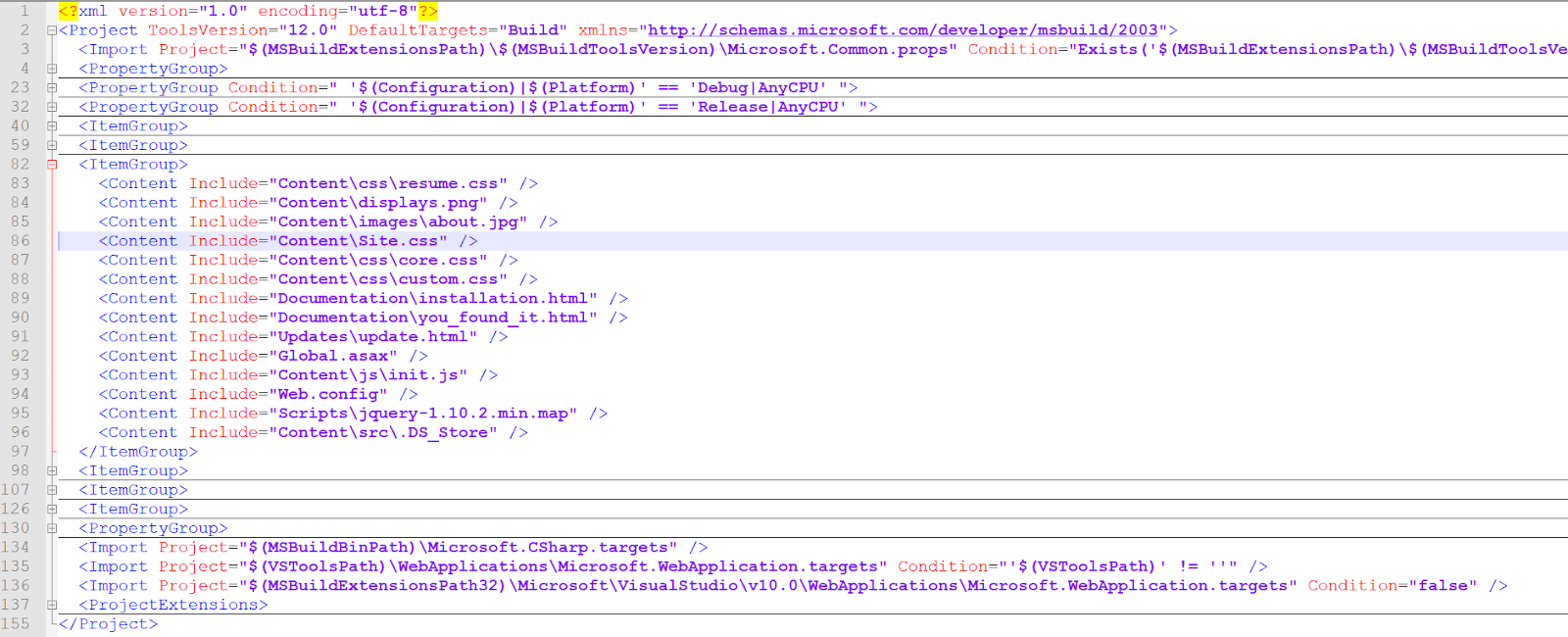
ASP.NET project files can be used in the previous version of ASP.NET, prior to ASP.NET Core. This project file can store resource links used in an ASP.NET project, such as JavaScript files, CSS files, and multimedia resources such as images or static content.
You can import ASP.NET Project Files to your Invicti product, and if it encounters a .csproj or .vbproj file during crawling, it parses and extracts new URLs from those files too.
Burp Saved Items
You can use the Burp Suite to save links and add them to your Invicti product for vulnerability scanning.
Export URLs from Burp
-
Ensure that Burp is configured to listen to the proxy.
-
Visit the URLs at the target website after configuring it to listen to the proxy.
-
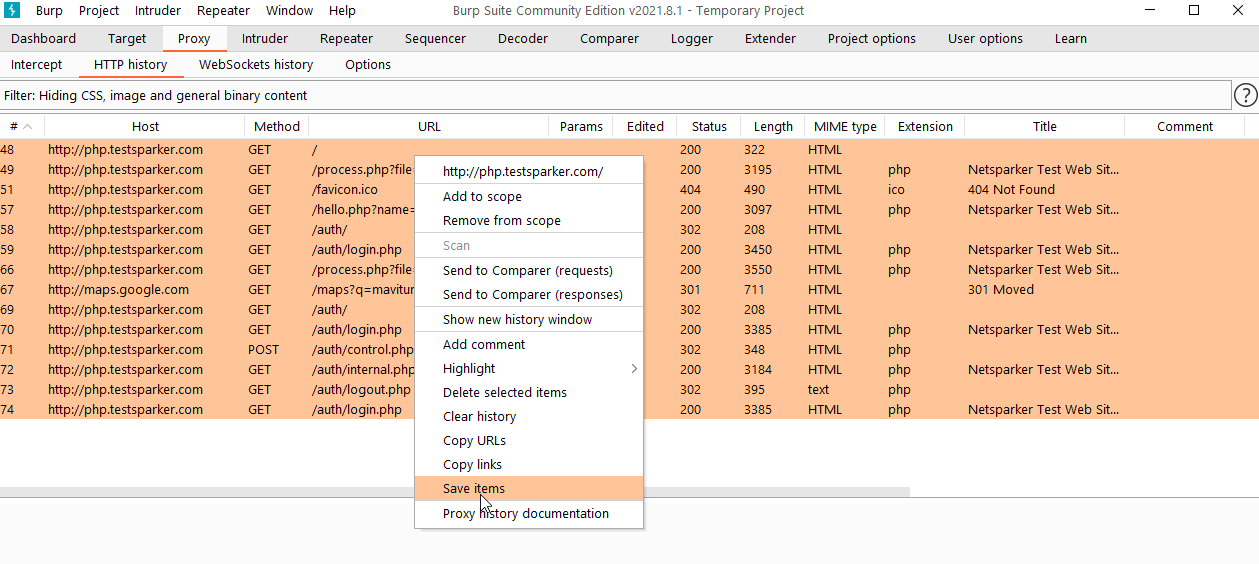
Select Proxy > HTTP history from the main ribbon.
-
Right-click to select and save the targets, and select Save items. A dialog box is displayed.
-
Enter a filename and click Save.
Comma Separated Values
You can use an Excel document to create a list of URLs in a CSV file that you can import into a vulnerability scan. This is a manual process that lets you include URLs that are unlinked from the target website.
Use Microsoft Excel to create a CSV upload file
- In a blank document, type each URL into a separate cell in one column.
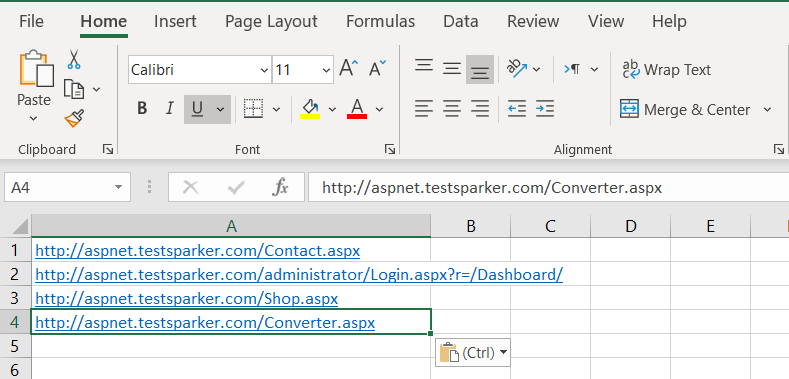
- Save the document as a CSV file.
Fiddler
Fiddler is a debugging proxy server application that captures HTTP and HTTPS traffic, and logs it for you to review. Since the program is able to capture the traffic, you can save the URLs to import into your Invicti product for vulnerability scanning. You can download Fiddler Classic via this link.
Configure Fiddler to capture HTTPS connections
- Ensure that Fiddler is configured to listen to the proxy.
- Select Tools > Options in the main ribbon.
- From the Options window, select the HTTPS tab.
- From the HTTPS tab, select the Capture HTTPS CONNECTs and Decrypt HTTPS traffic.
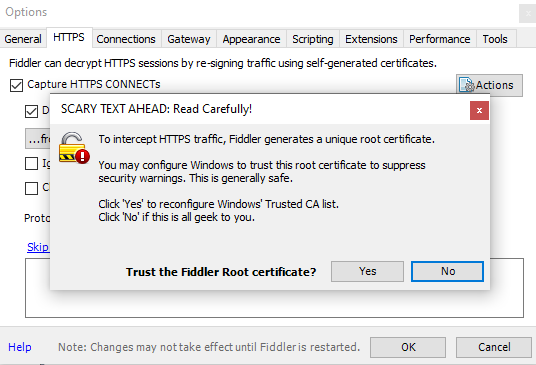
- Select Yes to continue.
- From the Security Warning window, select Yes to continue.
- From the Add certificate to the Machine Root List? window, select Yes to continue.
Fiddler added its root certificate to the Machine Root list. Now, it's configured to capture HTTPS traffic. You can visit your target website so that Fiddler can capture the traffic to scan this website in Invicti Enterprise.
Export URLs from Fiddler
-
Visit the URLs at the target website.
-
From the Session List tab, select your targets.
-
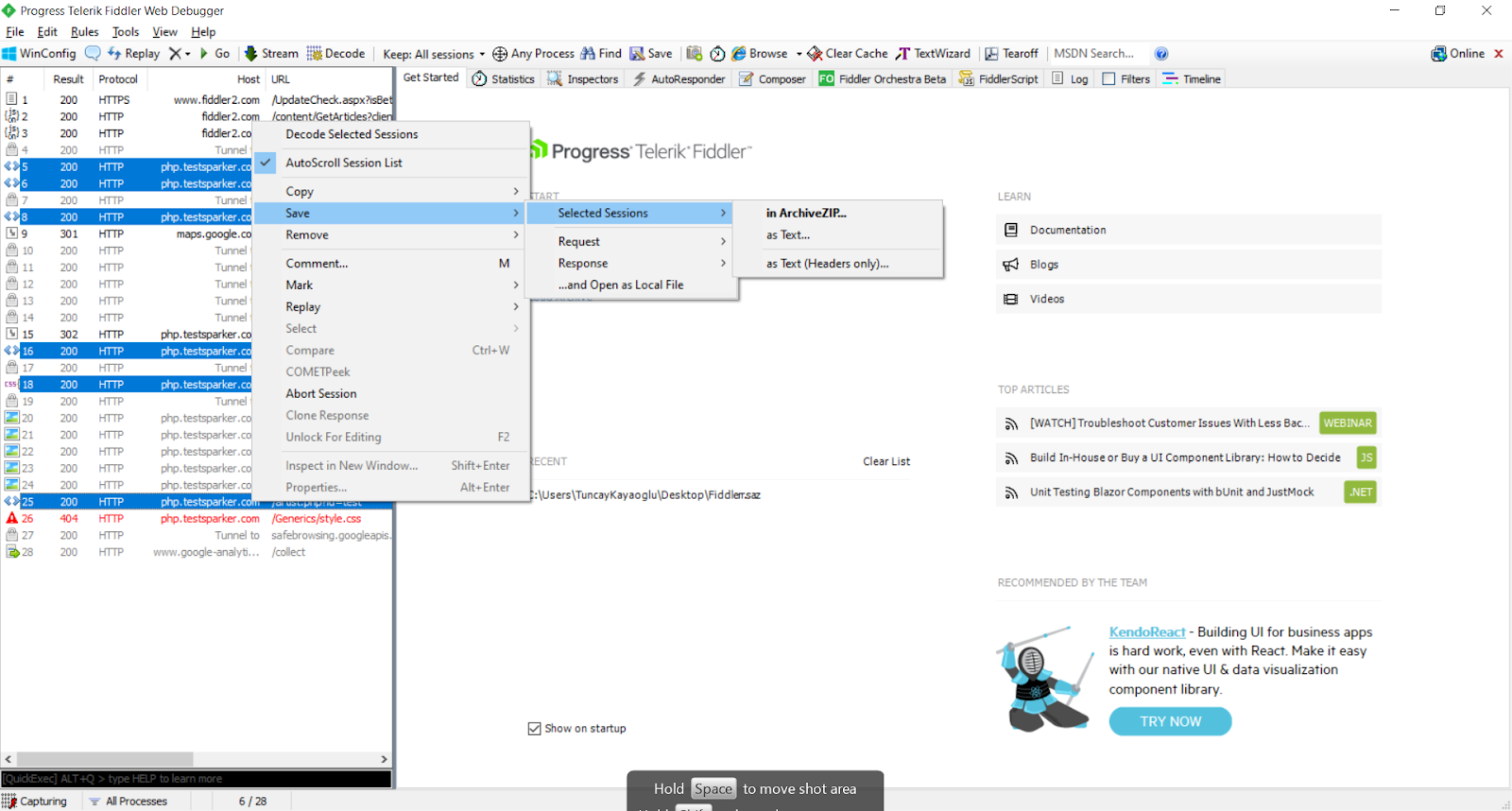
Right-click, and select Save > Selected sessions > in ArchiveZIP. A dialog box is displayed.
-
Enter a filename, and select Save.
HTTP archives
HAR (HTTP Archive) is a file format that logs session data between the client and the server. It is a JSON-formatted archive file that saves the information of all web responses and requests made with the browser, which helps detect performance issues. Since you can log your session, you can easily export URLs that you visited into your Invicti product for scanning.
With browsers, you can save HAR files. No additional program is required. In this procedure, Google Chrome is used to create a HAR file.
Export URLs from Chrome
-
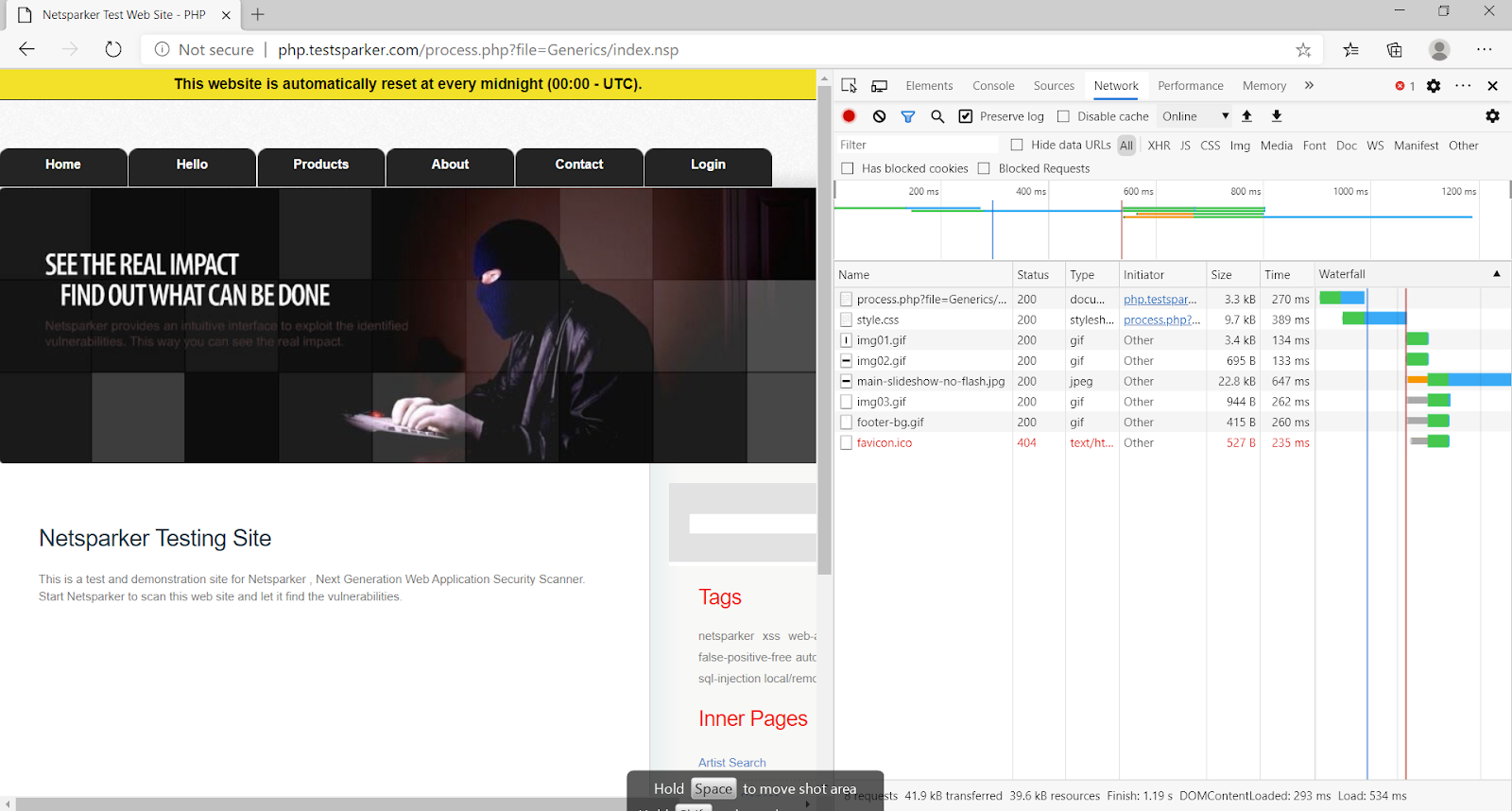
Press F12 on your keyboard to open Developers tools and then select the Network tab.
-
Ensure the Preserve log box is checked and Network traffic (red dot) is logged.
-
Delete the traffic already appearing in the window.
-
Visit the URLs at the target website.
-
Right-click and select Save all as HAR with content. A dialog box is displayed.
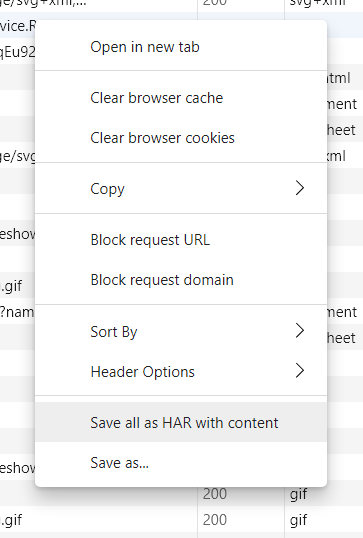
- Enter a filename and select Save.
I/O docs
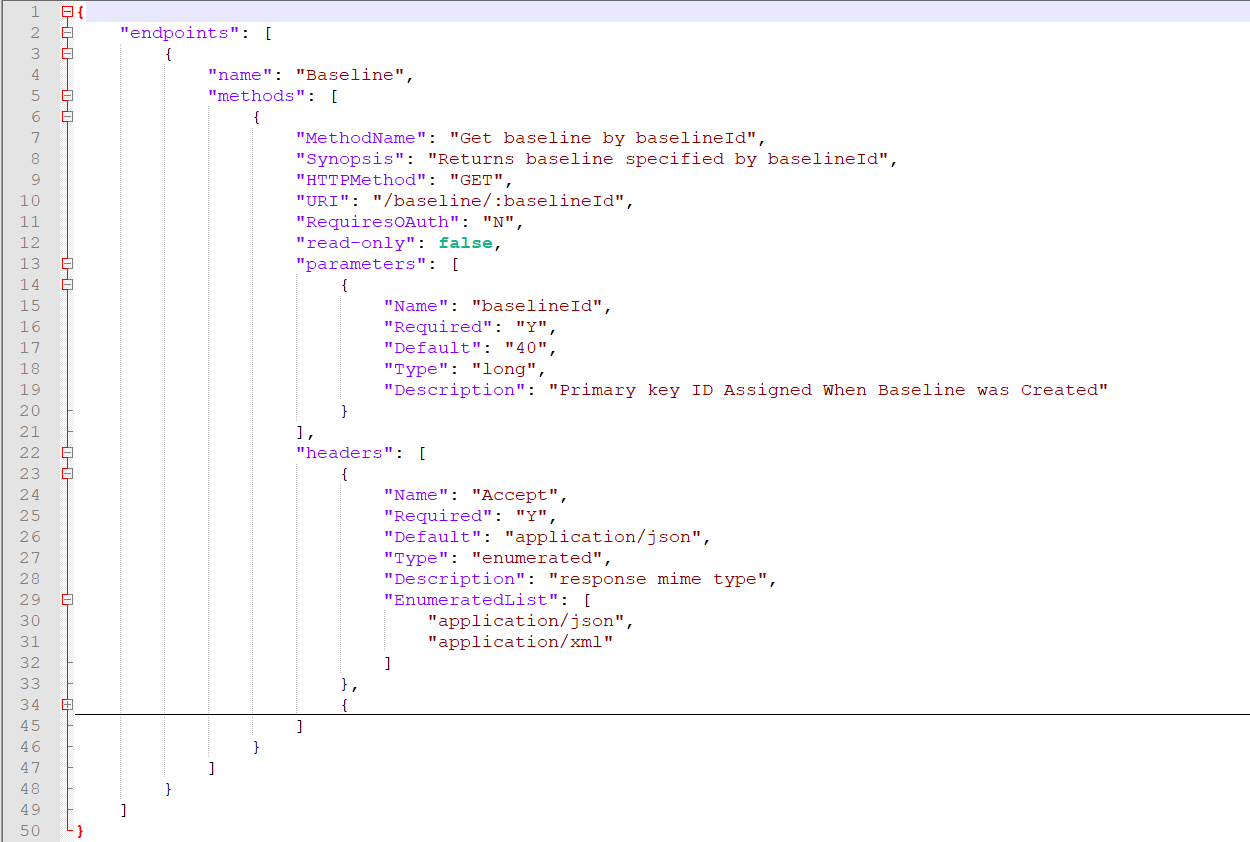
I/O Docs is a live, interactive documentation system for RESTful web APIs. When the method, resources, and parameters of APIs are defined in JSON format, I/O Docs will automatically generate a JavaScript client interface to test exposed API functions. URLs can be imported from I/O Docs files to feed the Invicti link pool.
Invicti Session File
URL importing allows you to upload an Invicti Session File. You can upload an AutoSave file created by Invicti Standard or a report file generated by either Invicti Enterprise or Invicti Standard. The scanner identifies any URLs in these files and imports them into your Invicti product.
Import URLs as an Invicti session file from Invicti Enterprise
- Select Scans > New Scan from the left-side menu.
- On the New Scan page, select the Links/API Definitions tab.
- From the Import Links drop-down, select Invicti Session File, then upload the saved file.
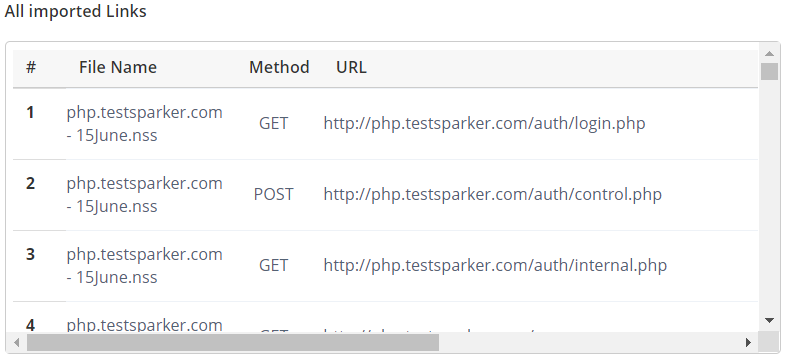
- You can view the imported links when the upload is successful.
Import URLs as an Invicti session file from Invicti Standard
- Select New in the Home tab.
- On the Start a New Website or New Service Scan window, select the Imported Links tab.
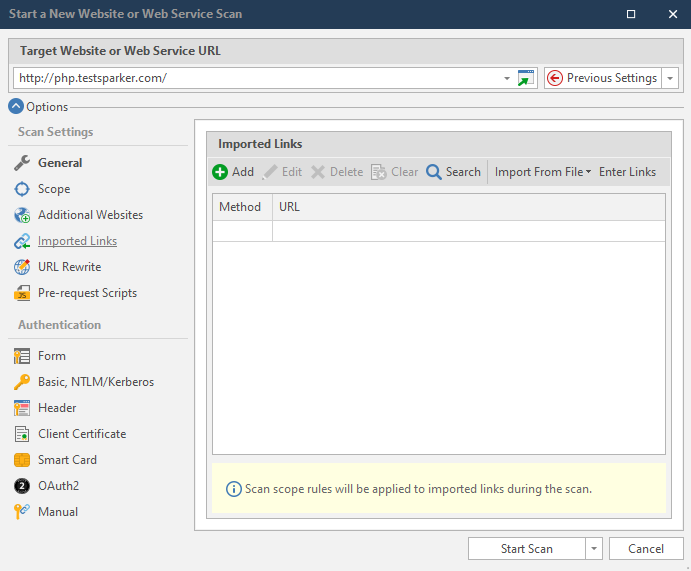
- From the Imported Links drop-down, select Invicti Session File, then upload the saved file.
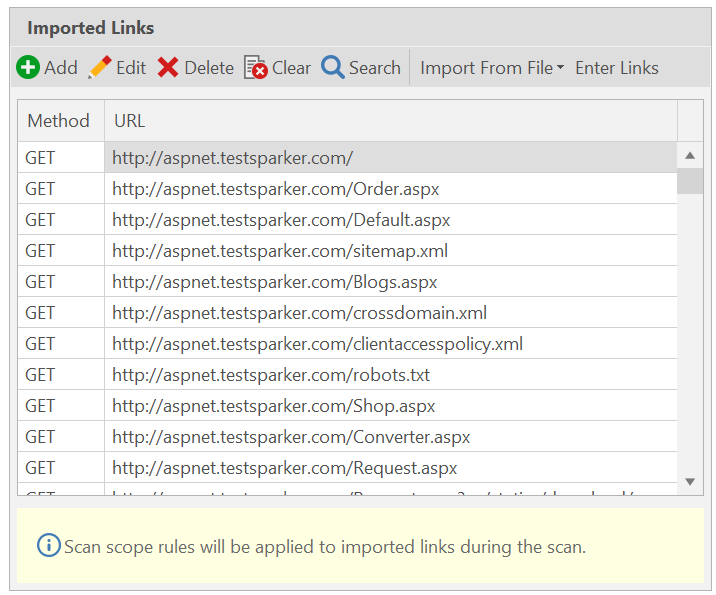
- You can view the imported links when the upload is successful.
OWASP ZAP
Zed Attack Proxy (ZAP) by Checkmarx (previously 'OWASP ZAP') is a free, open-source penetration testing tool designed specifically for testing web applications.
You can export all of the URLs recorded by ZAP using the top-level menu: Report > Export All URLs to a File However, first, you need to install the Report Generation Add-on from the ZAP Marketplace.
Postman collections
Postman is an API testing tool that offers integration capacity with the CI/CD pipeline. It also helps you to create mock-up tests and API documentation.
You can create request collections and API test suites in Postman. You can also use request collections prepared in Postman in your Invicti product when you're auditing your web application or API security.
Invicti Standard and Invicti Enterprise support the Collection Variables.
Export URLs in Postman
-
Create a request collection and requests individually. (If you already have collections, go to the next step.)
-
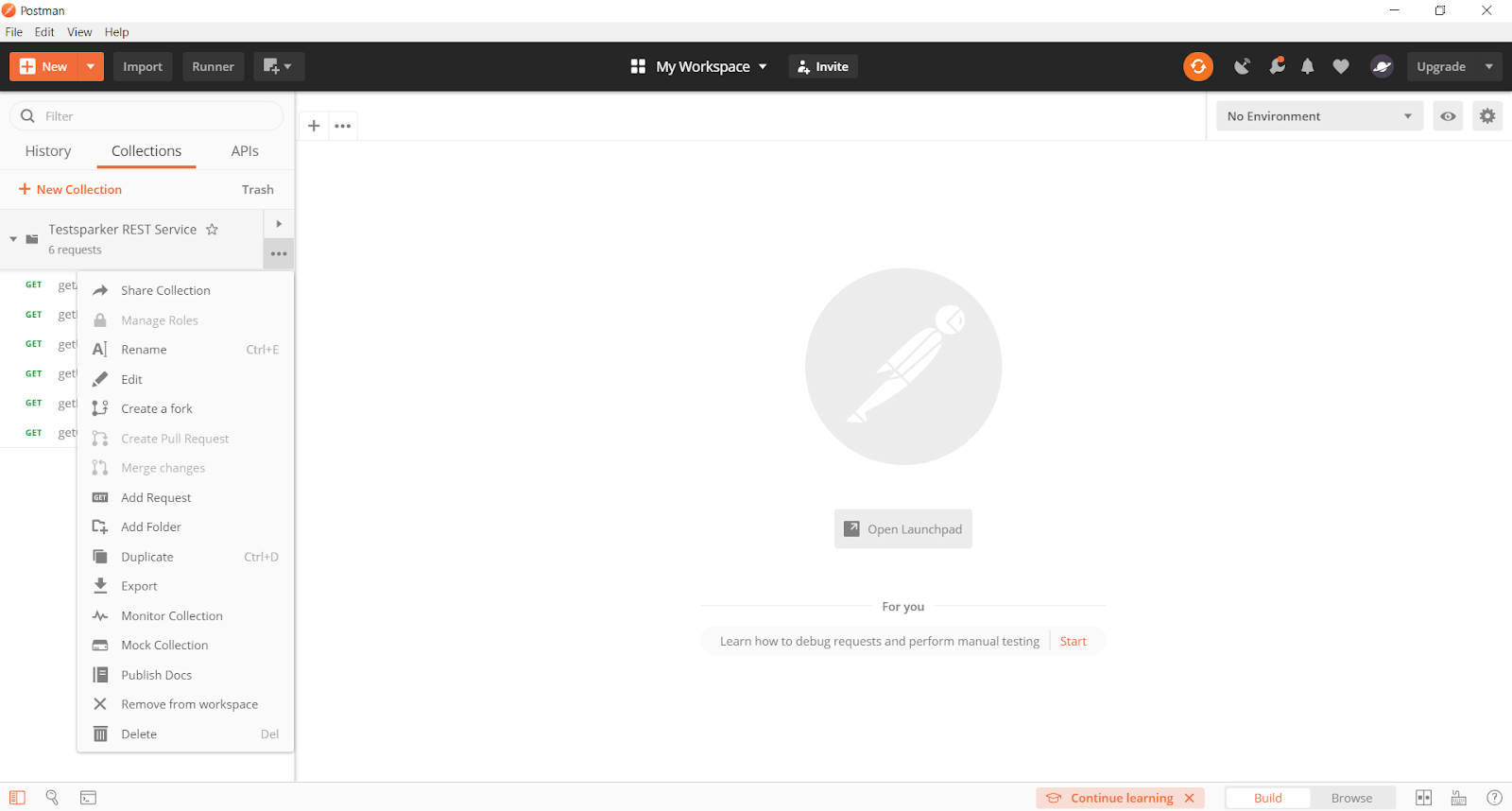
Next to your request collection, select the ellipsis button to display the menu.
-
Select Export.
-
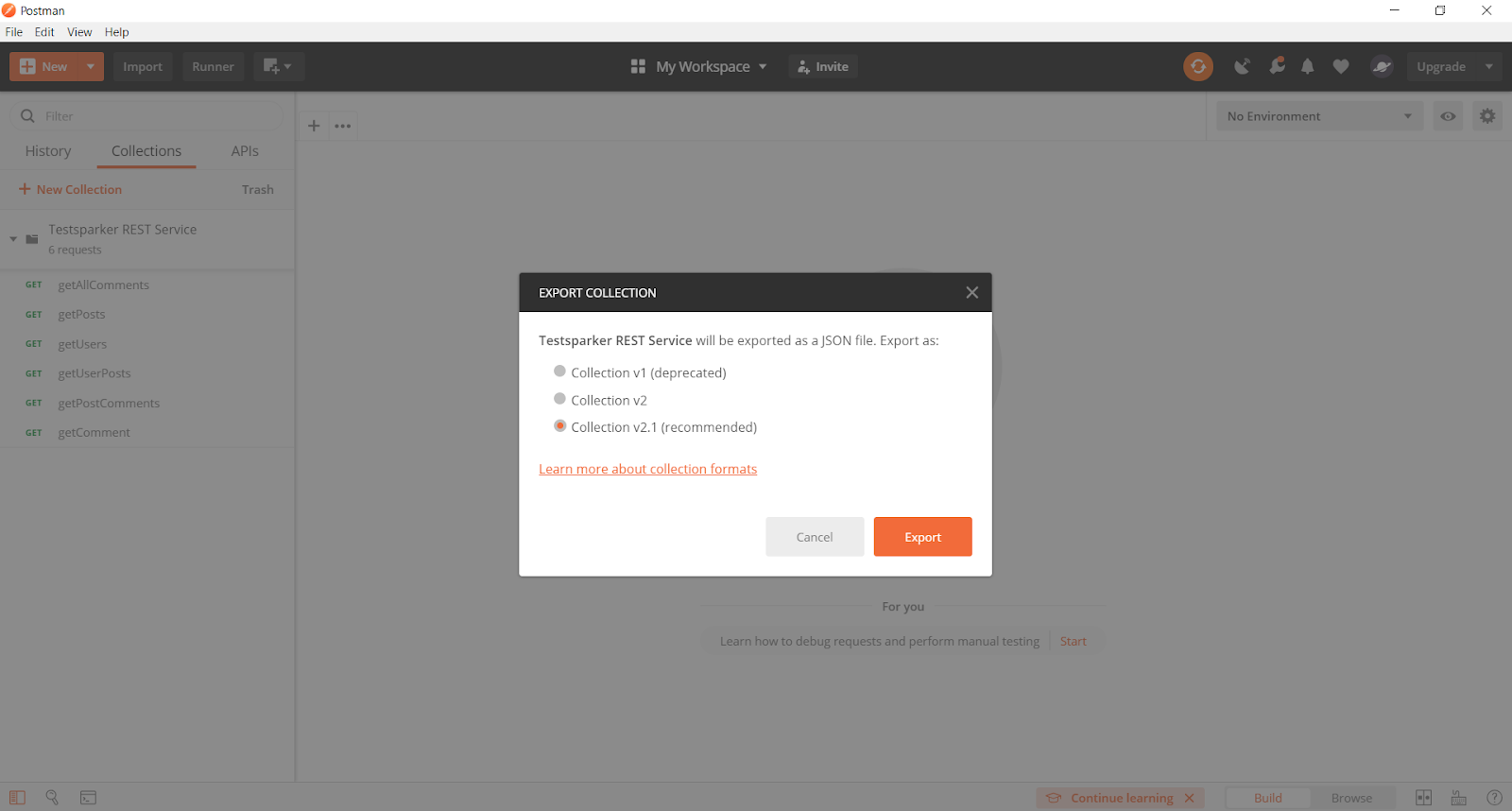
On the Export Collection window, select the required format, and select Export.
-
In the window that opens, select a location, and Save.
RAML
The RESTful API Modeling Language (RAML) is a way to describe RESTful APIs so that both humans and computers can read them. It describes resources, methods, parameters, responses, and media types in a clear way. Providing a structured and clear format for API, RAML makes it easy to manage the entire API lifecycle. RAML can also describe those APIs that don't obey all the constraints of REST.
Open API
Open API is a technical specification that describes certain APIs. It allows humans and computers to discover and understand the capabilities of a service that doesn't require access to source code, additional documentation, or the inspection of network traffic.
Web Application Description Language
WADL (the Web Application Description Language) is an XML description of HTTP-based web services that a machine can read. Aiming to simplify and promote the reuse of web services based on the existing HTTP, WADL describes the resources provided by a service and the relationships between them.
Web Services Description Language
WSDL (Web Services Description Language) is an XML file that tells the client application what the web service does. It also provides all the information necessary to connect to the web service and use all the capability provided by the web service.
WordPress REST API
WordPress is a popular open-source content management system. With JSON (JavaScript Object Notation) format, WordPress REST API provides an interface for other websites and software to interact with your WordPress site in sending and receiving data.
Need help?
Invicti Support team is ready to provide you with technical help. Go to Help Center